

A task estimate is essential for planning. It serves as a benchmark, aiding in tracking progress, managing workloads, and allocating resources efficiently.
Previously, we covered what story points are in Agile planning. This time, we’ll focus on what a task estimate means in the BigPicture context and explain how it relates to your project resources and schedule.
What is a task estimate?
A task estimate is a numeric approximation of the time or effort required to complete a specific task or activity. Project managers use it to plan and allocate resources effectively, set deadlines, and manage expectations. Task estimates are crucial for scheduling, budgeting, and tracking progress throughout a project’s lifecycle.
In BigPicture, you can estimate your task using time units like minutes, hours, days, or man-days. The app also supports unitless values like story points.
There are two types of task estimates in Jira: the Original Estimate and the Remaining Estimate.
Original Estimate
An “Original Estimate” refers to the upfront, best-guess approximation of the time required to complete a specific task or issue. Set at the beginning of the task planning process, it serves as a benchmark for tracking progress and comparing actual time spent against the estimated time. It should remain unchanged, but you can adjust it if your project requires.
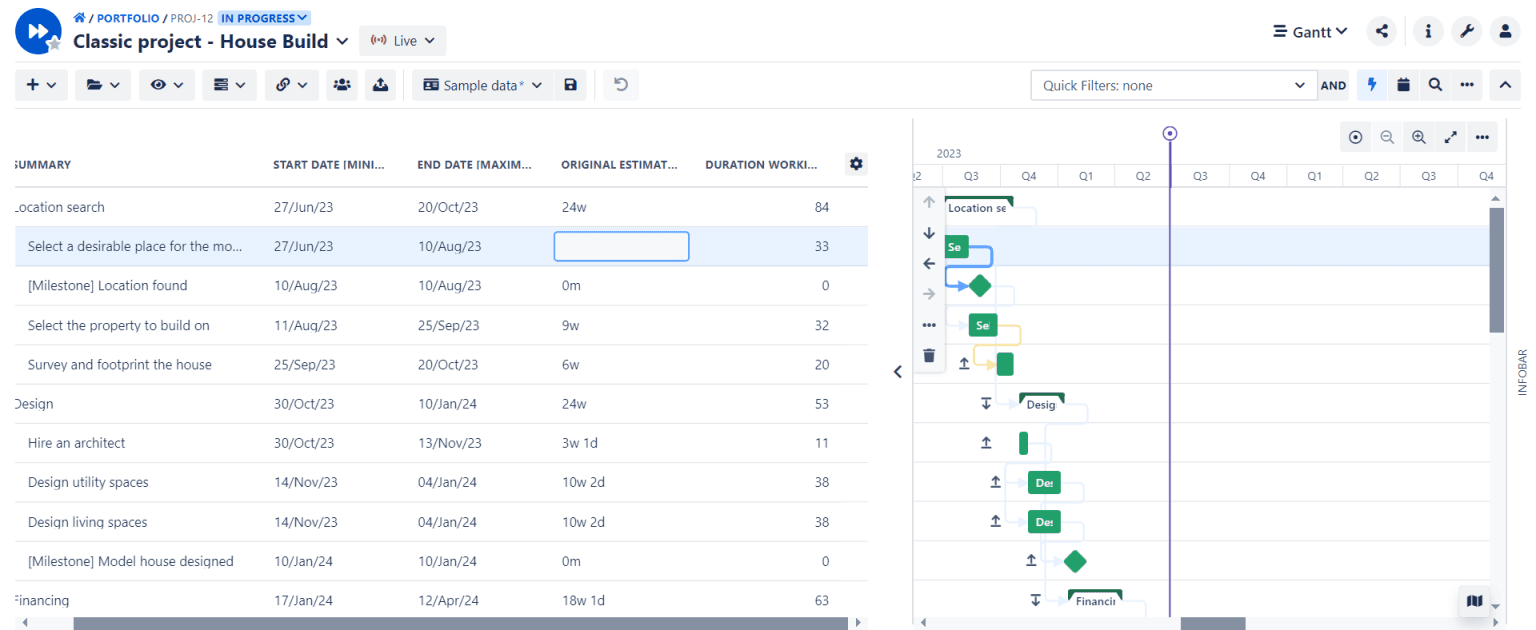
Please note that the format of the estimate you enter will depend on your time-tracking settings in Jira. For example, if you set the format to hours in Jira and estimate the task to 36.5h, BigPicture will also display the estimate in hours (36.5h) instead of in days and hours (4d 4h 30m).
Remaining Estimate
A “Remaining Estimate” is the updated approximation of the time needed to complete a specific task or issue. It’s a dynamic estimate that reflects the current assessment of the work left, taking into account any progress made and time logged on a task.
How task estimates impact your project
Task estimates provide a basis for planning, help track progress, manage workloads, allocate resources effectively, set realistic deadlines, and identify potential risks. Accurate estimates ensure projects are completed on time and within budget.
Let’s look at task estimates (Original and Remaining) in the context of BigPicture.
Project scheduling
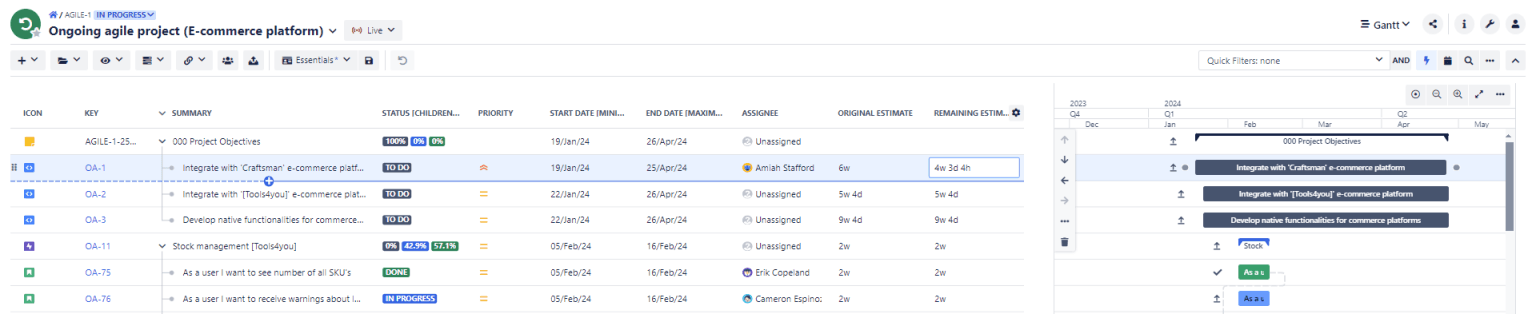
To fully schedule a task, provide start and end dates. You can allow the app to automatically calculate the task date (end or start date) for you based on the task’s Original Estimate or the Remaining Estimate + Time Spent.
This mechanism also works the other way around: BigPicture can update a task estimate when the task date(s) changes.
In the example above, we mapped the End Date field in BigPicture to the Original Estimate field in Jira. Thanks to this, when we changed the task estimate value, the app adjusted the task end date and the taskbar’s length accordingly.
Task progress
Task estimates also serve as a basis for progress tracking.
Instead of manually updating progress fields (which you can do in BigPicture), the app can calculate a task’s progress based on its Original or Remaining Estimate and Time Spent values.
The app will display the progress bar (with or without %) in the Time Tracking column. Additionally, you can enable the progress to display directly on the taskbars.
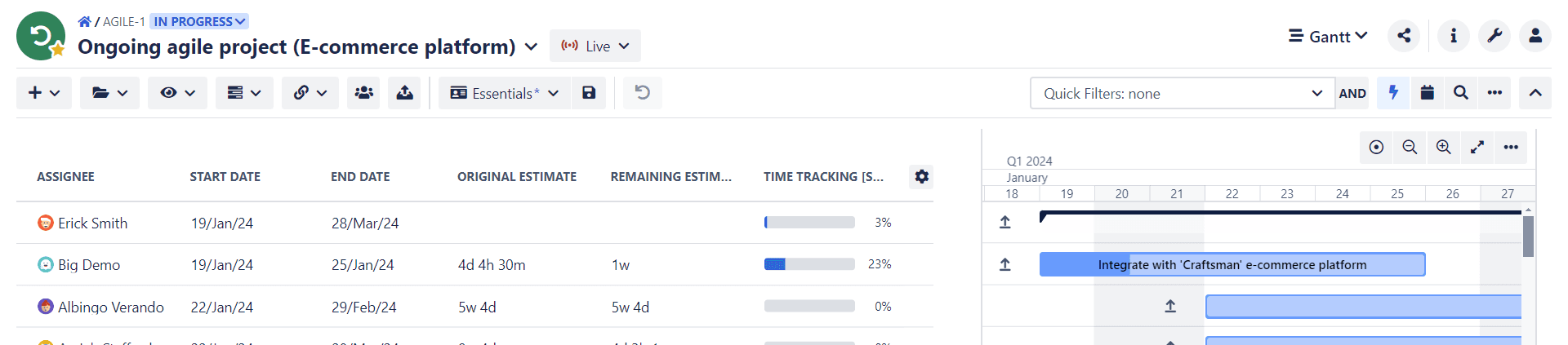
You can then aggregate that data in the Time Tracking column in different ways, both on the parent and/or child levels.
Resource workload
Resource workload is another aspect of a project where task estimates play a significant role.
Workload is the sum of effort assigned in a specific period (e.g., one Sprint or one full-time week). That effort is estimated in time units or story points.
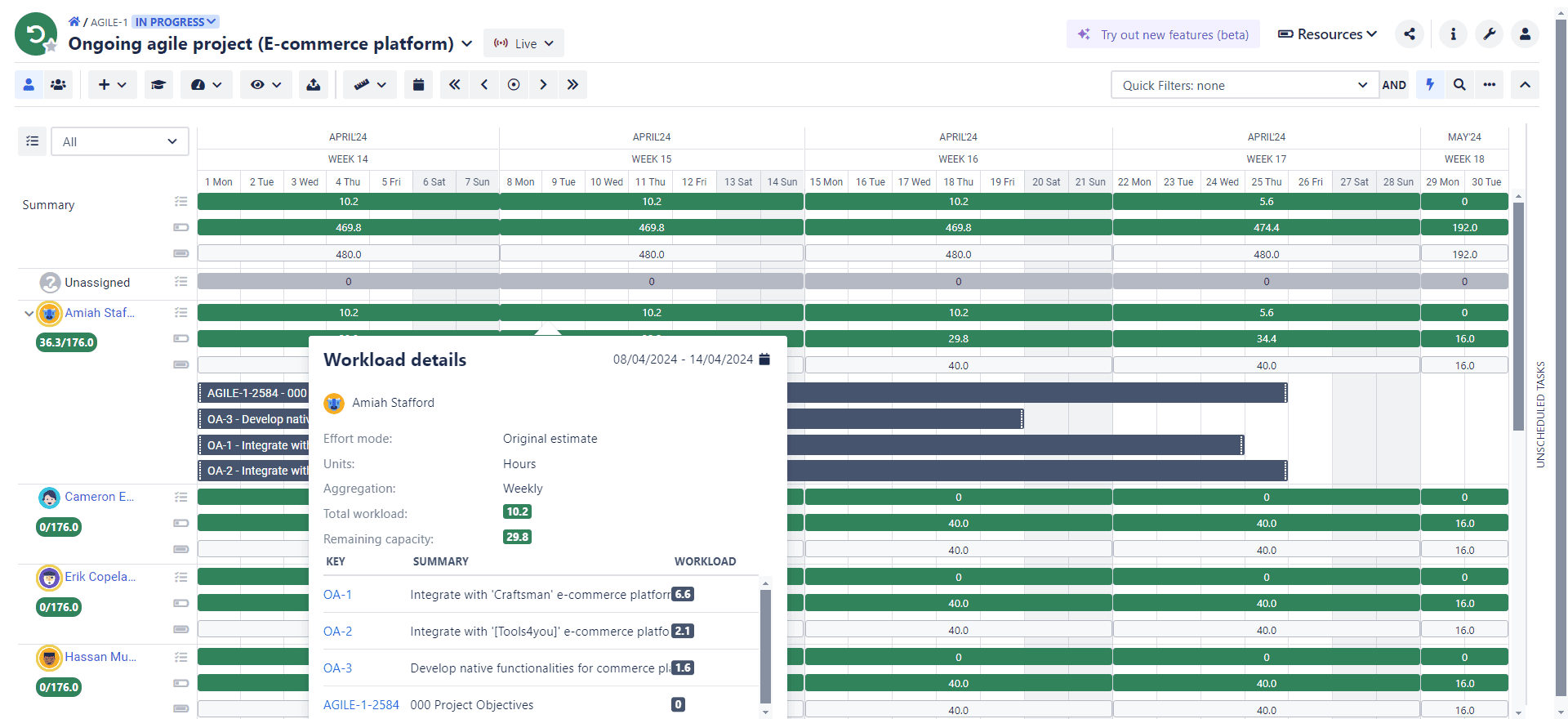
For example, if you estimate two tasks for 3 and 8 story points, respectively, the assignee’s estimated workload will be 11 story points. The Resources module will reflect that workload in the form of colored bars.
The app can display the workload for every individual assigned to your project and a collective effort for the entire team.
Resource capacity
The task estimate determines the workload. In turn, the workload is one of the factors determining resource capacity (alongside the Workload plan and Holiday Plan, which determine available hours).
The workload and available hours give current and remaining resource capacity. In BigPicture’s Resource module, you can read the maximum capacity in a given period and how much of that capacity is left (taking into account the tasks already assigned).
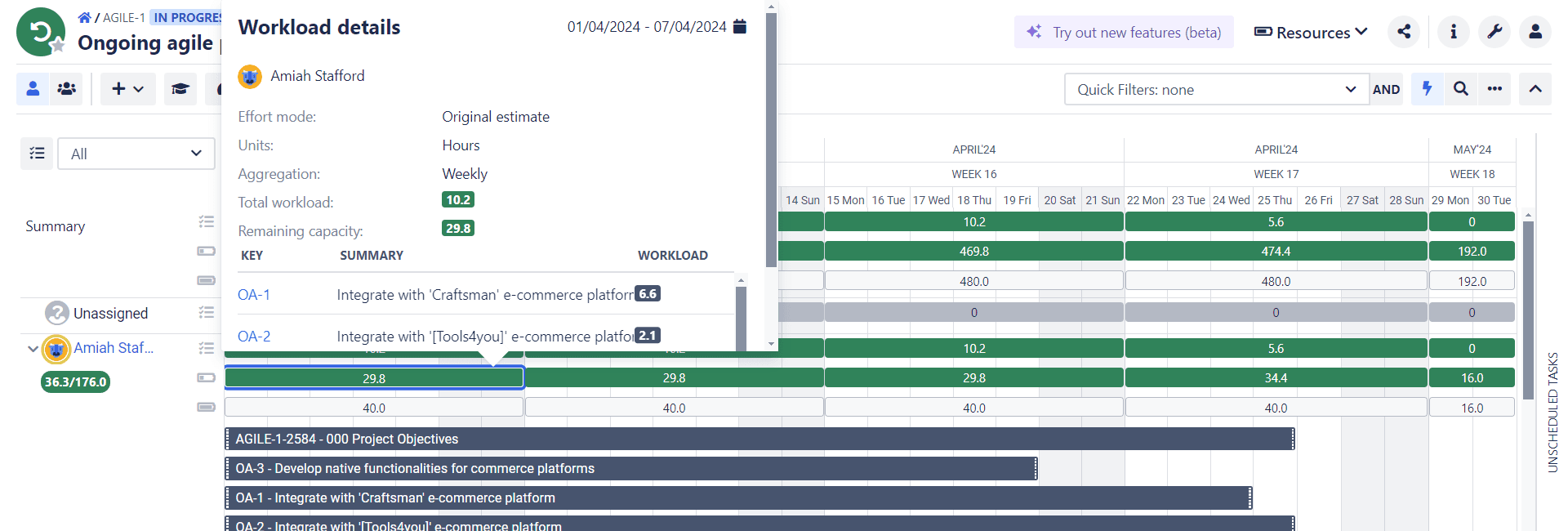
Task estimates indirectly determine how much work an individual or a team can take into a Sprint, week, month, and so on.
Playing with task estimates to solve capacity issues
Let’s consider a case when you have an overburdened resource whose workload (the cumulative estimates) exceeds their capacity. There are a few approaches you can try to remedy the situation:
- Reevaluate the task estimate. Perhaps you have overestimated it.
- Reassign one or two tasks to another person or team with the necessary skills and remaining capacity.
- Reschedule the task for when a skilled resource has the capacity to work on it.
- Adjust the task workload distribution.
Workload distribution
When it comes to workload distribution, you have two possible solutions: extending a taskbar (increasing task duration) or changing the way the task estimate is distributed (without changing task duration).
Imagine putting peanut butter on toast. The amount of peanut butter is the task estimate, and the size of the toast is the task duration. If your toast is small, the layer will be thick. But if you spread the same amount of peanut butter across a bigger slice, the layer will be thinner. Similarly, extending the taskbar spreads the workload over a longer period.
Workload contouring
In BigPicture, you can use different workload contouring modes to distribute the task estimate (Original or Remaining) over a specific period of time. This shifts more workload to specific days and leaves more room for work on others, giving you more control over the overall burden of your resources.
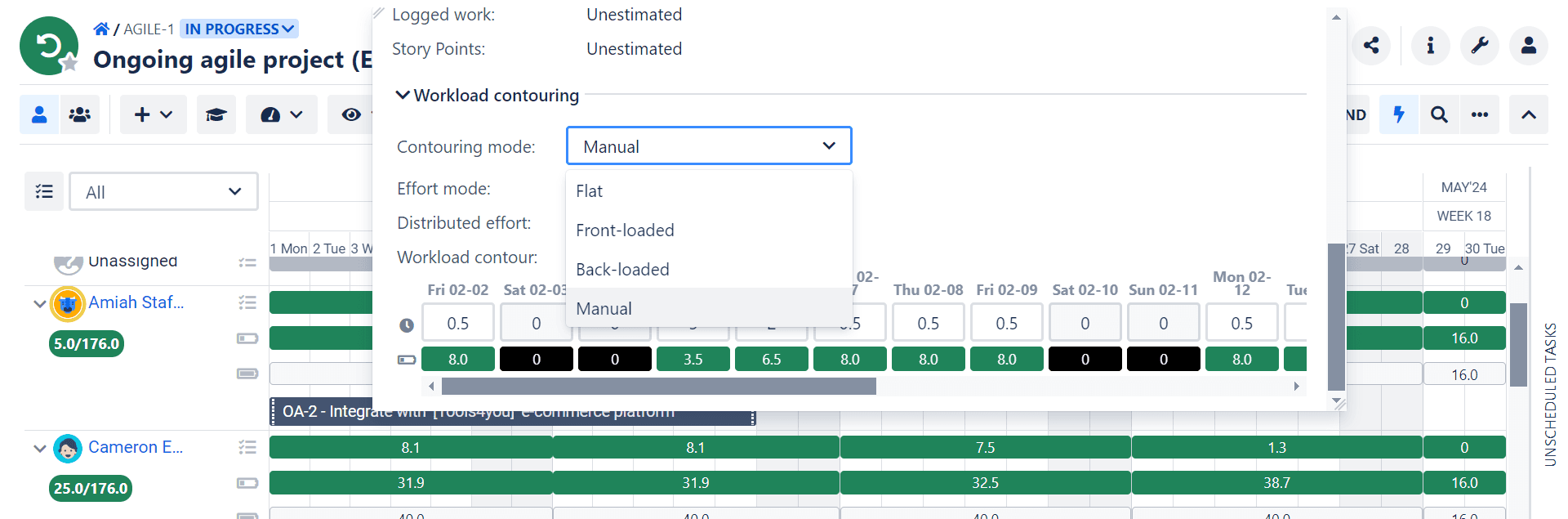
For example, a manual contouring mode (BigPicture Enterprise) enables you to decide the number of hours you want your assignee to spend each day. You can add the maximum workload on Monday, then only one hour on Tuesday, and three hours on Wednesday.
Then, if you notice that Thursday and Friday overlap with another task, you can set the hours for that task to zero during those two days.
Sign up to try BigPicture for free
BigPicture helps you plan, build, and manage complex projects and portfolios. You can estimate tasks using different values and units, control and adjust estimates, and keep your schedule up-to-date.
Ensure your resources have a healthy workload: Sign up for a 30-day free trial and see how BigPicture streamlines projects of any size, methodology, or complexity. Visit our demo page to try all BigPicture features inside your browser.
Try BigPicture for free