
Step 1
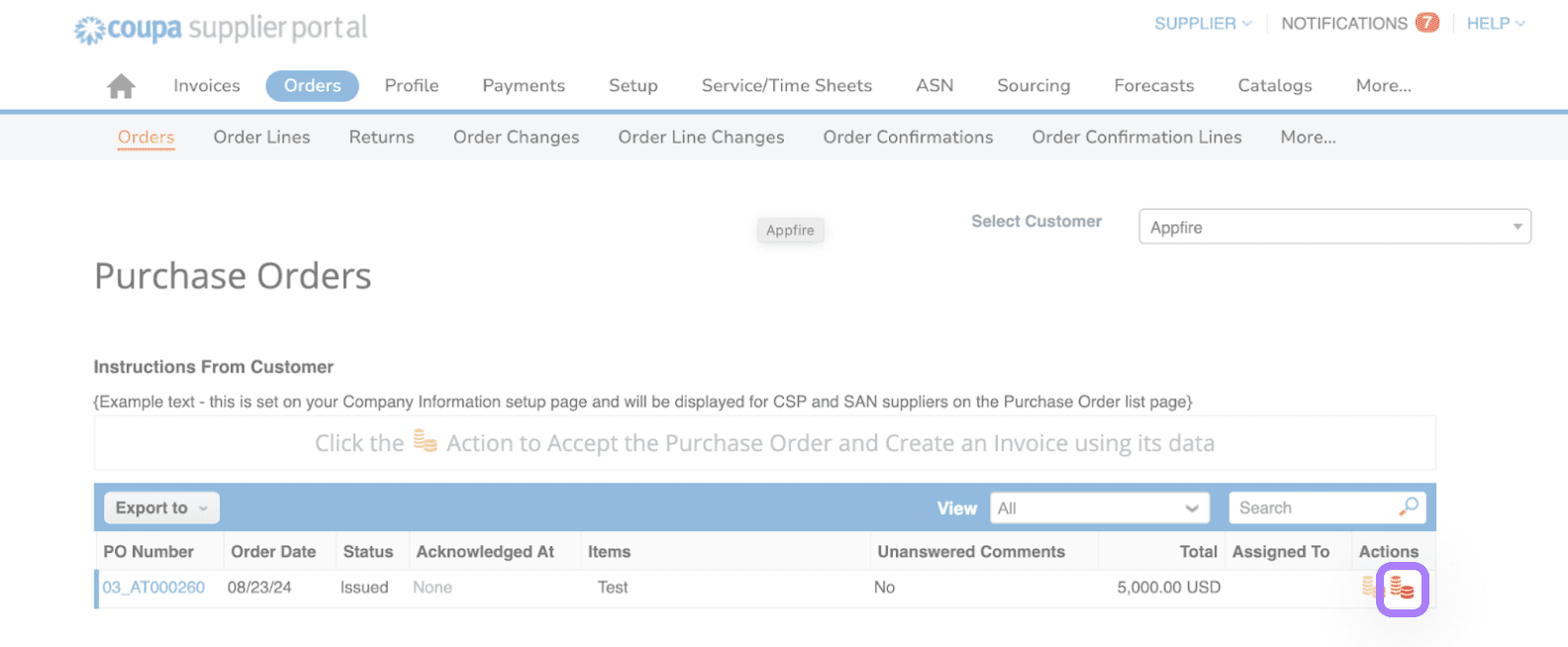
Locate the PO you wish to credit against. Select the red coins (create credit note) under actions to begin creating your credit note:
Step 2
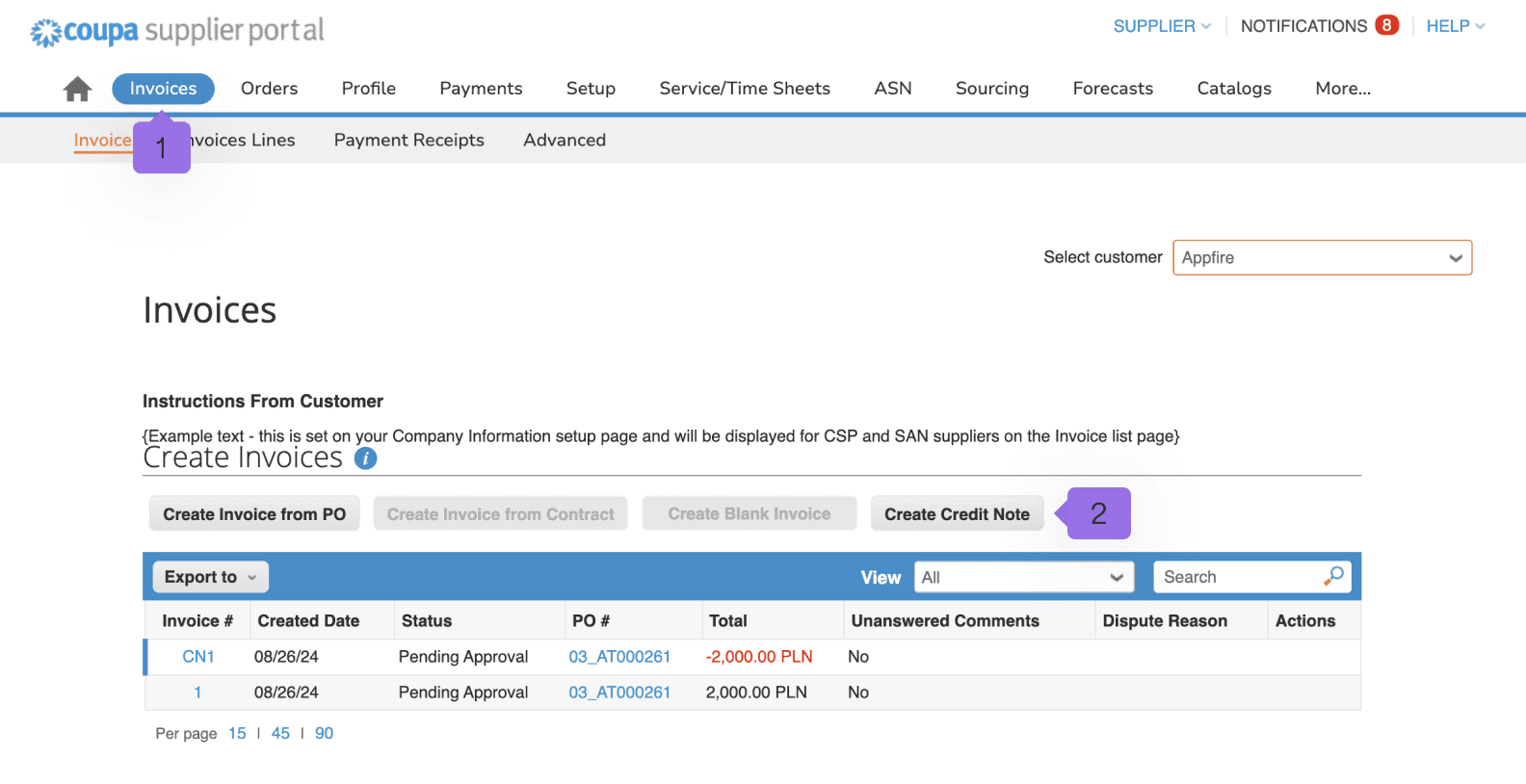
You may also create a credit note by selecting the invoices (1) tab and the create credit note (2) for your selected customer.
Step 3
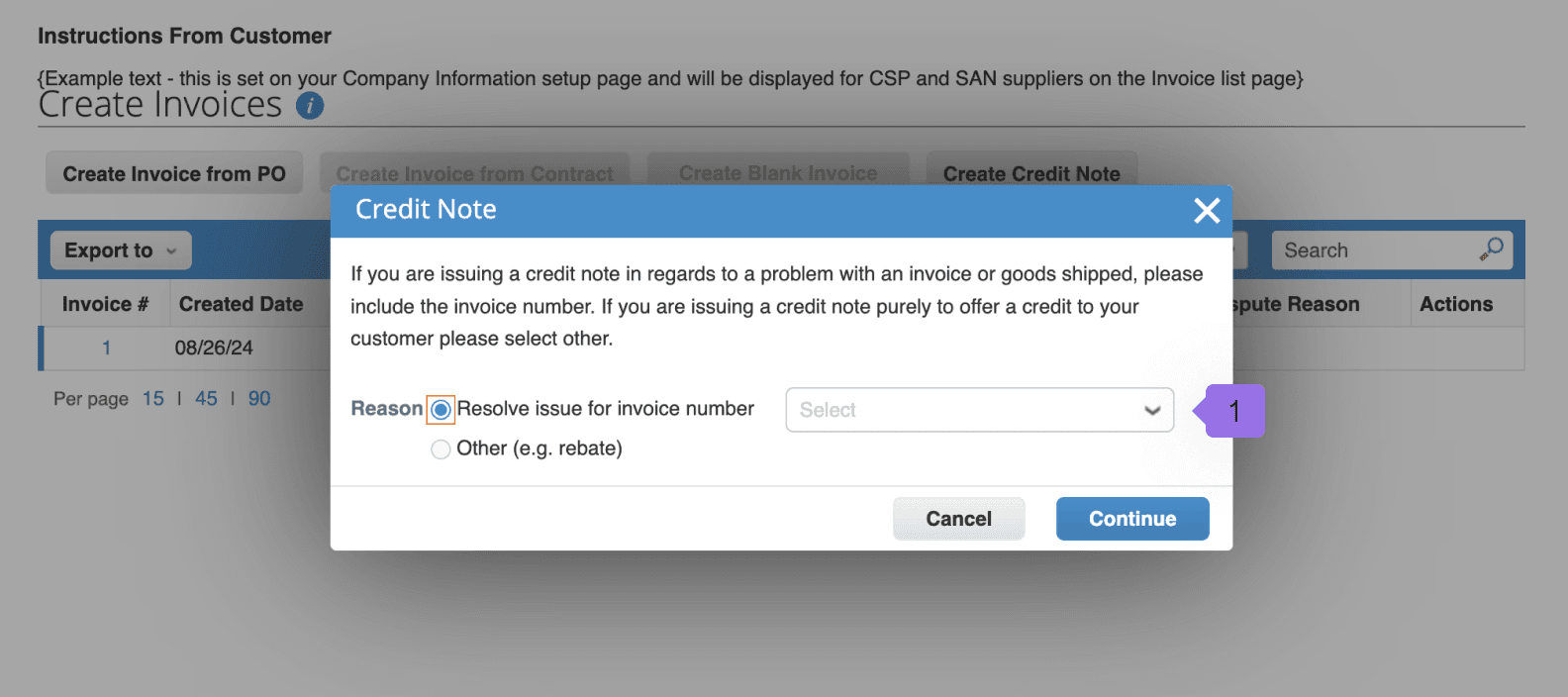
Select the relevant invoice number from the resolve issue for invoice number dropdown (1).
Note: You can only adjust for Invoices you have created, not ones that Appfire has created. If you need to contact Appfire for a credit, please contact procurement@appfire.com.
Step 4
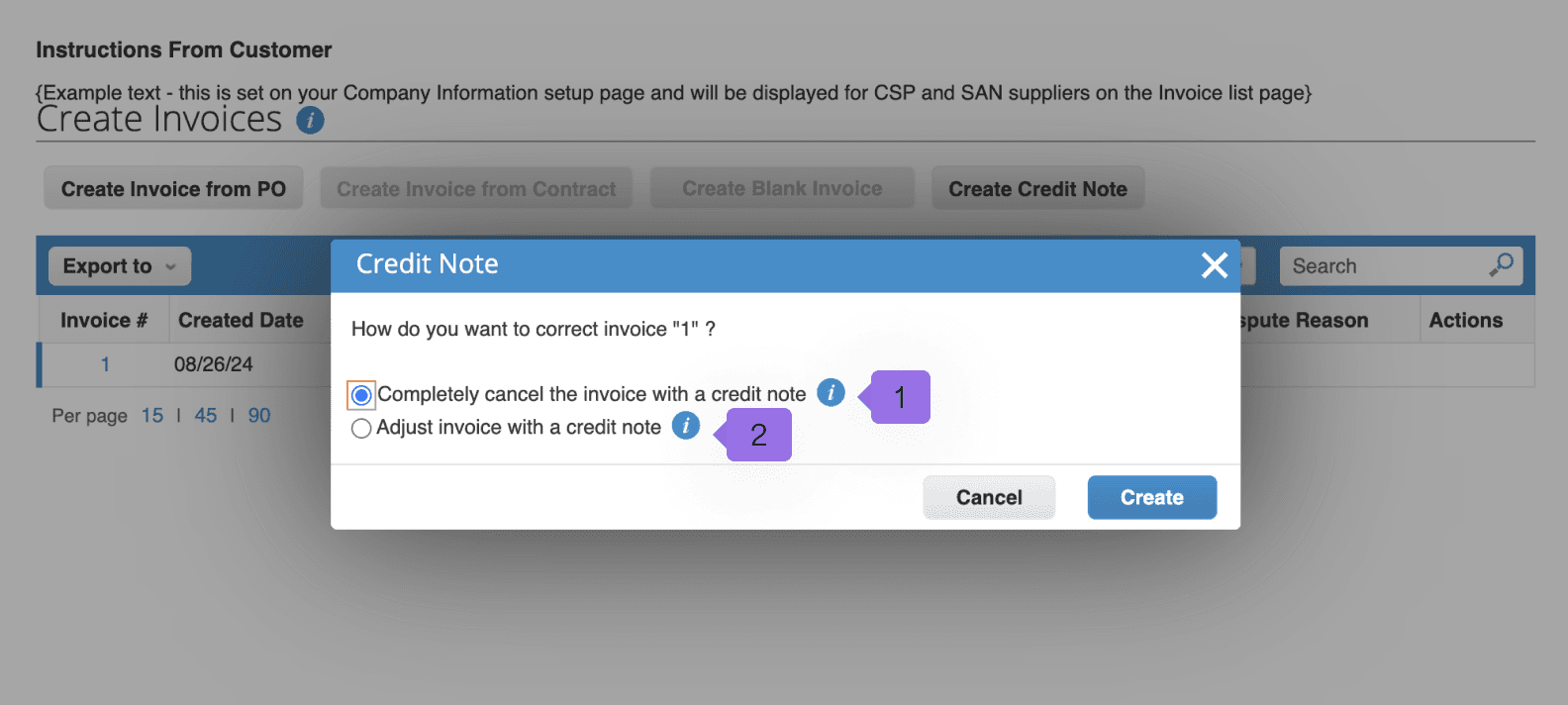
Select if you would like to cancel (1) or partially adjust the invoice with a credit completely (2):