
Create an invoice
Step 1
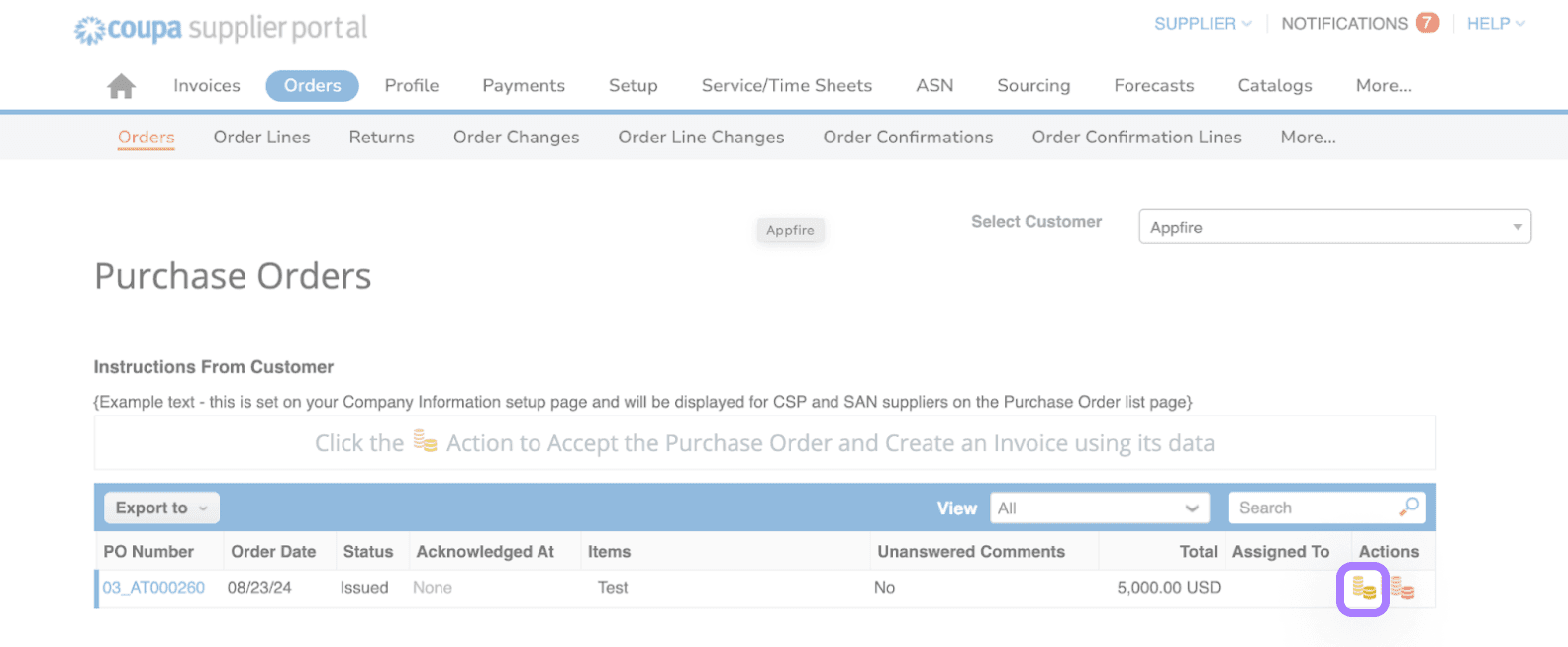
Locate the PO you want to Invoice against. Select the gold coins (create invoice) under actions to begin creating your invoice:
Step 2
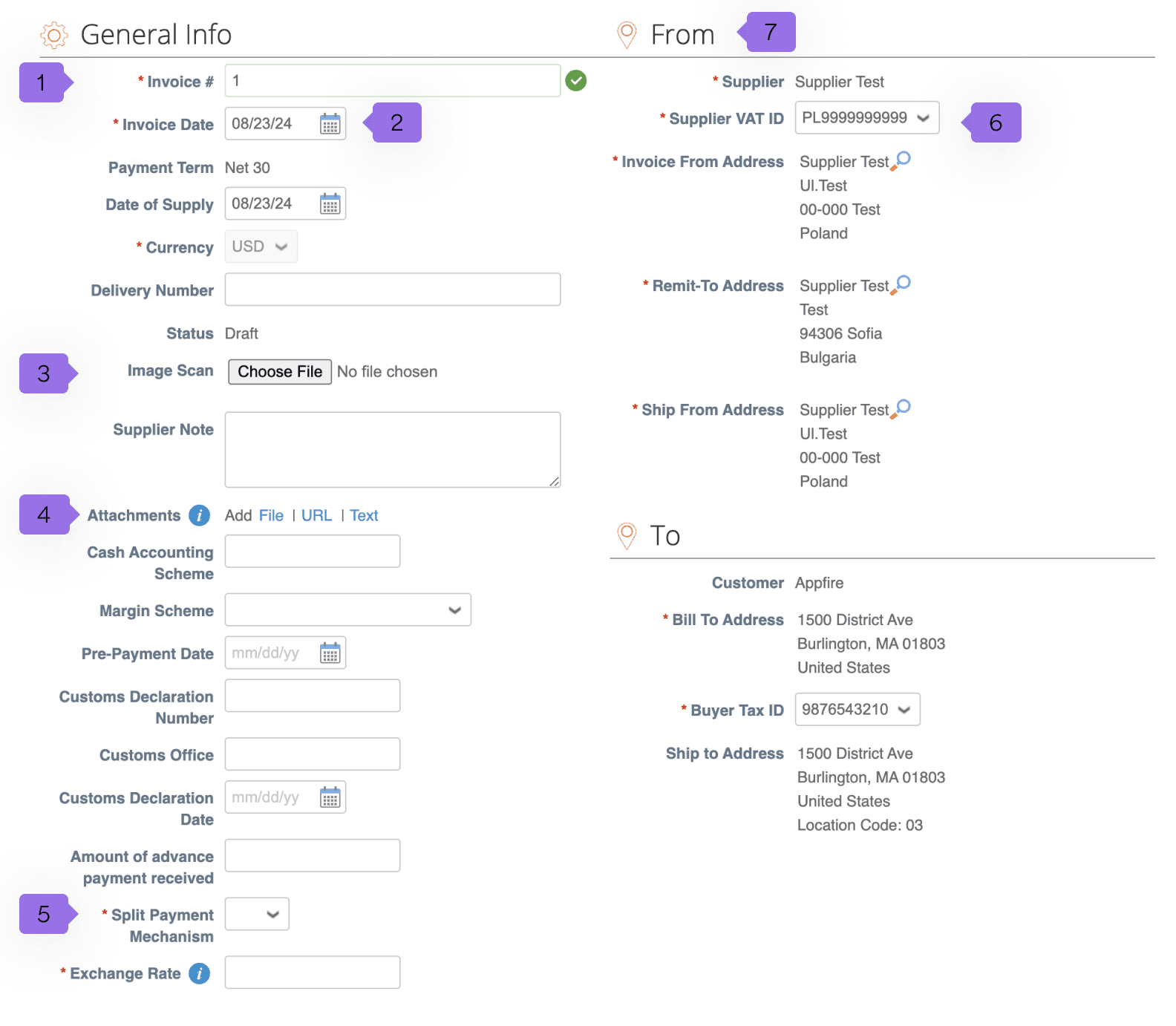
After clicking create invoice, you will be automatically transferred to the “create invoice” view in Coupa. From here you will be required to fill in the following information:
- Insert invoice number: Must be unique to you. Please note invoice numbers cannot be duplicated.
- Invoice date: Insert invoice date. Date will automatically default to today's date.
- Image scan: Add any relevant attachment for invoice, such as an Excel file, or other related support materials.
- Attachments: Other files can be placed in attachments (i.e., Excel file).
- Split payment mechanism: This is intended only for Non-PO backed invoices.
- Supplier VAT ID: Only required for EU countries.
- “From” section: The “from” section is the name of section which data can be changed or added under profile settings. You can your applicable information as needed in the CSP.
A note on exchange rates: Coupa uses the exchange rate you provide here to calculate your invoice's local currency tax amount. Coupa converts the invoice currency into the local currency. For example, if you are a UK supplier invoicing in USD, Coupa will convert the USD into GBP using this exchange rate. The exchange rate you provide should comply with your local tax requirements.
Step 3
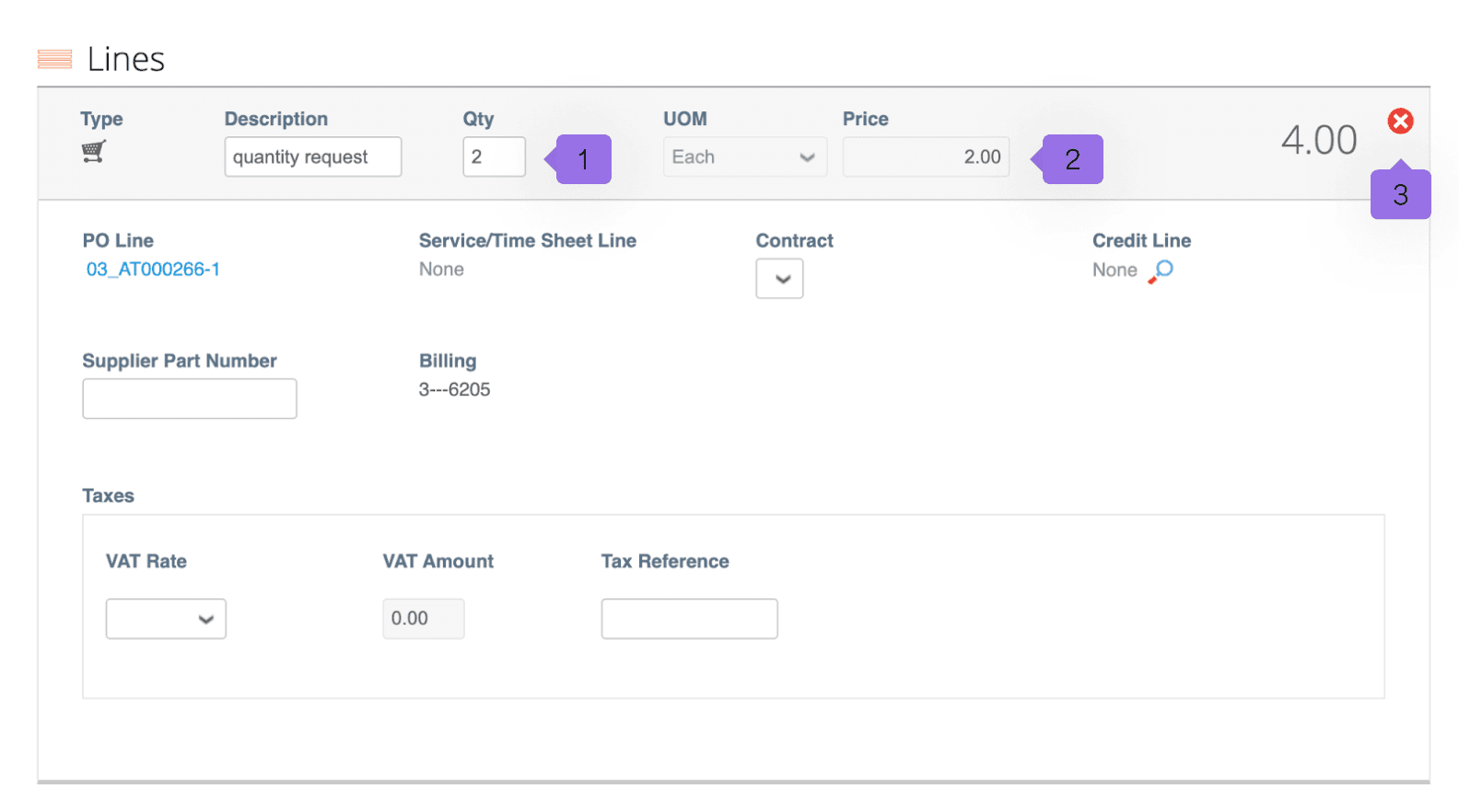
Review the line level of your Invoice.
If your purchase order (PO) has multiple lines, you’ll see them listed here. To invoice only part of an order:
- Adjust the quantity (1) and/or price (2) as needed.
- To remove an entire line, click the red "X" (3).
Step 4
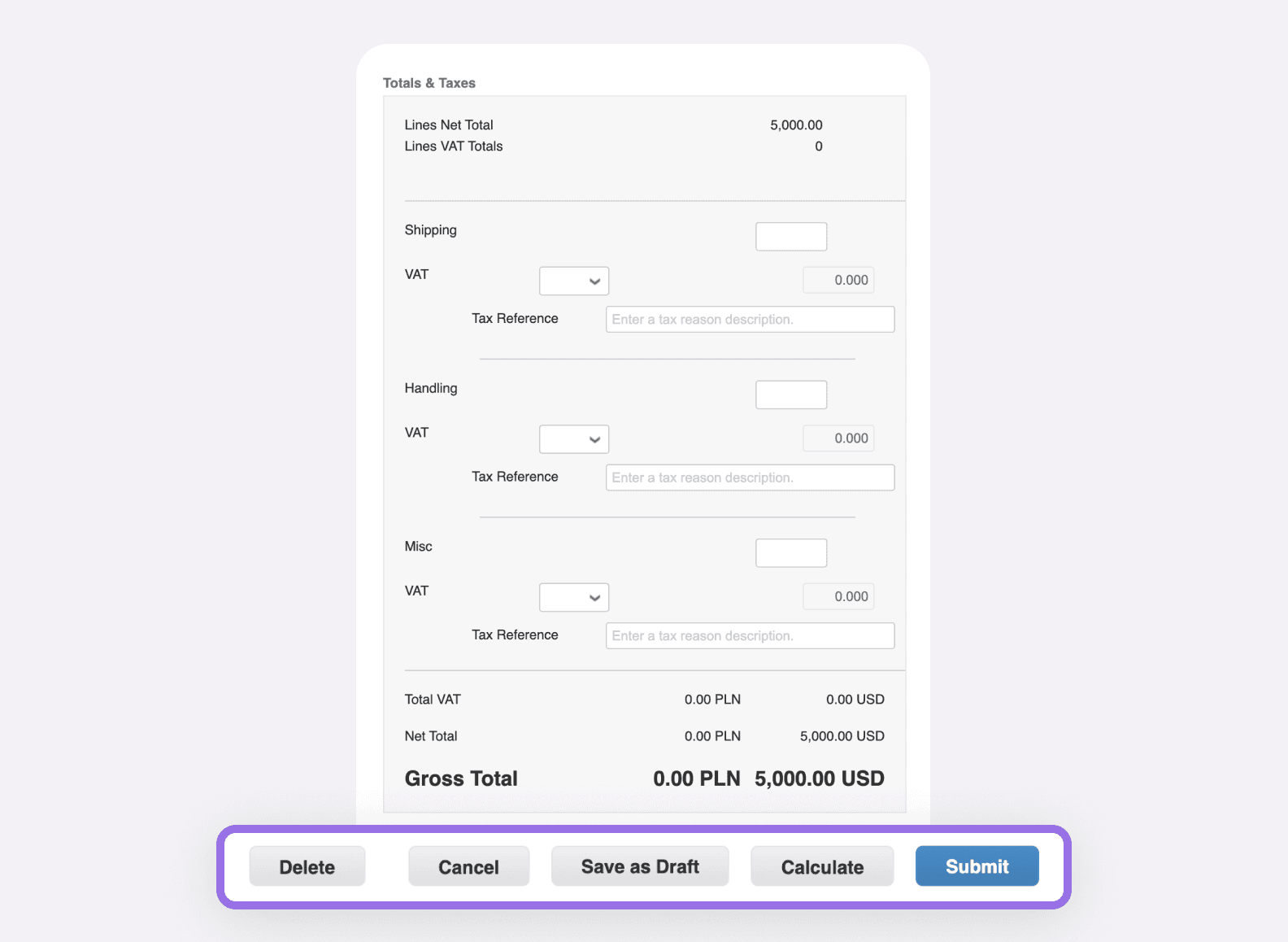
Insert any applicable taxes/fees at the bottom of your invoice.
You may delete, cancel, save as a draft, calculate, or submit the invoice to Appfire once completed:
Step 5
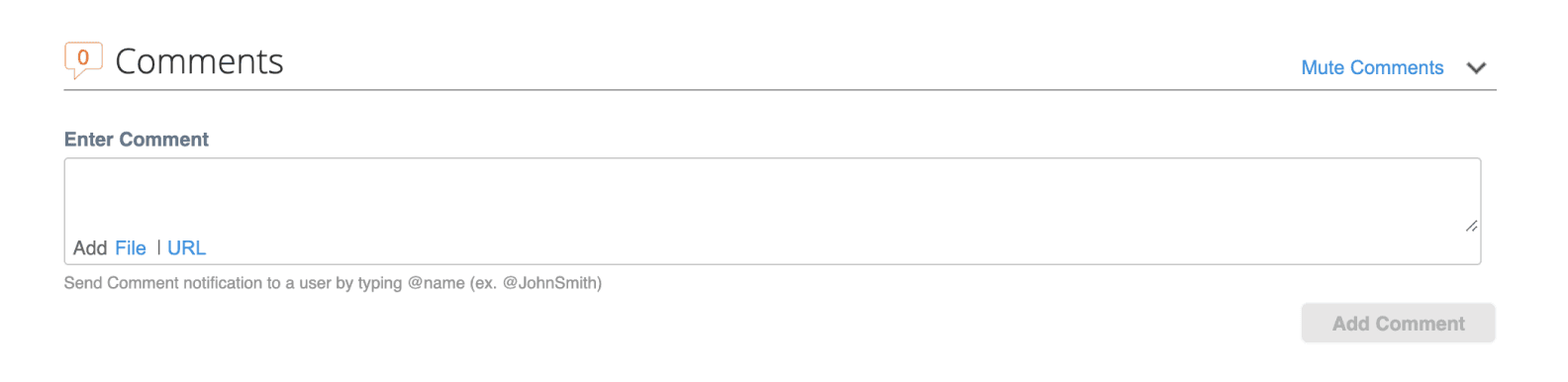
Insert a comment to Appfire if you would like at the bottom of your screen.
Managing invoices
Step 1
Select the invoice (1) tab to view the invoices related to your selected customer (2). You can manage your view by selecting a view (3) from the dropdown or creating your own. You may also search via search (4). If desired, you may export this by selecting export to (5).
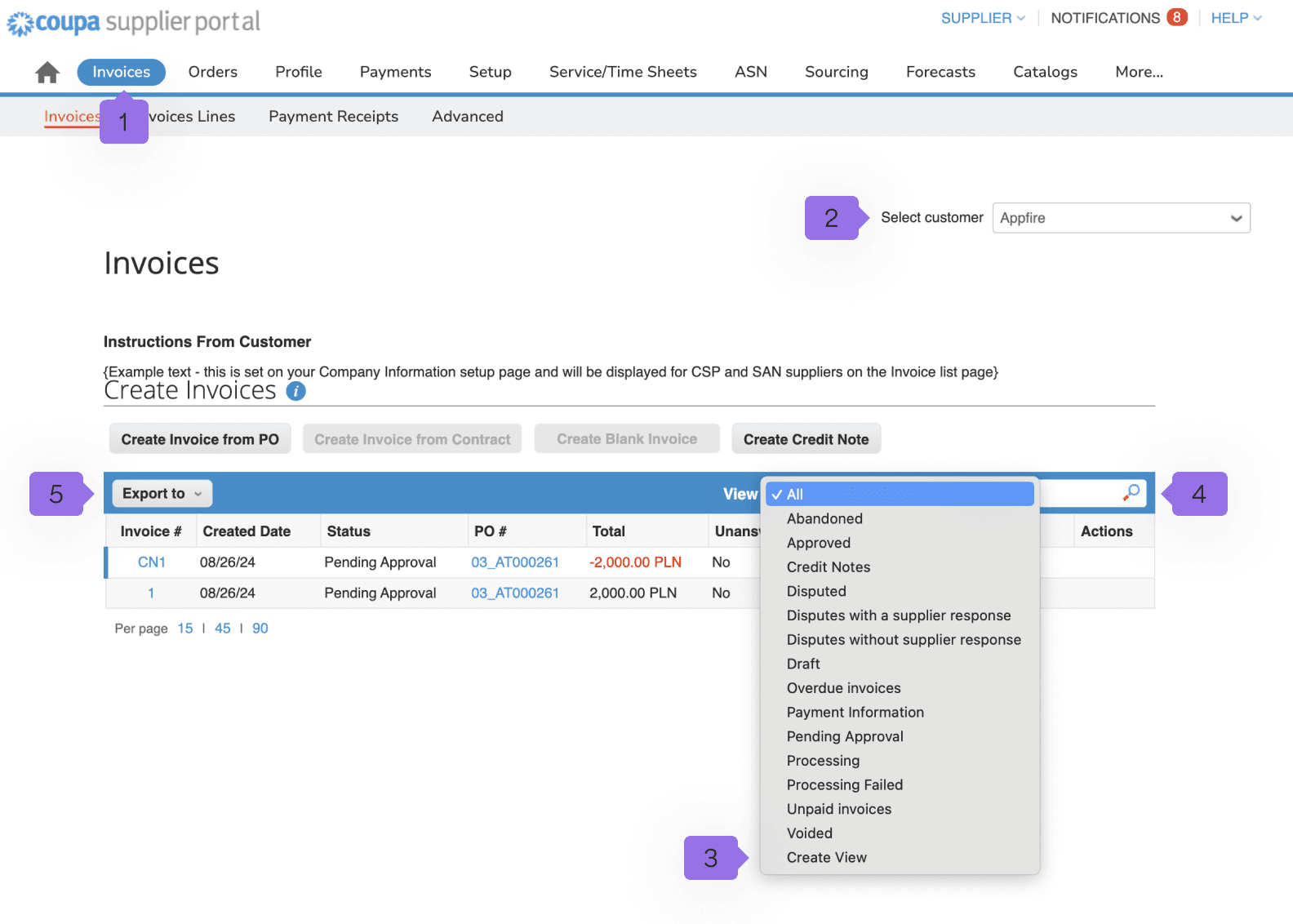
The following statuses may be viewed within your invoice tab:
- Draft: Has not been submitted yet.
- Processing: Invoice that is between being submitted by the supplier and the submission being recorded in Appfire’s instance.
- Pending approval: Invoice undergoing any Appfire internal process to allow final approval. This could be pending receipt or pending approval.
- Disputed: Invoice that is currently being disputed by the business or AP.
- Approved: Invoice that is approved and ready for payment, as per the pay terms, or immediately if overdue.
- Voided: Invoice voided after being fully approved and processed.
- Abandoned: Invoices with no resolution in disputed status can be marked as “abandoned”. This way, linked POs can be closed once all outstanding actions for the transaction are complete.
Step 2
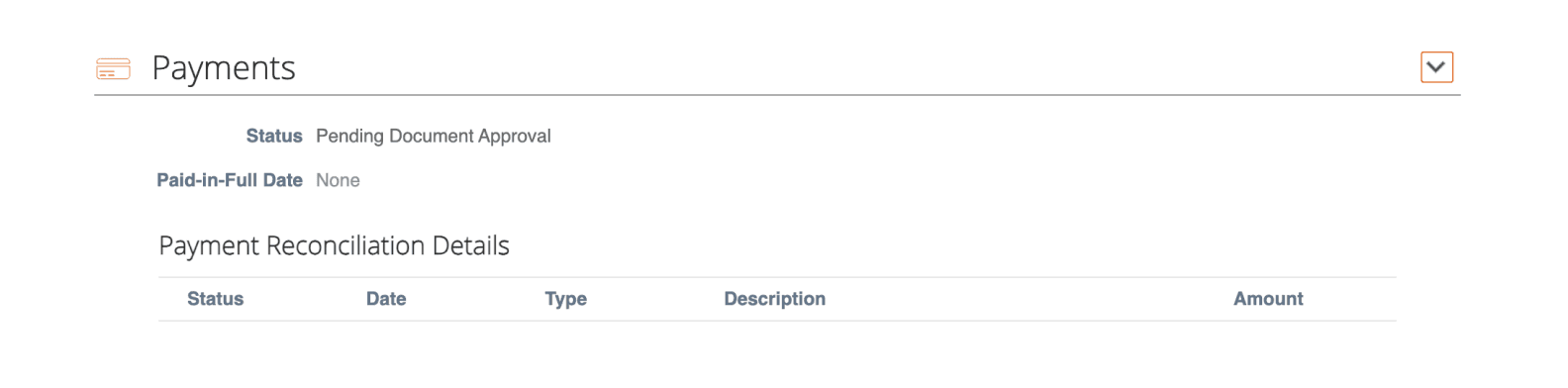
You can check the status of payment by selecting invoice number and scrolling to payments: