
Reporting in JIRA offers straightforward operations and success. It includes advancing knowledge of progress, health, and the overall status of JIRA projects through report pages, knowledge, and applications that are third party. Through reports, we get the data’s visual representation that depicts a better understating of what is happening in the service project.
Reporting
A wide range of formats is offered in JIRA. Reports of projects are available for the selected project. In dashboards, devices can be organized and brought, and for every filter, the difficulty navigator offers diverse output format ranges that may be utilized in third-party reporting software. Jira creates room for smooth, effective custom reports for Scrum, Kanban, or some other groups. Customers/initiatives can get development and status reviews. Custom reports and charts provide certain benefits, such as:
Progress Reports can be observed by User and Project
- Report’s progress can be observed by project, spring, epic, client, or assessed variant by issue tally, time following, and story points. Try the Status & Progress Report Gadget app for a Jira Dashboard gadget.
Better insights by Time Tracking Data
- Users, sprints, and projects can mark time following reports, and the sky is the limit from there.
- Generation and trading logged hours timesheet/work log reports by the user.
View Velocity Charts, Burndown for Agile Projects
- Generation of burndown charts for release, epic, or any JQL filter.
- An individual user can create velocity charts.
How to create a custom report for JIRA
To create a new service project custom report:
- Surf to the reports section from the service project.
- In the Project panel, choose a new report.
- Select a report name that is understandable to everyone.
- Click on Add series. As many series can be added as per requirement.
- In the series dropdown menu, select the required series.
- To reflect what the user is measuring, add a label name for the series.
- For series data, select a color that can be displayed on the graph.
- Filter the series by the issue type, status, and component.
- Select the required item from the dropdown menu to filter by additional fields.
- Click on advanced and enter the information that is required to filter using Jira Query Language (JQL). Click Basic to return to the Basic menu.
- Click Add
- To compare values, add more series.
- Click Create.
This is how a new report that is custom of a project is created.
Reports of different types depending on the project type
Team Managed software project reports
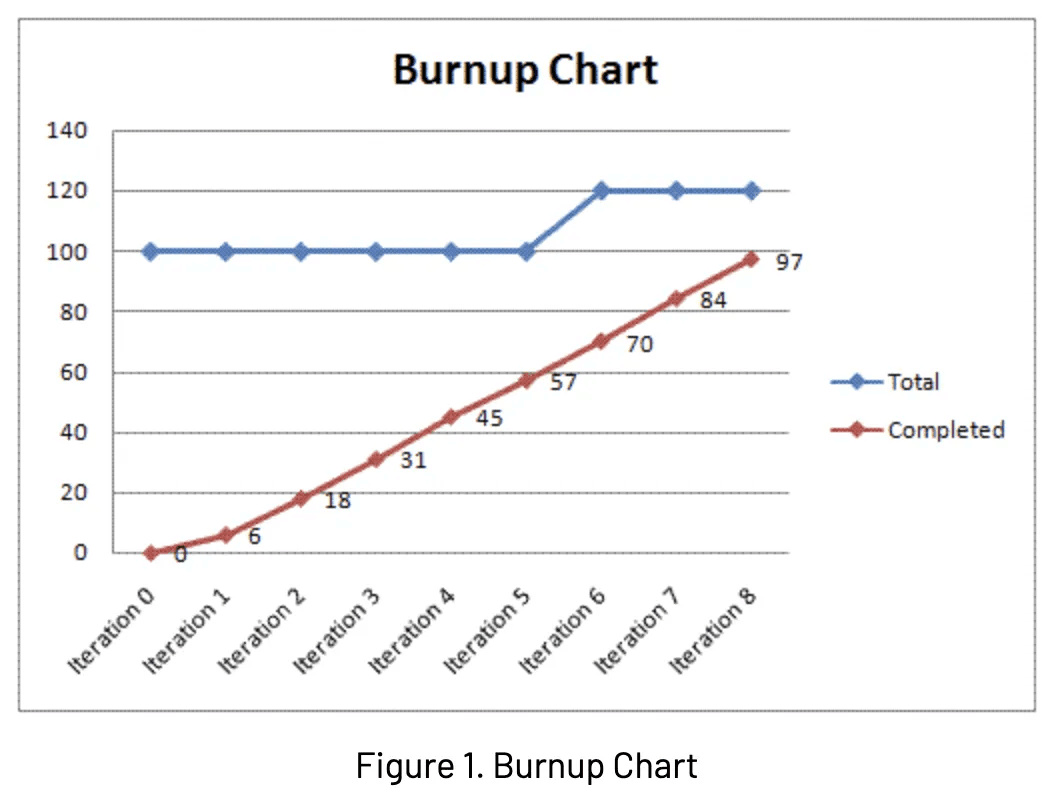
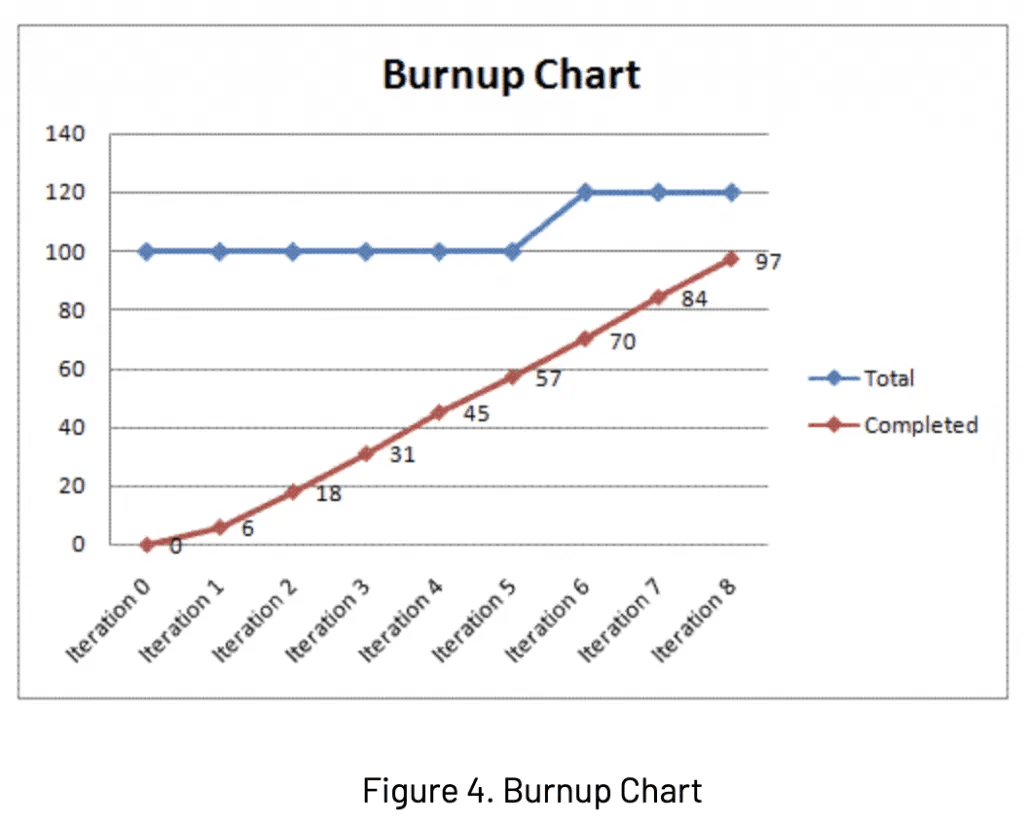
Burnup Chart
Its application is on sprints. This helps the team to stay on track by providing a visual representation of the scope of the sprint and remaining work.
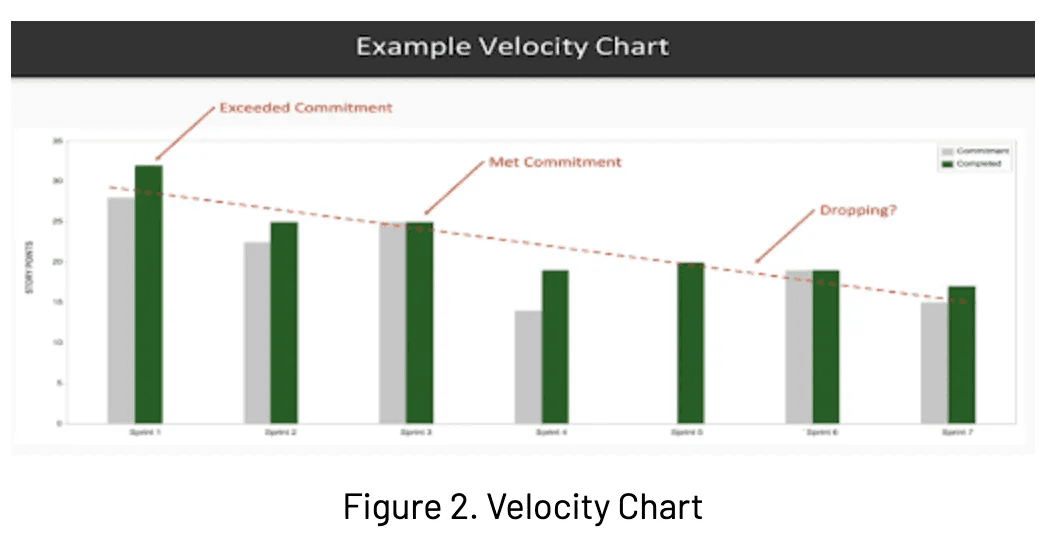
Velocity Chart
Its application is on sprints. From sprint to sprint, it tracks or determines the velocity of the team and how much load of work the team can achieve realistically in upcoming sprints.
Scrum project reports
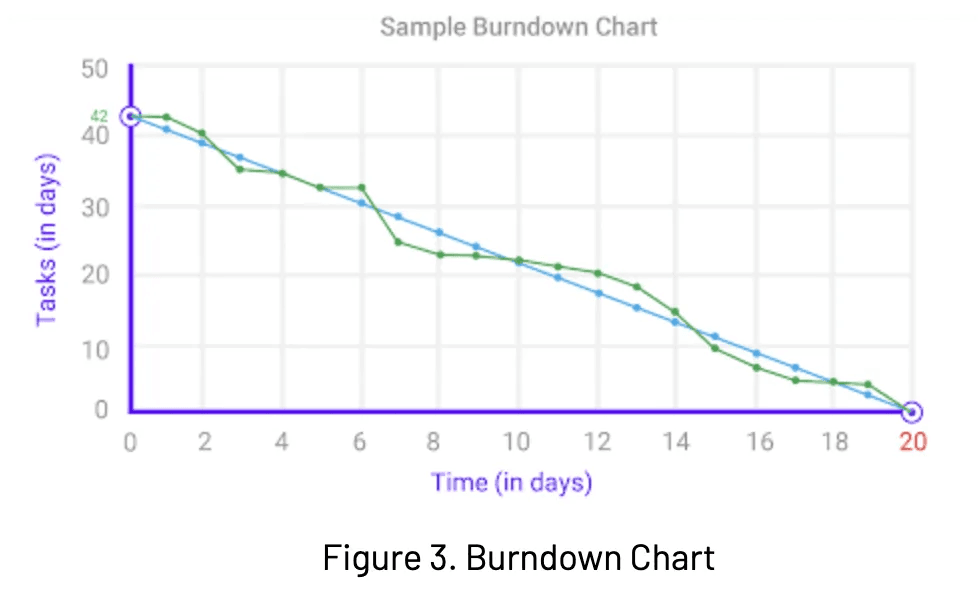
Burndown Chart
Its application is on sprints. The remaining goals of the sprint and total work are determined. It leads the team on how to manage the progress and to react accordingly to it.
Burnup Chart
Its application is on sprints. It has a visual representation of the sprint’s scope with the remaining work.
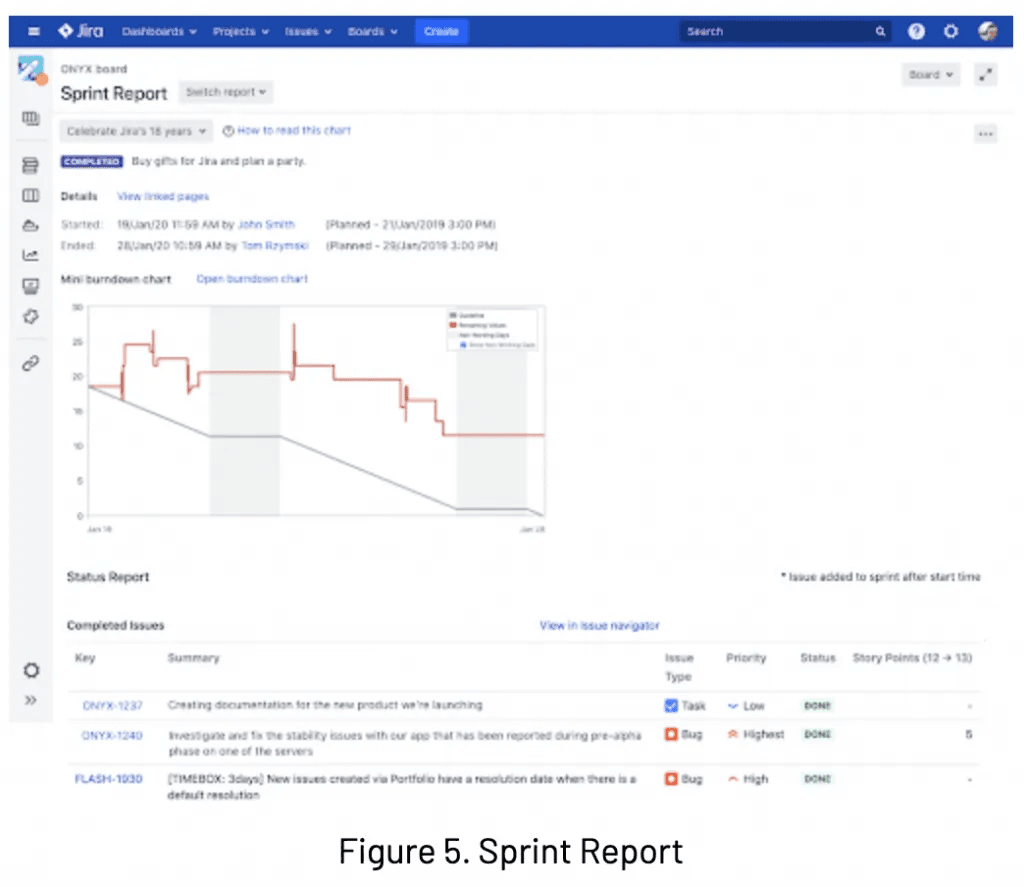
Sprint Report
Its application is on sprints. It tracks the work completed and pushes back to the backlog in sprints. Overcommitting is determined in it.
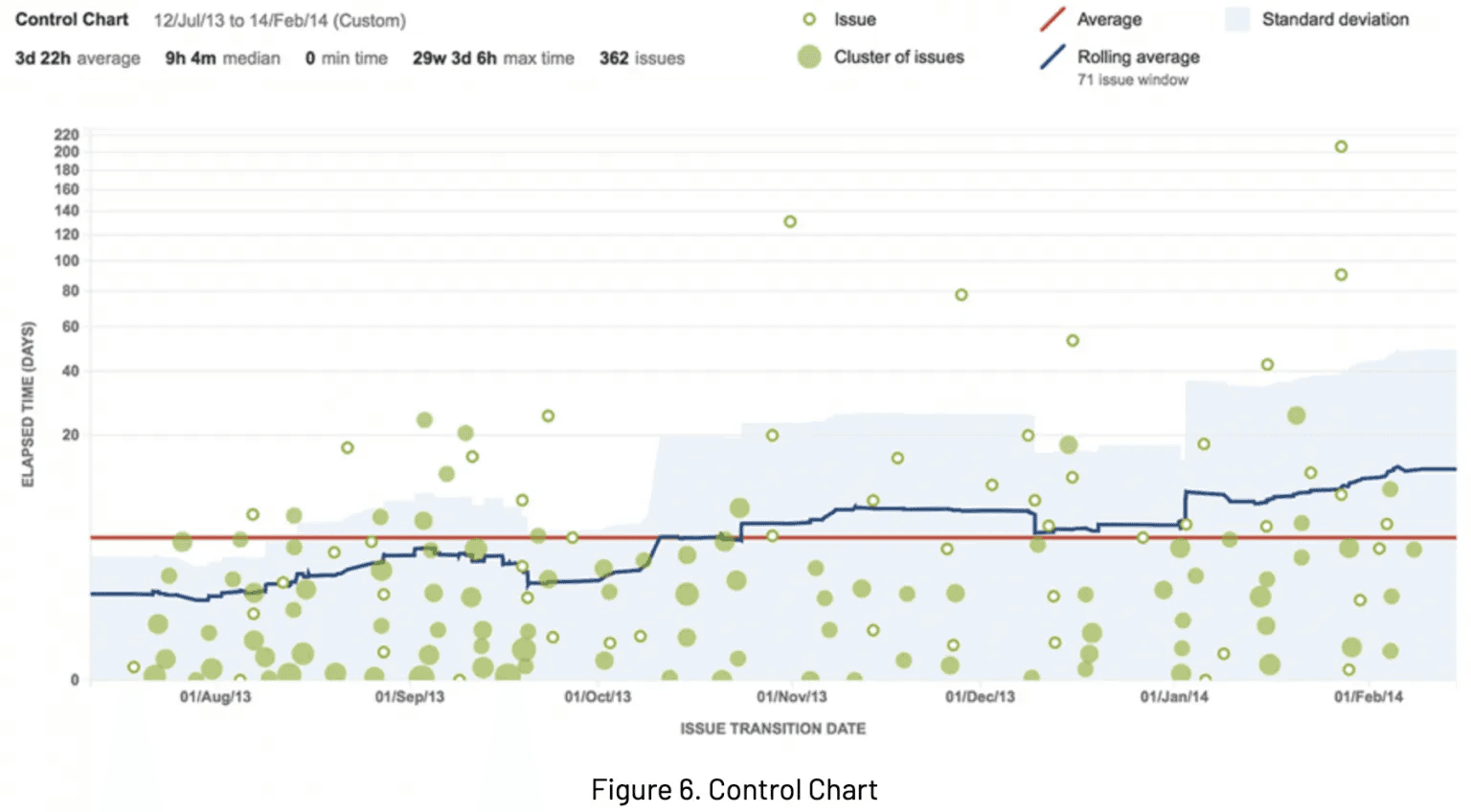
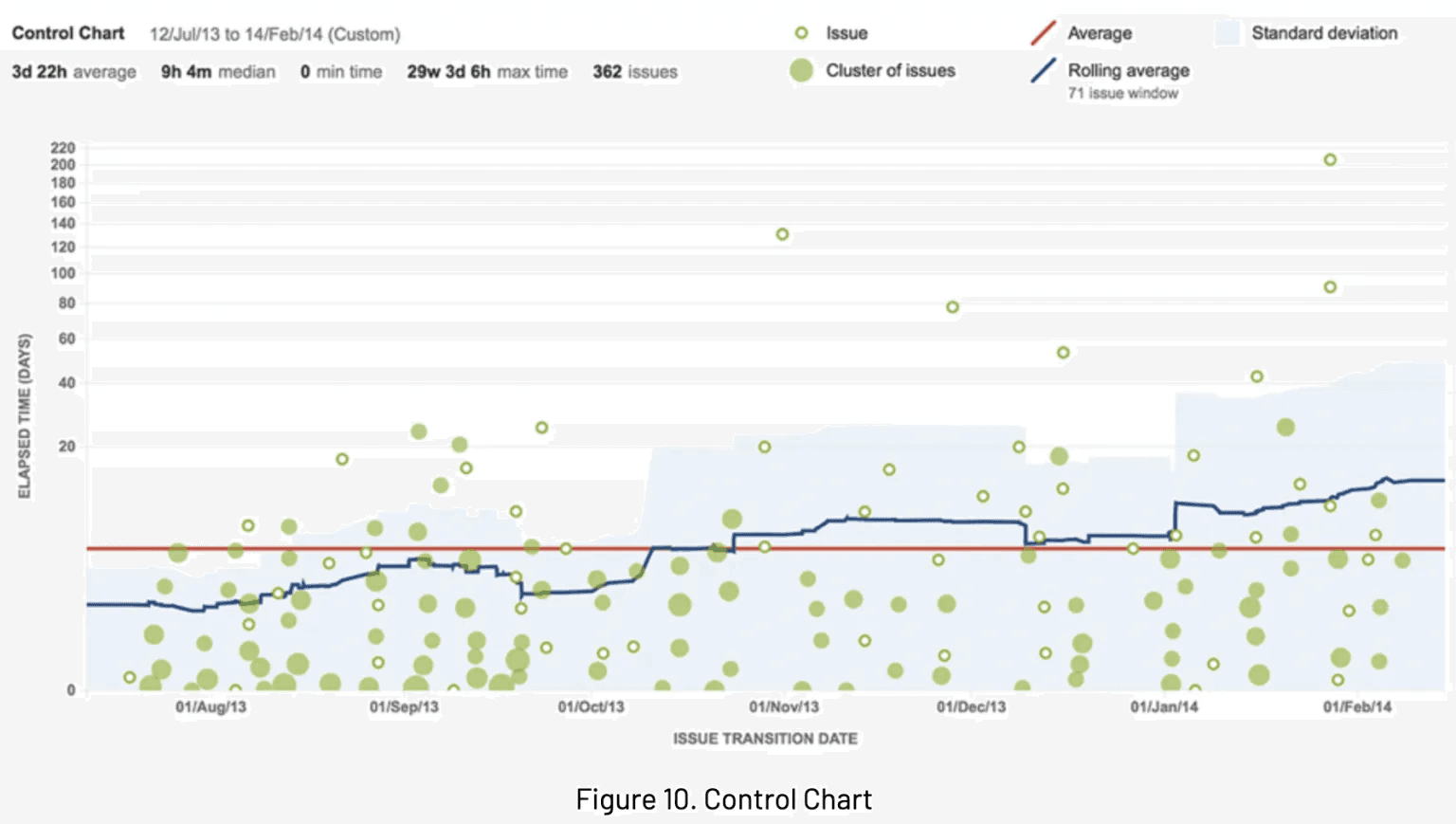
Control Chart
Its application is on sprints, projects, and versions. It depicts the time of the cycle of versions, projects, and sprints. It helps to ensure that the data from the process can identify future performance.
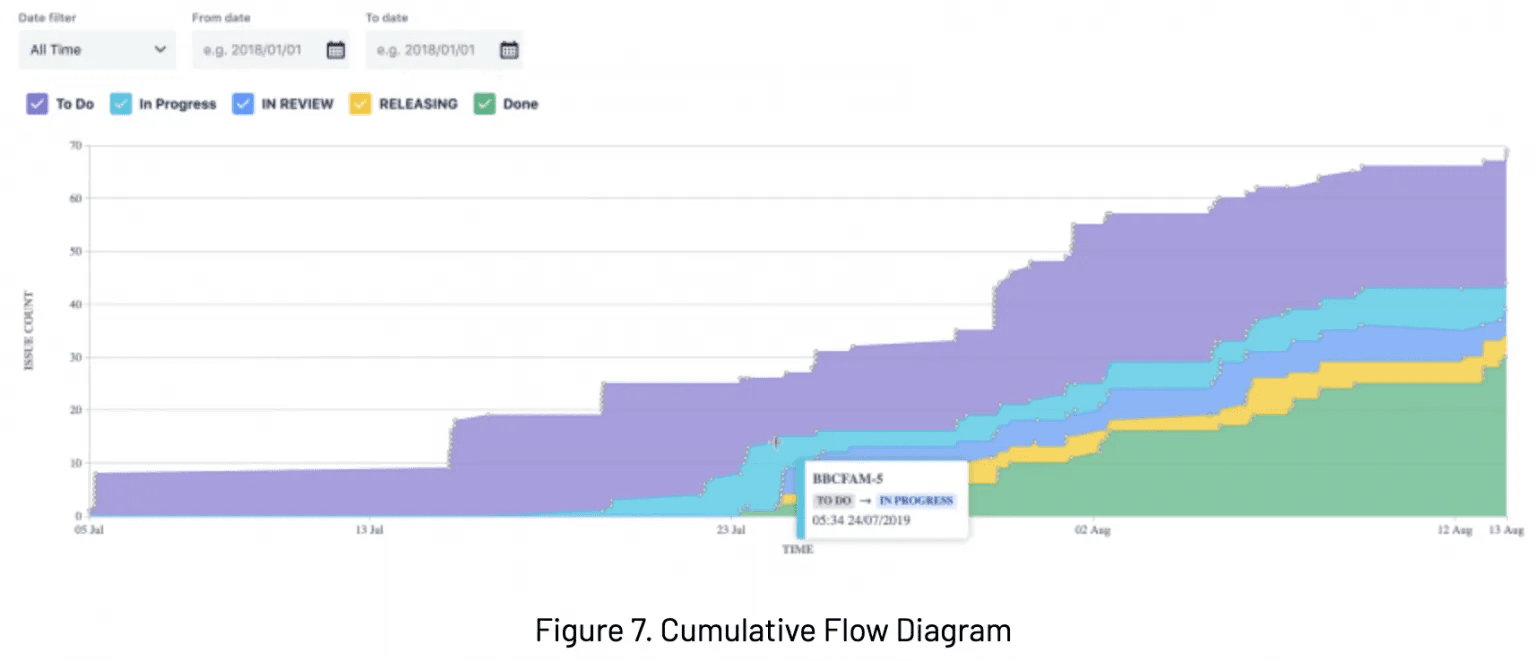
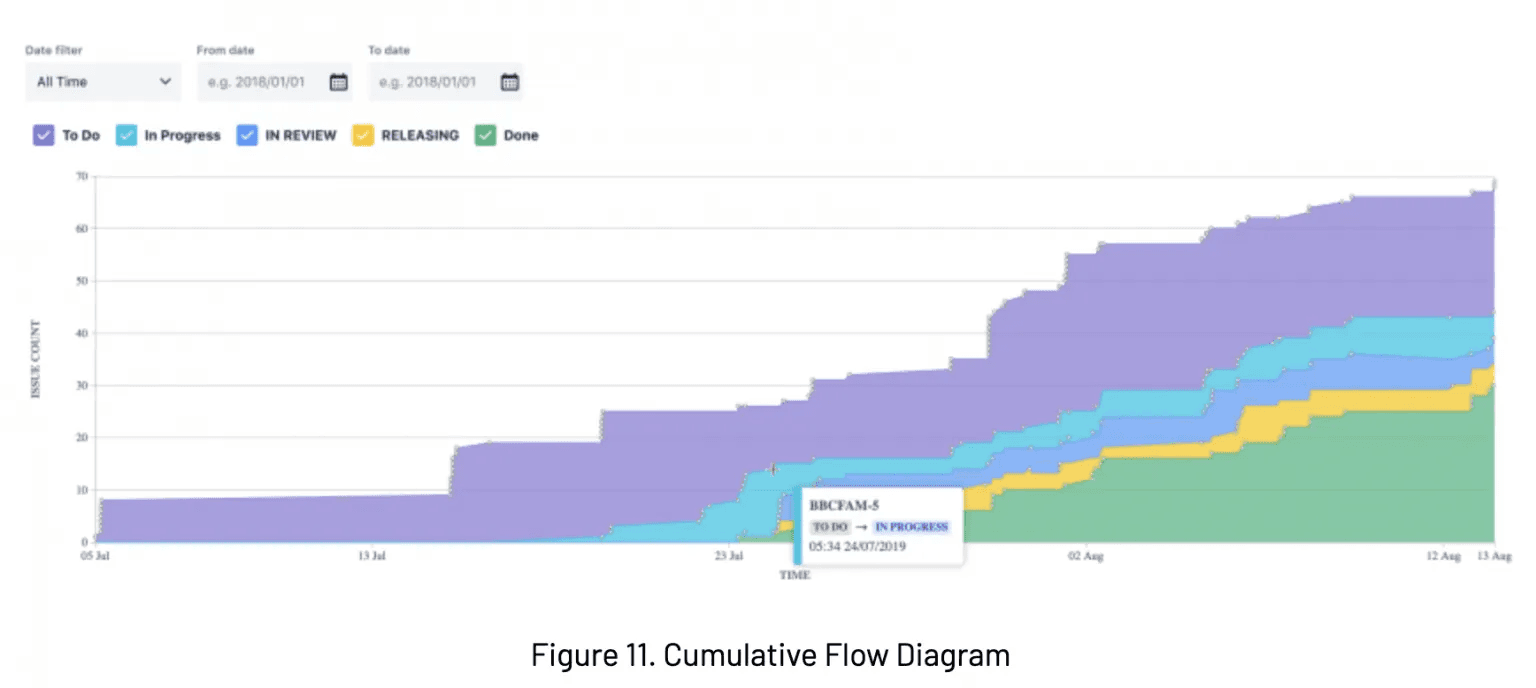
Cumulative Flow Diagram
It is applied to any period. Statuses of issues within the specified time are displayed here. Identification of potential bottlenecks that are necessary to be investigated is shown here.
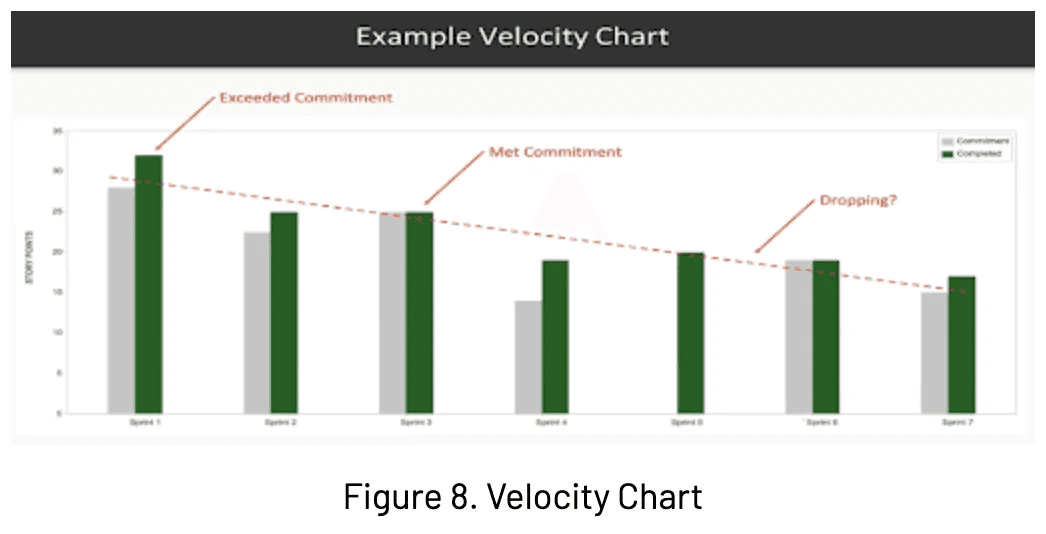
Velocity Chart
Its application is on sprints. It keeps track of the workload that is finished from sprint to sprint. A couple of constraints are determined here, such as the velocity of the team and the estimation of the workload a team can achieve in future sprints.
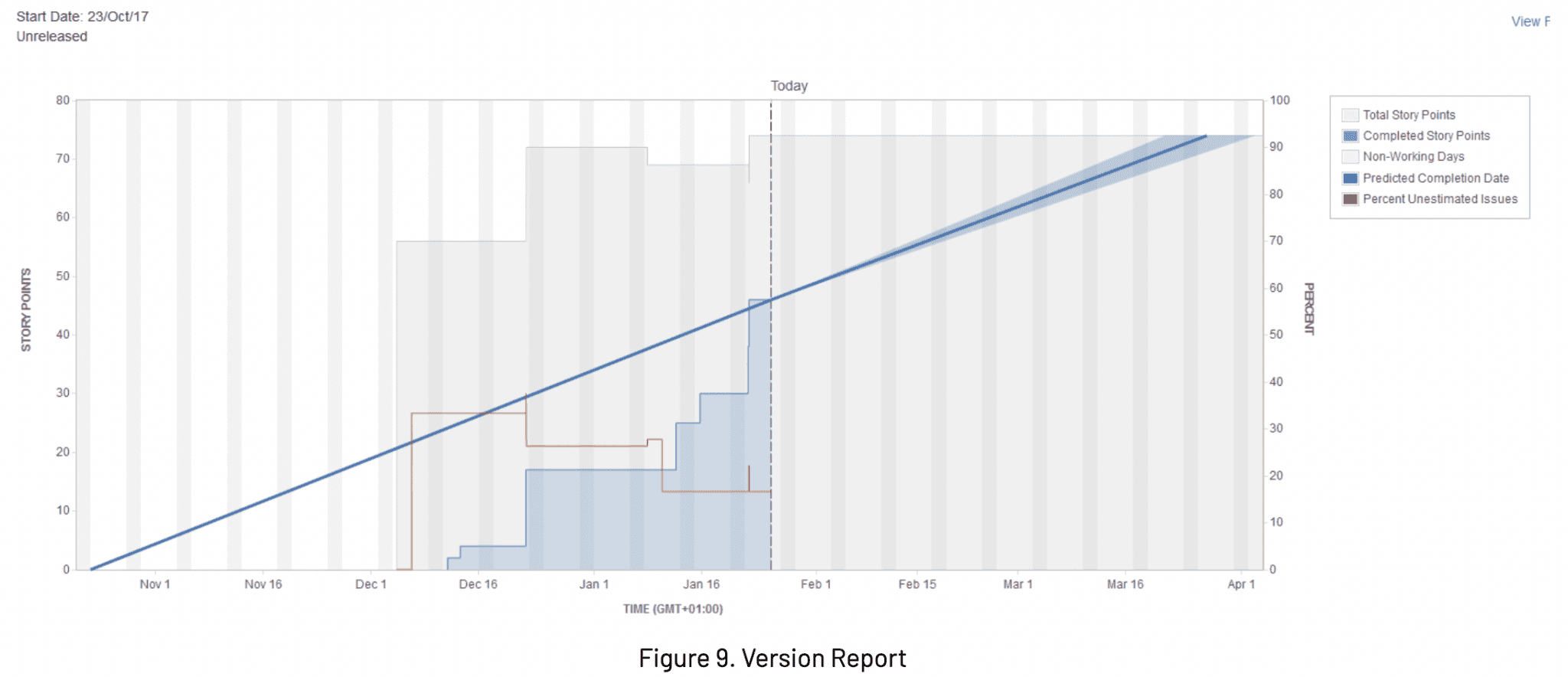
Version Report
It is applied to Versions. Once the user has set the end date, the time span is tracked in the version report. It helps to track or monitor whether the version will be released on time so necessary actions can be taken if it is lacking in time.
Kanban projects reports
Control Chart
It is applied to sprints, versions, and projects. It helps to identify whether current process data is fair enough to determine future performance. The time of the cycle of sprints, versions, and projects is depicted here.
Cumulative Flow Diagram
It is applied to any period of time. It depicts the status of issues within the specified time. Potential bottlenecks are identified and investigated.
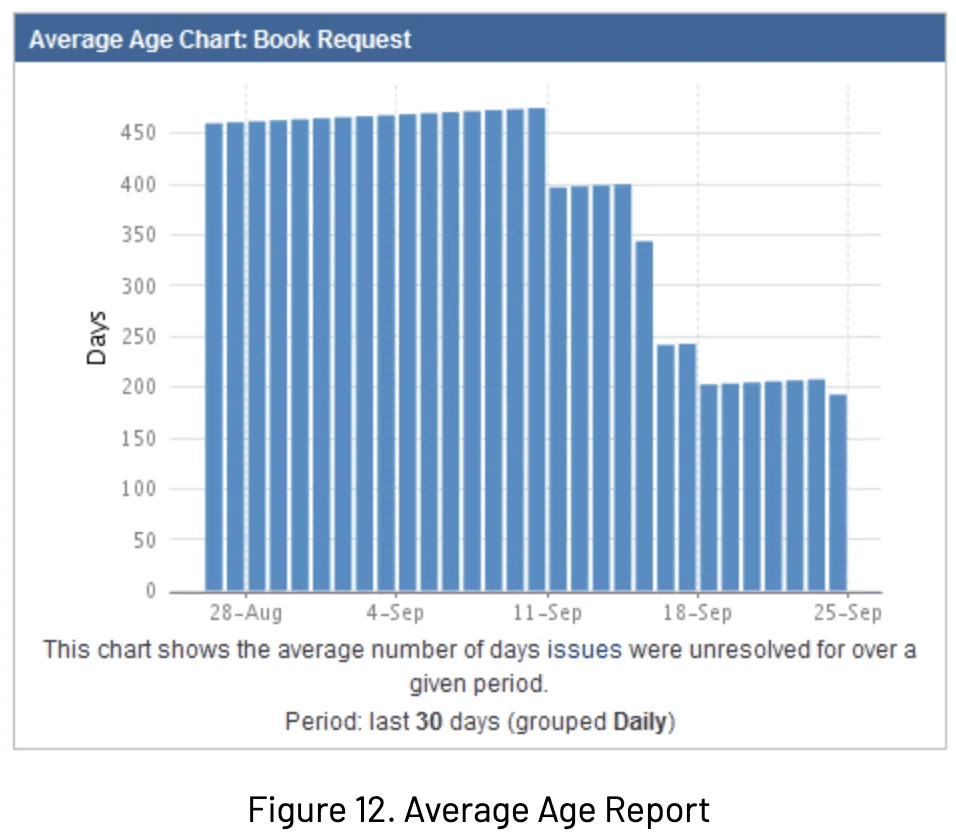
Average Age Report
In this report, the average age (within the specific time) of an unresolved issue of a filter or a project is shown. It is used to monitor if the backlog is up to date or not.
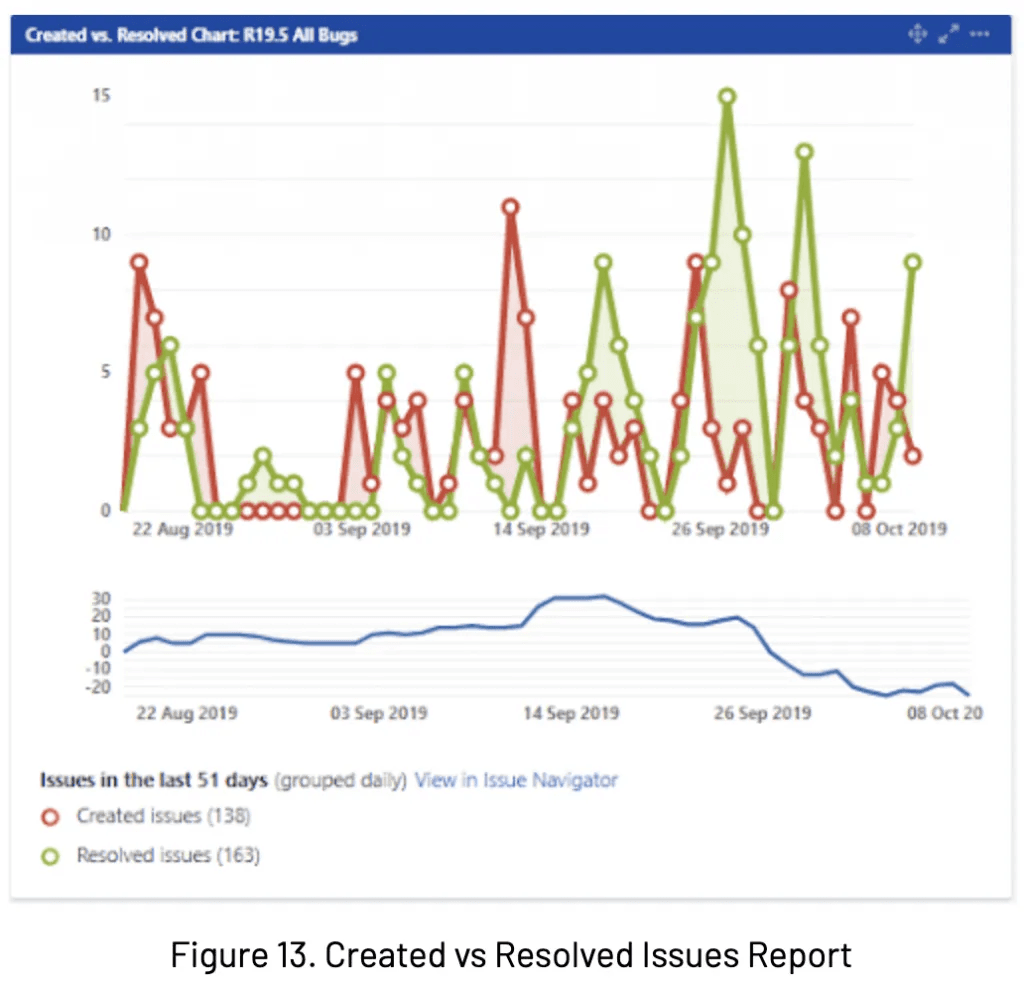
Created vs. Resolved Issues Report
Created issues vs. the resolved issues are depicted over a certain period here. A better understanding of an overall backlog is determined by whether it is shrinking or growing.
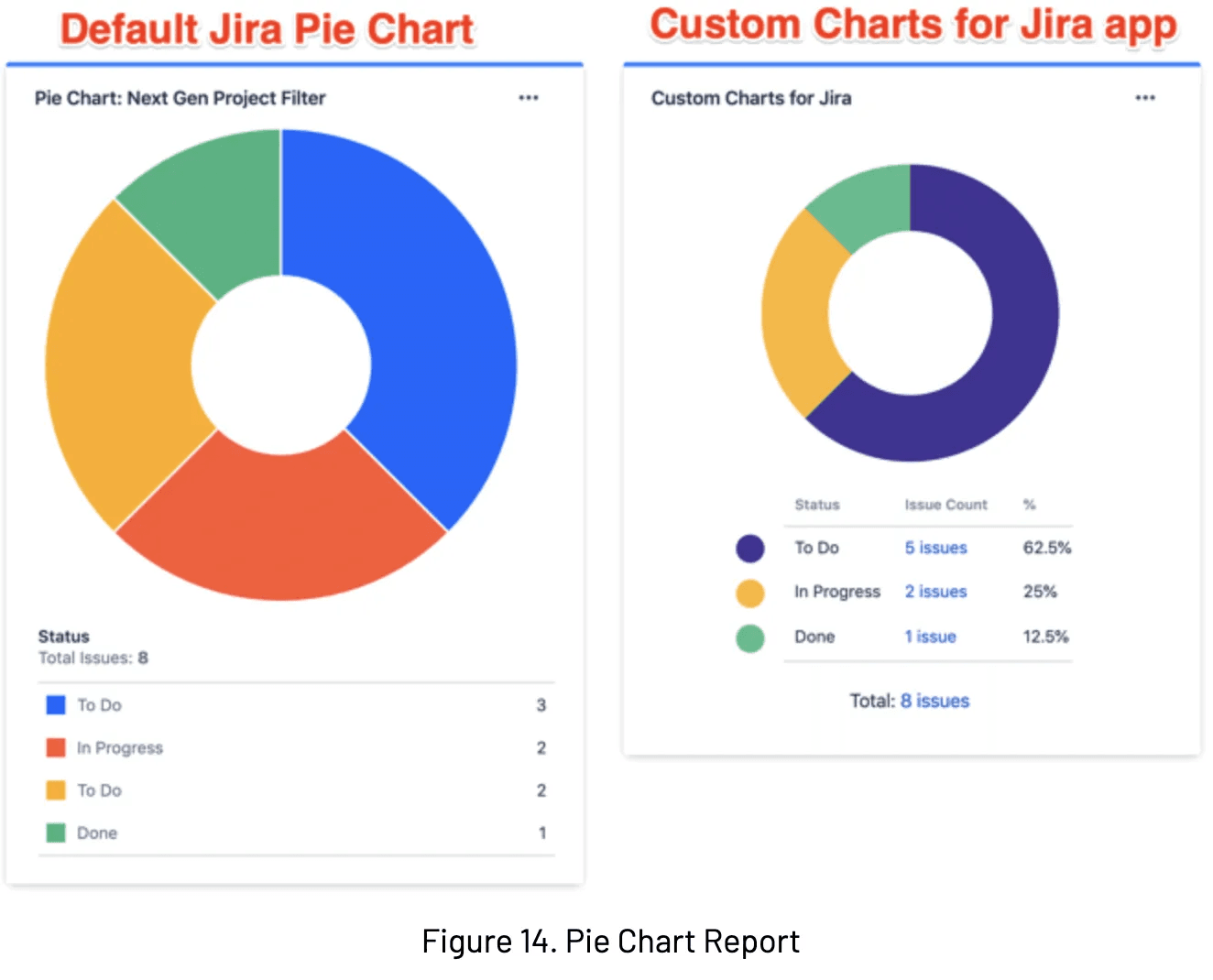
Pie Chart Report
It depicts pie charts of issues for a filter or project that are grouped by a specified field. Due to that, the breakdown of a set of issues can be seen at a glance.
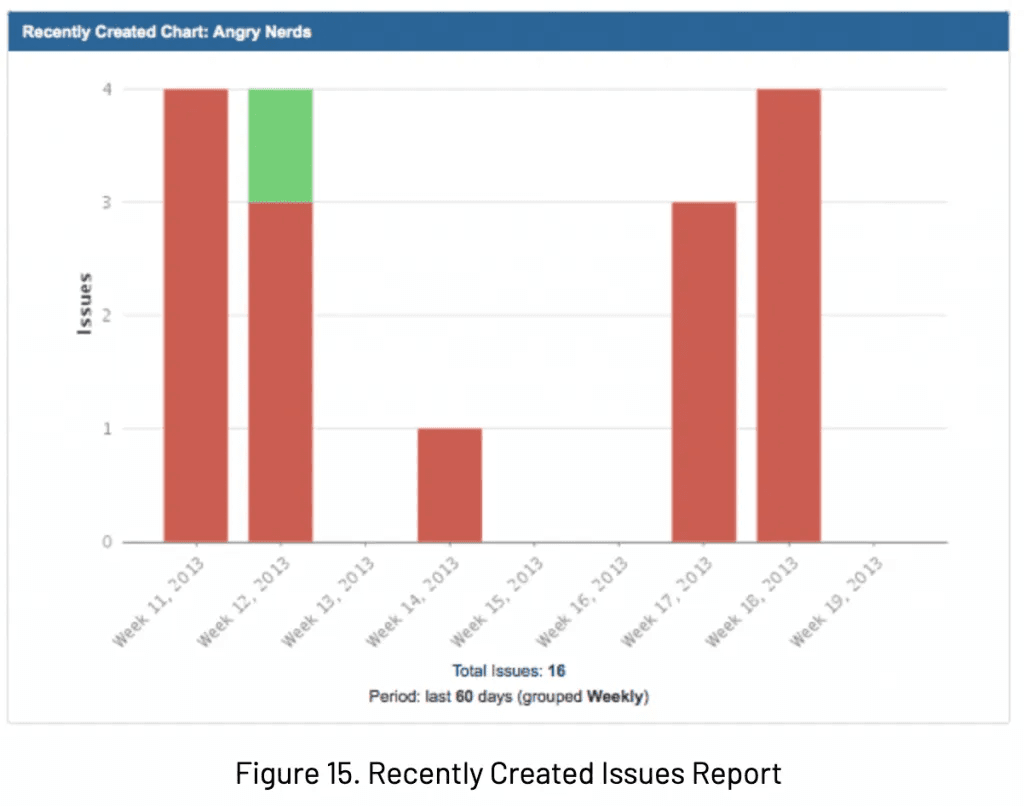
Recently Created Issues Report
The number of issues generated in a certain period is shown for a filter or project, and the quantity of resolved issues. This report determines if the team is keeping up with the new work.
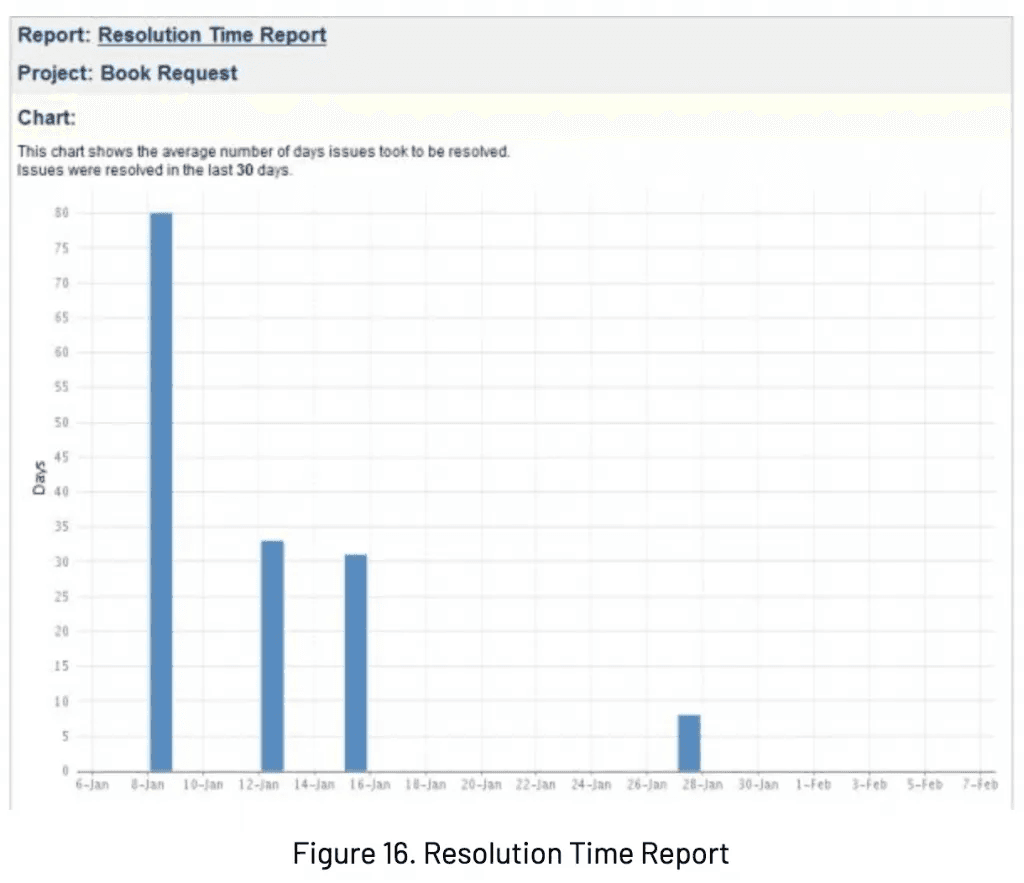
Resolution Time Report
The total length of time taken to resolve the set of issues for a filter or project is determined in this report. Insights are identified that can be investigated in the future.
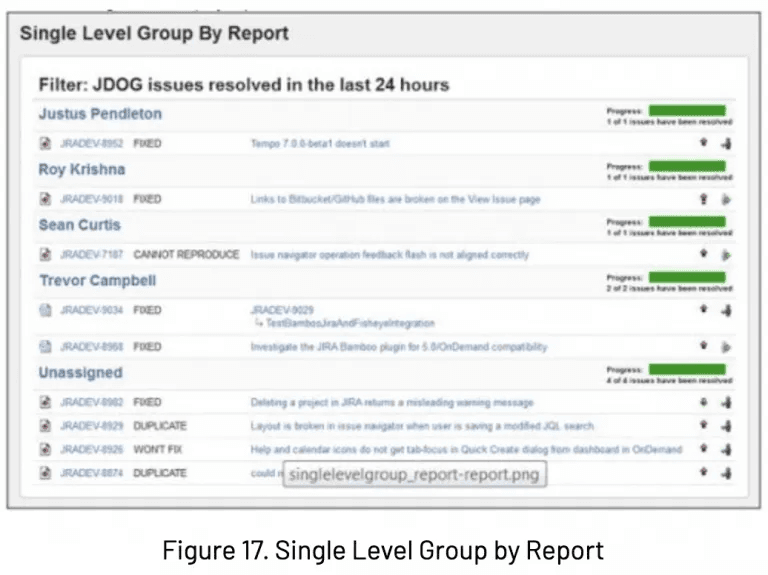
Single Level Group By Report
In a field or a filter, issues can be grouped and displayed as a single unit, and this is done in this report. Ensuing results in a group search by a field and monitoring the status of an individual group.
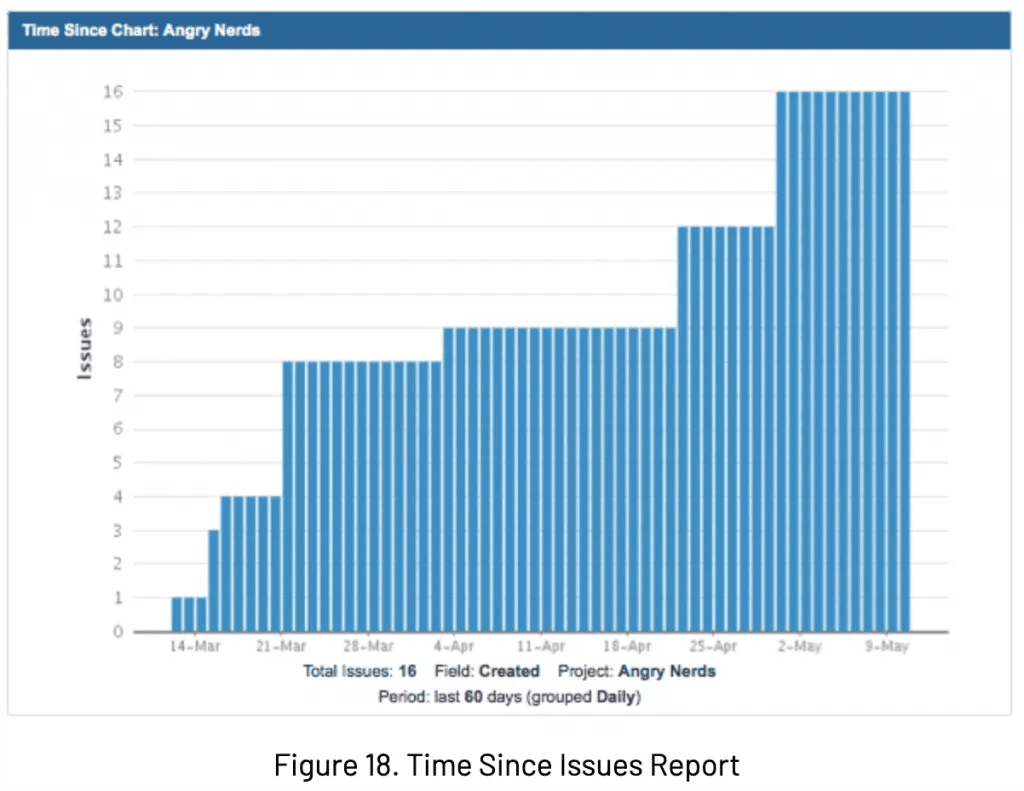
Time Since Issues Report
The field also sets the issues against the dates. Over a certain period, how many issues were created, updated and resolved, etc., is determined in this report over a specific period.
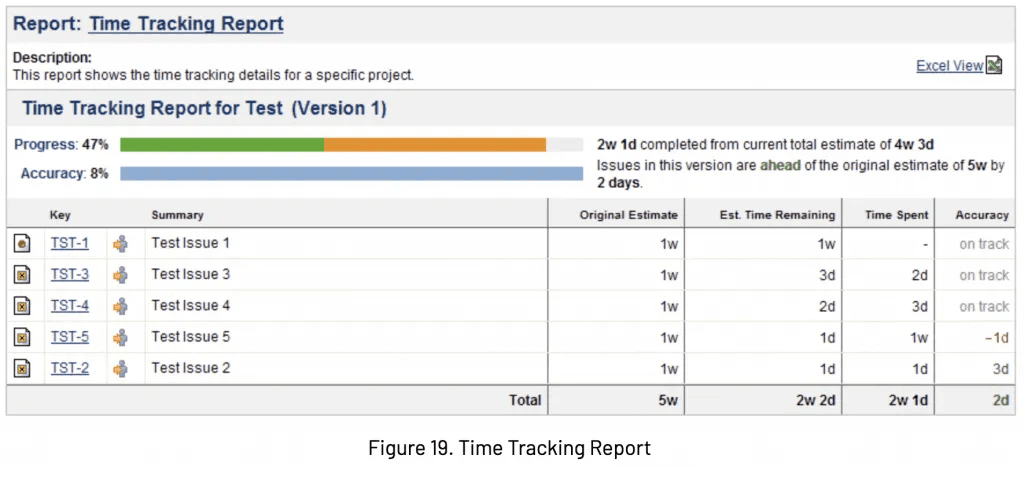
Time Tracking Report
In a project, time tracking on issues is done in this report.
Automation in Jira
In October 2019, Atlassian launched Automation for Jira. In Jira cloud, automation is a native feature. But this application is still in the Atlassian Marketplace. Following are the best practices that can be used for Jira Automation.

1. Sample Rules
Users will not have to start from scratch; Atlassian introduced sample rules into the projects. It means users can start in a safe environment.
2. Rules creation by a limited number of people
When a user creates and edits rules, it is used to restrict the users. People can only create, edit or delete rules with proper understanding and keeping the users in view. Global admins can give the permissions only to the users they are interested in.
3. Create & test the first rules
To fly, you need to get into the cockpit; only using a flight simulator is not good all the time. The user does not test the premise, but the user is sure it’s true. On the Jira instance, enable the first rule to check if it works or not. For this purpose, users can use this debugging guide to seek more information. The important and most obvious step is understanding the audit log. Try, fail, and master.
4. Label the rules
Users may have a few rules just for the sake of hygiene by labeling the rules to make them easier to locate for the users.
5. Master Smart Values
Smart values allow users to access pretty much any issue data from Jira.
These are some of the best practices to be followed for captive and useful automation in Jira.
Need extra help with Tracking Issues? Issue History Collector, our Service Desk app, will be the tool you need. Don’t wait! Increase productivity and find out more here.