
Accessing the supplier portal
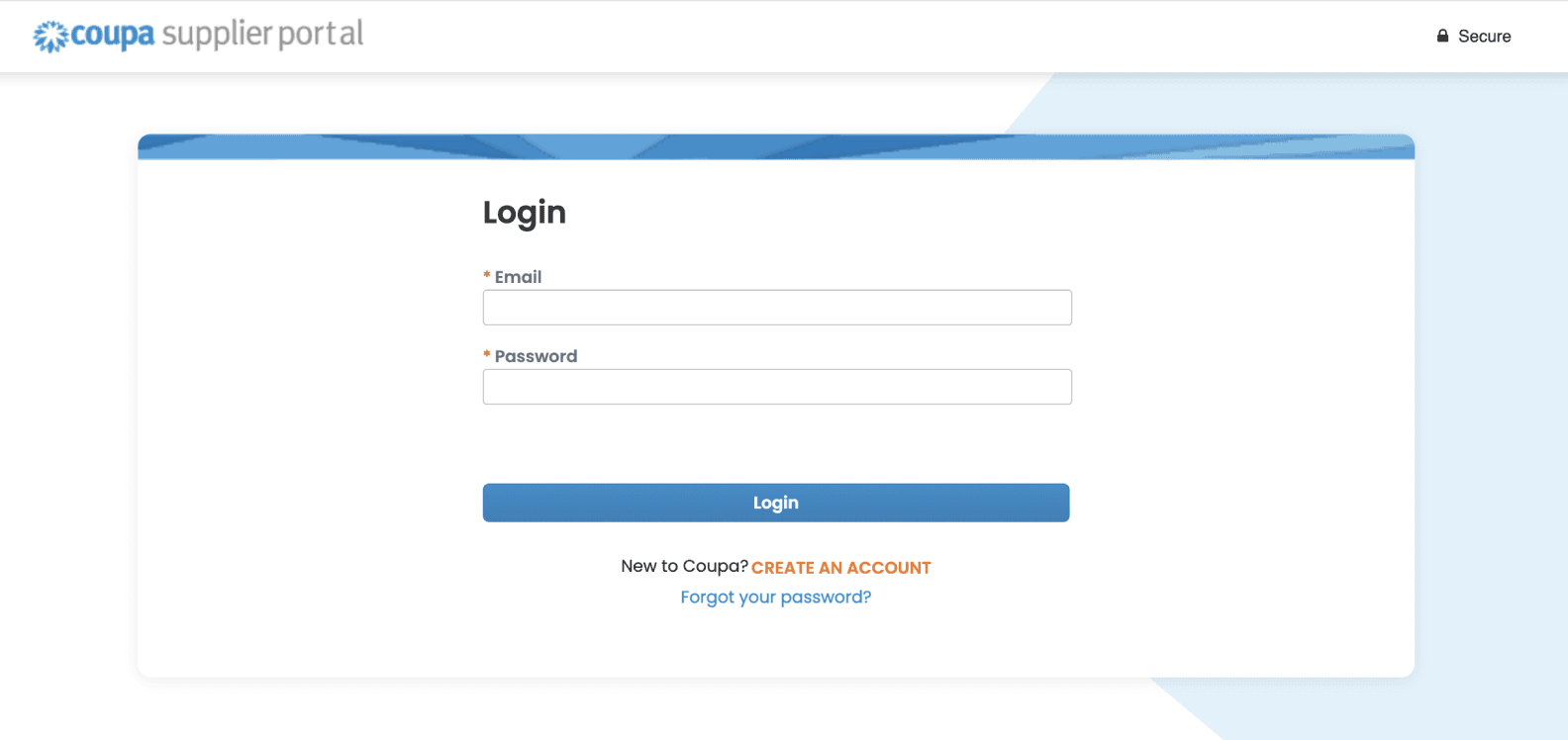
Enter the email address and password that was created when you first registered. Click log in to access the Coupa Supplier Portal.
*If you forgot your password, click forgot your password? and Coupa will send you an auto-generated email. If you did not receive the email, check your spam/junk folder.
Coupa supplier portal tour
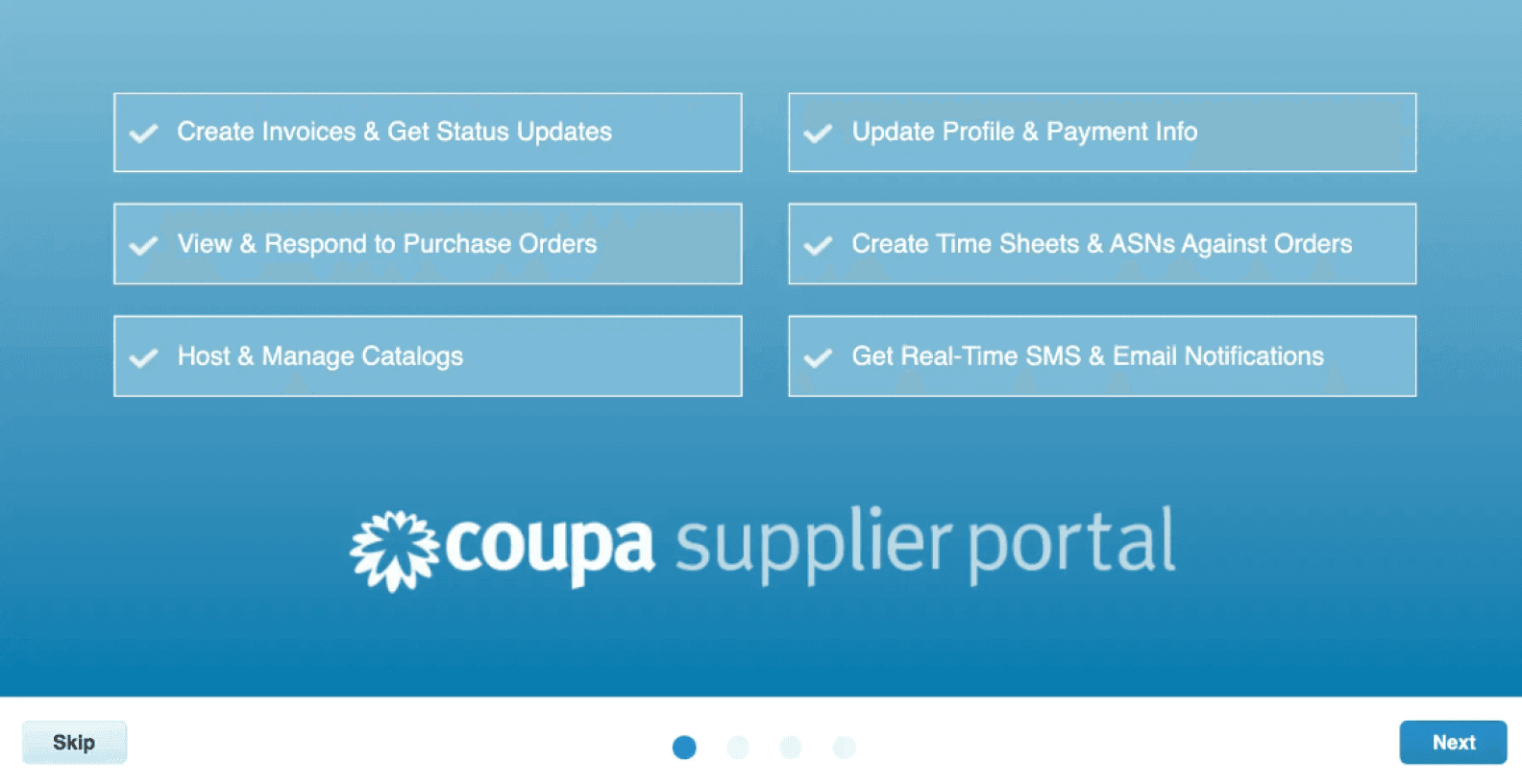
Coupa has created a welcome tour for all new users. It is recommended that you take the tour once.
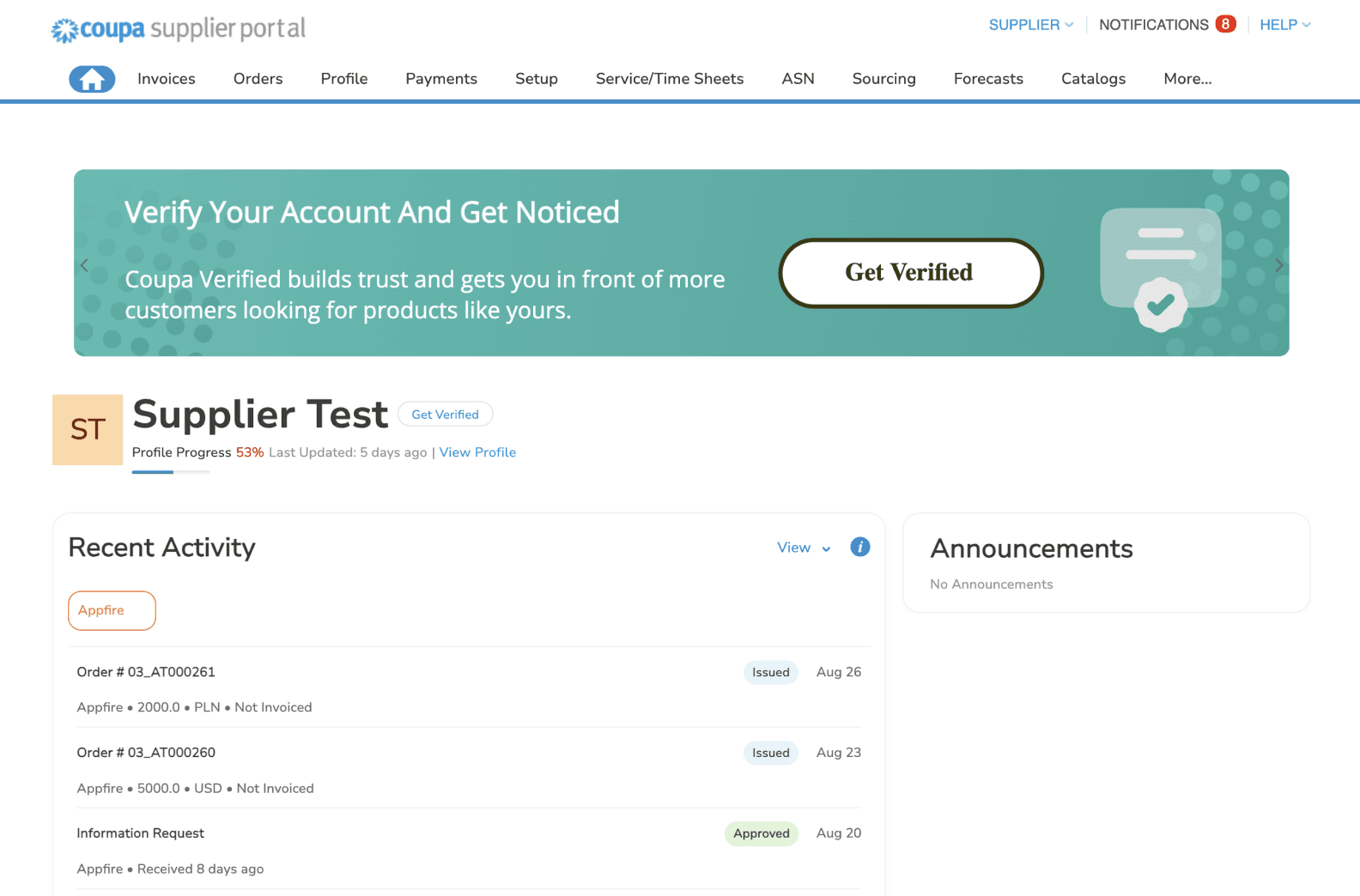
Your Coupa home page
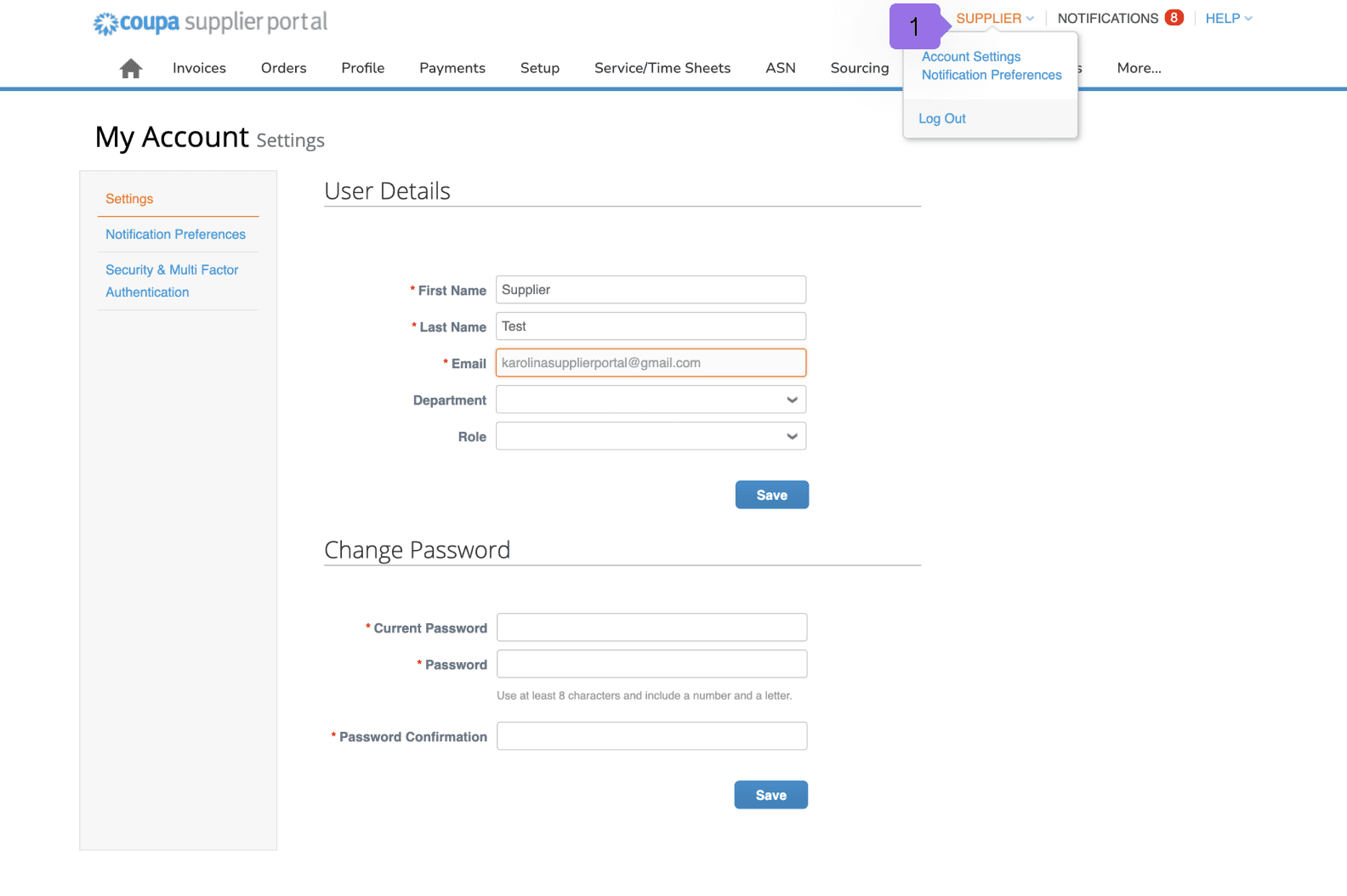
The main tabs you will be using for Appfire are profile, orders and setup. Additional features would be account settings, notifications, invite users, and merge accounts. Account settings can be accessed by going to the top right corner and hovering or clicking on your account name (1).
Notifications and notification settings
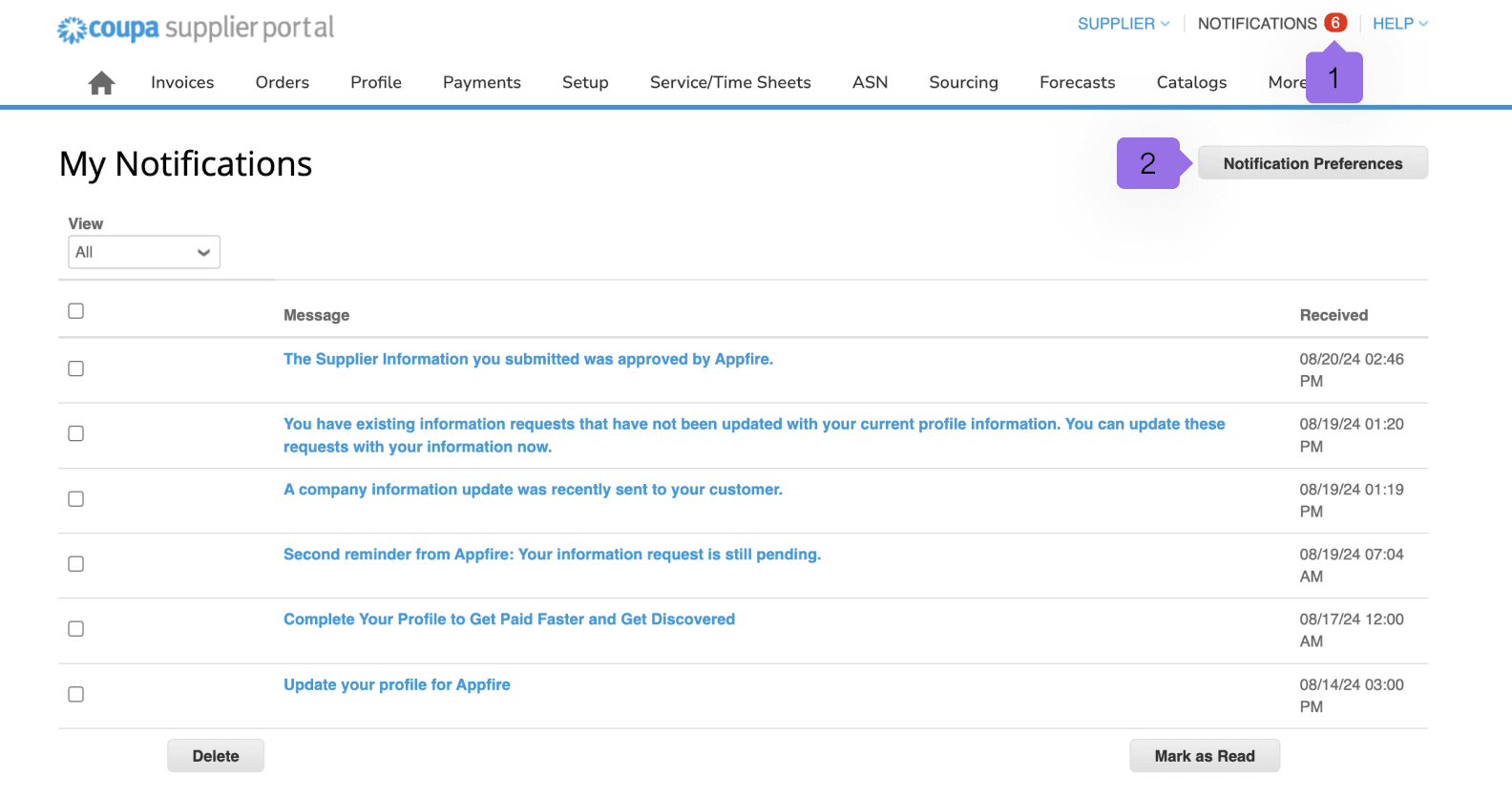
Notifications are similar to an email inbox. You can set your notification preferences by navigating to notifications (1) in the top right corner and selecting notification preferences (2). Once you adjust, scroll to the bottom and click save.
Profile
The public profile will not update or send information to Appfire.
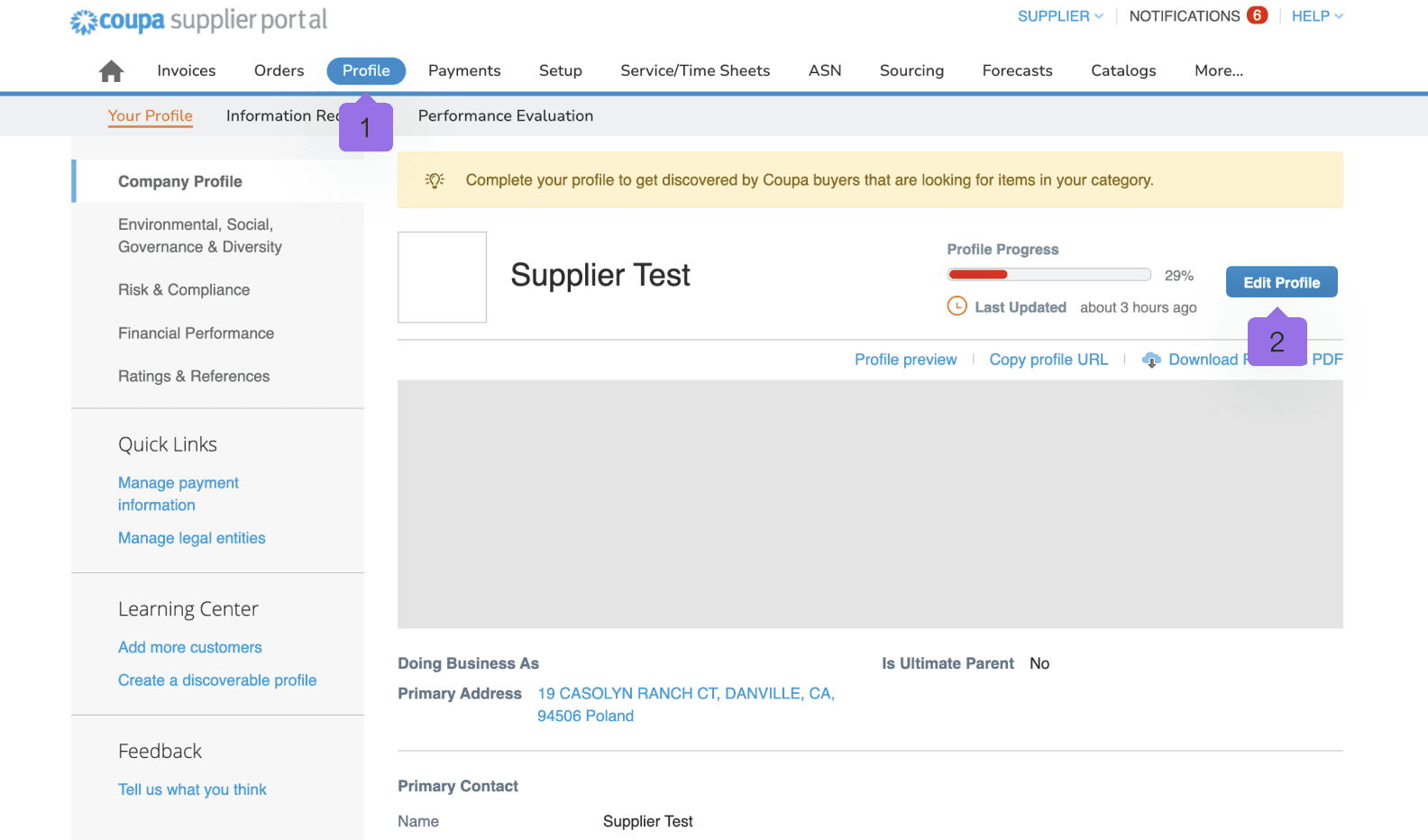
If you need to update your company’s information for Appfire, please click the Appfire profile by going to profile (1) > edit profile (2).
- Clicking on the profile will route you to the questionnaire, where you can update and submit your information to Appfire. Note: You must click “save changes” on the questionnaire for changes to be considered.
Orders (purchase orders)
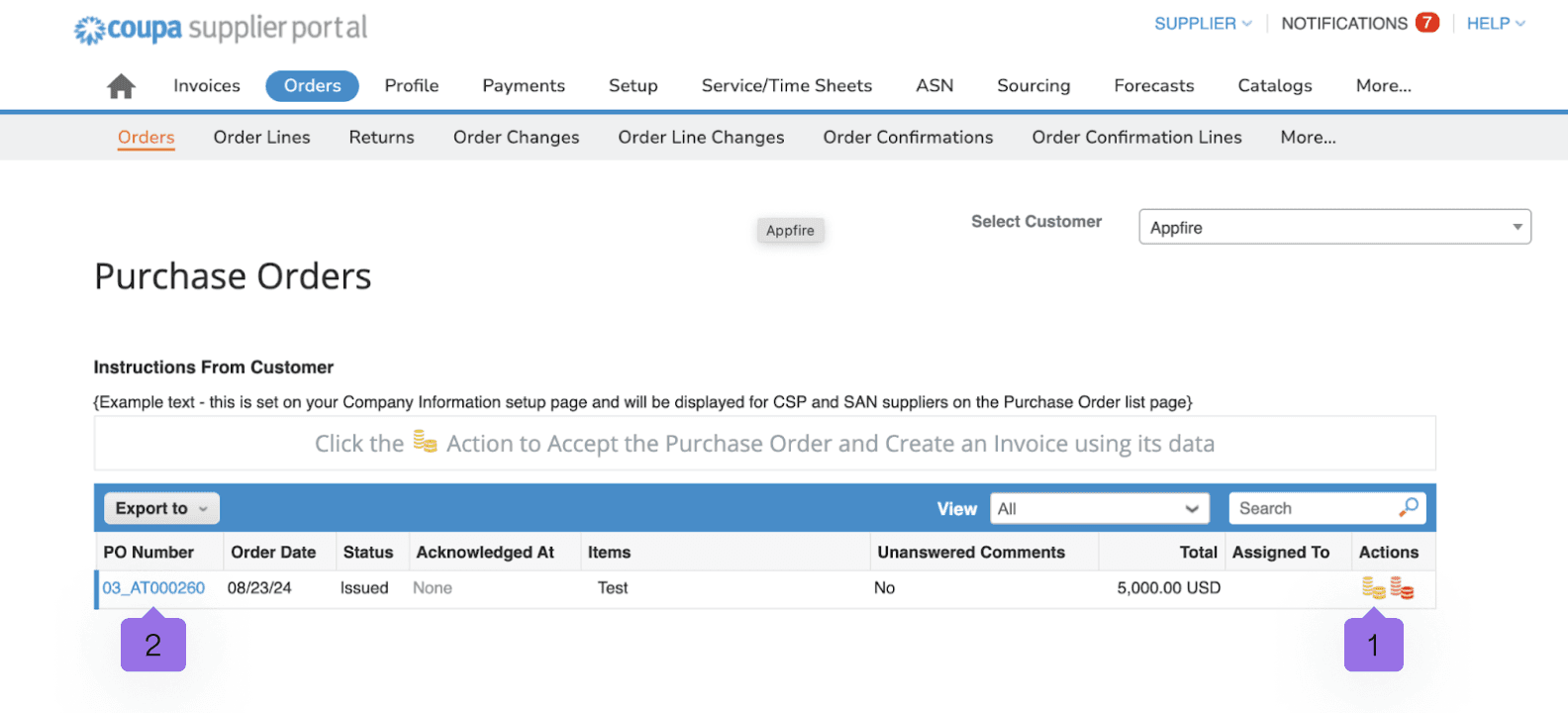
This is where Appfire purchase orders (PO) are located.
- You can select your customer to view different purchase orders.
- You can create an invoice from this page by clicking on the gold stack of coins (1) or clicking on the PO number (2).
If you do not see any purchase orders, please contact your Appfire contact.
Invoices
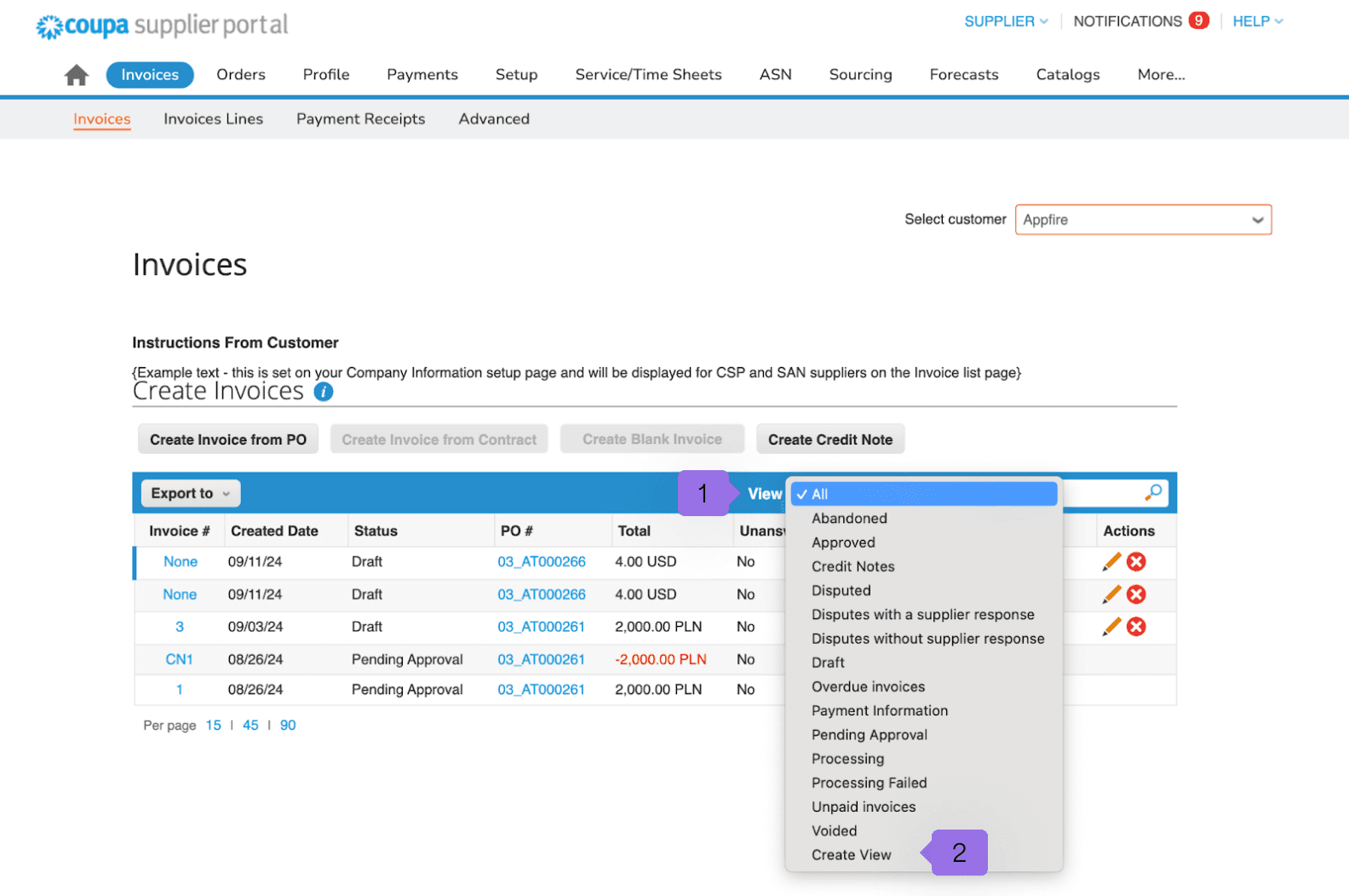
This is your invoices page. From here, you can see the status of your submitted invoices. You can use the view (1) function to sort by status or create view to create your view.
You cannot edit an invoice once it is submitted.
Admin
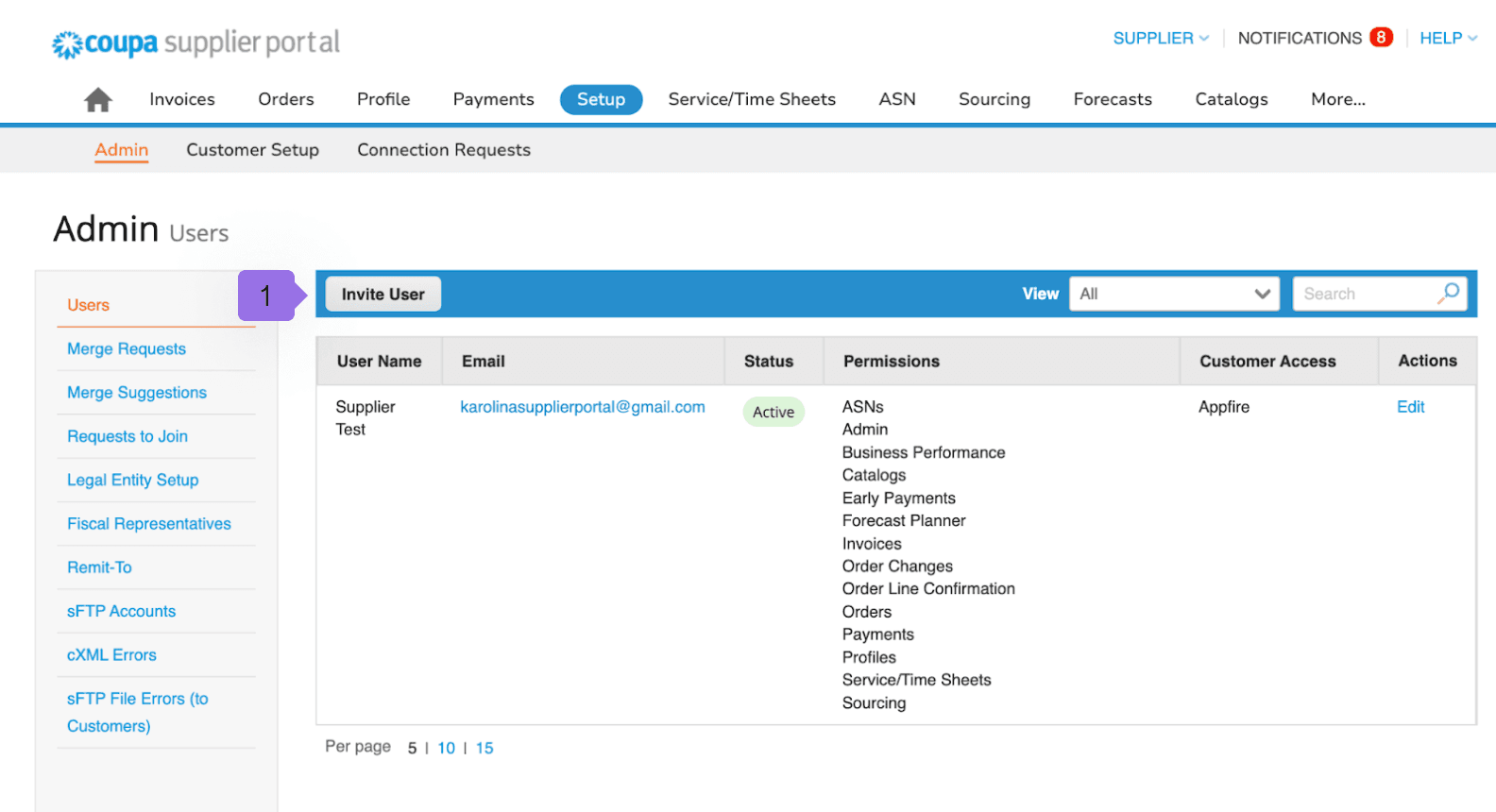
The admin tab is where you will be able to add users, merge your other Coupa accounts, view your remit to information, and complete your e-invoicing setup.
To invite users, click invite user (1), enter the user’s information, and select the permissions and customers you wish to give them access to. Click send invitation and the user will receive an email from Coupa prompting them to accept and create a password.
Merge request
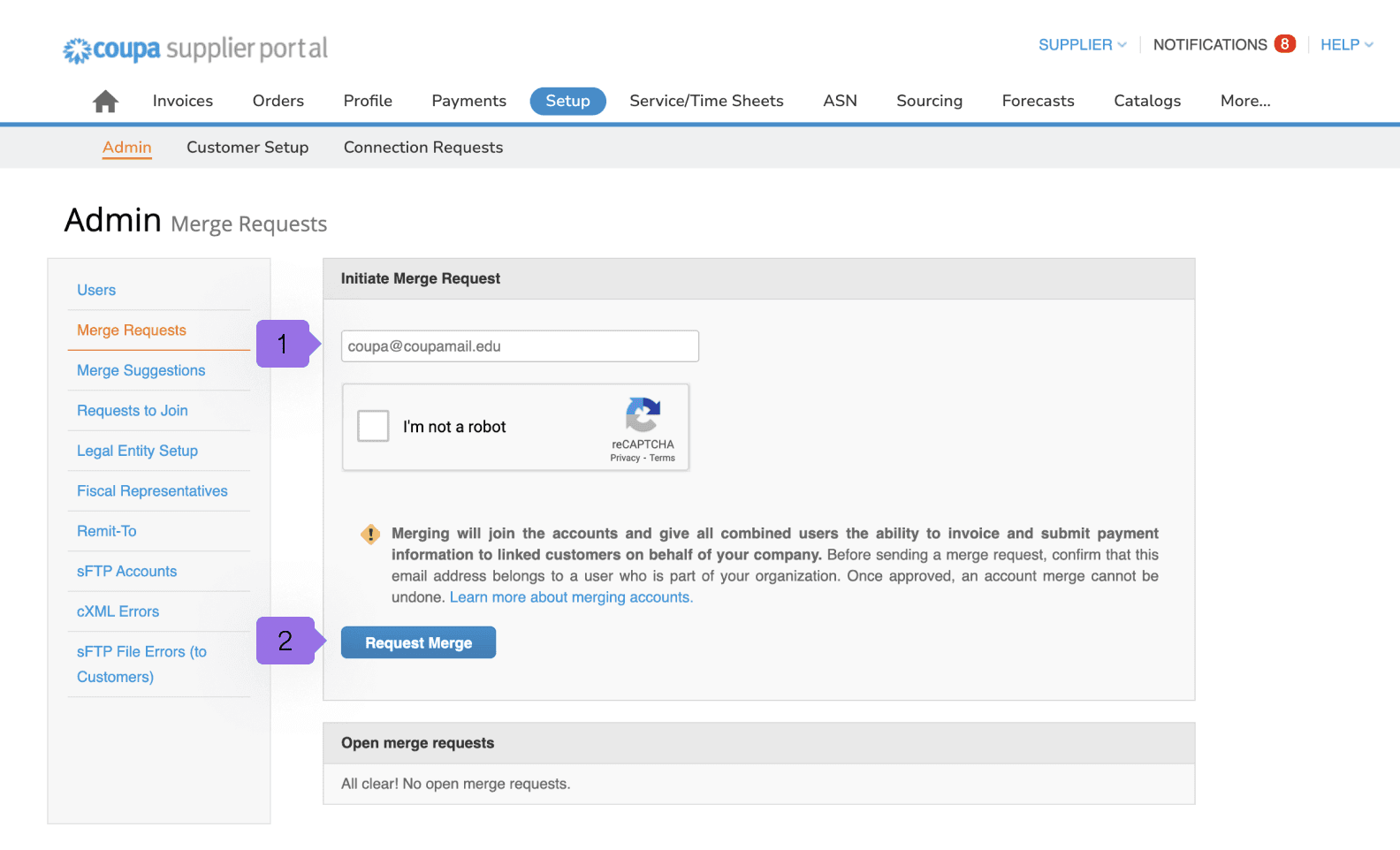
On this page, you can view and accept/decline any merge requests you may have. You can also send merge requests using this page. Merge requests are used if you have more than one Coupa profile.
Enter the other account's email address (1) and click request merge (2). They will receive a notification to accept or decline. This can also be found on the homepage. If a recommended supplier appears on the homepage and you click request merge, this page will appear.
Legal entity setup
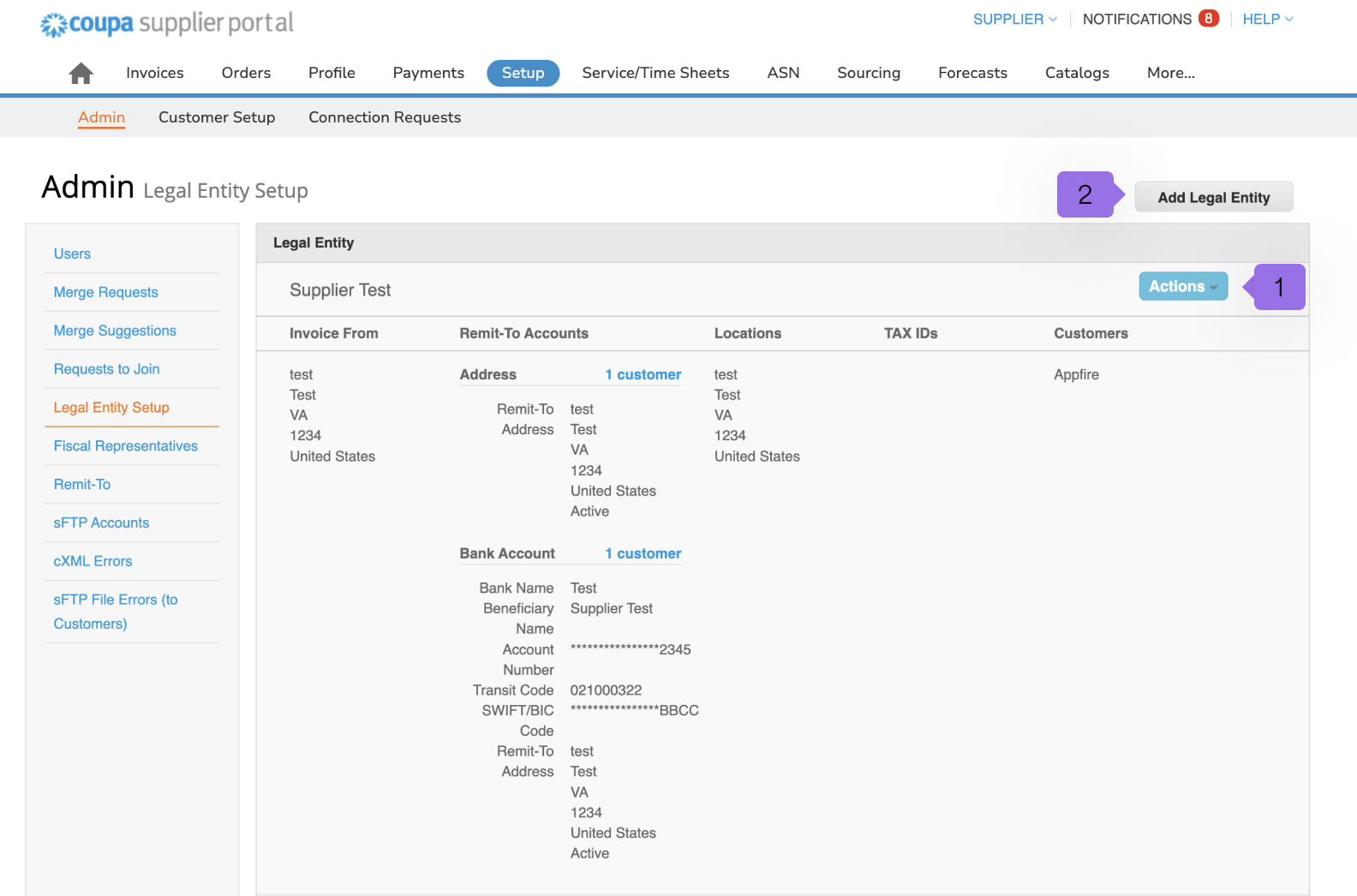
Here, you can view all the legal entities you created. You can deactivate the entities by clicking actions (1) or adding new legal entities by clicking add legal entity (2).
Account settings
The account setting page allows you to change your first and last name, department, role, and password. Here, you can also enable or disable two-factor authentication.