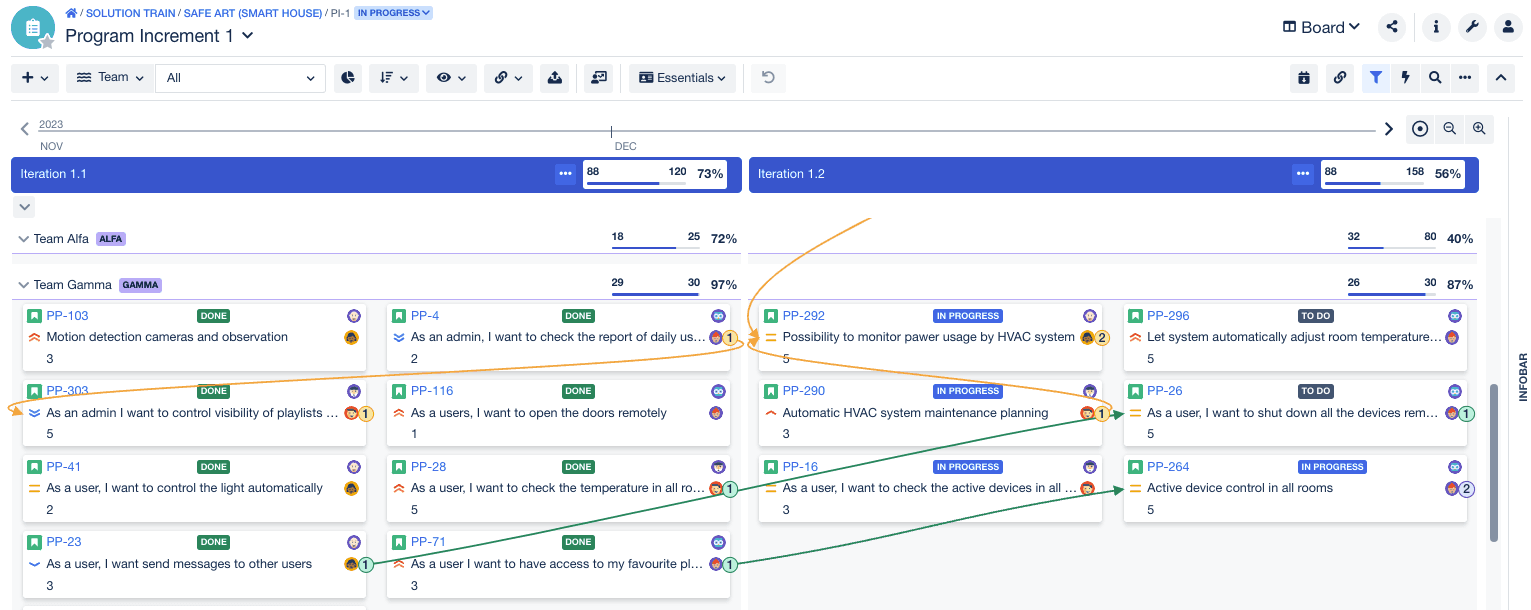

At your daily scrum meeting, your boss asks to talk with you offline about how the current sprint’s team assignments differ from past sprints. Fortunately, you don’t need to feel intimidated by the question. We’re here to guide you on how to view previous and closed sprints in Jira using Agile or Rapid Boards.
There are more situations where you might need to review previous sprints in Jira:
- See how your team achieved milestones in past sprints
- View a summary of completed issues vs. those that leadership tabled
- Find out how tasks were distributed amongst the team
- Reopen a sprint closed by mistake
- Access performance records for a regulatory audit
With this handy tool, you’ll have access to important historical insight to help improve current performance or satisfy requests from other stakeholders. Let’s dive in.
How to view a previous sprint in Jira
From an Agile Board or Rapid Board, you can use the following methods to view past sprints.
- Sprint Report
- Velocity Chart
- Search Button
Keep in mind; not every option is available for all users. For example, to reopen a sprint, you’ll need to be a Jira administrator or a user with sprint management permissions.
Let’s get started with a Sprint Report
Jira project managers use the Sprint Report to see the list of issues in a sprint. This is a valuable report when you want to check mid-sprint progress or compile historical performance for a sprint retrospective meeting. One core feature of the Sprint Report is the ability to review old sprints. Here’s how:
- Go to Jira and open the project.
- Go to the team Agile Board.
- Click on Reports.
- Select Sprint Report from the drop-down list
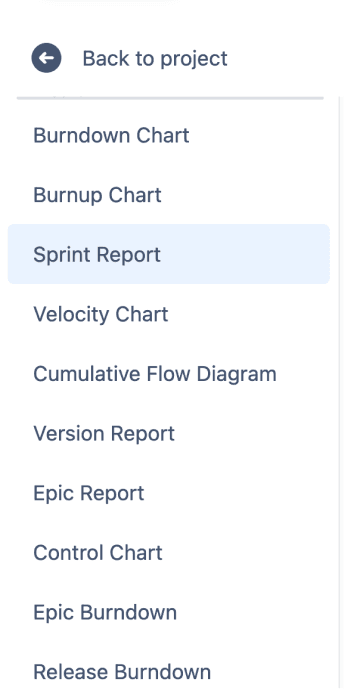
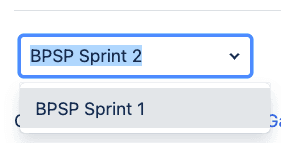
- Choose the Sprint you want to view
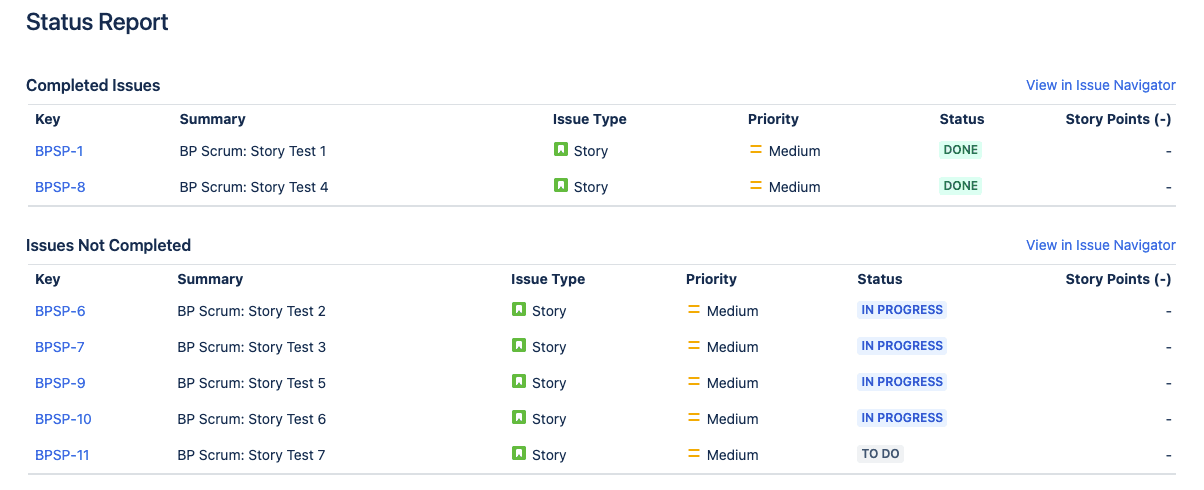
There, you’ll see all the issues related to the previous sprint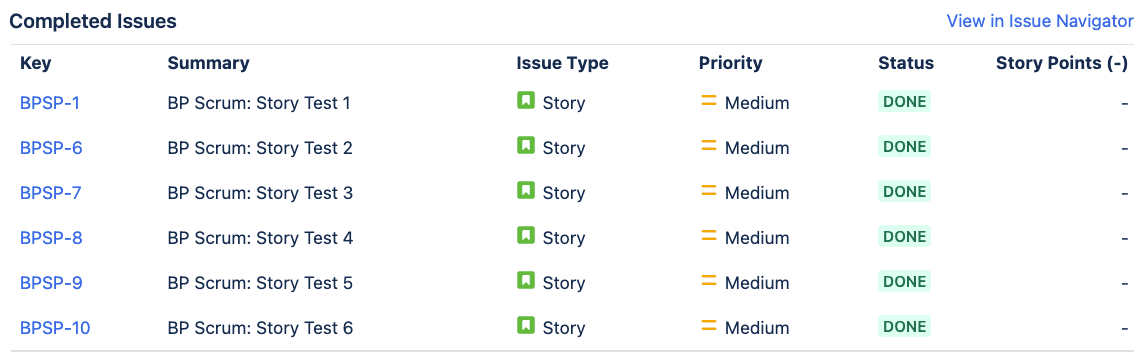
How to View Previous Sprints Using a Velocity Chart
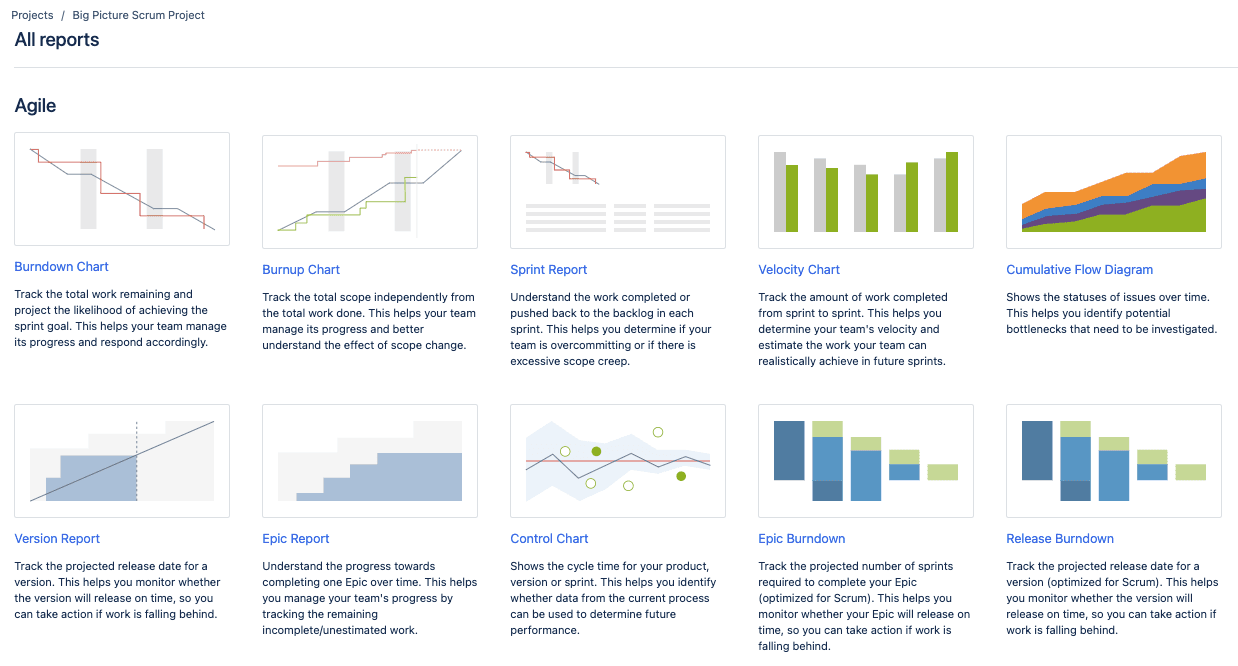
On the Velocity Chart, you can view the average amount of work completed by a scrum team during a sprint. Teams use this chart to predict how rapidly they can work through a backlog.
You can also use a velocity chart to view closed sprints. Here’s how it works:
- Go to Jira and open the project.
- Go to the team Agile Board.
- Click on Reports on the left sidebar
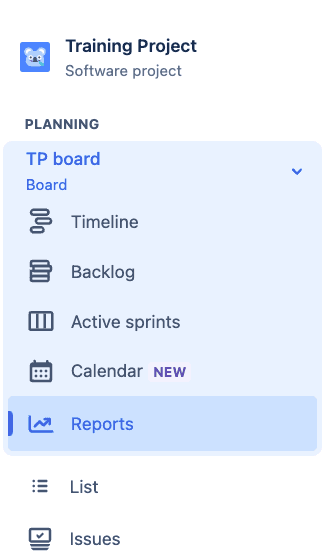
- You’ll see several reports to choose from. Select Velocity Chart.
- Choose the sprint you want to view information for
How to Use the Search Feature to View Closed Sprints
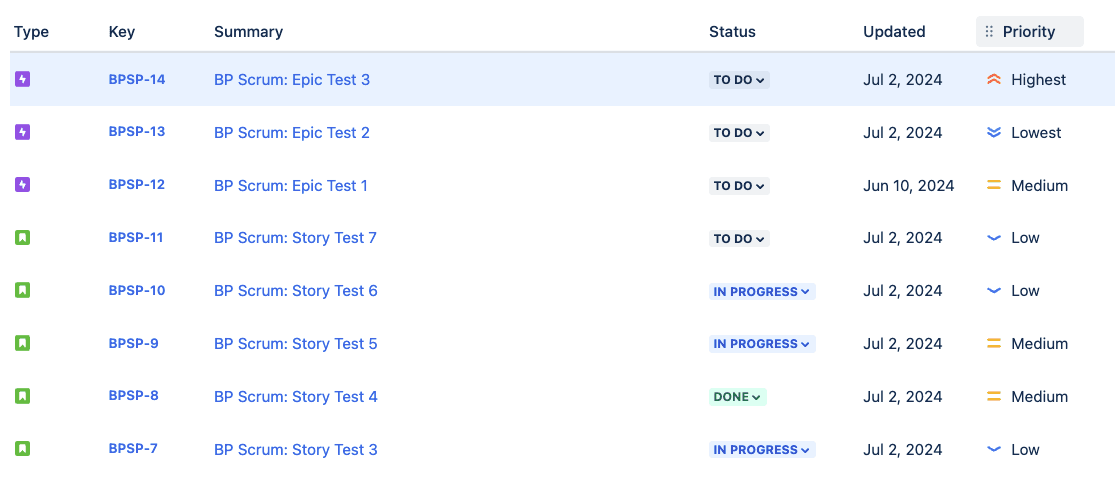
You can also use the basic Search option. Using JQL, you can build structured queries to search for sprints and issues in a project. You can also specify a search criterion for quick searches.
- Go to Jira.
- Click on the Search button.
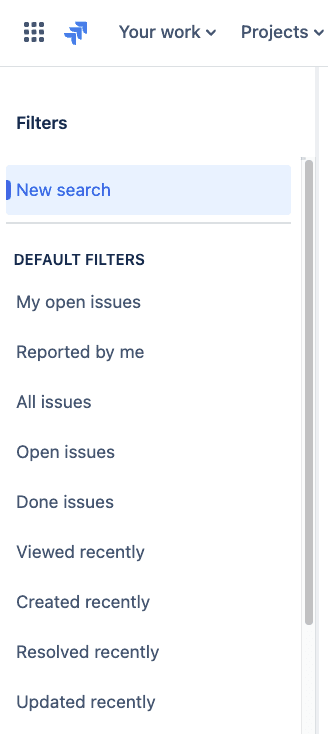
- Type command "Sprint = ”SprintNameHere””

- Once you get the results, click on the sprint to open
Alternatively, if you don’t remember the sprint ID, you can get the sprint ID by typing the following command inside the browser’s developer tools console while in work mode on your rapid board:
javascript:alert(“Sprint ID is ” + jQuery(“DD[data-sprint-id]”).attr(“data-sprint-id”))Once you get the correct Sprint ID, just type it inside the search bar to view.
You’re Ready to View Previous Sprints!
That’s it! With these three tips and tricks, you can easily view closed sprints in Jira. You’ll have the intel you need to answer questions from your boss or other stakeholders, while also empowering your team with useful knowledge about your past performance.
BigPicture - Project Management & PPM enhances sprint management by providing a holistic view of projects and portfolios. It integrates seamlessly with Jira, allowing users to visualize sprint timelines, track progress, and manage dependencies across multiple teams and projects. This tool facilitates real-time data synchronization, enabling better workload management and resource allocation. With BigPicture, teams can identify bottlenecks, optimize planning, and ensure alignment with business objectives, leading to improved efficiency and project delivery outcomes