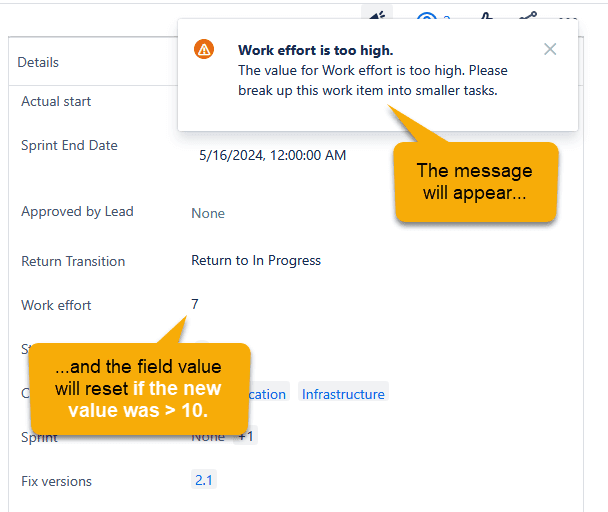

If important issue updates occur outside of status changes, you cannot validate field entries using workflow Validators; Validators are only used when a work item is moved to a new status. That's where our powerful Event-based Actions come in. They offer a collection of triggers that will kick off one or more of JMWE's post functions to automate processes outside of workflows. One of the triggers - Issue Field Value Change - will trigger an action when an issue field value changes.
When a user edits an issue, validate the field value input
Here is how to validate input when a user changes a field, and alert the user with an in-app message when the input doesn't follow the required format. Even better - you can automatically revert to the previous value.
- Log into Jira as an Administrator.
- Go to Apps > Jira Misc Workflow Extensions.
- Go to Event-based Actions in the left-hand panel.
- Click on "New event-based action" to create this automation.
- Give it a name, such as "Check value of work effort"
- Under WHEN, select Issue Field Value Changed in the right-hand panel.
- From Fields to monitor, select the Work effort field to watch for changes and to validate.
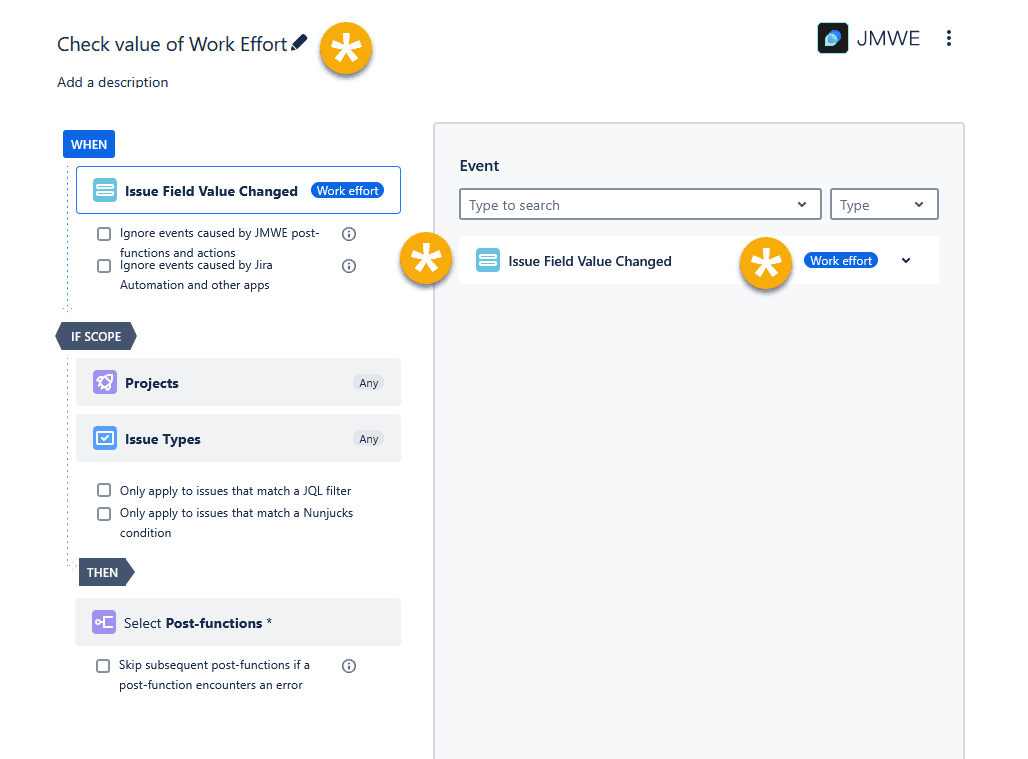
- Optional: Under IF SCOPE, select one or more Projects to which this automation should apply. Leave as the default value if this applies to all projects globally.
- Optional: You can also select issue types to which this action will apply.
- Add conditional execution by checking Only apply to issues that match a Nunjucks condition.
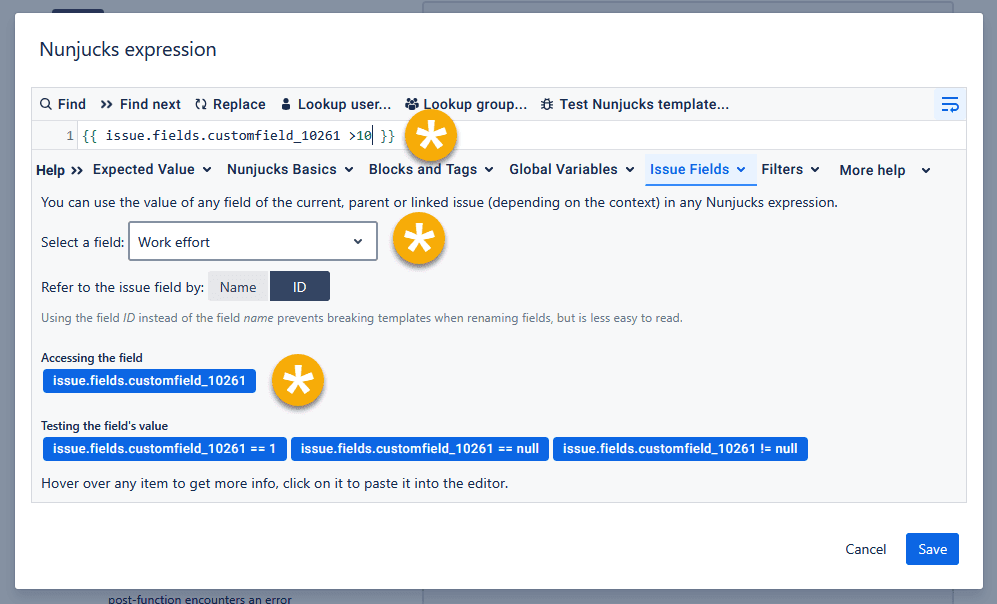
- Click the Nunjucks condition to open the editor.
- At the bottom of the Nunjucks editor, expand the Issue Fields tab, and select Work effort in the field dropdown.
- You can refer to the field either by Name or ID. We suggest using field IDs instead of names in case the name is edited in the future. Under Accessing the field, click the field to insert it into your Nunjucks code - issue.fields["Work effort"] in case you are using Name, or issue.fields.customfield_XXXXX if you are using IDs.
- In the Nunjucks editor, add >10 (to represent "greater than 10") after the name or ID of the field.
- Click Save.
Now we'll configure a post function to display an "error" message to users if the field value entered is greater than 10.
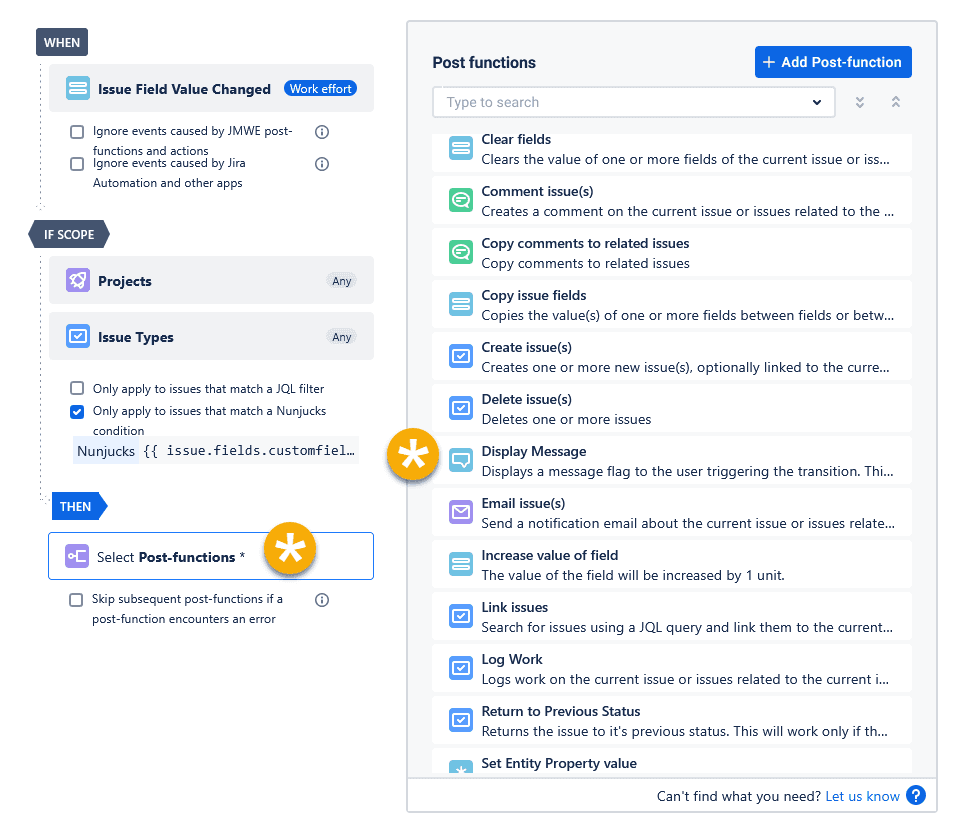
- Under THEN, click Select Post-functions.
- Click Display Message in the right-hand panel.
- Configure the message you want to appear to users if the Work effort field value is greater than 10.
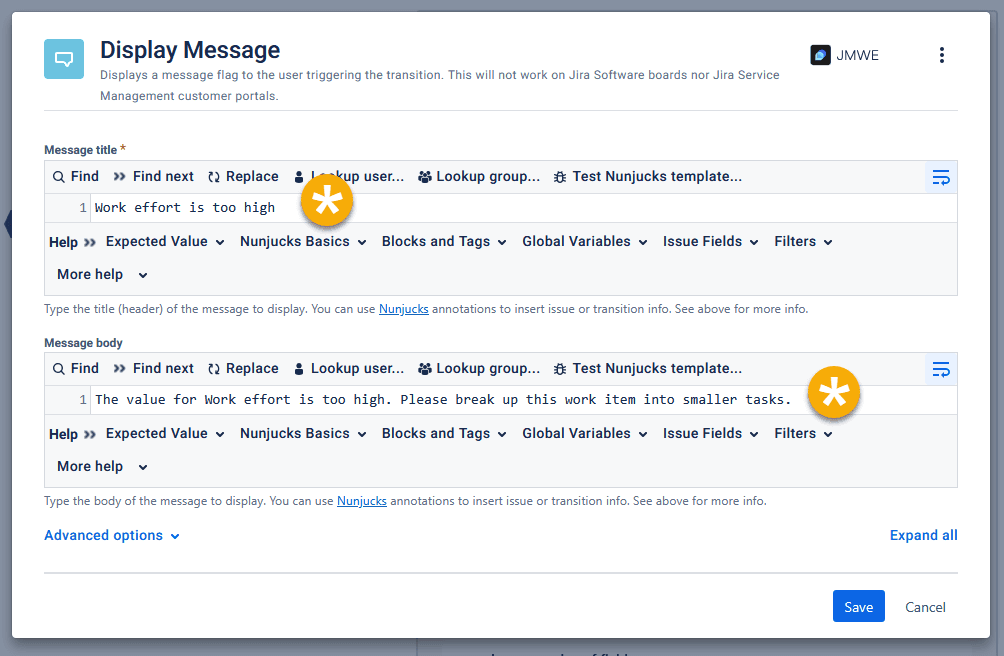
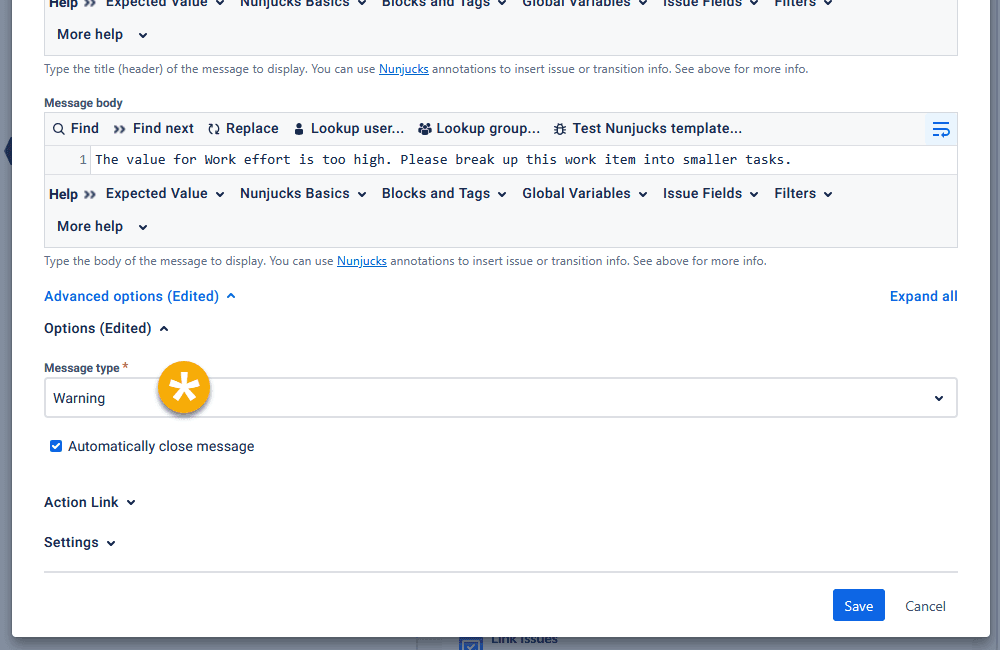
- Optional: Under Advanced options > Options, select message type "Warning" and check "Automatically close message."
- Save the post function.
- Bank in the Event-based Action editor, click Add post function. We'll configure a post function to roll back the field to the previous value.
- Select Set issue fields post function and click Add.
- For Target issues, verify that its set to Current issue.
- Under Fields to update click Add.
- Select the field Work effort.
- Type the following Nunjucks expression into the New value field (this will set the field to the previous field value; you can find all these snippets of code in our documentation):
{{issue | fieldHistory( "Work effort" ) | last | field("from_string")}}
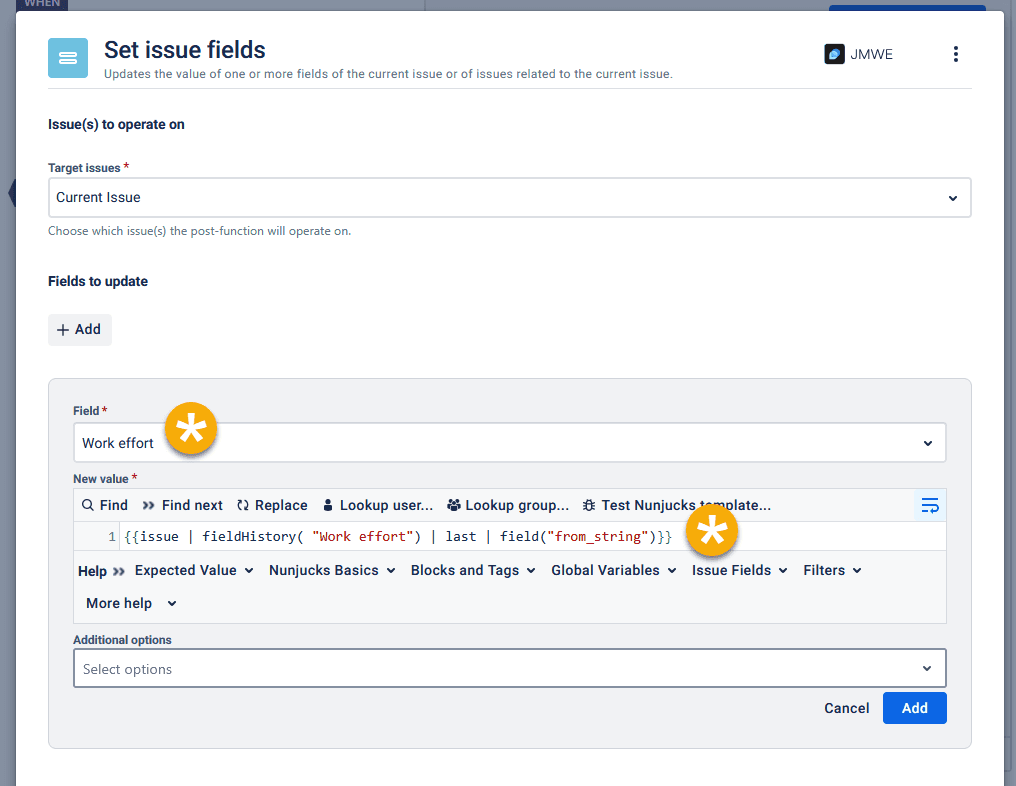
- Click Add to add the field to the post function.
- Click Save to save the post function.
- Click Save to save the Event-based Action.
- All done!