
Continuous improvement of your support team’s workflows and processes can significantly improve productivity, efficiency, and customer satisfaction. By giving your employees quick access to information, automated processes, and resources to easily manage requests, you can enhance your support team’s productivity and communication, streamlining ticket resolution. Using HelpDesk+ to integrate Jira Service Management (JSM) with Slack makes all this possible.
The uses of HelpDesk+
HelpDesk+ is a powerful two-way Slack and Jira Service Management integration that bridges the gap between Jira and your communication platform to simplify request management, enhancing your service desk with powerful automation and optimizing your support team.
Let’s unpack some of its features.
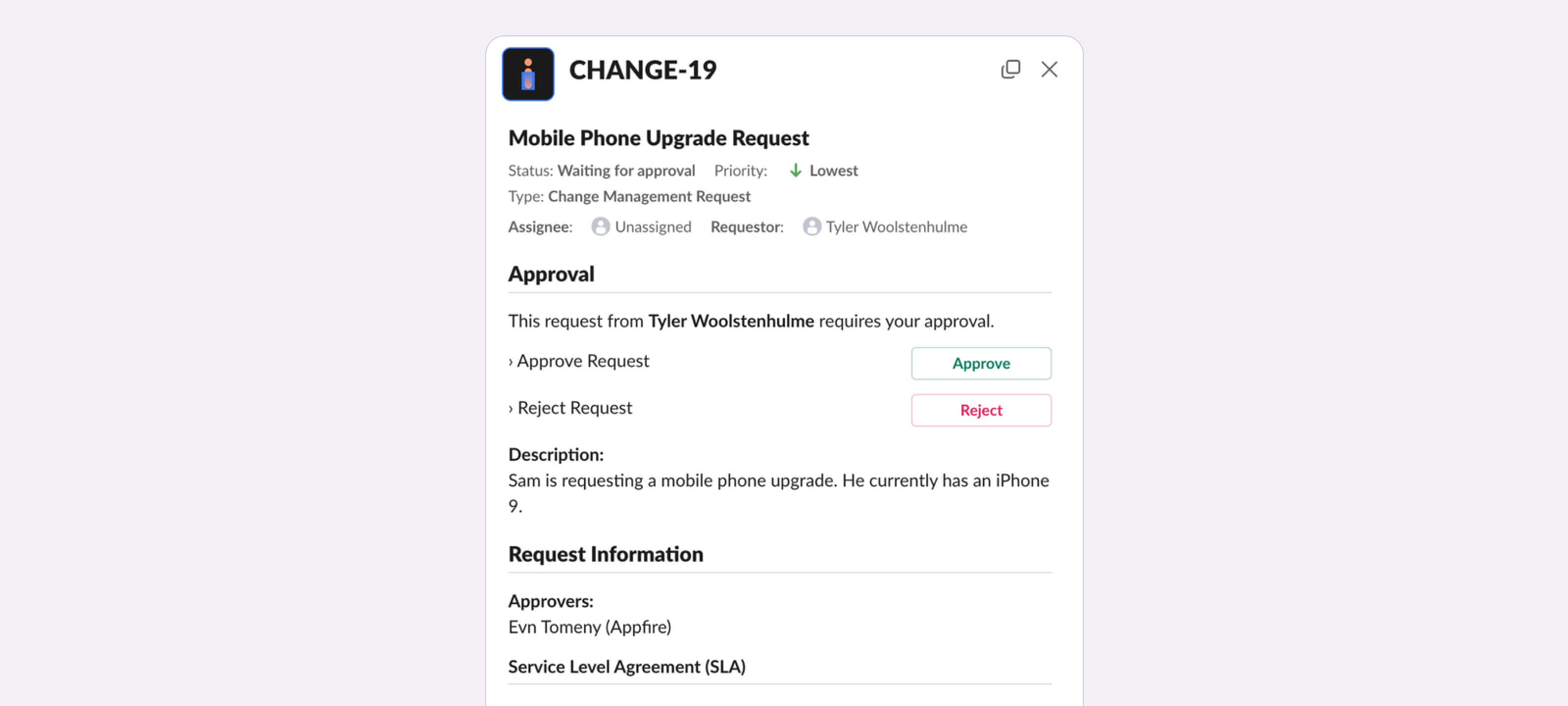
Approve requests from the HelpDesk+ Home Tab
Easily approve or deny requests assigned to you from the HelpDesk+ Home Tab.
What’s it handy for?
This feature provides a streamlined and efficient process for managing requests and approvals, saving time and improving productivity. It also enables you and your team to stay compliant with trackable, actionable notifications.
A few uses for this workflow:
- Improved efficiency: Slack notifications empower you to manage change requests quickly and easily, reducing the time and effort required to review and approve.
- Greater accountability: With trackable actionable notifications, you can easily track all approvals and rejections, ensuring the appropriate people have reviewed and approved each request.
- Increased compliance: Make sure all requests go through the appropriate review process before they’re approved, reducing the risk of errors, fraud, and other compliance issues.
- Better collaboration: The Slack integration allows you to easily share information with team members and get feedback on requests, improving collaboration and streamlining the approval process.
- Less context switching: Integrating Slack and Jira eliminates the need to switch between platforms.
To get started:
- Install HelpDesk+ to your Slack workspace.
- Download the companion Slack app.
- Invite the app to your Slack channels.
- Navigate to the HelpDesk+ home tab to configure the approval routing
- Go to the message center.
- Click the "View" button next to the approval you want to review.
- Review the request.
- Click the "Approve" or "Reject" button.
- Add any relevant comments to your response.
See it in action:
Remind users to create tickets
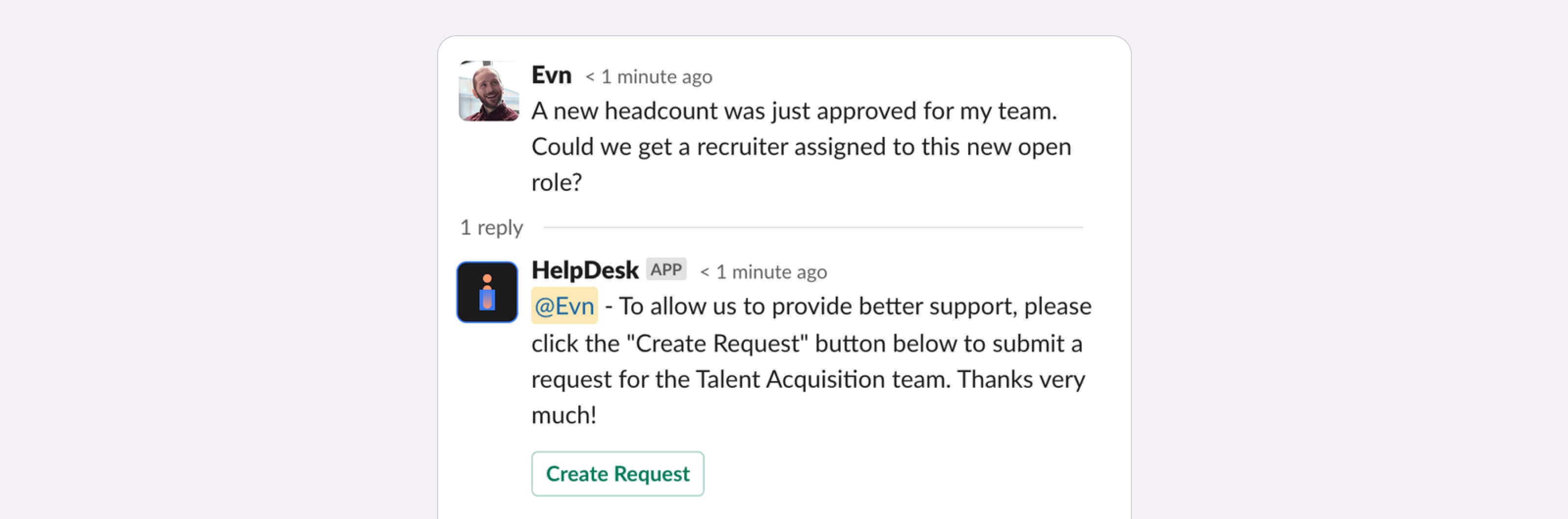
Send an automatic message in Slack to remind users to create a new Jira ticket when they message a specific channel.
What’s it handy for?
Configure an automatic message to remind users of the internal process and provide a button they can click to create a new ticket.
A few uses for this workflow:
- Teach users how to get support in Slack.
- Reclaim time spent by agents reminding users to create tickets.
- Send users information on internal policies and workflows.
- Configure your channel, enable the auto-remind feature, and customize the message with advanced options.
To get started:
- Invite the HelpDesk+ bot to the channel you want to configure.
- Type /helpdesk configure.
- Select the issue type for which you would like to create an auto-response.
- Click the checkbox following to Auto Response.
- Provide the message that the bot will reply to each message with.
- Optionally, click the checkbox next to the Create button to have the bot display a button enabling the user to create an issue using the types specified in Step 3.
- Optionally, click the checkbox following the Custom Button and provide the button text and the URL users should go to when they click.
- Click Submit.
See it in action:
Remind users with a custom message and button to create a ticket.
Make internal comments the default for agents
Configure channels where agents can discuss issues. By default, these messages are saved as internal comments in Jira Service Management.
What’s it handy for?
Keep the conversation between agents private by defaulting to private responses when agents reply in Slack.
A few uses for this workflow:
- Keep agent communication private.
- Reduce noise for users you’re supporting.
- Configure your channel to Internal Comment mode to enable this feature.
To get started:
- Type /helpdesk-plus configure.
- Make sure you’re in an Agent channel.
- Click the Configure button.
- Select the option Internal Comment Mode.
- Click Submit.
Discuss internally with other agents
Add internal comments with other Agents from Slack to JSM and keep them private.
What’s it handy for?
Review and discuss issues internally with other agents in Slack or JSM.
A few uses for this workflow:
- Mirror your existing support process inside Slack and keep comments in the right context.
- Help users faster without exposing internal processes.
- Just add a lock emoji to make an internal note.
To get started:
- Go to a ticket discussion thread in Slack in your Agent channels.
- Start your message with the lock emoji to indicate the message is private.
- Example: [lock emoji] This is an internal comment.
- Send your message to Slack.
NOTE: You can't hide messages in Slack, so make sure to add this message to your Agent channel.
See it in action:
Post external comments using the mega emoji.
Issue deferment with knowledge-base integration
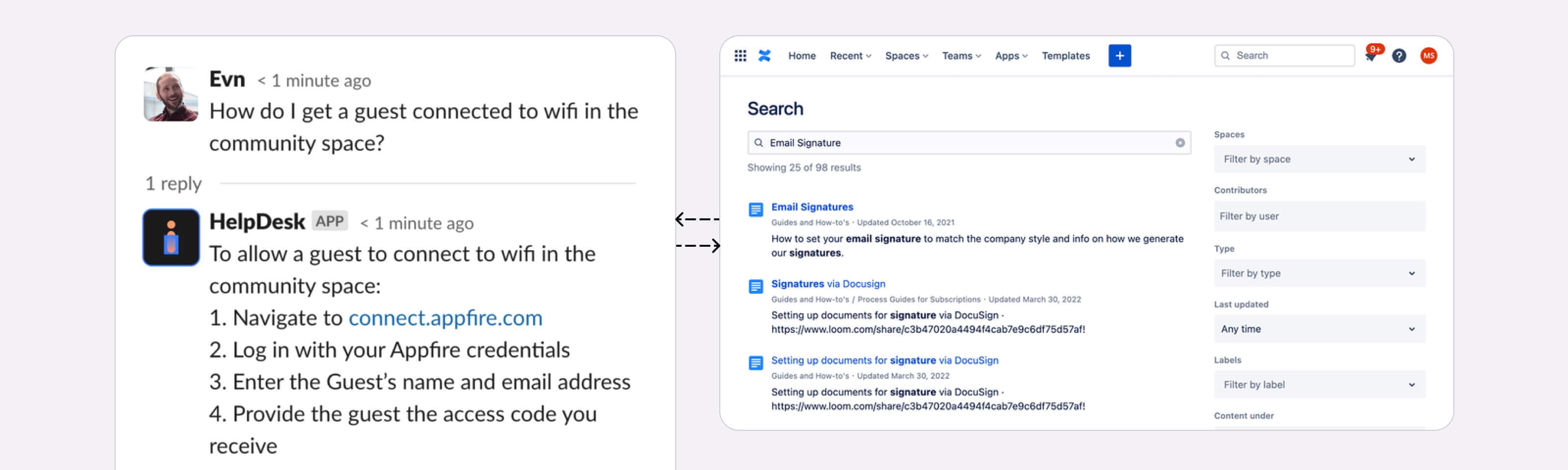
Streamline ticket resolution by enabling users to find documented answers quickly.
What’s it handy for?
HelpDesk+ users can optimize their ticket resolution process by integrating with a preferred knowledge base. Our solution supports KB integrations with Confluence, Dropbox, Evernote, Google Drive, and HelpDocs.io, as well as an option for a custom service. This is useful for support teams, helpdesk administrators, and anyone involved in managing tickets and improving customer support.
A few uses for this workflow:
- Improve ticket resolution times: Users can easily search for documented answers, reducing the need to create new tickets and allowing for faster resolution times.
- Enhance user experience: Empower users to find answers to their questions quickly and easily with access to a knowledge base through the HelpDesk+ bot.
- Streamline support workflow: Centralize information and streamline your team's support workflow. This can cut down on duplicate tickets, improve efficiency, and ensure users receive consistent information.
- Increase ticket deflection: Reduce ticket volume and deflect tickets that can be resolved with documented answers, freeing up support resources for more complex issues.
To get started:
- Navigate to your account portal to configure knowledge base integrations.
- Click the Integrations setting under HelpDesk+.
- Make sure the Add integrations for Helpdesk control is enabled.
- Select your preferred integration from the drop-down.
- If applicable, enter the base URL for your knowledge base service.
- Click the Test integration URL button to perform a basic search and confirm the integration is working.
- Click the Save Settings button.
See it in action:
Best practice support channel settings in Slack
Learn how best-in-class teams are configuring this two-way Slack and Jira Service Management integration.
What’s it handy for?
Learn from thousands of customers who have worked with our team to set up Slack-first support. See how a best practice channel functions to fully optimize support.
Summary of best practices:
- Limit options: Users don't want multiple choices, so limit your request types by channel and purpose.
- Make it easy: Show users pinned messages with buttons and send them a reminder when they forget.
- Away times: Post times when your team is not available to set expectations with users.
- Configure app messages: Customize the default messages to your team's needs, share policies and links, and keep this data updated.
Make your configuration suit your use case. Your organization is unique, so configure the app in a way that works for you.
Try HelpDesk+ for free to enhance your support team’s productivity and communication in Jira Service Management (JSM) and Slack.
