

Labels are a useful feature for organizing pages and projects in Confluence, but when you have a large instance with hundreds or even thousands of pages, things can get out of hand. For an easier way to add and remove multiple labels across multiple pages or just get an overview of their pages, some of our biggest clients use Comala Lists:
- Siemens
- Verizon
- Disney Worldwide
- Blackberry Limited
- NBC Universal
- Air France
Labels are tags or keywords you can assign to pages to help organize or link similar content. As a native feature within Confluence, you can use a label in a search query or display a list of pages with a specific label. But what if you want to see multiple labels in one view and easily add or remove them from pages? Or, you may have a project with multiple pages that you want to quickly link together with a single label.
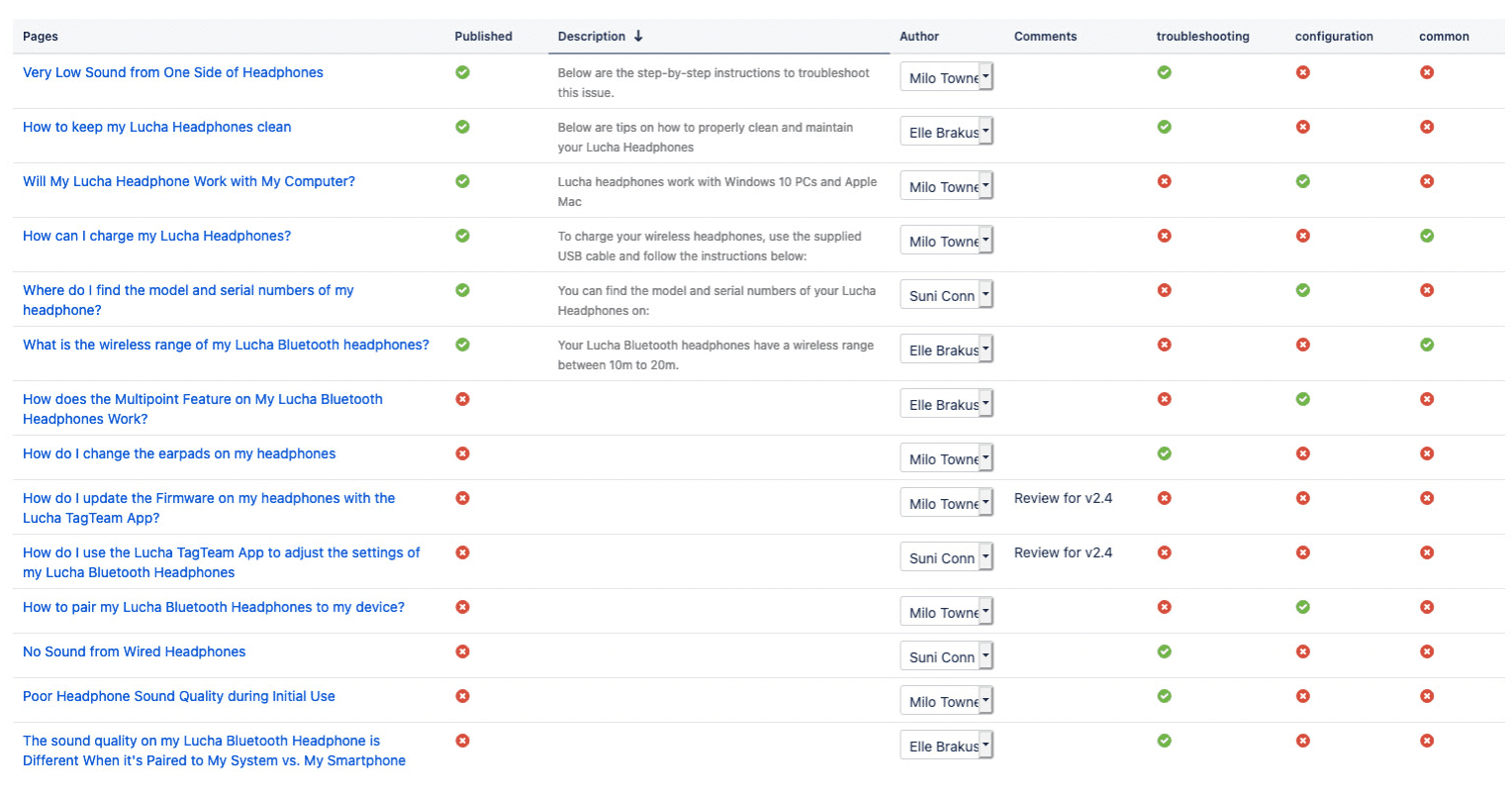
How to Build a List to Manage Labels
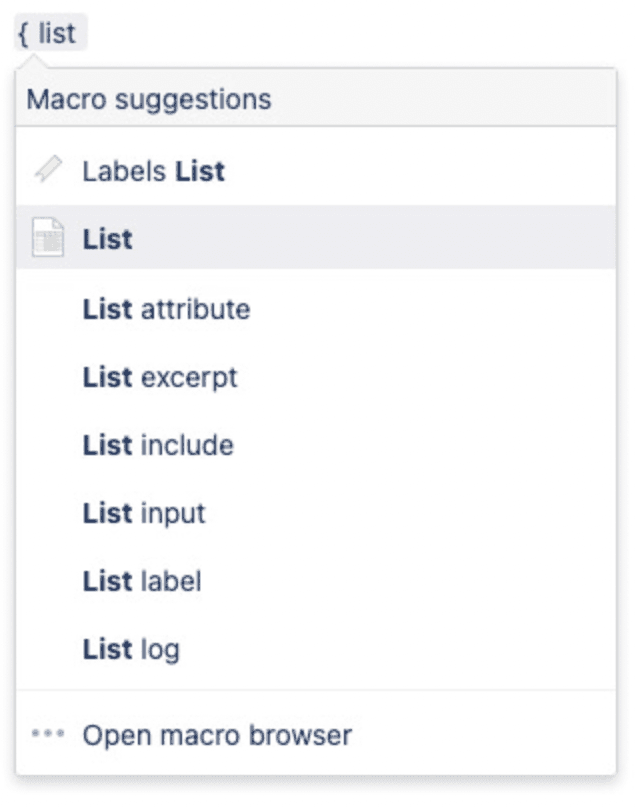
Once you have installed Comala Lists, you can insert a list into a page using the List macro.
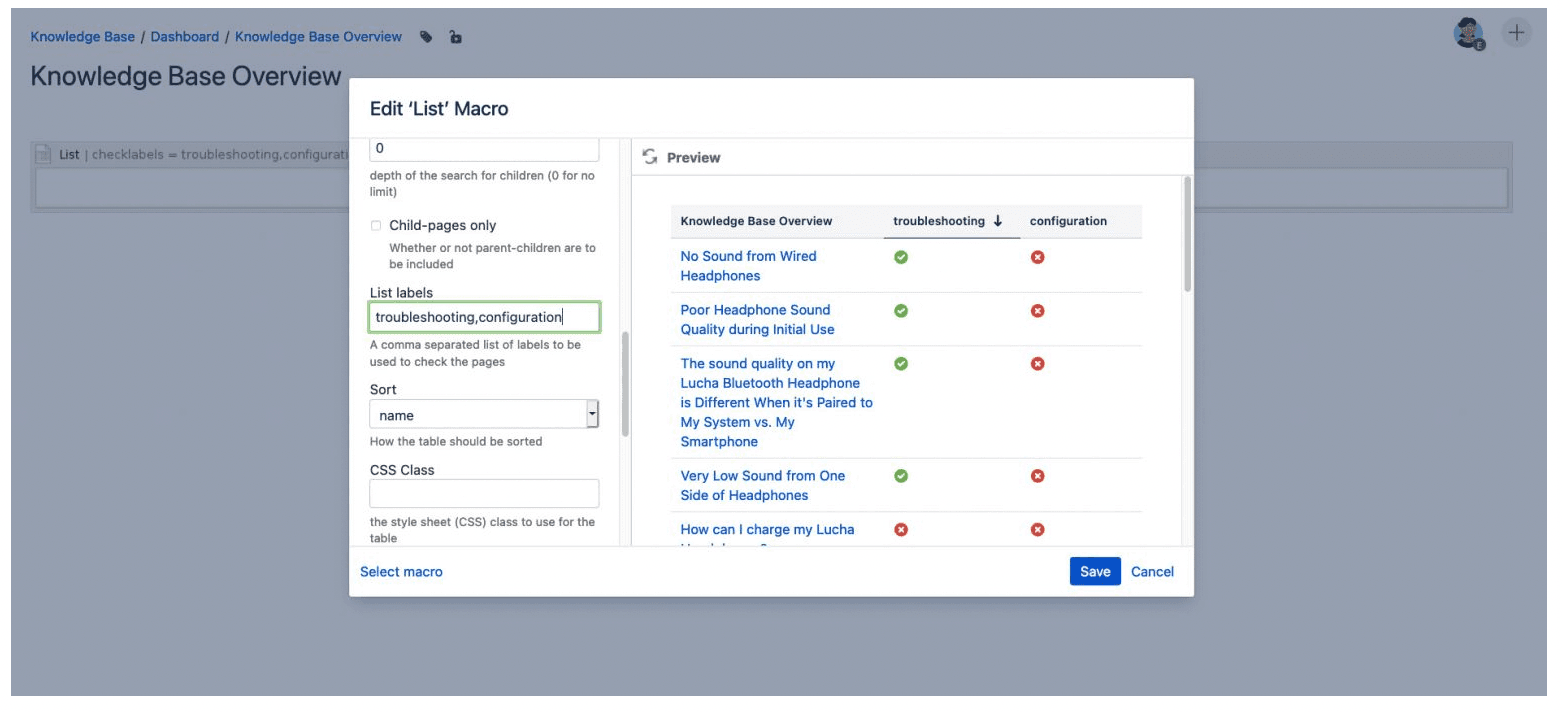
Click Edit to configure the list’s settings. By default, it will generate a list of all the pages in the space. You can also choose to show pages from a different space than the one you’re in, which means you could set up a single “overview” page with a list for each space you want to manage.
In the List Labels field, enter the labels you wish to display. You can also create new labels that have not been assigned to any pages by adding them here.
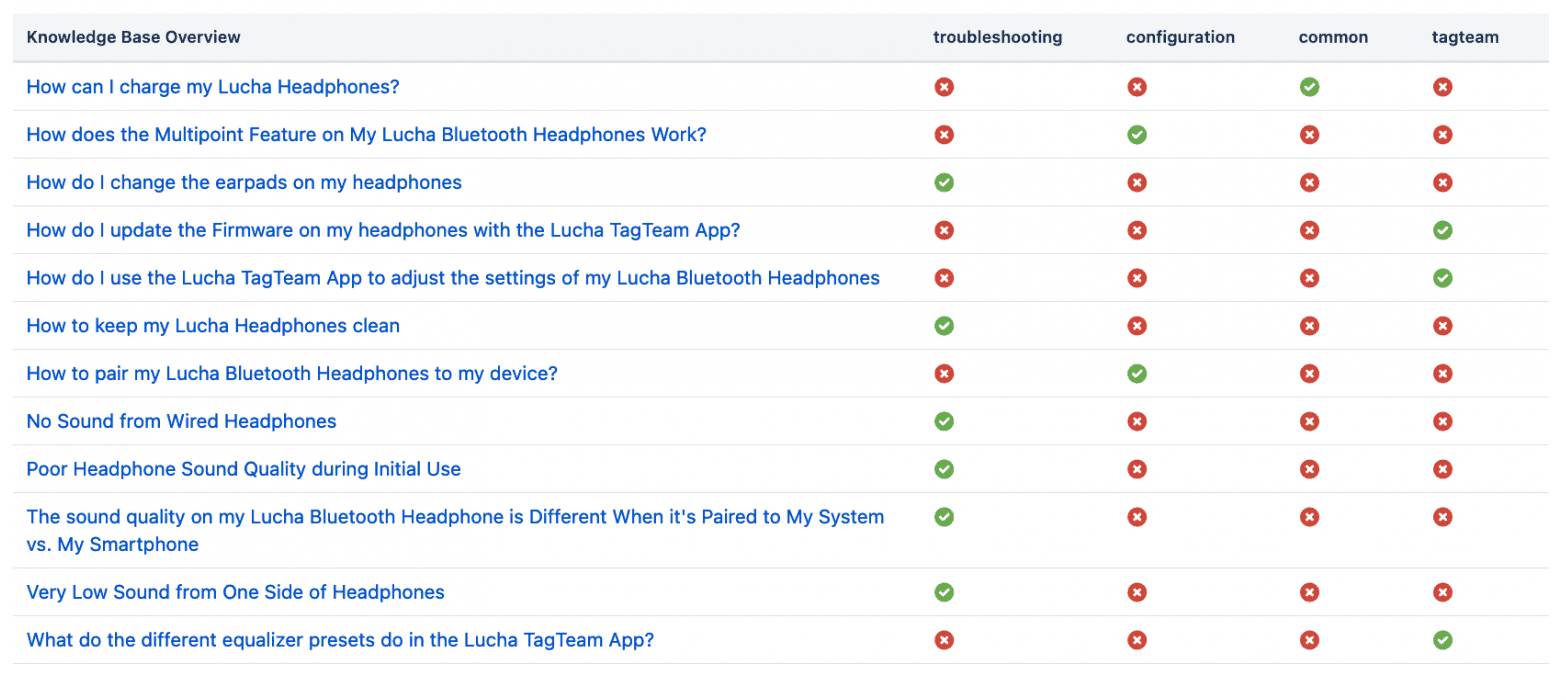
Once your list is ready, you can sort your pages alphabetically or by a specific label. For organizations with large instances, this is a handy way to review your content. Use the list to add or remove labels with a click, and the changes will be applied to the pages.
Knowledge Base Overview
Do More with Labels and Lists
This is just one of many potential use cases for Comala Lists, and the add-on also works together with other Appfire apps. Use it with Comala Metadata to display metadata in your list, or pair it with Comala Document Management to add labels as part of a workflow. You could, for example, create an approval workflow that assigns labels to a page at different stages and then use Comala Lists to get an overview of the progress of all of your pages. The Port of Antwerp uses Comala Lists to assign labels to pages, which then trigger specific workflows.
Try it free