

Hello! Alexey Matveev here.
In this article, I’ll be showing you how Portainer and Prometheus work together using docker containers.
Here is our file structure after we have created all files from this article:

Files for Prometheus
Our Prometheus container will select metrics from Jira and send alerts to a Slack channel. You can watch this video for more details.
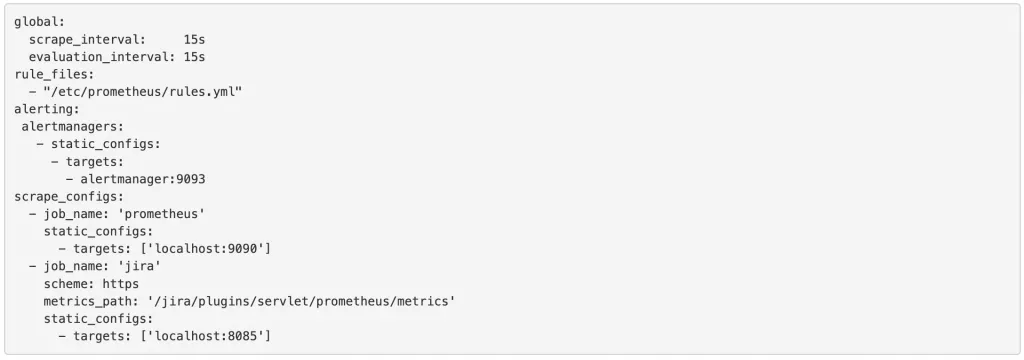
prometheus.yml
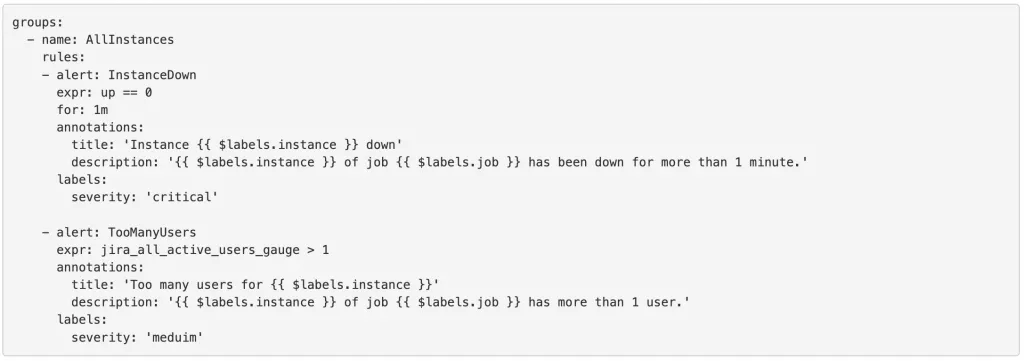
rules.yml
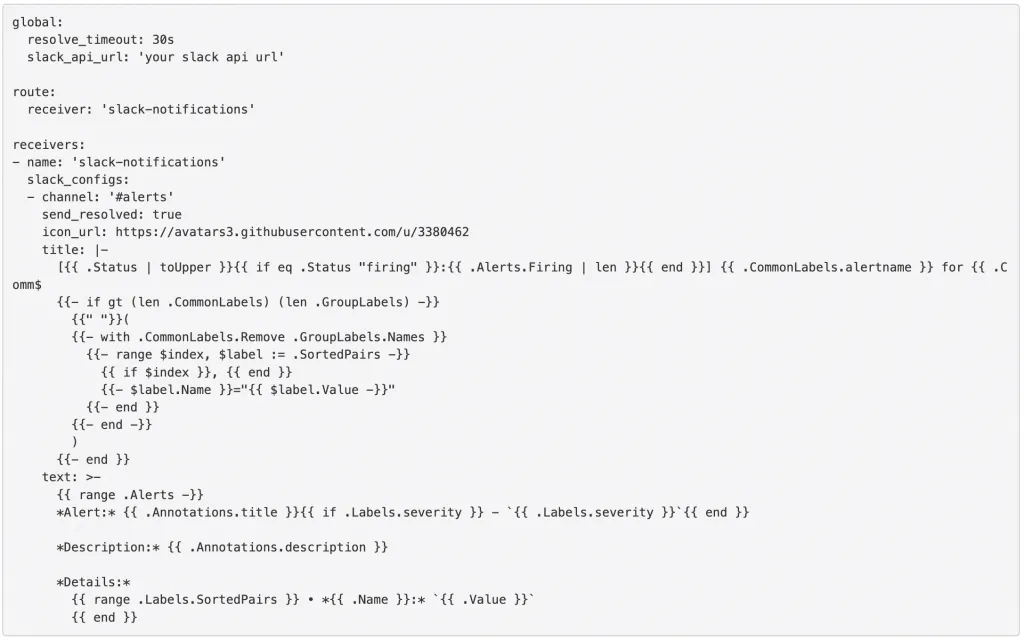
alertmanager.yml
Run Portainer
Portainer lets you manage your docker containers via web UI. Let’s create a docker-compose.yml file in the /home/user/docker folder:
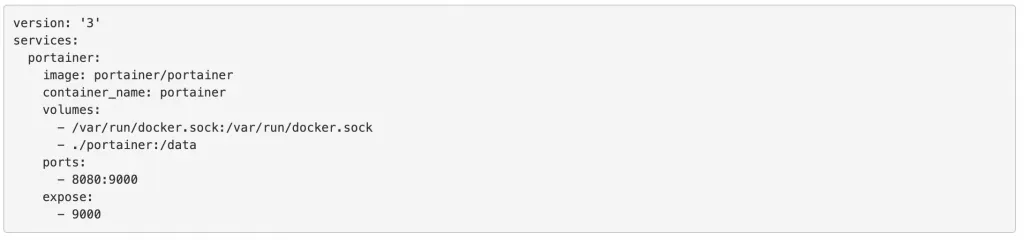
Run this docker-compose.yml file with:

Now our Portainer runs on port 8080.
Create Prometheus stack in Portainer
Now we can log in to Portainer with localhost:8080.
We will be asked to set the password for the admin user:
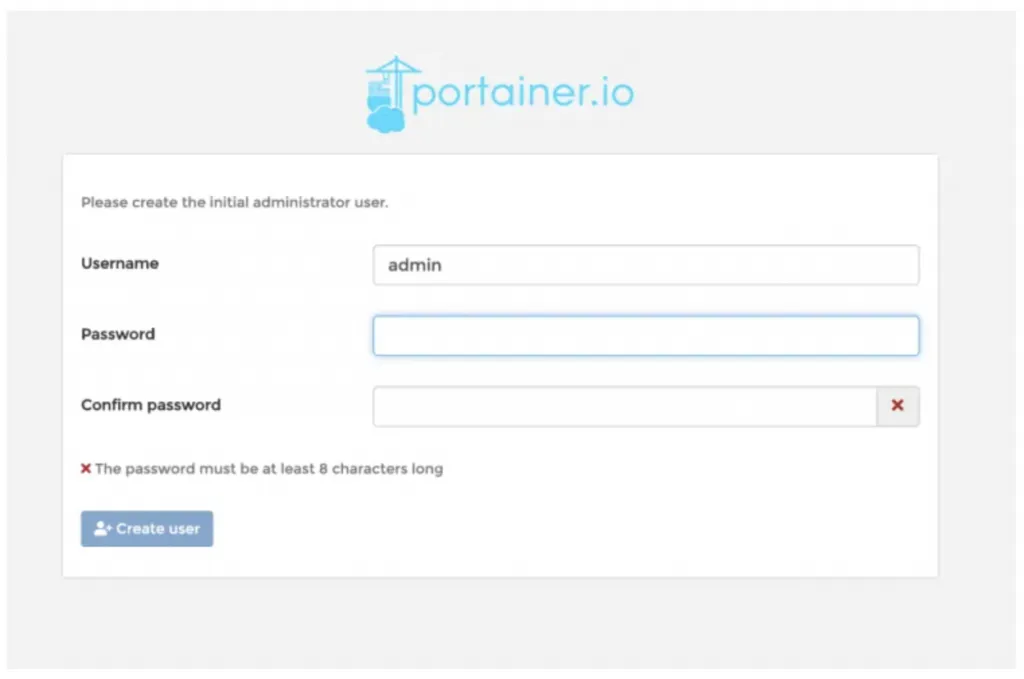
Set the password and push the Create user button:
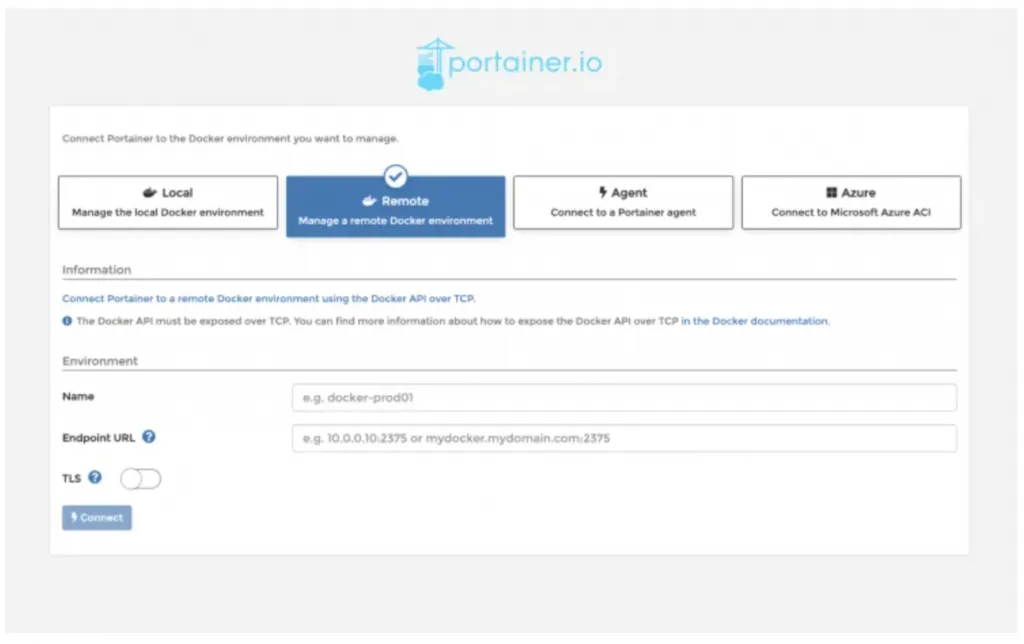
Choose Local:
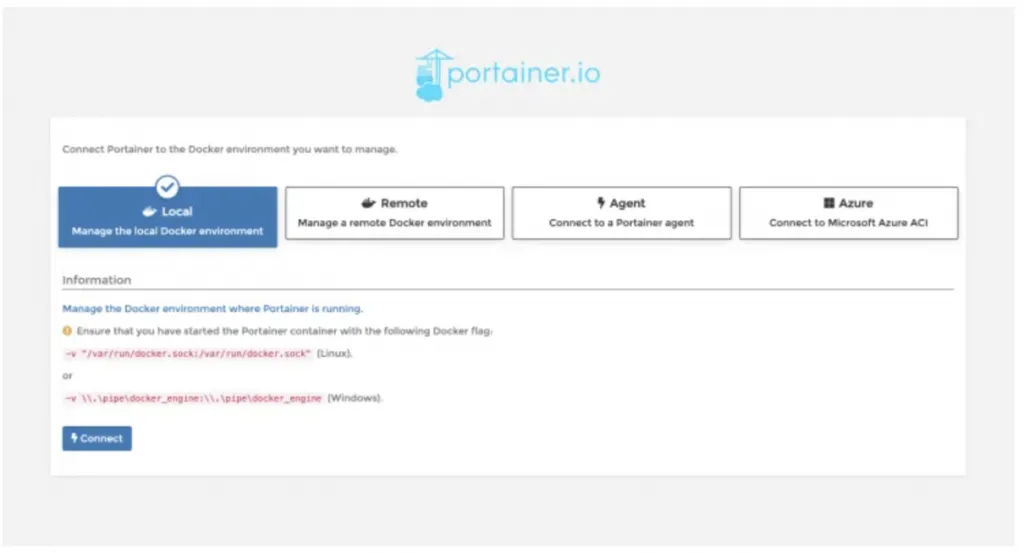
Push the Connect button:
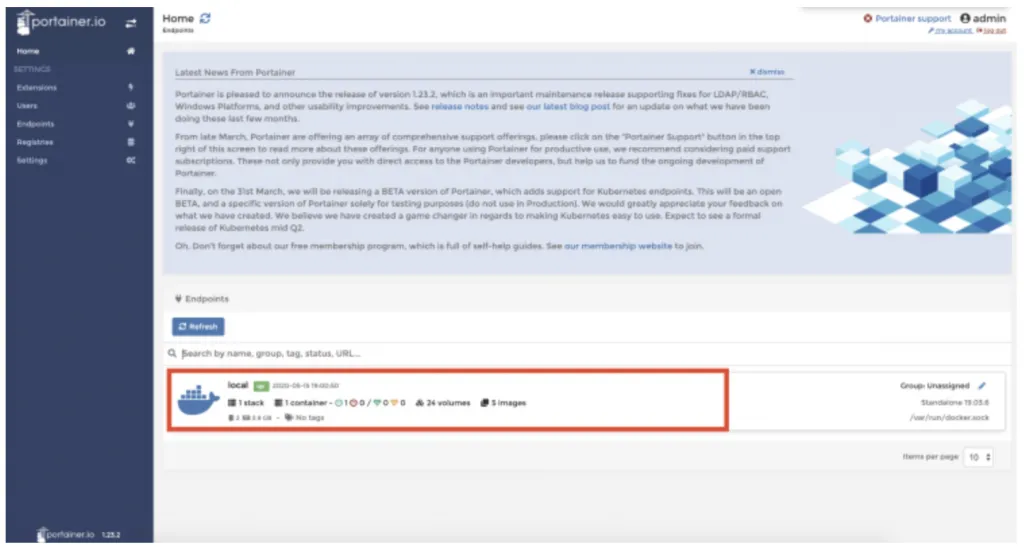
Click on the available docker:
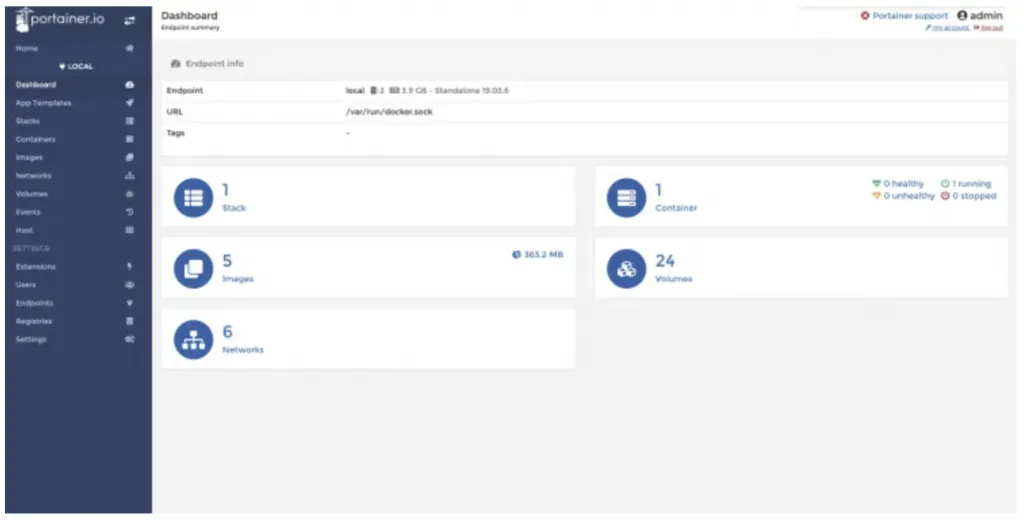
Click on the Stacks section:
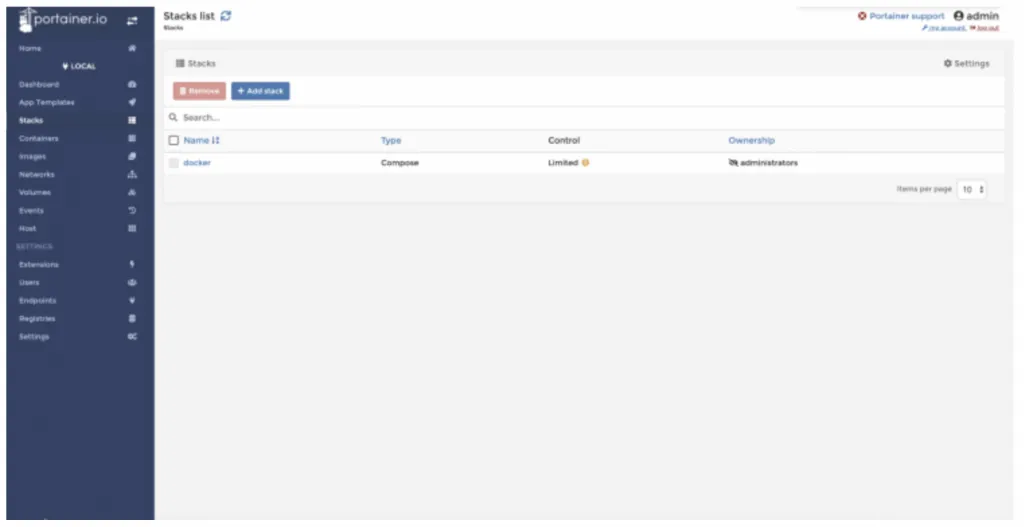
Click on the Stacks section:
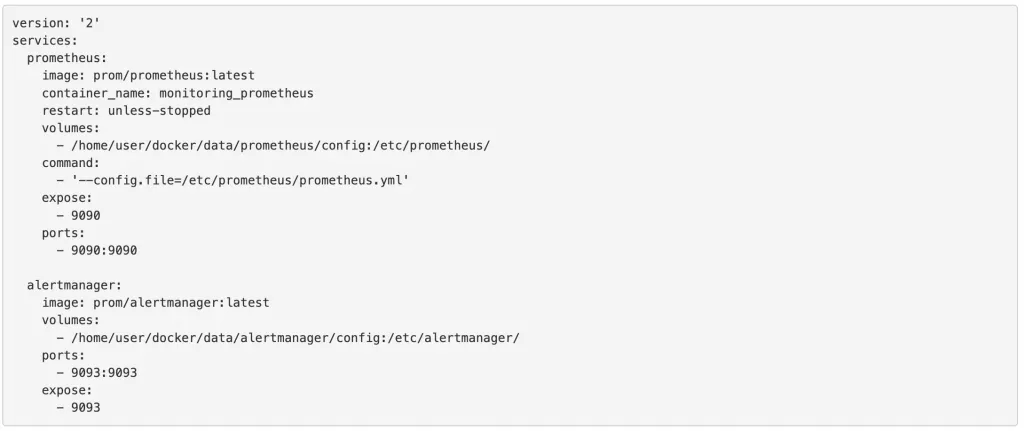
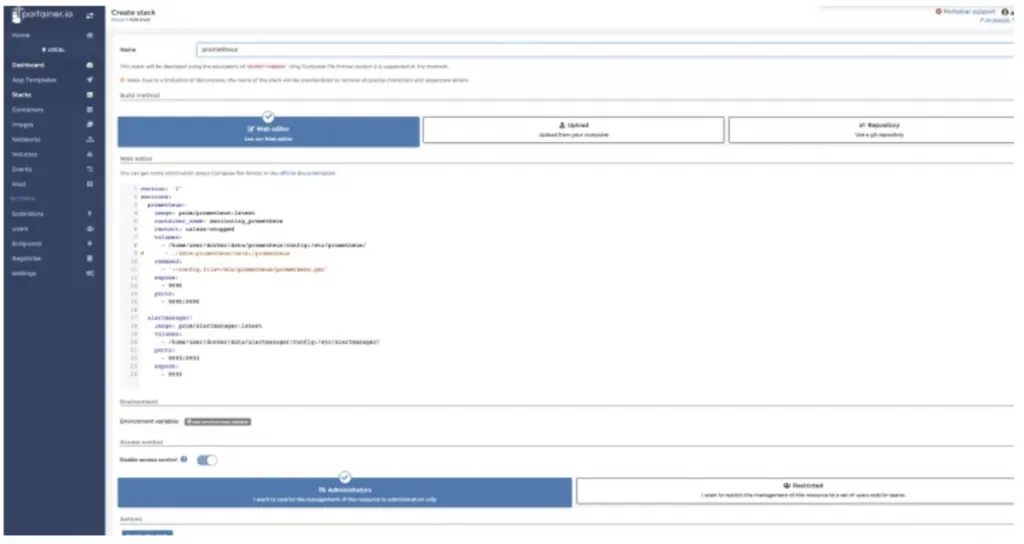
Push the Deploy button:
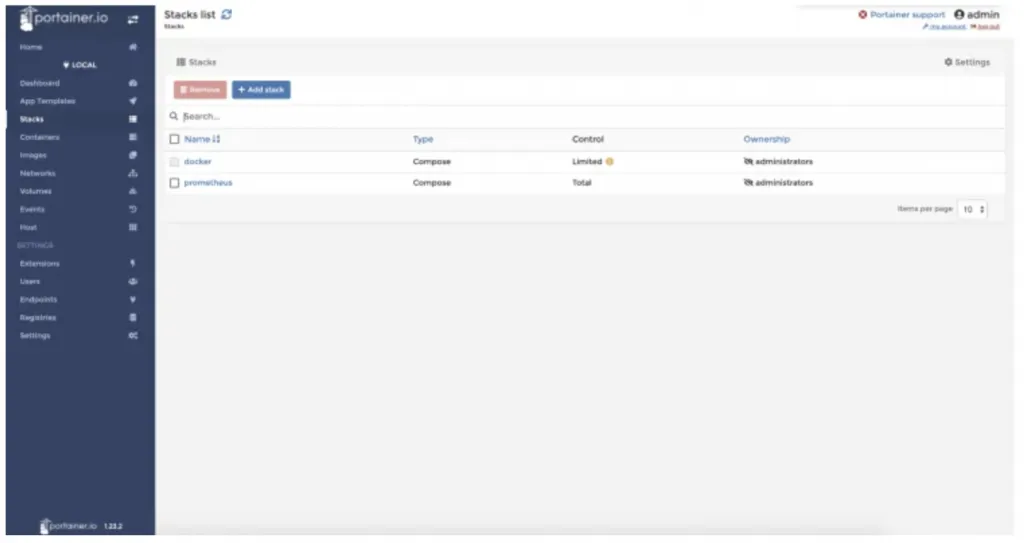
Click on the Prometheus stack:
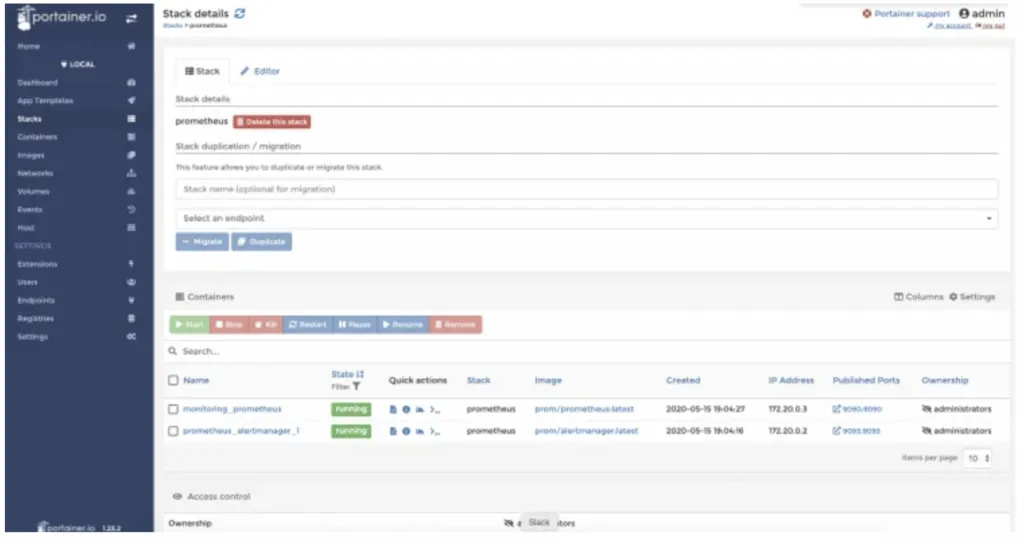
We have Prometheus on localhost:9090 and alert manager on localhost:9093. Now, try it out yourself!