
When you need a Jira change management tool, you’ll find two strong contenders on the market — Project Configurator (PC) and Configuration Manager for Jira (CMJ).
Both apps help administrators move projects and configurations between Jira sites for a variety of use cases, like migration and change promotion. But these apps differ on safety and instance integrity, data capacity and speed, and overall user experience.
If you’re using Project Configurator, we recommend switching to Configuration Manager for Jira (CMJ). Here’s why (and how) to make the change.
Why you’ll want to switch from Project Configurator to Configuration Manager (CMJ)
Faster import speed
Project Configurator was designed as a simple XML export-import tool built on native Jira functionality. As a result, users may experience the data transfer limitations native to Jira exporting and importing, including performance speed. Configuration Manager for Jira, on the other hand, was designed as an enterprise-standard solution, with its own architecture built to support complex use cases and environments. For large data sets, CMJ deploys 10x faster than Project Configurator.
In-app safeguards
CMJ has a reliable roll-back mechanism if errors occur during the configuration import, so the app automatically reverts changes made during the deployment if errors are encountered. In contrast, Project Configurator makes partial deployments possible, so if an error occurs mid-deployment, the admin has to do some investigation to figure out which configurations were updated and which weren’t.
Error identification and resolution
CMJ contains a built-in Integrity Check feature that detects corrupted configurations and enables quick fix resolutions from the same screen. Project Configurator has basic error and warning identification, but doesn’t provide any resolution tips.
Third-party app support
Don’t forget about your apps! The apps you’ve integrated are critical to your Jira instance, too. Project Configurator supports data and configurations for just six apps. CMJ has full integrations with more than 40 apps (and counting!).
Moreover, the integrations with CMJ are through an SPI architecture, which means we’ve taken the extra step to verify that newer versions of an app will still be supported by CMJ. Project Configurator’s app support is limited in that the support is for one version of the app, not newer versions.
Easily view all configuration dependencies
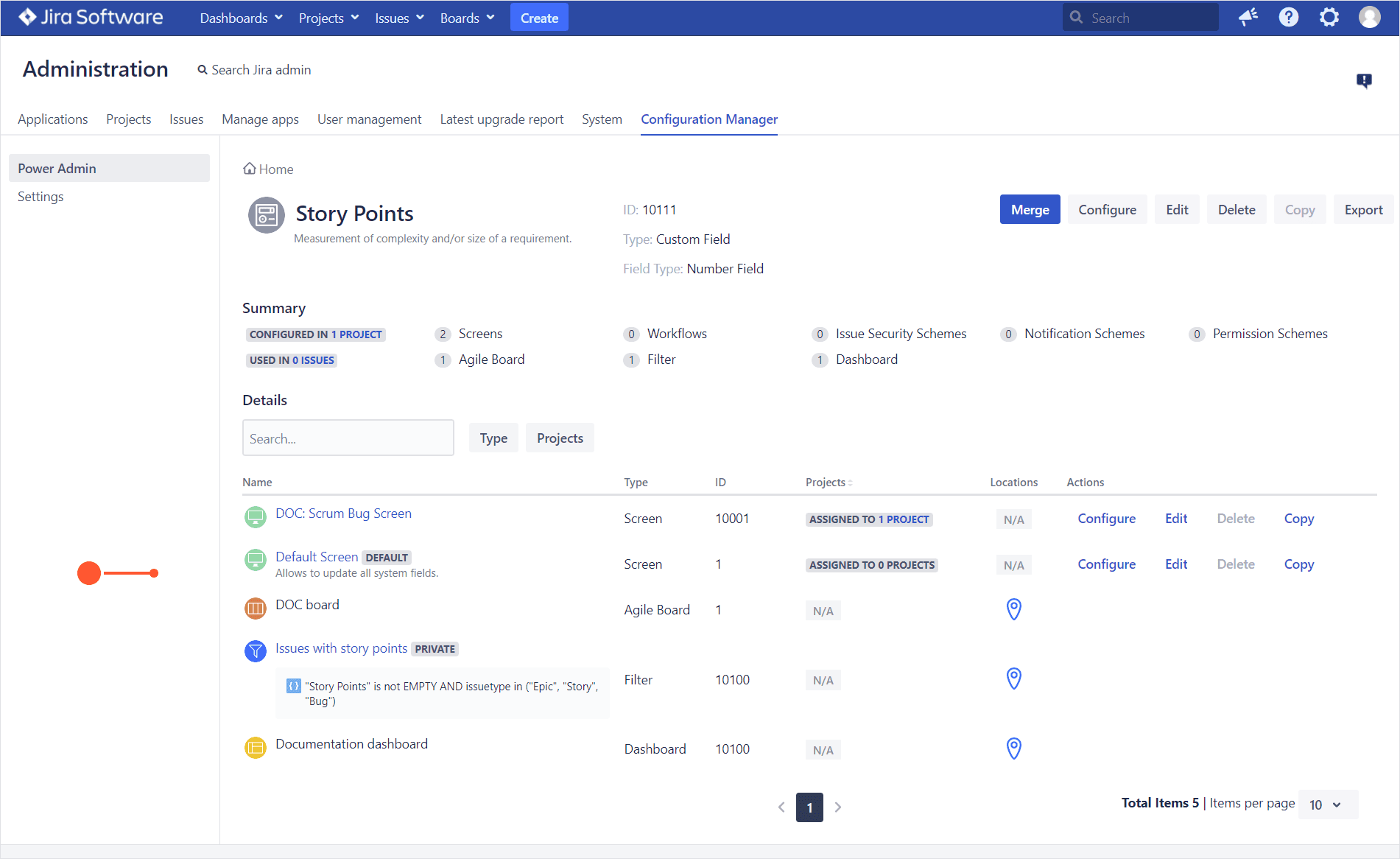
As Jira grows with your team or business, configurations and their dependencies grow in complexity. With CMJ, admins can view configuration dependencies through a simple search interface. Project Configurator users have probably used the app’s Object Dependency Report. But this report must be run on the entire system, which can take a long time for large instances. And unfortunately, filters, dashboards, and Agile boards (as well as the objects and custom fields used by those elements) are not included in this dependency analysis, so you don’t get the full picture.
CMJ’s Power Admin feature supports all these configurations with a more detailed and interactive UI too. (More on that below!)
More supported use cases
In addition to the core use case of moving configurations between test, staging, and production, CMJ is used and trusted for:
- Merging or splitting instances
- Full system migration
- Project archival
- Jira cloning
- Viewing configuration dependencies
- Instance cleanup
Dig into the documentation for more info on each of these.
More interactive UI
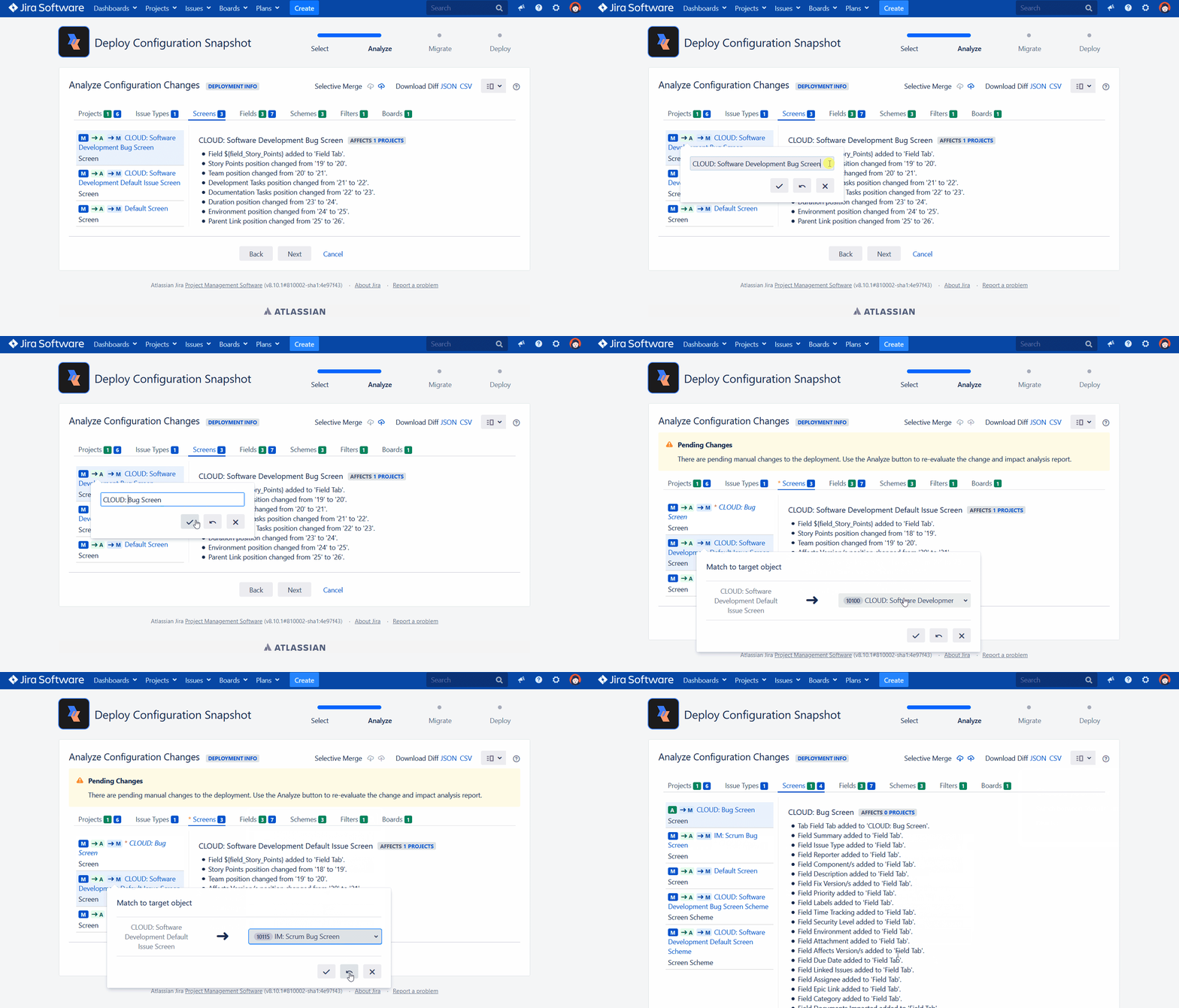
Although Project Configurator includes an Object Dependencies Report and Import Simulation, CMJ enables admins to take action directly from its equivalent reports. The UI includes action buttons to easily configure, edit, delete, or merge specific fields when necessary directly from the app. Admins also stay in control of their deployments with the flexibility to modify how configurations are mapped to the target, with renaming and rematching during the analysis.
Support in Cloud
Project Configurator is only available for Server and Data Center. With Atlassian’s shift to a future in Cloud, organizations may want to think about switching to a tool that will be supported in Cloud. CMJ is already in Cloud, with a version released that supports Cloud-to-Cloud deployments.
Your guide to switching from Project Configurator to Configuration Manager (CMJ)
Ready to make the switch? Fortunately, there’s no data or configurations to be transferred between these utility-style apps. All you need to do is set up CMJ and familiarize yourself with the differences, and you’re ready to go! The guide below will get you up to speed on CMJ.
1. Review and bookmark the feature comparison
We’ve put together a PC and CMJ detailed feature comparison in case you’re wondering about a specific feature we haven’t covered already. You can bookmark this for any questions you might have later.
2. Install and license CMJ
Head to the Atlassian Marketplace or Find Apps within your Jira instance and search for “CMJ”. Select “Try it free” or “Buy it now” and follow along the prompts to install and license the app. Installation help →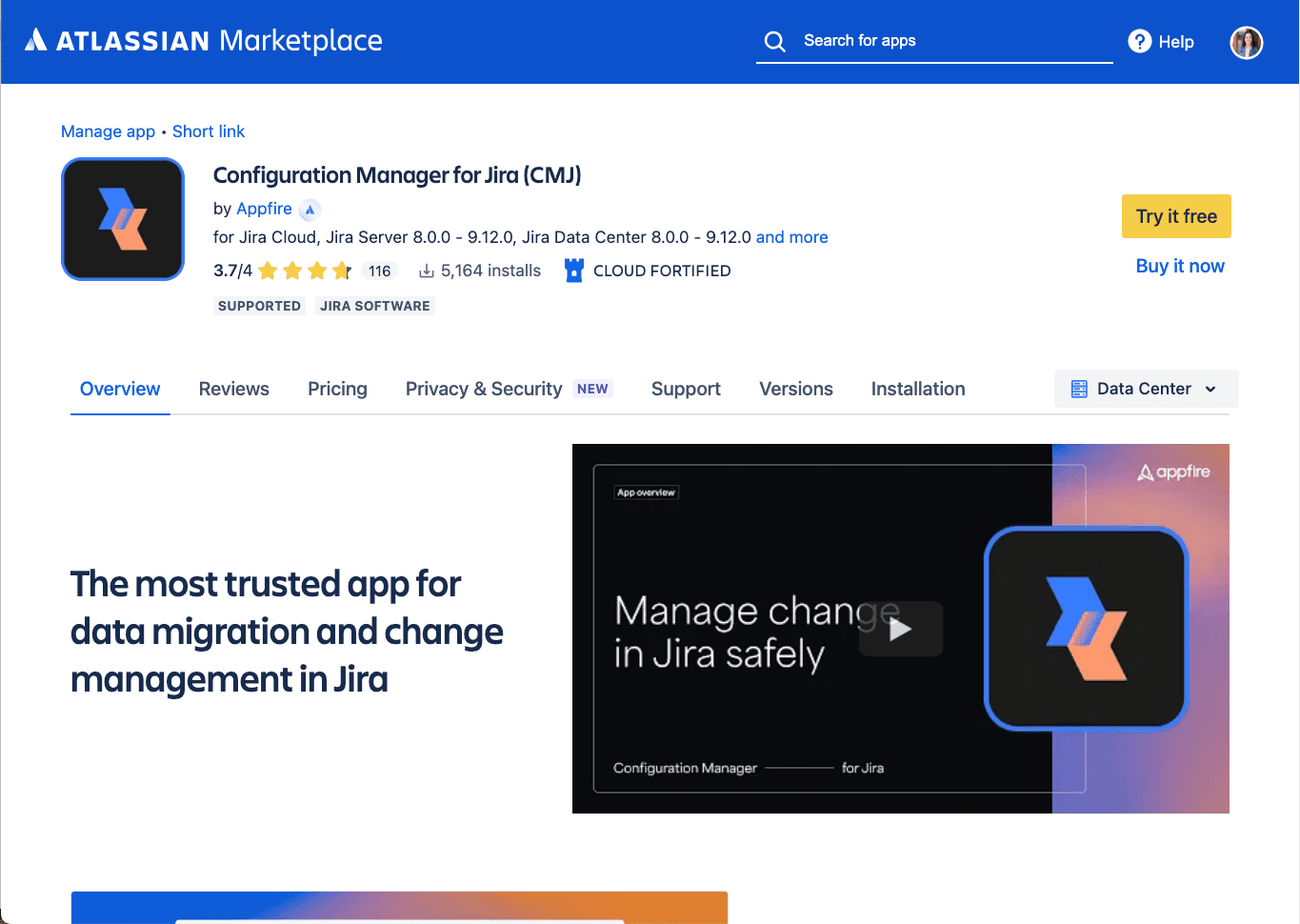
3. Check your instance health
Find and resolve any errors in your Jira configuration using the app’s Integrity Check feature. The app detects missing objects like references to missing custom fields, groups, and users in workflows, missing users and groups and projects roles, and more. This helps you improve performance of your current instance, and ensure any deployments to other systems don’t contain broken configurations.
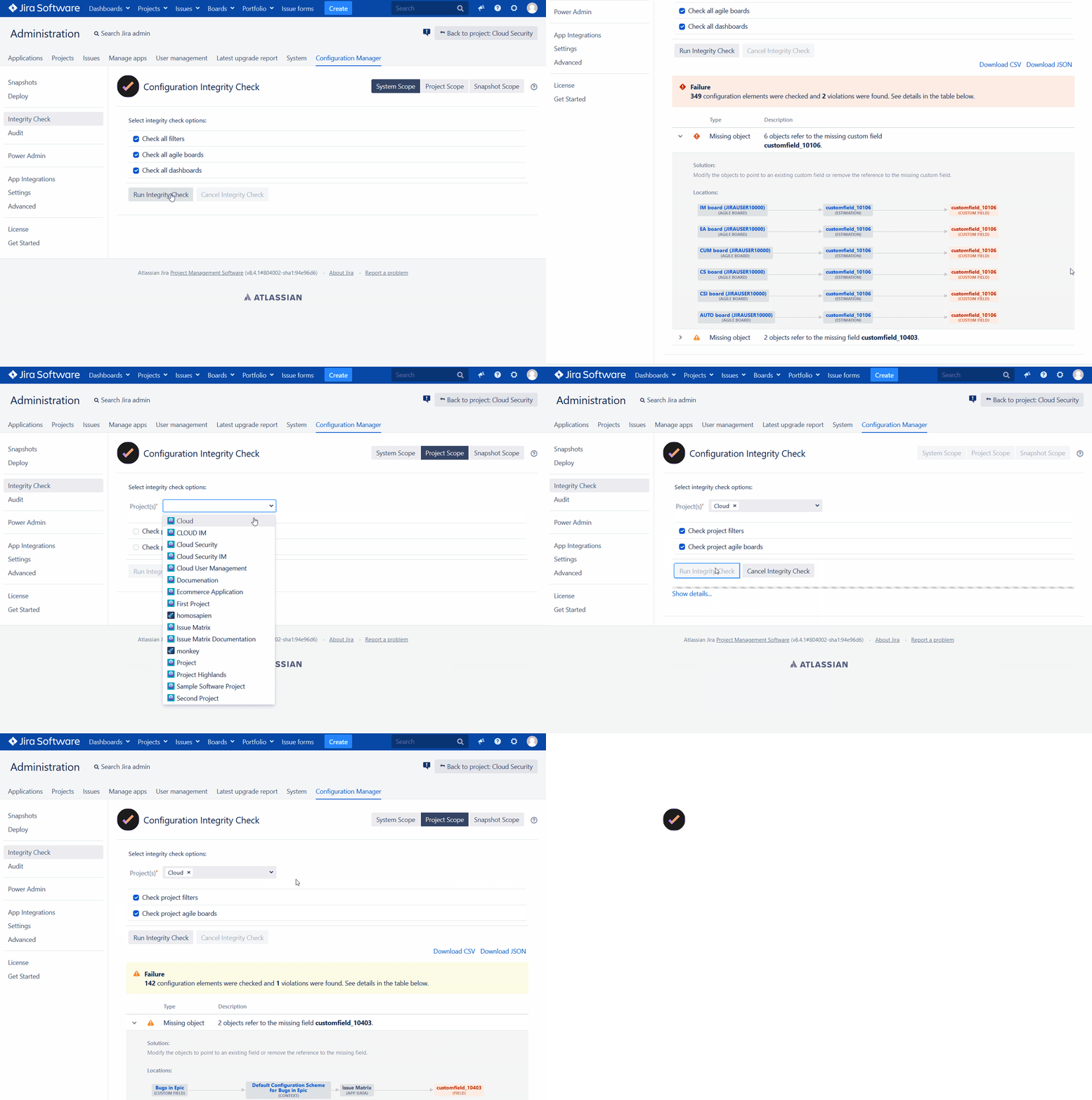
4. Use the Power Admin feature to view object dependencies and clean up your instance
Search for unused configurations by type and remove them through the UI. If you have a LOT to delete, use the Jira Command Line Interface app to make deleting in bulk a breeze
5. Create your first snapshot
CMJ uses the structure of snapshots to move data and configurations. So rather than creating an “export” and “import,” you’ll create and deploy snapshots. Think of snapshots as a moment-in-time picture of selected data and configurations. Check out the key differences in the apps related to exports and snapshot creation in the video below.
6. Deploy a snapshot
Now that you’ve captured project data and configurations in a snapshot, it’s time to deploy it (aka import it) to the desired location. Check out the key differences in import/deployment process between the two apps in the video below.
7. If necessary, create snapshots from saved exports
If you have any exports in Project Configurator that you need to make sure you can deploy with CMJ, follow the steps below to recreate that export as a snapshot.
- Install Project Configurator and CMJ on a clean test instance.
- Use Project Configurator on the test instance to import the saved export.
- Use CMJ on the test instance to create a snapshot of the same projects and configurations.
- Deploy the snapshot to the production instance using CMJ.
Questions?
Check out the power of CMJ for yourself. If you have any questions, we’re here for you! Just create a ticket with our support team and we’ll be happy to assist.
Explore CMJ