
Projects require many stakeholders to collaborate together. To make sure only the right people are marking tasks as done, you can automatically allow only specific groups in Jira to be able to edit an issue status.
Why is this helpful?
- Prevent the wrong user from toggling the issue status to run your project smoothly.
- Trigger the right error messages to give users visibility into the actions they’re allowed to make on issue statuses.
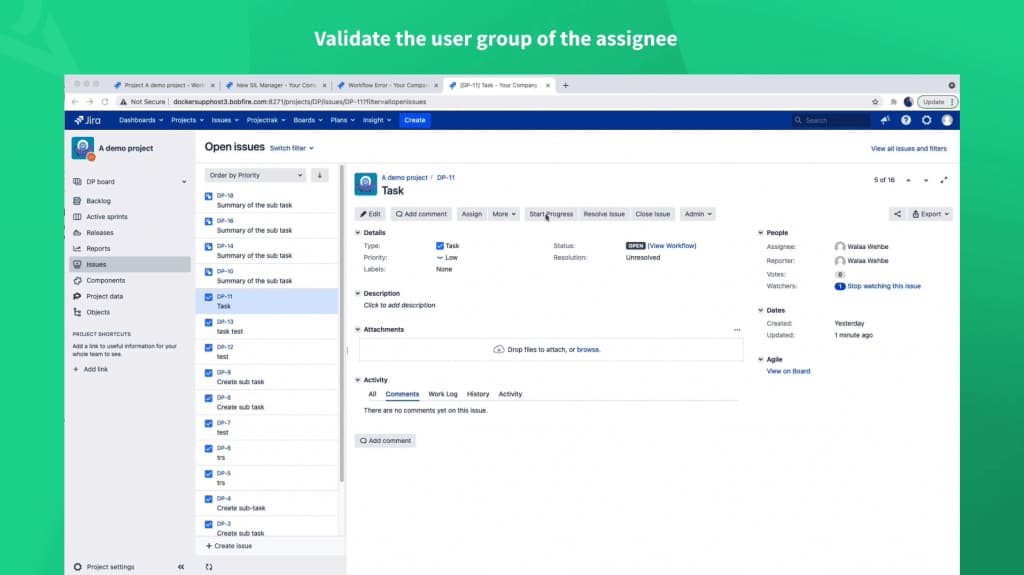
Grab this script:

Step-by-step tutorial
Here’s how you can validate whether or not the assignee is part of a specific user group. You’ll also see how to display an error message if the user doesn’t have a membership to that group.
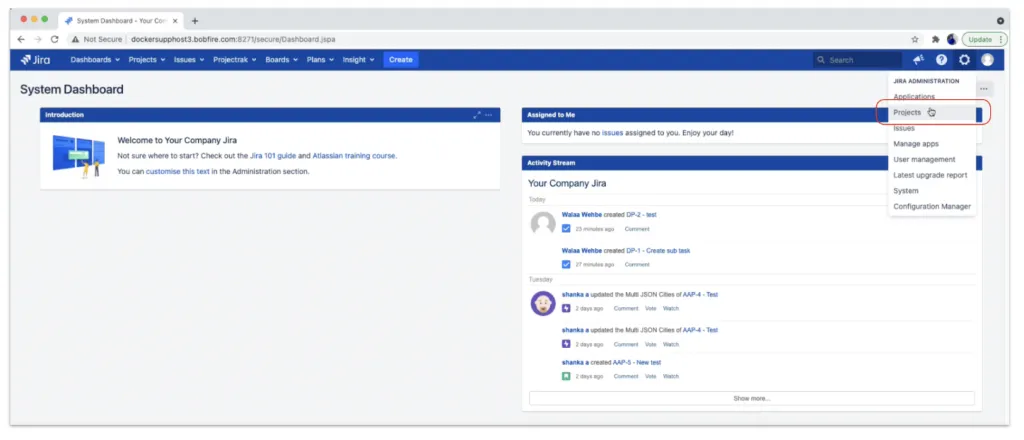
- Navigate to your Project Settings > Workflows panel.
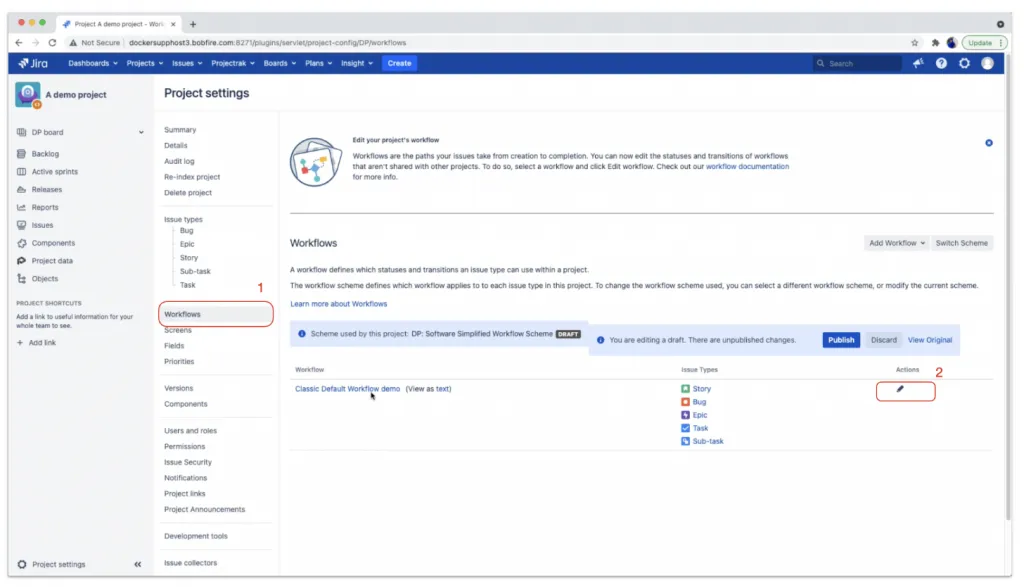
- In your Workflows menu, click the Edit pencil icon.
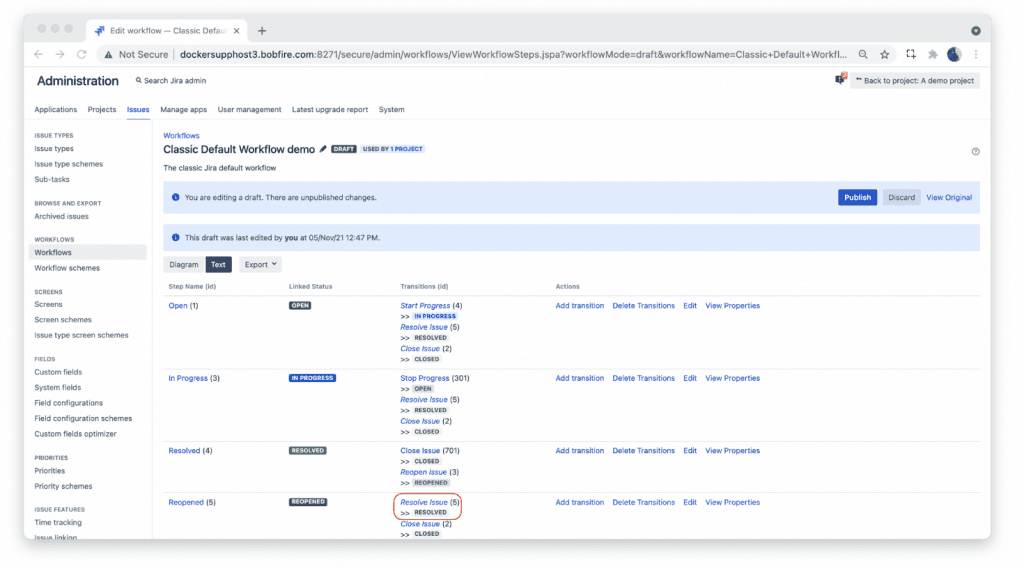
- Choose the transition status that you want to validate the user group of the assignee at.
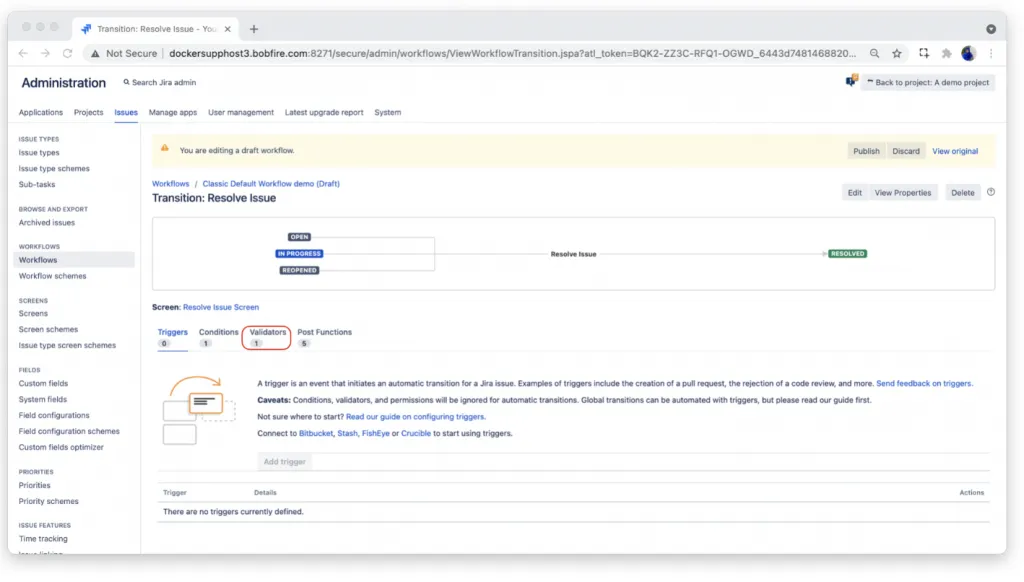
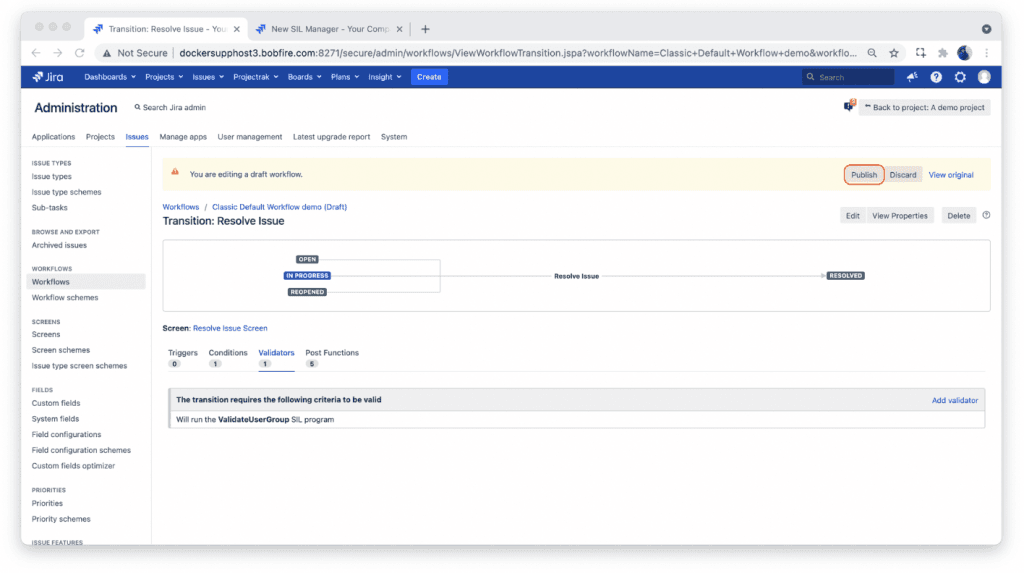
- Select Validators and click Add validator.
- Select the SIL Validator option and click Add.
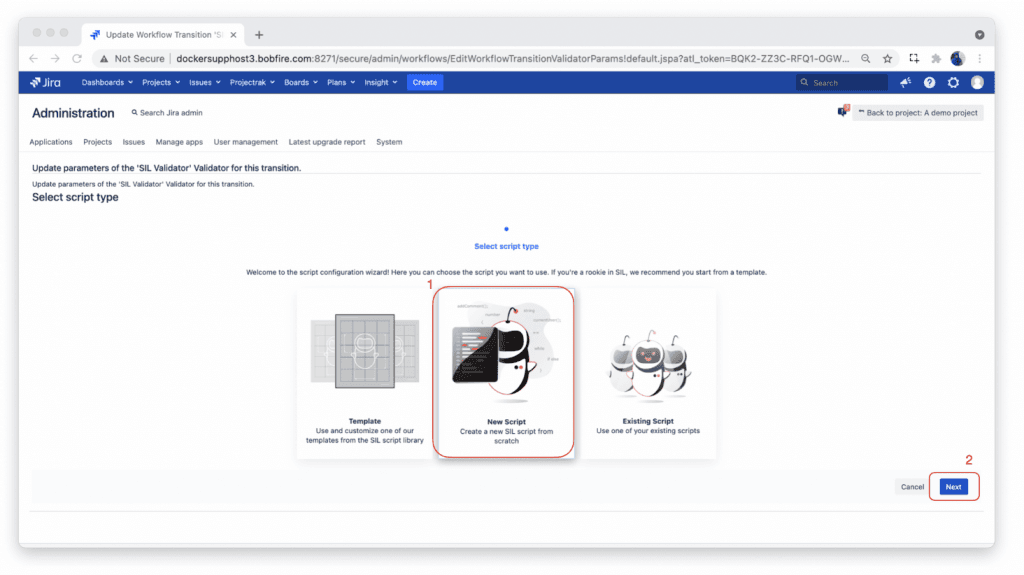
- Choose to add a New Script and click on Next.
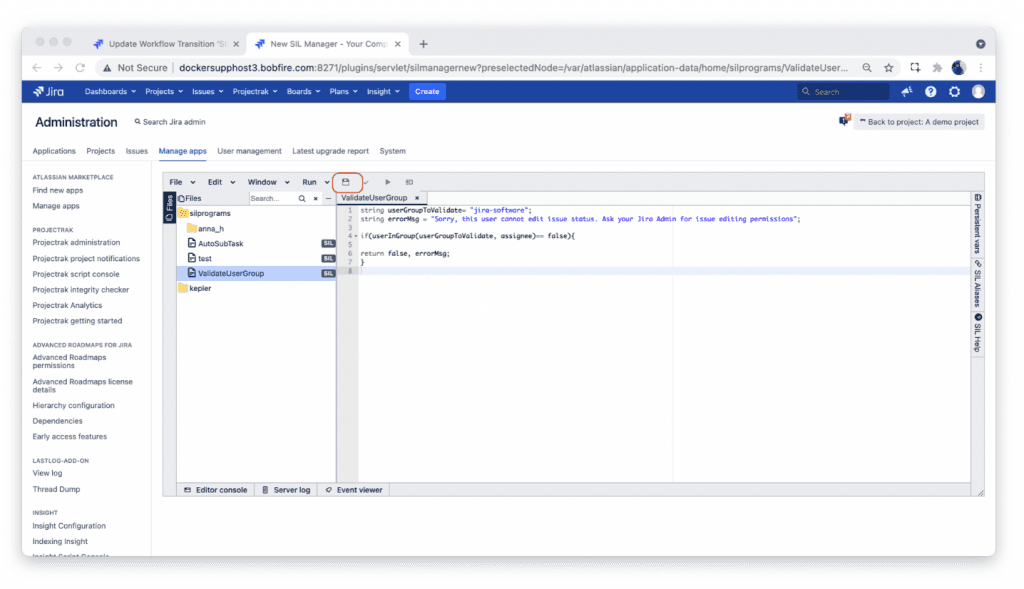
- Store the script under silprograms folder or any other folder of your choice and give it a descriptive name.
- Paste the script into the editor and make sure you change the name of the user group in line 2 to match what you have in your instance.
- In the Error field, you can decide what message you’d like Jira to display if the assignee is not part of the correct user group.
- Click the Save icon in the SIL Manager then click Finish.
- Publish your workflow.
Make this script your own:
string userGroupToValidate= “jira-software“;
Replace the highlighted text with the group you’d like to check membership against. Some of the default Jira groups include site-admins, jira-administrators.
Not sure about the precise group names used in your Jira instance?
Visit your Administration panel. Head to Jira Administration > User management. On the left panel, click on Groups to see the full list of User Groups in your Jira instance. You can also double-check what users are part of each group.
TRY IT TODAY!