

Supplier information management (SIM) form
Coupa SIM allows you to review and update your supplier information and standardize the request, approval and maintenance of supplier information such as financial information, quality or insurance certificates and bank details.
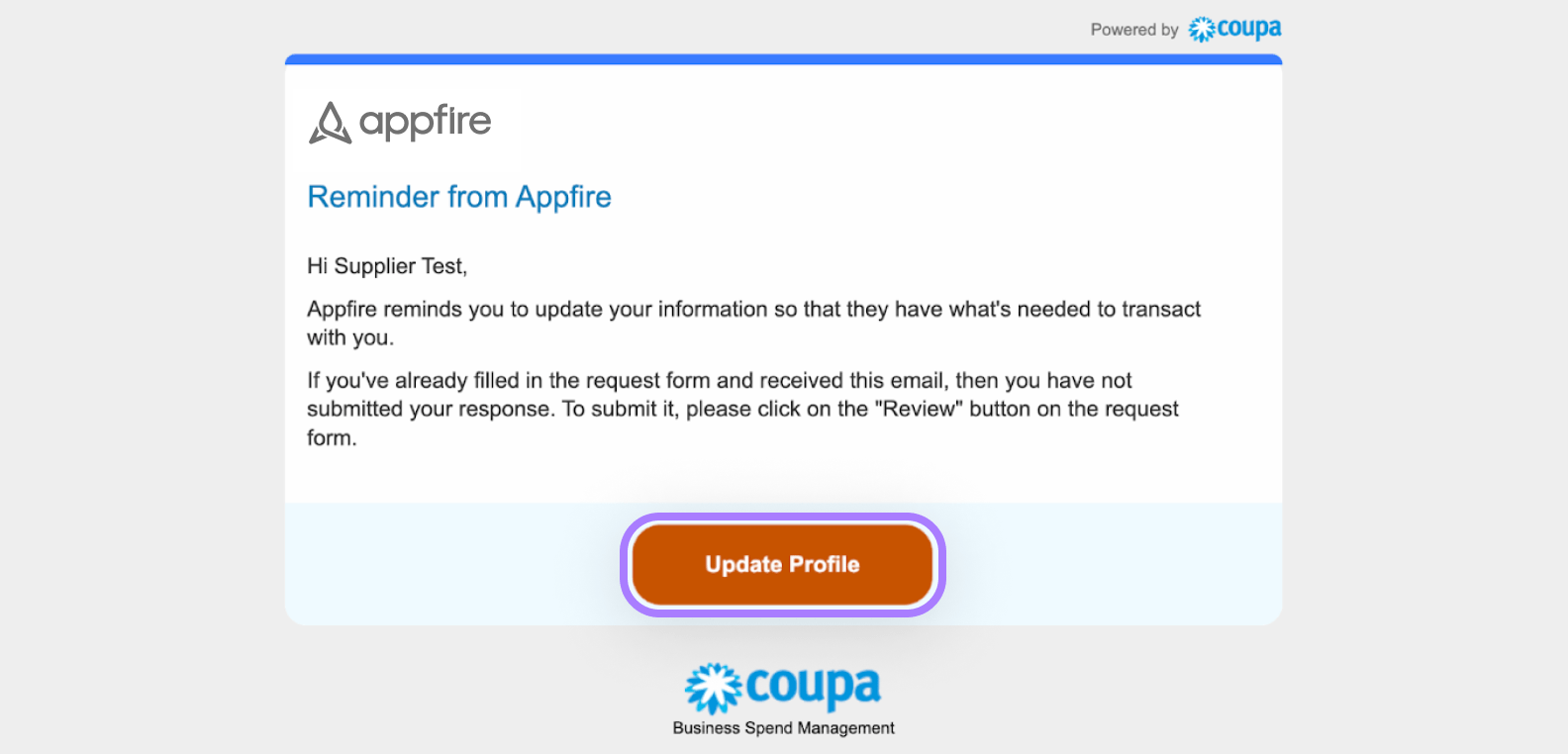
You will receive an email to update your profile information:
Select update profile.
Ensure all required fields in sections I and II (marked with a red asterisk) are completed.
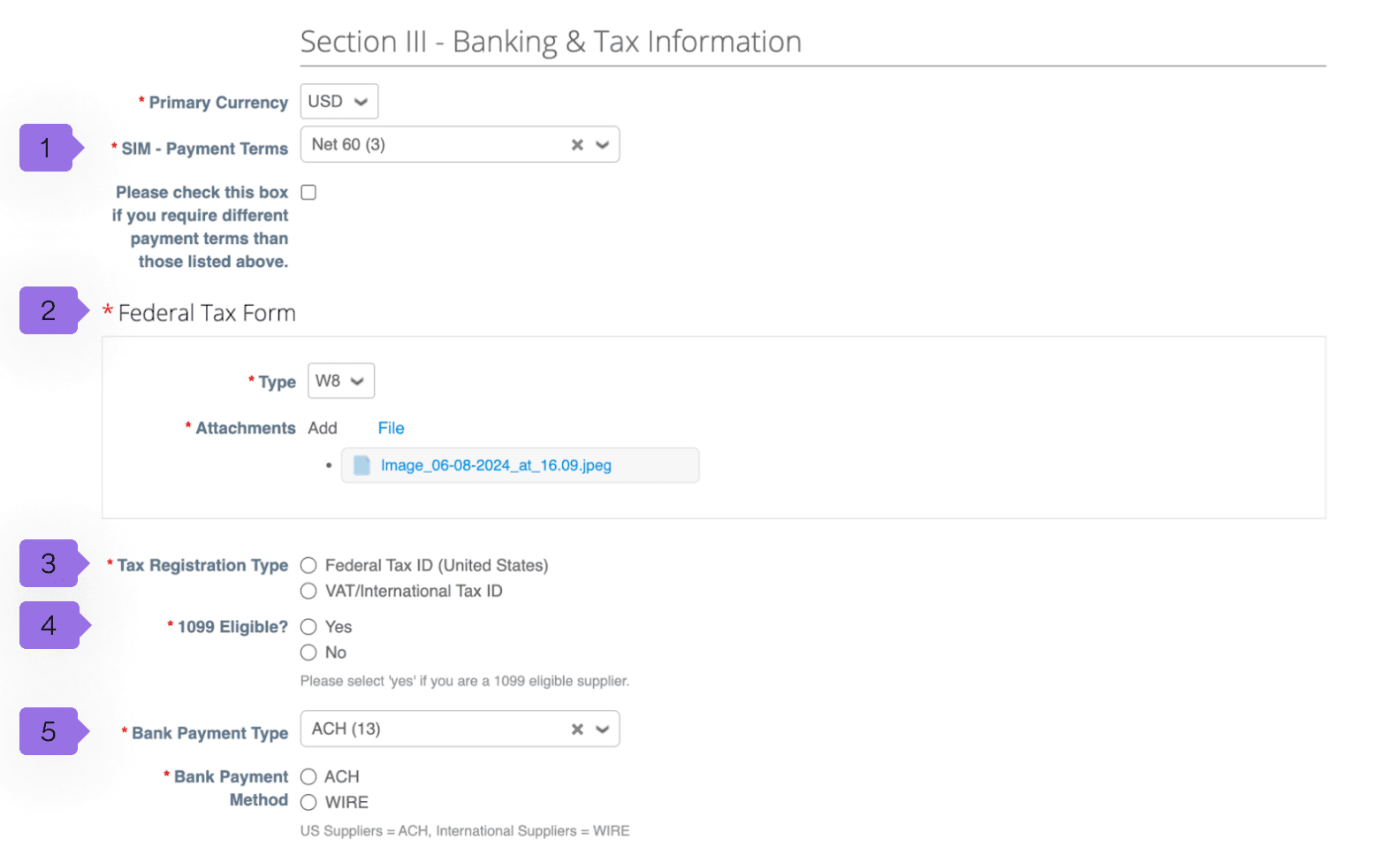
Section III covers your banking and tax information. Within this section there are some key terms to know:
- SIM - Payment terms (1) - Our standard payment terms are Net 60
- Type (W8/W9), attachment (2) - refers to tax forms used in the U.S. to determine tax status. If you are not a U.S. vendor, please leave that section blank and upload a blank document.
- Tax registration type (3) - Please select your Tax Registration Type from the options provided
- 1099 Eligible (4) - refers to whether a vendor or contractor is eligible to receive a Form 1099 from a U.S. company.
- Bank payment type, bank payment method (5) - US suppliers = ACH, International suppliers = WIRE
Set up a payment method
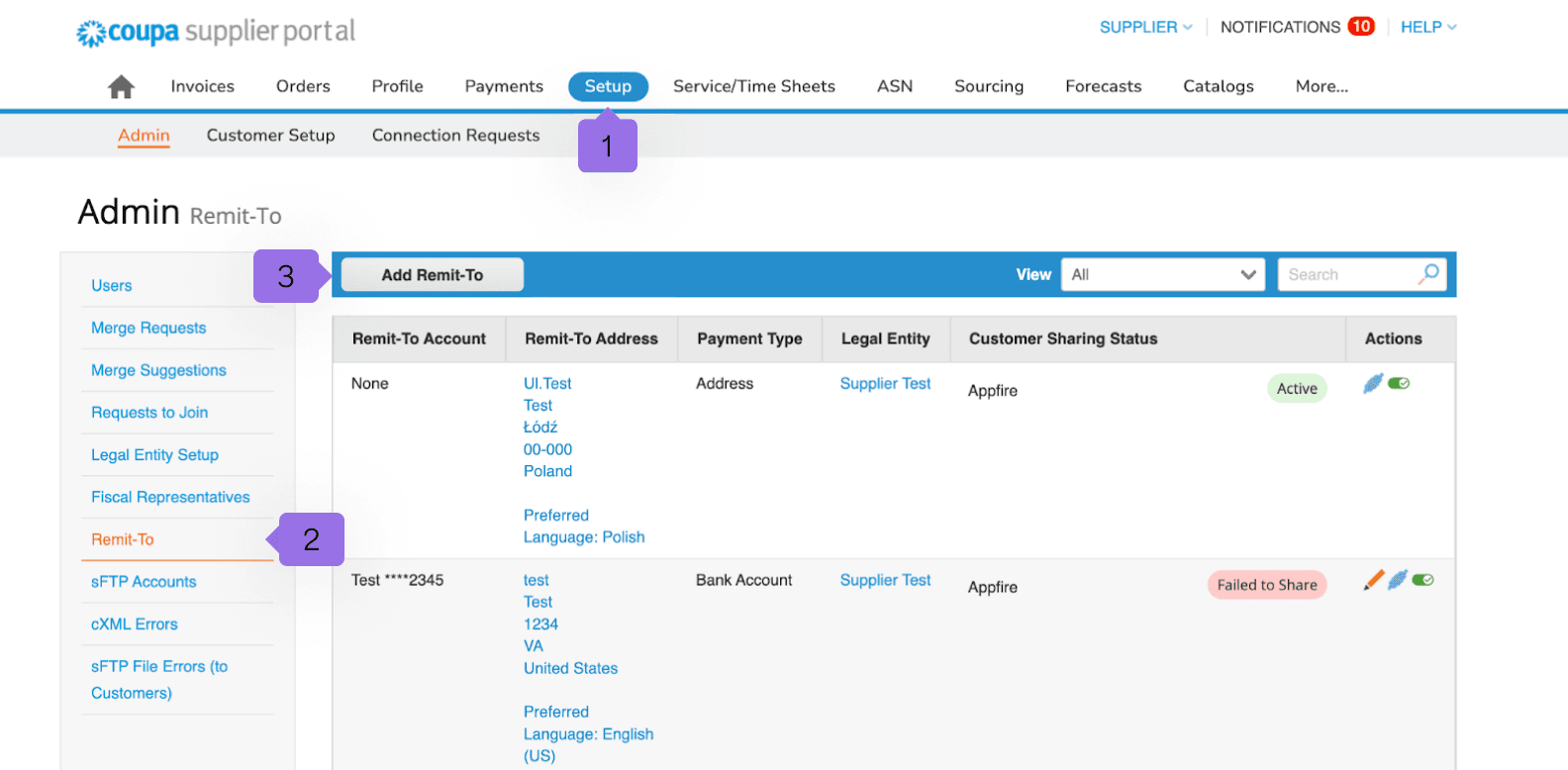
Navigate to setup (1) > remit-to (2) > add remit-to (3). This account is needed to specify where payments should be sent. When you provide a remit-to account, you're giving the payer the necessary details to transfer funds to the correct bank account or payment address.
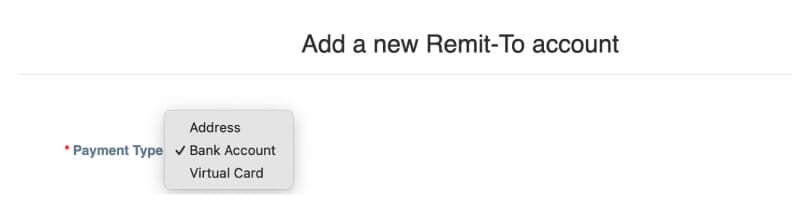
After selecting add remit to, you will be taken to a screen where you should choose the correct legal entity from the dropdown.
Choose payment type. NOTE - If you are able to accept payment from a virtual card, this is the preferred option as you will get paid faster than selecting bank account.
Adding customers
Once you have created your Coupa Supplier account or if you have an existing account, you can easily add in Appfire as a new customer.
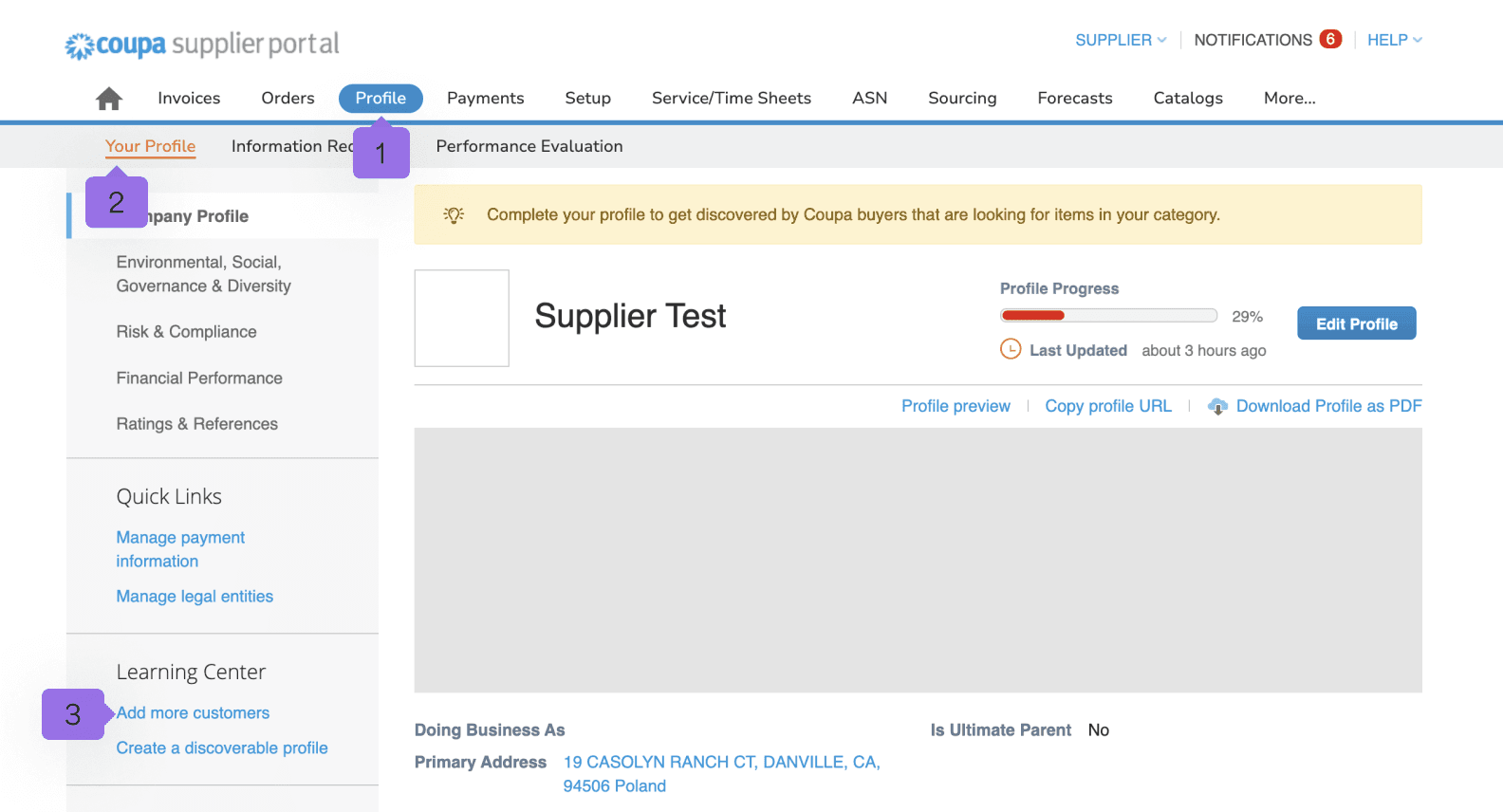
You can add additional customers to your account by selecting profile (1) > company profile (2) > add more customers (3).
Updating your profile
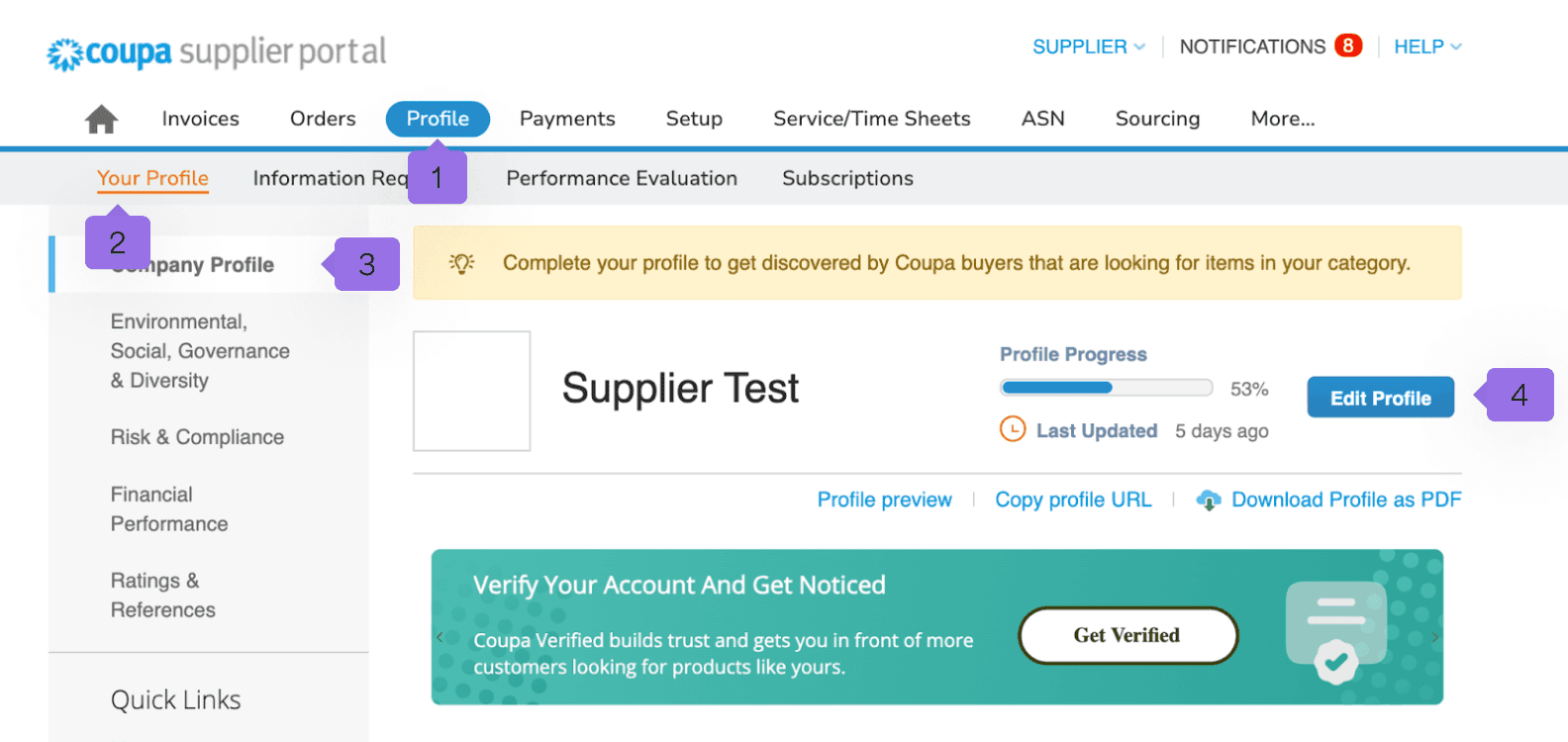
The information included in your profile is visible on the main page when you log into CSP. You can update your profile under profile (1) > your profile (2) > company profile (3) > edit profile (4) for any section that needs updating.
Fields you can update under Profile include the following:
- Company name
- Company logo (image)
- Address
- Tax ID
- Primary contact
- Certifications/awards
- Financial information