What's it handy for?
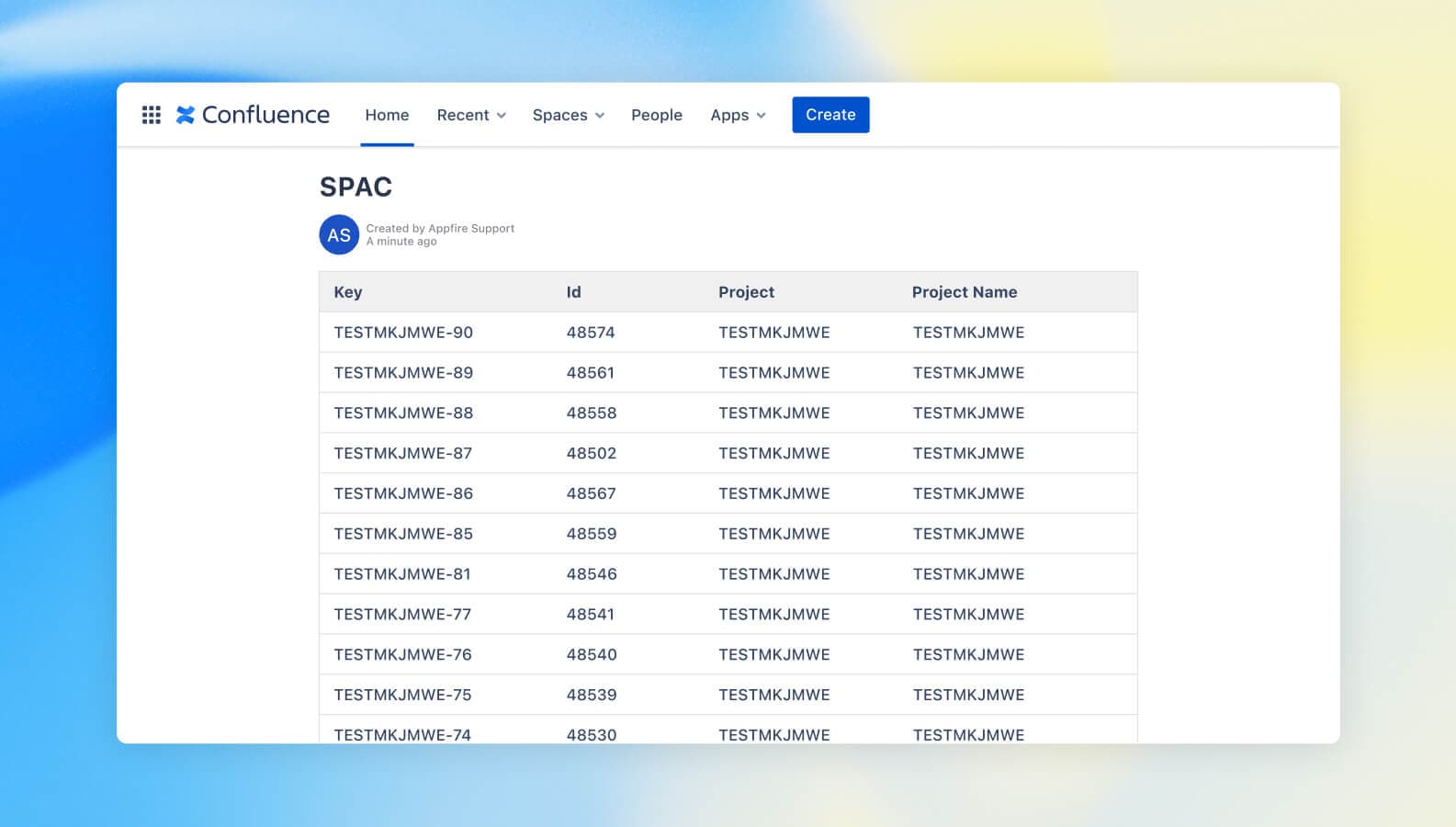
Use Appfire's CLI family of apps to connect your systems, for example, linking Jira and Confluence data. This example shows you how to create a table of all your Jira projects on your Confluence space.
This is useful for:
- Keeping your data in sync across all systems
- Getting a centralized overview of all in-project projects to streamline prioritization and resource allocation
- Improving cross-team collaboration and increasing transparency
- Presenting a complete list of all projects for compliance, auditing, and future analysis
What’s unique?
Connect your Jira and Confluence instances by running commands from the centralized ACLI Shell. No need to click around in your Jira and Confluence user interfaces. Run simple, text-based commands from the terminal interface and get the job done in a few seconds.
To get started:
- Install Jira CLI and Confluence CLI
- Download the ACLI to run commands
- Use getIssueList to get the issues from Jira. Example command:
-a run -i "myjira -a getIssueList --jql project=project_key --columns 1,2,3,4 --outputType html -f @temp" -i "myconf -a storePage --replace --space space_key --title title_name --parent @home --noConvert -f @temp"- Use storePage to create or update a Confluence page. Example command:
-" run -i "myjira -a get"ssueList --jql project=TESTMKJMWE --columns 1,2,3,4 --outputType html -f @temp" -i "myconf -a storePage --replace --space SPAC --title SPAC --parent @home --noConvert -f @temp"Read the full use case in the product documentation.
