
Did you know that you can integrate your Microsoft Teams and Jira?
Integrating Jira and MS Teams improves communication and problem-solving because users can easily create, assign, watch, and edit issues and log work time.
In this article, you’ll learn how the integration between Jira and Microsoft Teams enhances team efficiency and effectiveness, enabling seamless interaction, notification management, and task management between the two platforms. Below you'll find a list of options that will help you manage, optimize, configure, or view your Jira issues.
Get Jira notifications from Microsoft Teams
Get notified in Microsoft Teams when Jira issues are created or updated.
What’s it handy for?
Stay up to date with Jira issues and get fewer Jira emails while staying in Microsoft Teams (less context switching).
A few uses for this workflow:
- Engineering: Know what tickets exist and see their current status.
- Product management: See when developers start and finish issues.
- Quality assurance (QA): Get notified when a new issue is ready for you to test.
- Support: Get notified when a request for support is assigned to you.
- Management: Get notified when high-priority issues are completed.
All with fewer emails!
To get started:
- Install Integration+ on your Microsoft Teams workspace.
- Connect your Jira instance.
- Configure personal notifications to alert you about projects and issues you care about.
See it in action:
Get notifications about new issues and updates to existing issues.

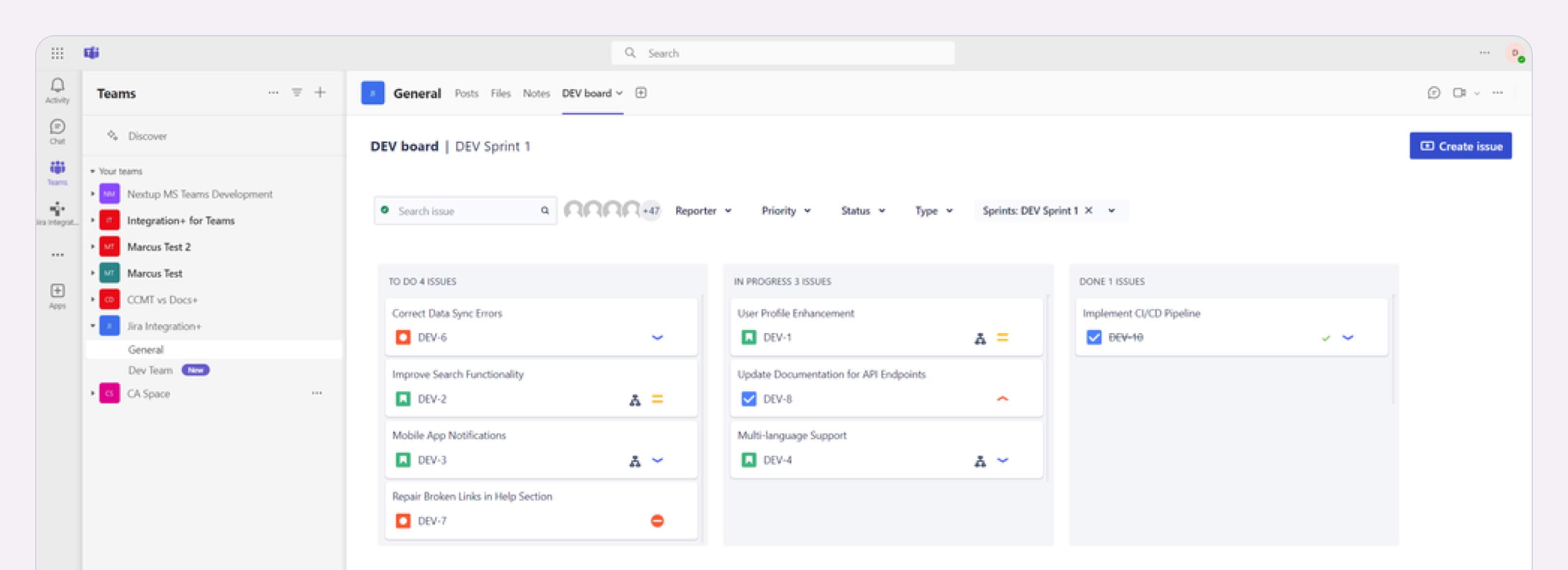
Manage your projects with Jira boards inside Microsoft Teams
Use Jira boards inside Teams so you can easily manage issues and update their status.
What’s it handy for?
See your Jira boards inside of Microsoft Teams (less context switching and juggling tabs and windows).
A few uses for this workflow:
- See if too many issues are in the same status (stuck in QA, in progress, etc).
- Update the status of issues in your project by dragging and dropping them into a different column.
- Prep for status updates.
- Reference during team meetings.
- Use data to stay focused on high-priority issues.
To get started:
See it in action:
See Jira boards right inside Teams.
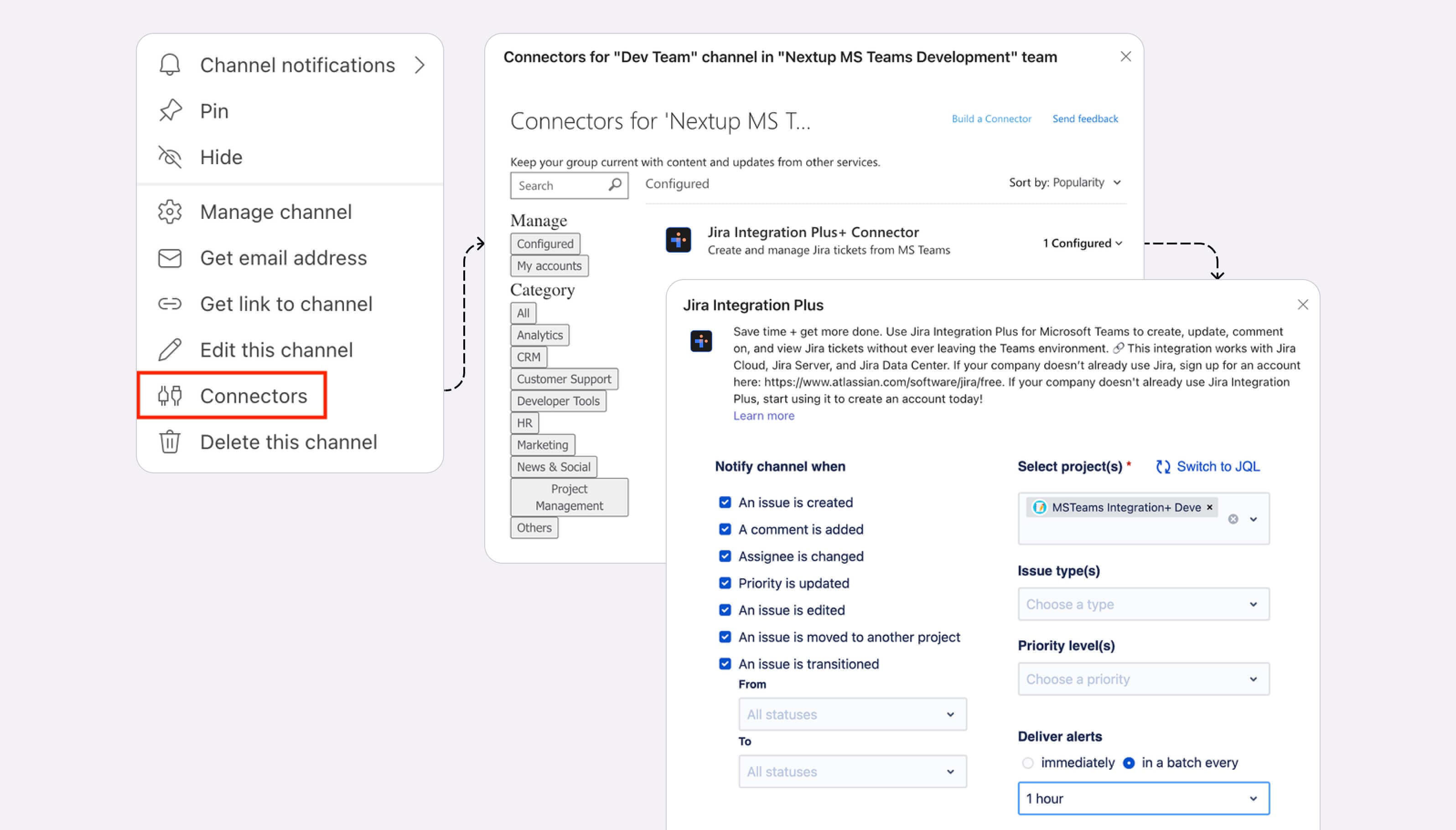
Setting up targeted notifications for your Teams channels
Configure each of your channels in Teams to receive notifications of relevant Jira activity.
What’s it handy for?
Useful for any development, support, or internal team that needs to stay current and notified of activities in Jira that are relevant to their projects.
To get started:
- Click the 3 dots next to the team you want to configure.
- Search for "Jira" and select the Jira Integration Plus bot.
- Click configure to manage notifications for that team and channel.
- Select the events and criteria you want to monitor and track.
- Click save to enable your notifications for that channel.
See it in action:
Send a Jira ticket in a message
Send a Jira ticket directly to another person in Microsoft Teams, either in direct chat or in a channel.
What’s it handy for?
- Streamline communication. Talk about the ticket you are referring to by including the ticket directly in the conversation. Get on the same page with your teammates.
- Avoid wasted time and effort!
To get started:
- Go to a channel or chat with the bot installed.
- Click on the app icon underneath the message compose box.
- Use search to find the ticket you want to send.
- Click on the ticket.
- Send the ticket as is, or type a message and then send it.
That's it!
See it in action:
Viewing tickets you’re watching within Teams.

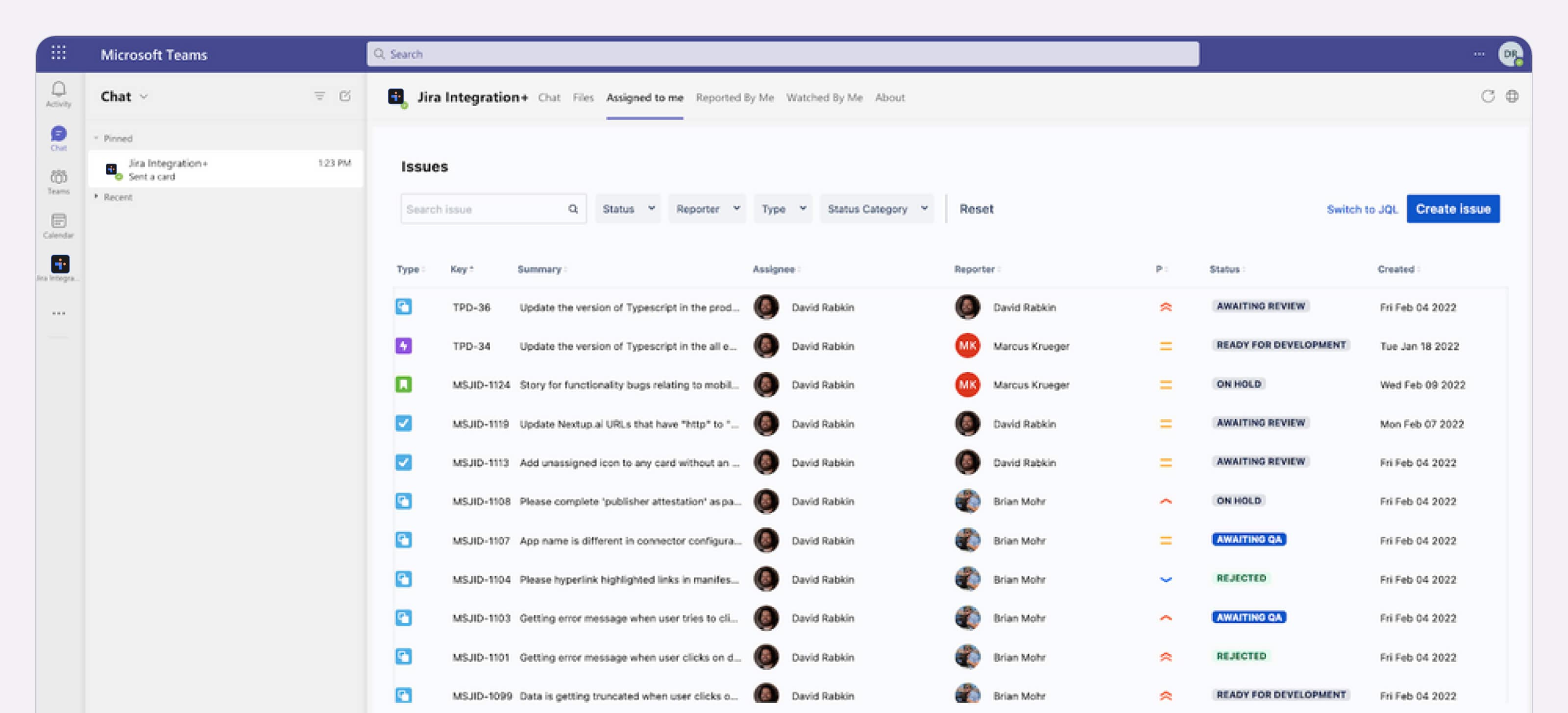
View my assigned tickets
View Jira tickets assigned to you and make updates directly within Microsoft Teams.
What’s it handy for?
View your to-do list for the day by looking at issues assigned to you without switching to Jira.
A few uses for this workflow:
- Engineers referencing assigned work when providing updates.
- Quality assurance looking for a list of issues to validate.
- Project managers viewing issues that need to be further defined.
To get started:
- Navigate to the Integration+ app.
- Click on the "Assigned to me" tab.
See it in action:
Viewing assigned issues right inside Teams.
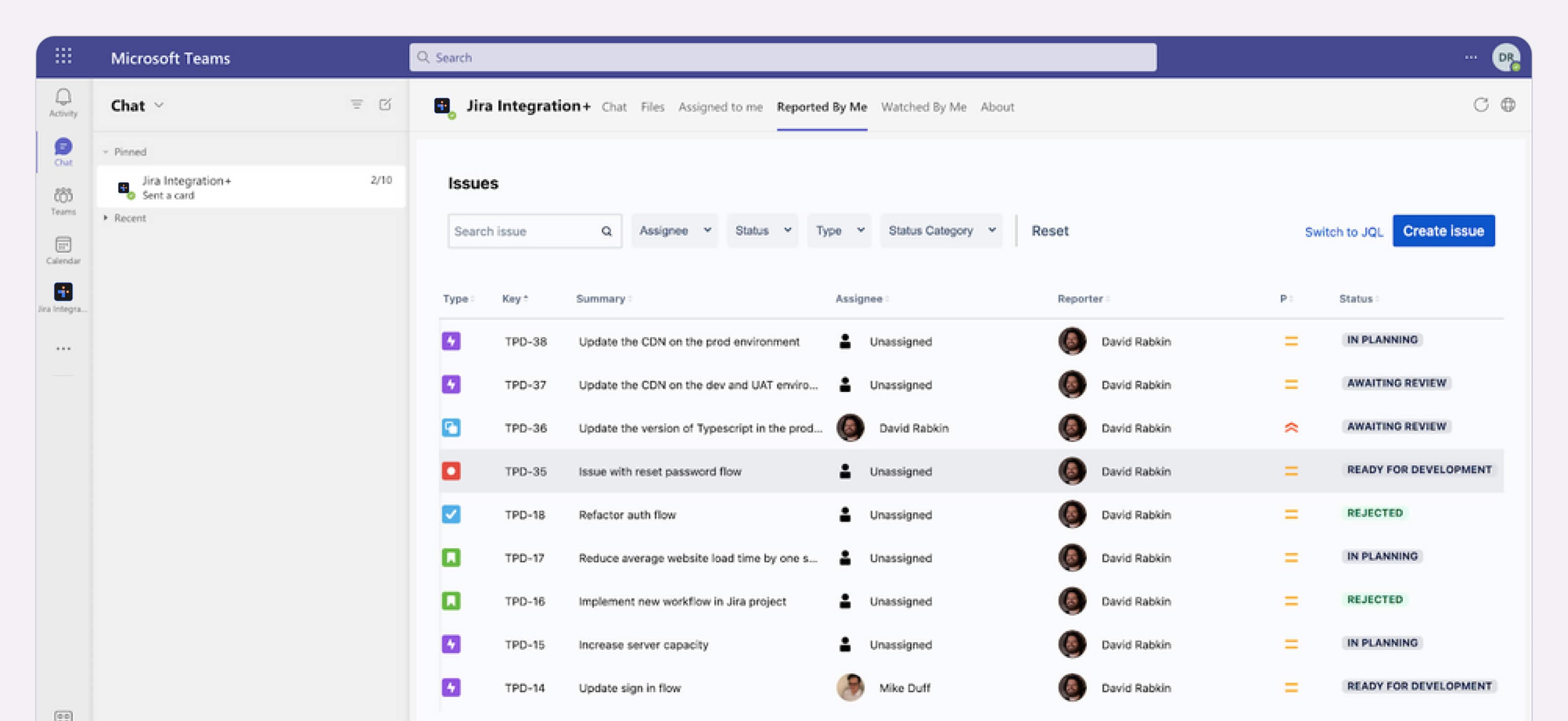
View Jira tickets I reported
View the Jira tickets you reported and make updates to them directly within MS Teams.
What’s it handy for?
View all the tickets that you reported to check on their progress, without switching to Jira.
A few uses for this workflow:
- Engineering managers can see the progress on the tickets they made.
- QA engineers can see the issues they created for PMs and developers.
- Project managers can view the issues they made to further define them.
To get started:
- Navigate to the Integration+ app OR go to chat with the app.
- Click on the "Reported by me" tab.
See it in action:
Viewing tickets you created right inside Teams.
View Jira tickets I am watching
View the Jira tickets you are watching and make updates to them directly within Microsoft Teams.
What’s it handy for?
View all the tickets that you’re watching to check on their progress, without switching to Jira.
A few uses for this workflow:
- Engineering managers, program managers, and executives can keep an eye on critical tickets.
- Engineers can keep track of key issues.
To get started:
- Navigate to the Integration+ app OR go to chat with the app.
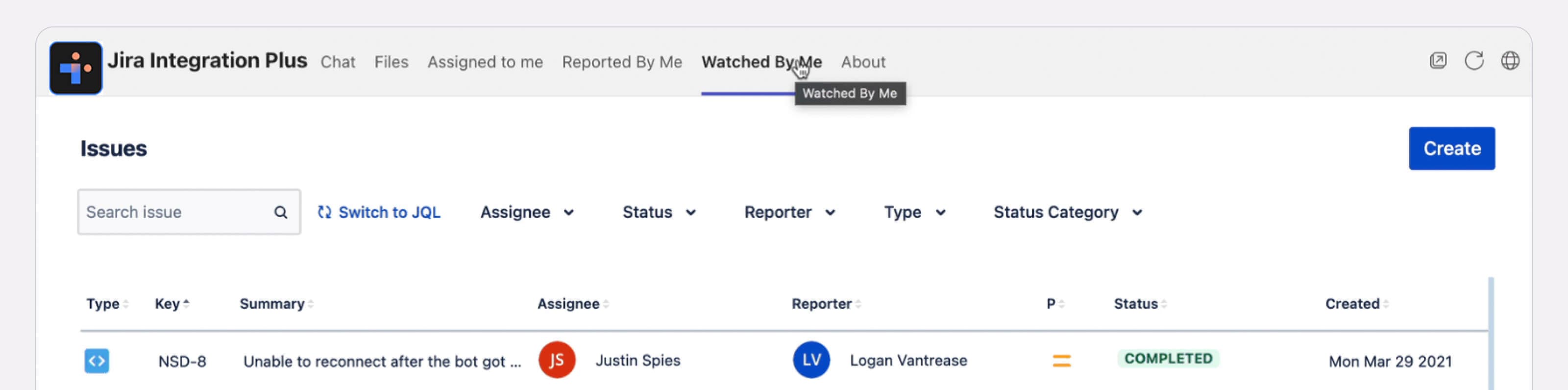
- Click on the "Watched by me" tab.
See it in action:
Viewing tickets you are watching right inside Teams.
View and edit Jira Service Management requests
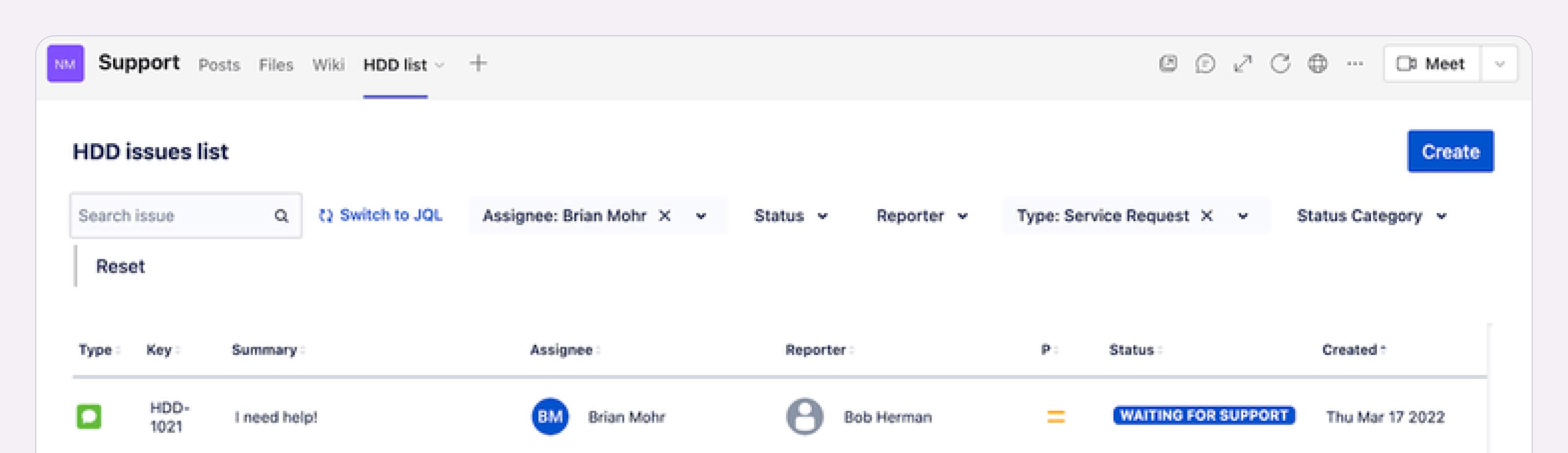
Quickly and easily create custom tabs in your support teams to show open and in-progress service requests.
What’s it handy for?
Support teams that need to stay current on new and ongoing service tickets.
To get started:
- Create a new tab in your teams' support channel.
- Add the Integration+ bot as a new tab in that channel.
- Configure the tab to show the project(s) and ticket types for that team.
- Use real-time list filters to search, sort, and find the ticket you need to update.
- You can also create new requests from this tab by clicking the "create" button.
See it in action:
Find and update Jira tickets from Microsoft Teams
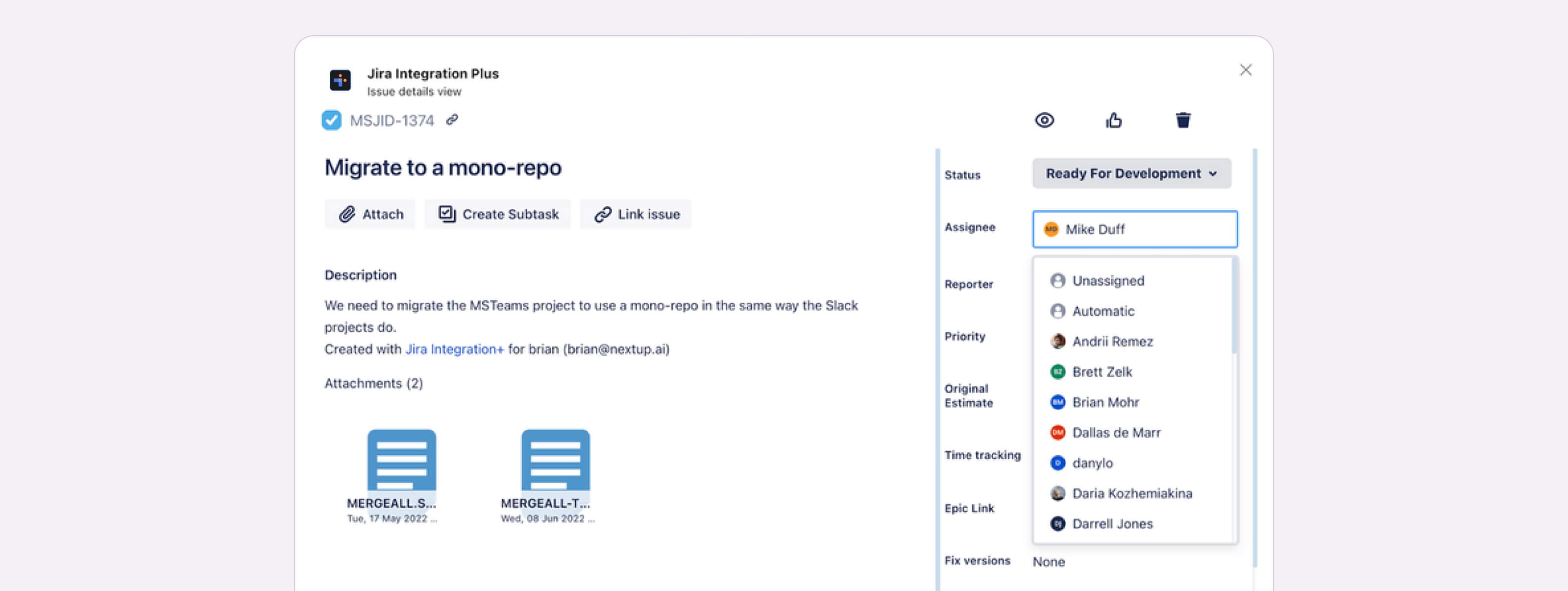
Integration+ allows you to make any update or change to Jira tickets seamlessly within Microsoft Teams.
What’s it handy for?
Easily find and update Jira tickets from inside Microsoft Teams. With Integration+, you can make any update or change to Jira tickets in a platform that is familiar and easy to use.
To get started:
- Search for the ticket you want to edit either directly in a direct message with the bot or from a ticket listing tab in MS Teams.
- Click the view button to open the ticket edit screen.
- Make any changes from inside the ticket view screen. All edits are automatically saved back to Jira in real time.
See it in action:
Create service requests from inside Microsoft Teams
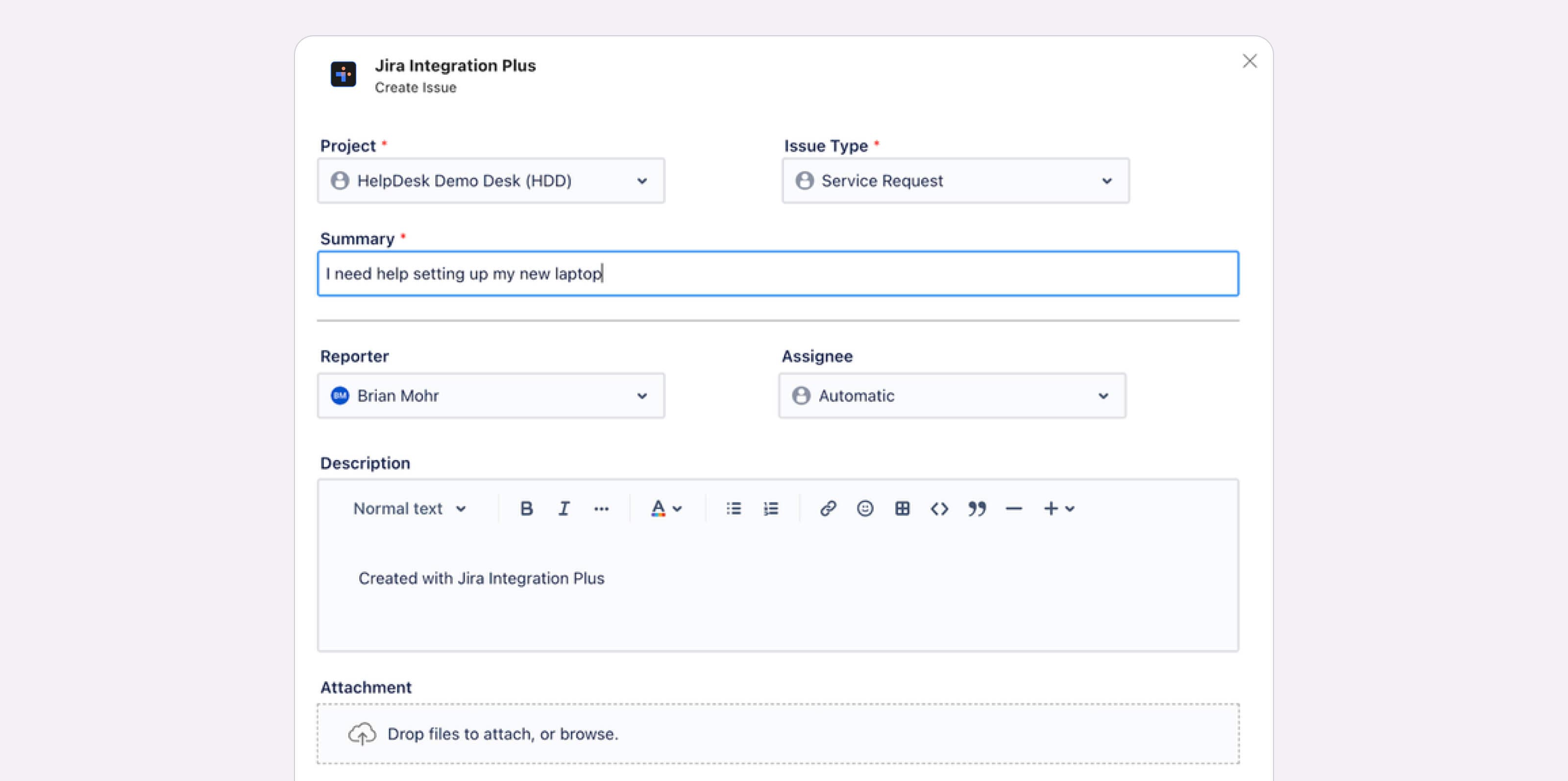
Enable your team to quickly create, update, and comment on service requests from inside of Microsoft Teams.
What’s it handy for?
Useful for any team that wants to enable ticket creation from inside Microsoft Teams.
To get started:
- Initiate the ticket creation process from either a button on a tab, from the bot directly, or from a message action in Teams.
- When creating the ticket, make sure you pick the service desk project and the correct ticket type for your request.
- Once the ticket is created, you can follow up on your request by clicking on the Integration+ bot and viewing the tab titled "Reported By Me."
See it in action:
Try Integration+ for Microsoft Teams for free to see how you can enable seamless interaction, notification management, and task management between MS Teams and Jira.
