
Connecting your Slack and Jira to monitor and manage tickets offers greater accessibility, increased efficiency, faster support, and better time to resolution. Improving communication using platforms you already have helps your team stay on top of tasks, remain competitive in the market, and streamline employees’ work. Here’s why.
Benefits of integrating Jira and Slack
By merging the two tools, you can expect to:
- Get important alerts all in one place.
- Keep track of all tasks within the team.
- Have greater visibility into your workflows.
- Build reports easily.
- View issue and ticket information.
- Reduce context-switching.
- Automate mundane tasks.
- Create Jira issues directly from Slack.
All this and more is possible with a straightforward installation of Integration+ for Slack. The app offers a seamless two-way integration between Slack and Jira that minimizes context switching and simplifies workflows. This article will unpack the benefits and provide step-by-step instructions.
Create Jira issues from anywhere in Slack
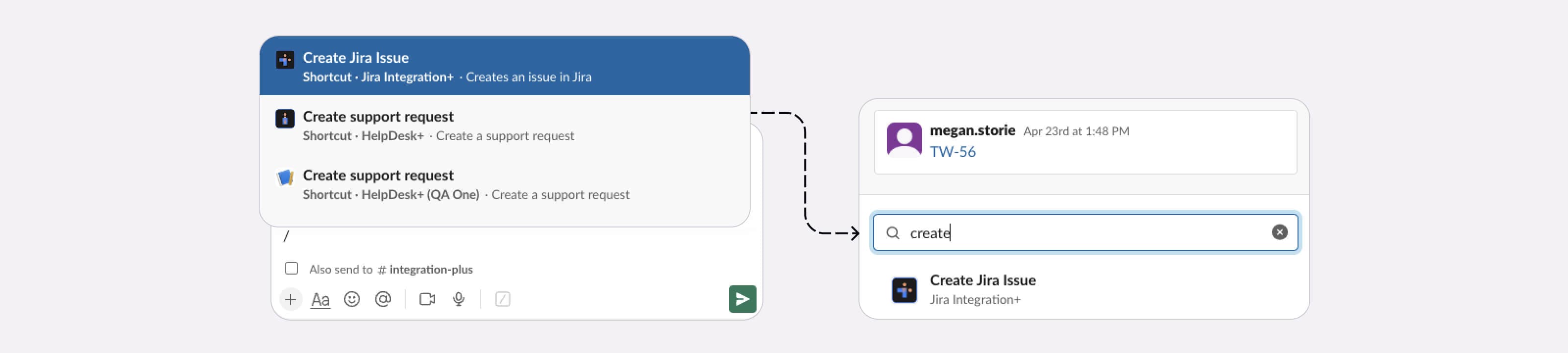
Create Jira Issues from anywhere in Slack without inviting the bot to the channel.
What’s it handy for?
Global actions eliminate the need to configure anything and enables users to create issues anywhere in Slack, regardless of where they are in the platform.
A few uses for this workflow:
- Easily create Jira issues from anywhere in Slack.
- Use Custom fields from Atlassian.
- Reduce manual errors and communication gaps by eliminating the need to leave Slack to perform Jira actions.
To get started:
- Click the + icon in Slack.
- Type Create to find the Integration+ for Slack global action.
- Choose the Create Jira issue action.
- Complete the form to create your Jira issue.
See it in action:
Get notified about your work
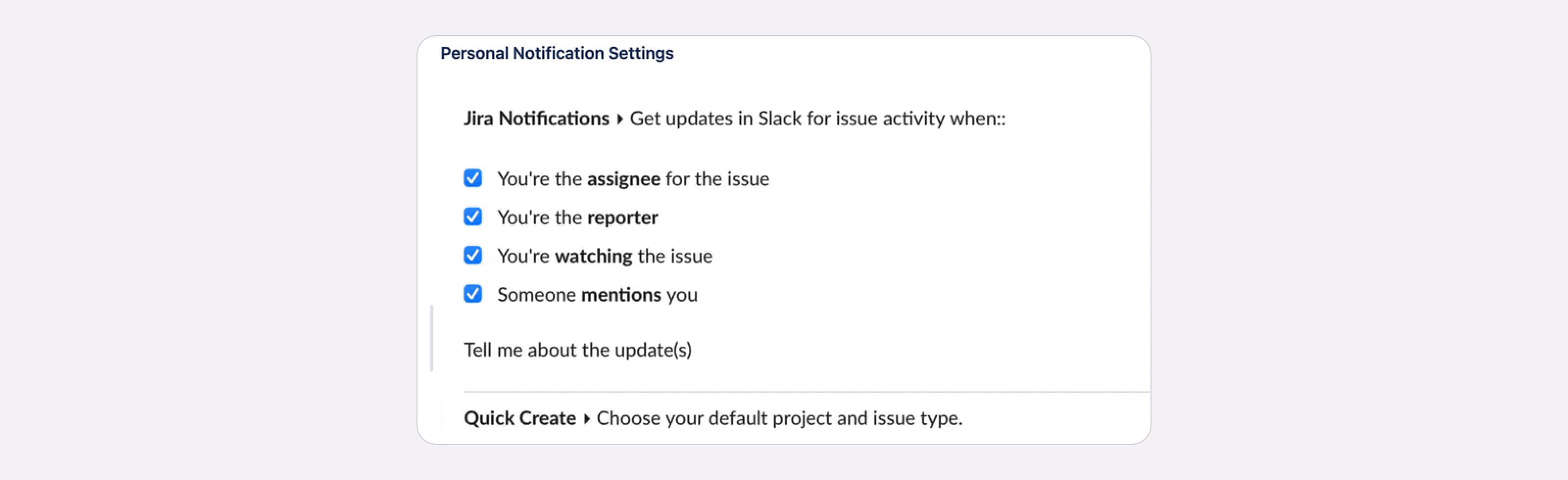
Get notified in Slack based on your personal preferences, reducing static and Jira email fatigue.
What’s it handy for?
Personal notifications from Integration+ for Slack enable you and your team members to track only the specific Jira tickets and escalations that are relevant to you. Get summarized updates and reduce your reliance on emails and alerts.
Use cases:
- Get summarized, informative alerts instead of granular email notifications.
- Set up personal notifications for only the projects and tickets you care about.
To get started:
- Install Integration+ for Slack on your Slack workspace.
- Connect to Jira.
- Invite the bot into your channels.
- Navigate to the bot home tab.
- Set up personal notification settings.
See it in action:
Basic notifications are set up in the Integration+ for Slack Home Tab.
View my assigned tickets
View Jira tickets assigned to you and make updates directly within Slack.
What’s it handy for?
View your to-do list for the day by looking at your assigned issues without switching to Jira.
A few uses for this workflow:
- Engineers: For referencing assigned work when providing updates.
- Quality assurance: For looking for a list of issues to validate.
- Project managers: By viewing issues that need to be further defined.
Take this a step further by clicking the View button and making updates like adding comments, changing issue status, etc, directly from Slack.
To get started:
- Install Integration+ for Slack on your Slack workspace.
- Connect your Slack account to your Jira account.
- Navigate to the Integration+ app.
See it in action:
Viewing assigned issues on the app home tab.

Get a report of Jira activity in Slack
Easily set up recurring scheduled reports delivered in Slack with Jira activity you care about.
What’s it handy for?
Use the Integration+ for Slack reporting feature to send a list of issues based on your selected criteria to a channel at a defined interval (like daily at a specific time). This tool is valuable for project managers or scrum masters overseeing a team’s work.
Use cases:
- Generate a daily scrum report showing what tickets have been updated or closed on the last day.
- Set up recurring reports to alert if critical tickets need attention.
- Keep track of your team’s progress without opening Jira.
To get started:
- Install Integration+ for Slack on your Slack workspace.
- Connect to Jira.
- Invite the app to your channels.
- Schedule reports.
See it in action: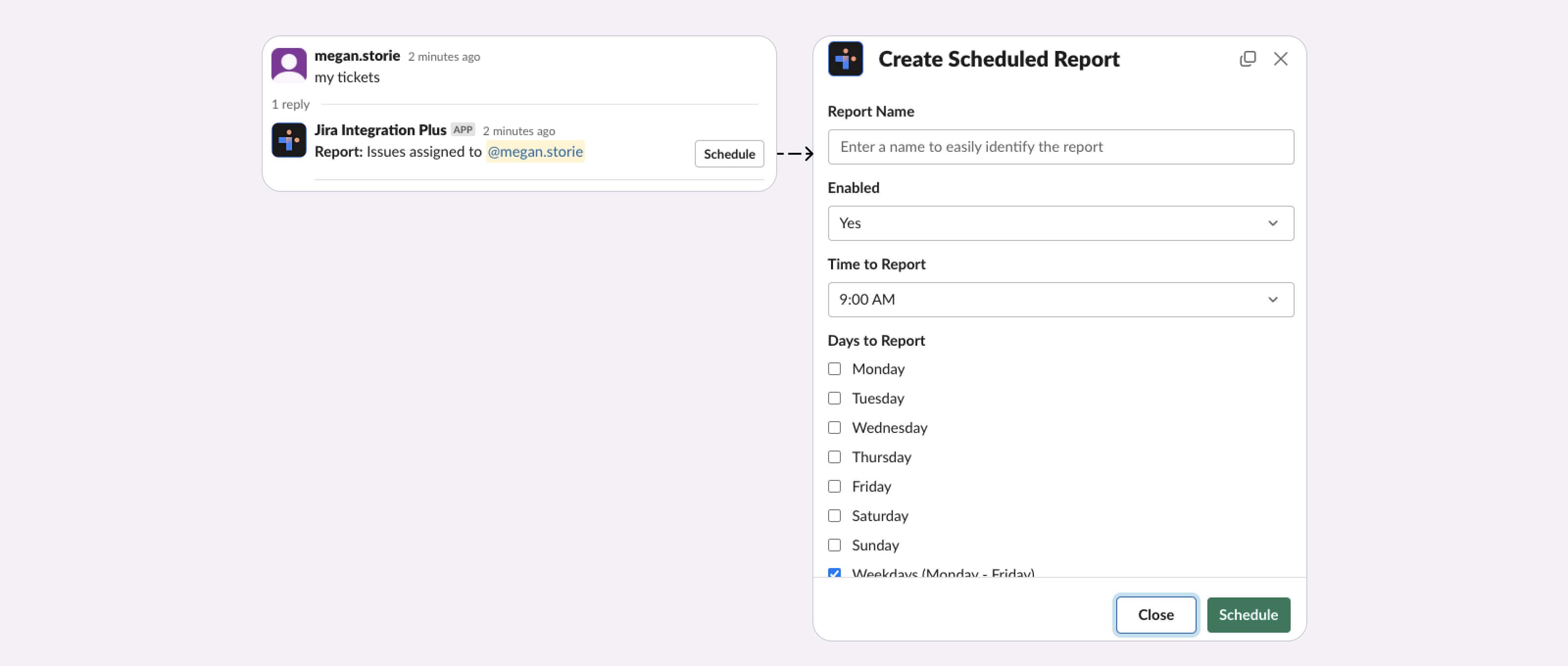
Log bugs with screenshots from Slack using the bug emoji
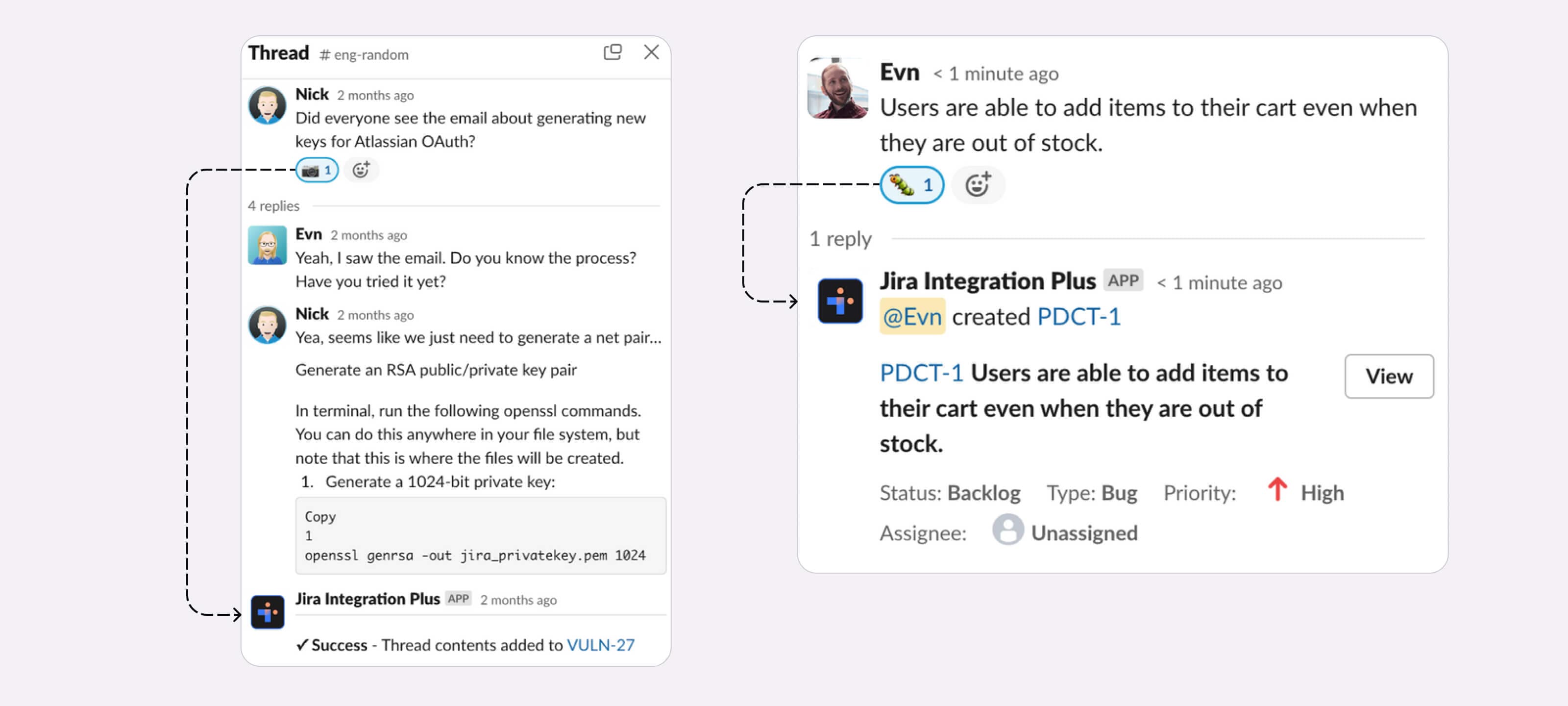
Create new issues in Jira from images, files, videos, etc., shared in Slack using the bug emoji.
What’s it handy for?
Support teams often share files in Slack. Use this workflow to prevent team members from re-uploading the same files into Jira. Simply add the bug emoji to any message to capture files or attachments to a new or existing Jira issue.
A few uses for this workflow:
- Log bugs from visual defects.
- Share files that others need to fill out in Jira issues.
- Share a file, discuss a plan, and save everything to an issue.
- Create issues using one of our options and files will be attached automatically.
To get started:
- Install Integration+ for Slack on your Slack workspace.
- Connect to Jira.
- Invite the app into your channels.
- Mention a Jira issue or get a notification from Jira.
See it in action:
Use a camera to capture a thread in Slack with multiple files and Create a new bug by using the bug emoji.
Log time to a ticket
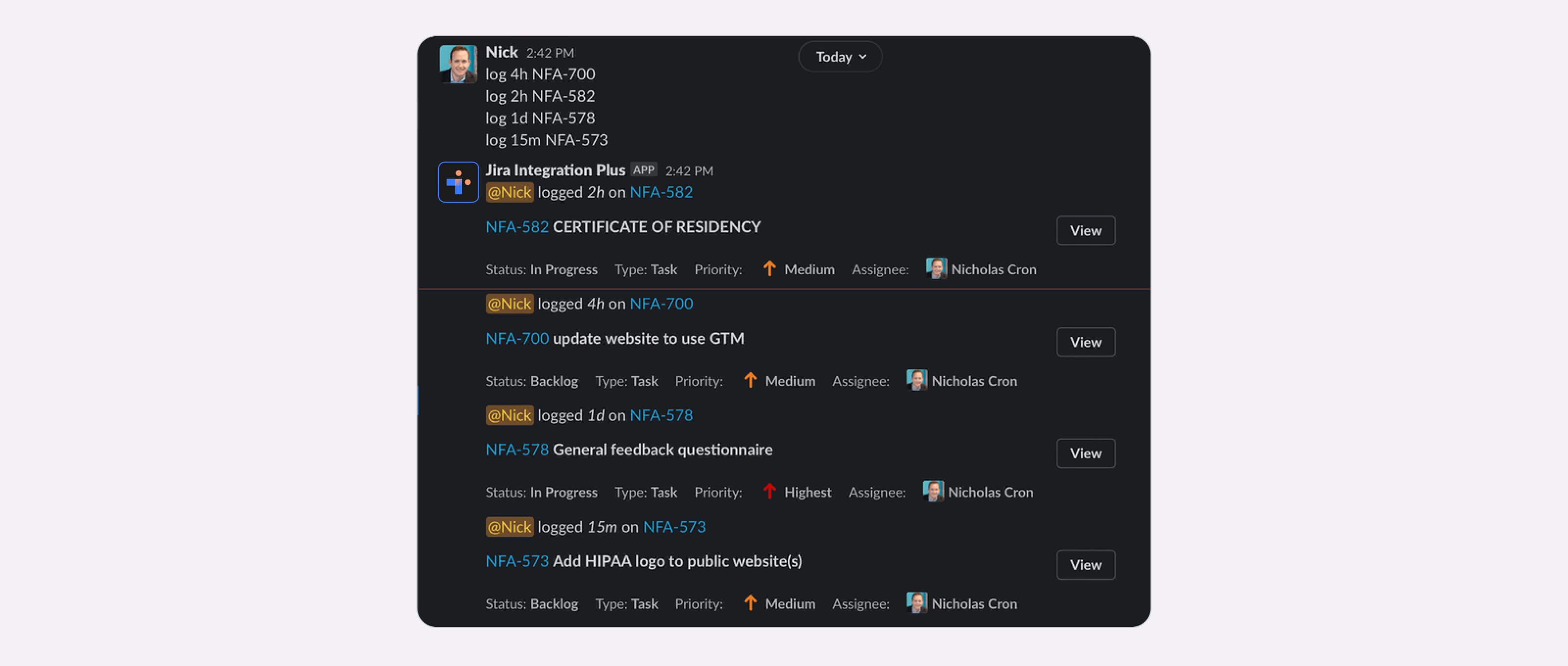
Log time to a Jira ticket in Slack with our command-line interface and leave UI users in the dust.
What’s it handy for?
Track your time on a scratch file while you work and then log all your time in one message in Slack.
How to use this workflow:
- Keep track of the Jira issues you are working on in a text pad.
- Create log statements in the Integration+ for Slack format.
- Send a message to Integration+ for Slack to log your time.
- Test it and see for yourself whether you can log time in Jira faster.
To get started:
- Install Integration+ for Slack on your Slack workspace.
- Connect to Jira.
- Create log time commands with the following format: `log + time + ticket` like `log 2h demo-12`.
See it in action:
Log time to multiple tickets with a message to the Integration+ for Slack bot.
Manage incidents and escalations in Slack
Run a Slack first incident management process with Jira Service Management.
What’s it handy for?
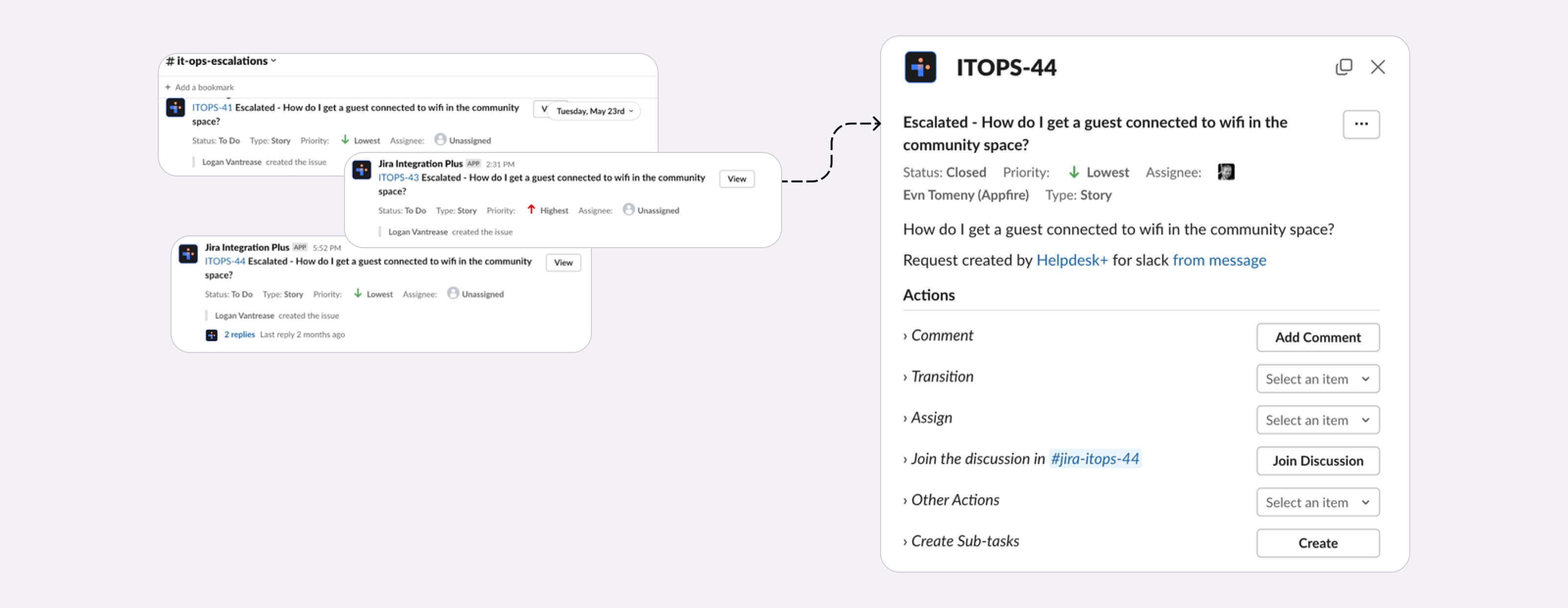
Update your incident management process to keep everyone aligned and close issues faster.
Example issue escalation process:
Configure notifications for specific issue types to your alert channel.
View and perform initial triage in Slack thread and capture discussion to issue.
Create a dedicated channel when necessary to escalate issues.
Configure the app to automatically invite team members in escalated channels.
A few uses for this workflow:
- Get notified when priority issues are created.
- Discuss issues in chat and pull in resources as needed.
- Create a dedicated discussion channel and auto-sync the conversation to the ticket.
- Get updated whenever the issue is modified anywhere.
- Automatically invite the right people into the discussion.
- Capture a post-mortem discussion of the issue in Jira.
- Change the way your team responds to incidents to streamline your process and improve outcomes.
To get started:
- Install Integration+ for Slack on your Slack workspace.
- Connect to Jira.
- Invite the app into your channels.
- Mention a Jira issue or get a notification from Jira.
See it in action:
Get alerts for priority issues in Slack and Create a Slack channel to discuss the issue.
Build reports of Jira issues within Slack
Create, find, update, assign, and report on Jira issues right from Slack and get notifications when things change.
What’s it handy for?
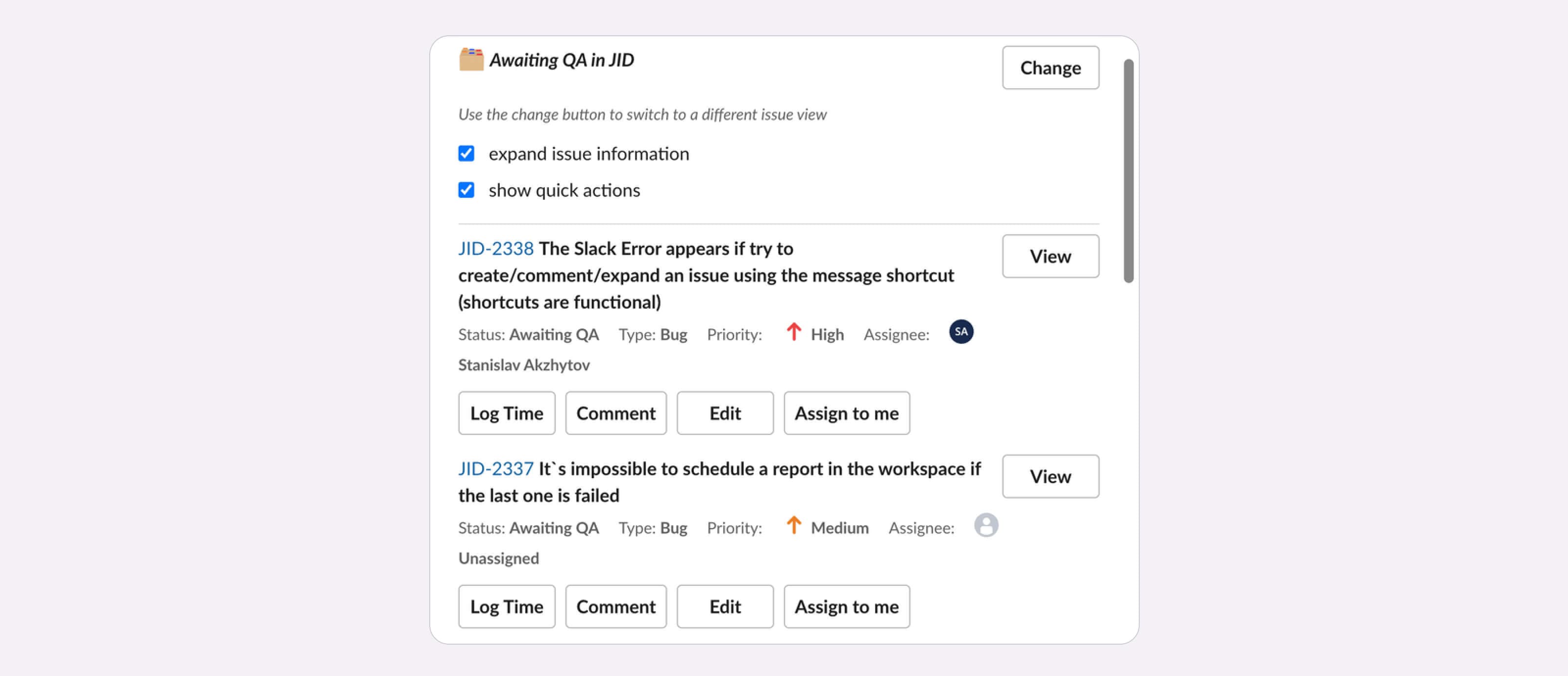
If you’re a project manager, you can see tickets you’re monitoring or recently created projects within Slack by using the app’s home functionality. Build reports that surface potential blockers so you and your team can act quickly and efficiently.
A few uses for this workflow:
- Get customized reports of activity happening in Jira from Slack.
- Create dedicated Slack channels for escalated Jira issues.
- View all ticket information including labels, severity, and linked issues.
- Get an overview of project status and bring focus to key insights.
- Reduce context switching between Slack and Jira.
To get started:
- Add the Integration+ for Slack app to your Slack workspace.
- Navigate to the Integration+ for Slack home page.
- Click “change.”
- Click the “Select” button next to “Specific Status(es) by Projects(s).”
See it in action:
Streamline collaboration with dedicated channels in Slack
Create a digital HQ for your team to discuss specific projects and sync messages with Jira.
What’s it handy for?
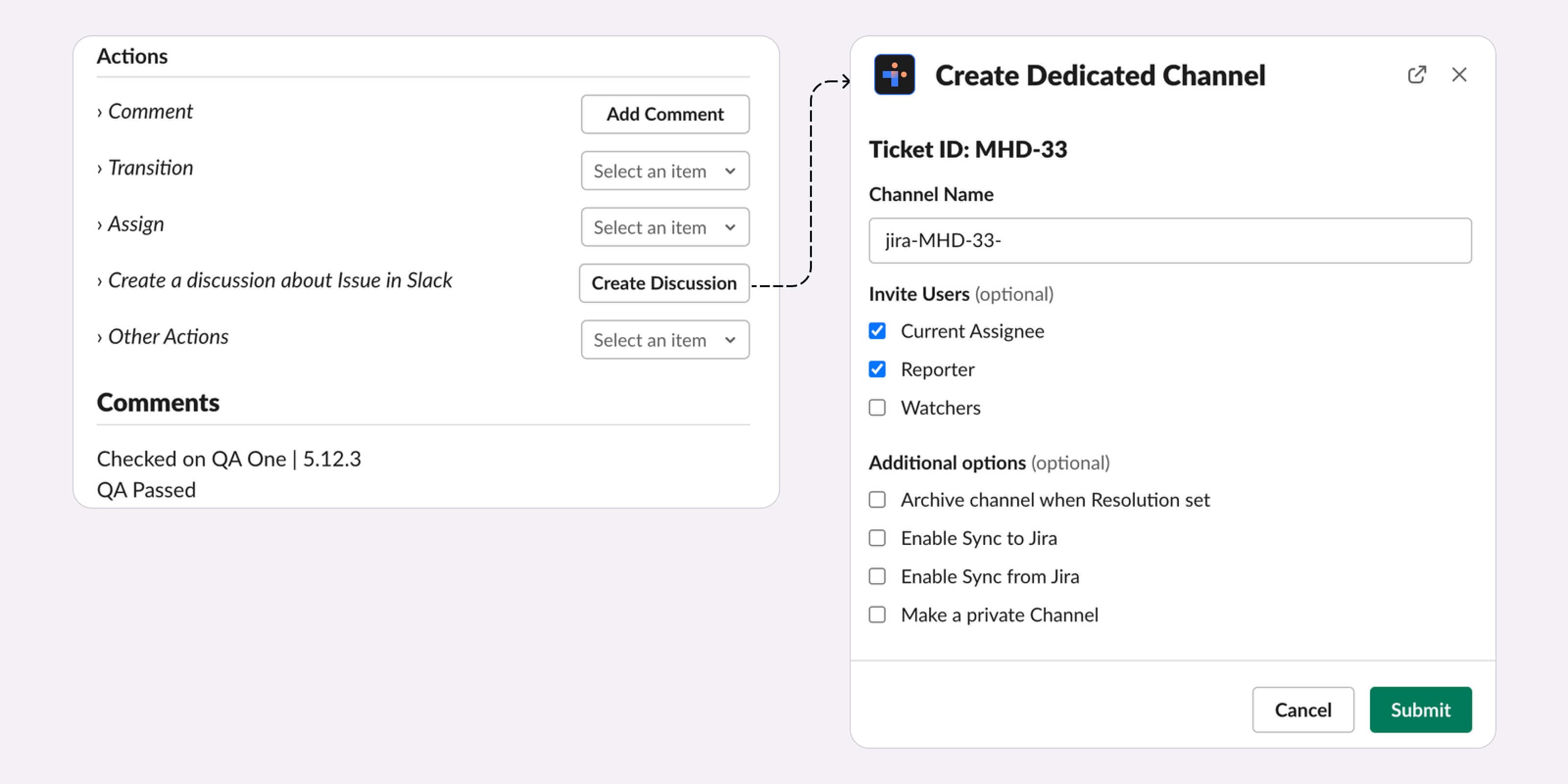
With Dedicated Channels, you can create a channel in Slack to discuss a specific Jira issue and sync all messages in the channel with the issue you’re discussing. Whether you’re creating from Jira or Slack, this integration allows for seamless collaboration and ensures everyone is on the same page. This virtual space allows for real-time collaboration, knowledge sharing, and streamlined communication.
A few uses for this workflow:
- Streamlined communication: dedicated channels in Slack provide a centralized location for team members to collaborate, share ideas, and discuss specific issues or projects.
- Improved organization: Customize dedicated channels to meet your team’s needs, creating channels or boards for specific projects or topics. Keep conversations organized and ensure team members can find relevant information quickly when they need it.
- Enhanced knowledge sharing: With a “digital HQ” in Slack, team members can easily share knowledge, best practices, and resources. Promote a culture of learning and collaboration, leading to more effective problem-solving and innovation.
- Improved visibility: Slack integration with Jira provides real-time notifications and alerts, keeping team members up to date on project progress and any issues that arise. Improve visibility into project status and reduce the risk of miscommunications or missed deadlines.
To get started:
- Click the View button on a Jira ticket message in Slack.
- Click the Create Discussion button on the ticket message.
- Update the Slack channel name (optional).
- Click the green Submit button to create your Slack channel.
- Click the Join Discussion button on the Jira ticket.
- Discuss your issue in the new Slack channel.
See it in action:
Get notified in Slack channels when Jira tickets are updated
Get notified in Slack and track hot Jira issues, and daily activity, and reduce email noise.
What’s it handy for?
Channel and personal notifications from Integration+ for Slack allow for advanced configurations to alert you and your team to Jira tickets and important escalations. Get smart summarized updates and silence email and alert spam.
Use cases:
- Get summarized informative alerts instead of granular email notifications.
- Set up immediate alerts in dedicated channels for important ticket escalations.
- Keep track of your team with aggregated daily ticket threads in channels.
- Set up personal notifications just for the projects and tickets you care about.
To get started:
- Install Integration+ for Slack on your Slack workspace.
- Connect to Jira.
- Invite the app into your channels.
- Configure channel notifications for your project.
See it in action: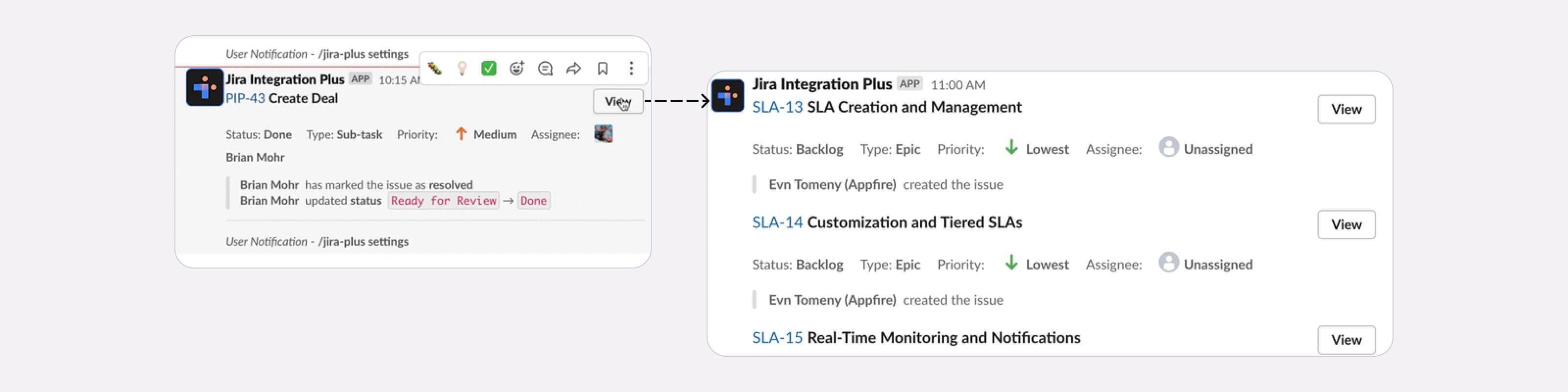
So, if you’re looking for a solution to connect Slack and Jira to streamline workflows, monitor assigned tickets, and manage projects with unprecedented ease, try Integration+ for Slack. From creating Jira issues directly from Slack to receiving personalized alerts and notifications, the possibilities are endless.
Reduce context-switching, automate mundane tasks, and enhance productivity like never before. Whether you want to log bugs with screenshots, manage incidents and escalations, or streamline collaboration with dedicated channels, integrating Jira and Slack offers an array of benefits that are reshaping the way IT teams work.
Unlock the full potential of your team’s collaboration with Integration+ for Slack!
