
It’s typical for teams who use both Confluence and Slack to have a lengthy software stack they work with, often causing them to have to switch contexts. Did you know on average, people take nine and a half minutes to get back into a productive workflow after switching between digital apps? That is a ton of wasted time when you work with 5+ apps daily. However, there is an app that allows you to create a two-way connection between Confluence and Slack.
Confluence and Slack integration
Confluence is an essential tool for organizations to manage their important knowledge and collaboration, but updating and managing their documentation is not always intuitive. Updating often involves copying and pasting from Slack, or even worse, the documentation doesn’t always contain the full picture when content is left in Slack discussions.
Docs+ for Slack eliminates these problems by allowing you to manage your documentation from Slack. No more switching context, missing information, and best of all, no more copy/paste.
Let’s explore some of its uses.
- Save Slack content directly to your documentation.
Docs+ for Slack enables you to easily save important information from Slack threads, messages, or channels to your documentation, so you never lose essential content. You have control over what content is saved, whether it creates a new page or is added as a comment to an existing page, and more. Oh, and attachments and images save as well!
- Share knowledge quickly in Slack to keep work moving.
With Docs+ for Slack, you can locate content in your documentation and share it through Slack channels or direct messages without disrupting your workflow. Using slash commands in Slack you can search your documentation, pull up the document you need, and share, comment, star, or edit it directly in Slack.
- Stay focused with Confluence alerts in Slack.
We use intelligent notifications to alert you in Slack whenever you are mentioned on a documentation page. You can view the mention, comment back, or star the page without leaving Slack.
If you work frequently in Confluence and also use Slack, Docs+ for Slack will help you regain the time you lost switching contexts. By viewing, sharing, creating, and managing your documentation without leaving Slack, you can supercharge your productivity and facilitate collaboration.
Look below to learn more about the Docs+ for Slack app’s functionalities, including quick and easy step-by-step instructions on installing it, what it offers, and how it can be used.
Capture meeting notes to a documentation page
Capture notes from meetings without leaving the Slack context.
What’s it handy for?
Quickly capture the information you need to know and ensure it gets to your wiki.
To get started:
- Install Docs+ for Slack on your Slack workspace.
- Connect your Confluence instance.
- Use the book emoji to capture meeting discussions.
See it in action:
Using the book emoji on meeting notes kickstarts the documentation capture process.

Comment on a Confluence document
Comment on a Confluence document without ever leaving Slack.
What’s it handy for?
Adding additional information to documentation content from Slack.
A few uses for this workflow:
- Engineering & Product Management: Quickly provide feedback to team members.
- Management: Allow team members to collaborate from within the Slack context.
- Organizations: Deliver feedback to content quickly.
To get started:
- Install Docs+ for Slack on your Slack workspace.
- Connect your Confluence instance.
- Select the Comment action from Docs+ posted content.
-OR-
- Find content from the Docs+ Home Tab and select Add Comment from the list of options.
See it in action:
A user leaving a comment on a wiki page.

Get notified when comments are added
Get notified in Slack when comments are added to a Confluence page.
What’s it handy for?
Stay up to date on comments added to your documentation content.
A few uses for this workflow:
- Respond immediately to questions or comments on your Confluence content.
- Catalog what wiki pages are seeing the most activity.
To get started:
- Install Docs+ for Slack on your Slack workspace.
- Connect your Confluence instance.
- Set up personal notifications to send a message in the Docs+ for Slack Message Tab when comments get added to a Confluence page.
See it in action:
Channel notifications of comments added to Confluence or blog pages and direct alerts when users are mentioned in comments or pages.

Get notified when mentioned
Get notified in Slack when you’re mentioned on Confluence content.
What’s it handy for?
Notifications keep you up to date on the latest Confluence developments.
A few uses for this workflow:
- Quickly find and share information with team members.
- Respond immediately to questions or comments on your Confluence content.
To get started:
- Install Docs+ for Slack on your Slack workspace.
- Connect your Confluence instance.
- Set up personal notifications to send a message in the Docs+ for Slack Message Tab when you are notified.
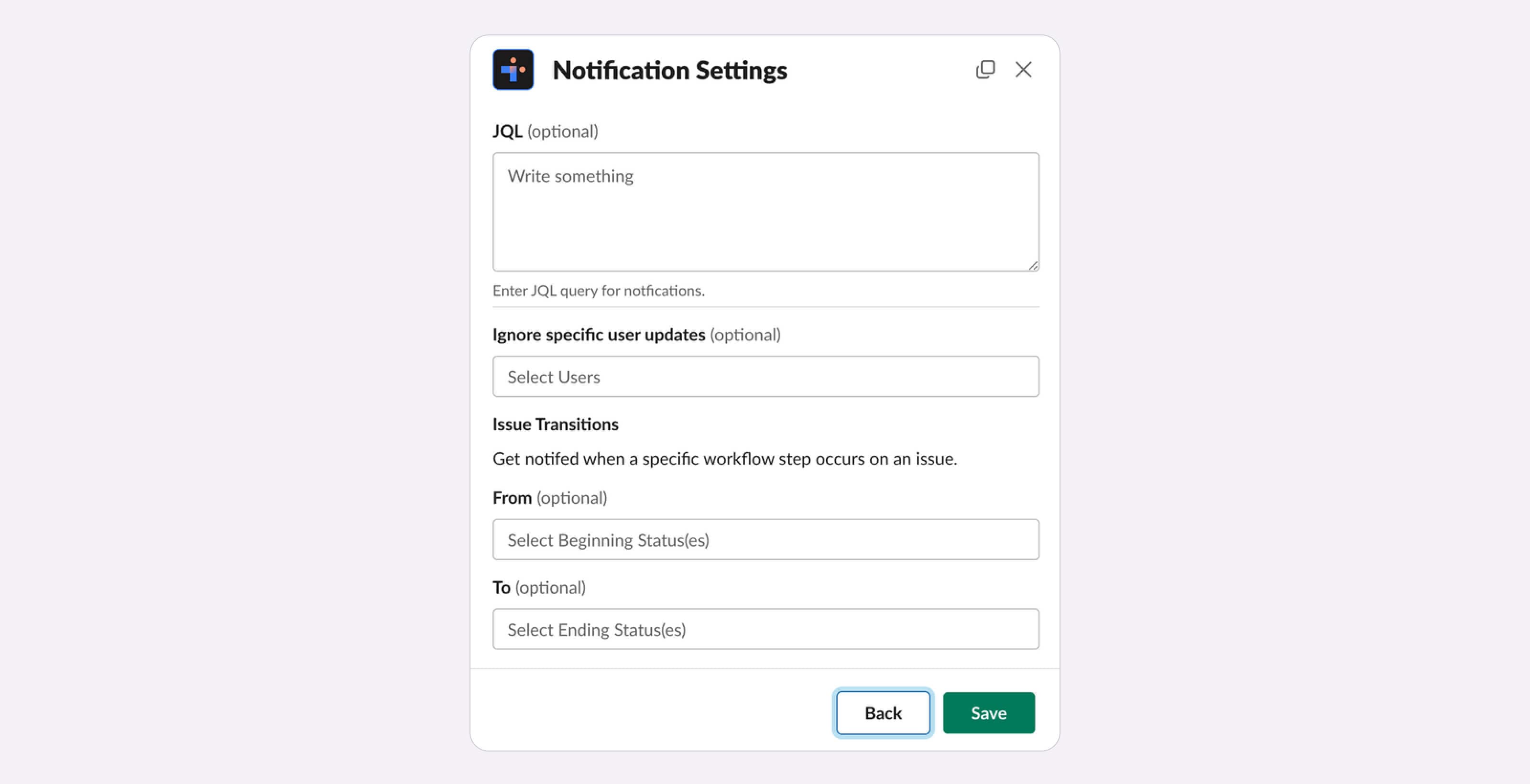
Setting advanced personal notifications
Set detailed personal notification settings to customize what issues are brought to your attention.
What’s it handy for?
Filtering and customizing the notifications you receive based on need.
Use cases:
- Wanting to see only specific notifications.
(for example, all issues from a certain user that transition to a specific status) - Reducing Jira email clutter.
To get started:
- Install Integration+ for Slack on your Slack workspace.
- Connect to Jira.
- Navigate to the Integration+ for Slack bot messages tab.
- Type /jira-plus configure.
- Configure your personal notification settings.
See it in action:
Using Jira configure in the bot messages tab to set up advanced personal notifications:
Search documentation from Slack
Find content from your organization’s documentation without leaving Slack.
What’s it handy for?
Quickly searching for Confluence content.
A few uses for this workflow:
- Quickly find and share information with team members.
- Stay informed of the latest changes regarding Confluence content.
- Deliver content to the people who need it, when they need it.
To get started:
- Install Docs+ for Slack on your Slack workspace.
- Connect your Confluence instance.
- Use the search button on the Docs+ for Slack home tab to find content.
See it in action:
Find documents in your Confluence form the Docs+ for Slack app home tab.

Share Confluence documents
Share Confluence documents to Slack channels.
What’s it handy for?
Quickly share documents on your internal documentation to answer questions, provide context, or solve issues.
A few uses for this workflow:
- Engineering: Quickly find and share information with team members.
- Product Management: Provide context for feature descriptions.
- Management: Stay informed of the latest changes regarding Confluence content.
- Organizations: Deliver content to the people who need it, when they need it.
To get started:
- Install Docs+ for Slack on your Slack workspace.
- Connect your Confluence instance.
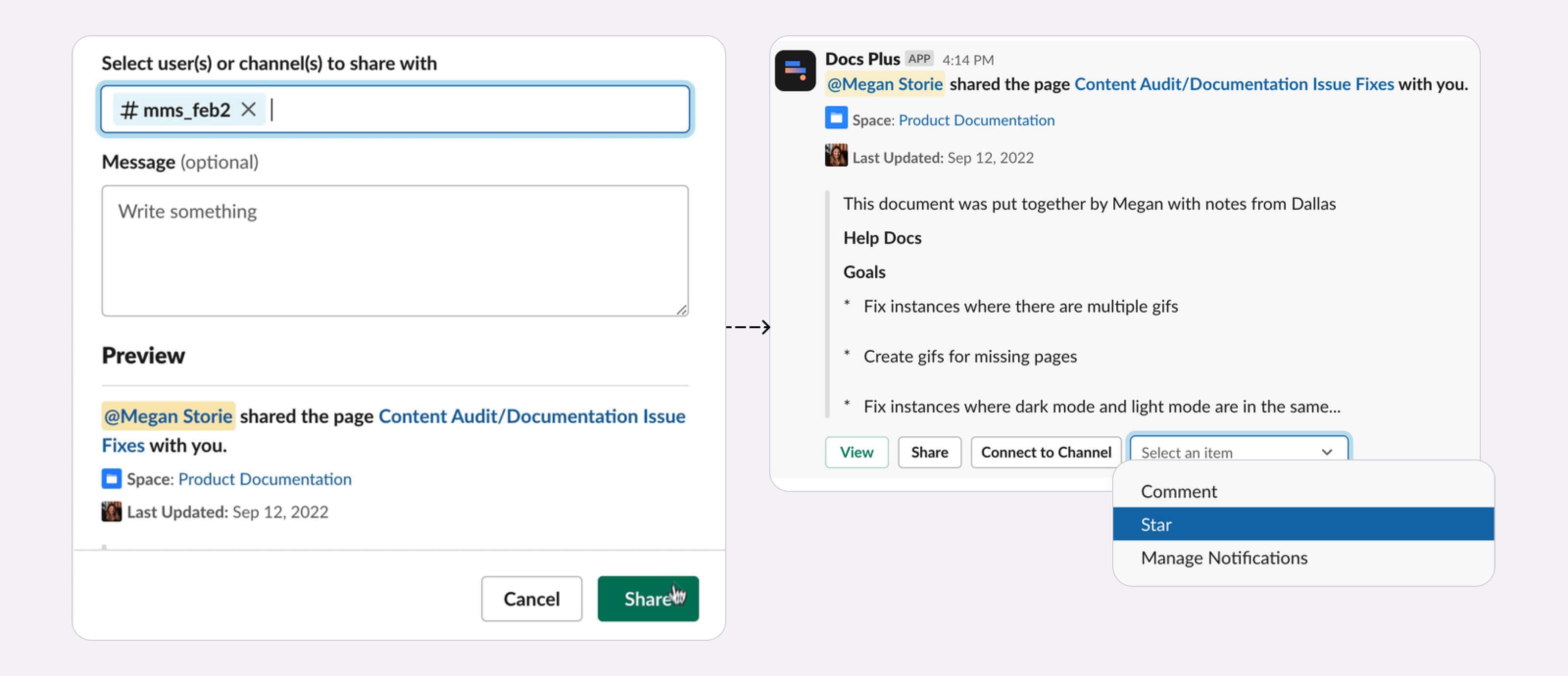
- Use the share button on the Docs+ for Slack home tab to share content.
See it in action:
Share content in a Slack channel and Star content from the Docs+ for Slack modal.
Star a Confluence document from Slack
Add a page to your Confluence “Starred Items” from Slack.
What’s it handy for?
Quickly save Confluence content for later viewing.
A few uses for this workflow:
- Curate a list of quick-reference Confluence content.
- Keep often-used Confluence content easily searchable.
To get started:
- Install Docs+ for Slack on your Slack workspace.
- Connect your Confluence instance.
- Use the Star option from the dropdown menu on Docs+ for Slack’s posted content.
View recently updated pages
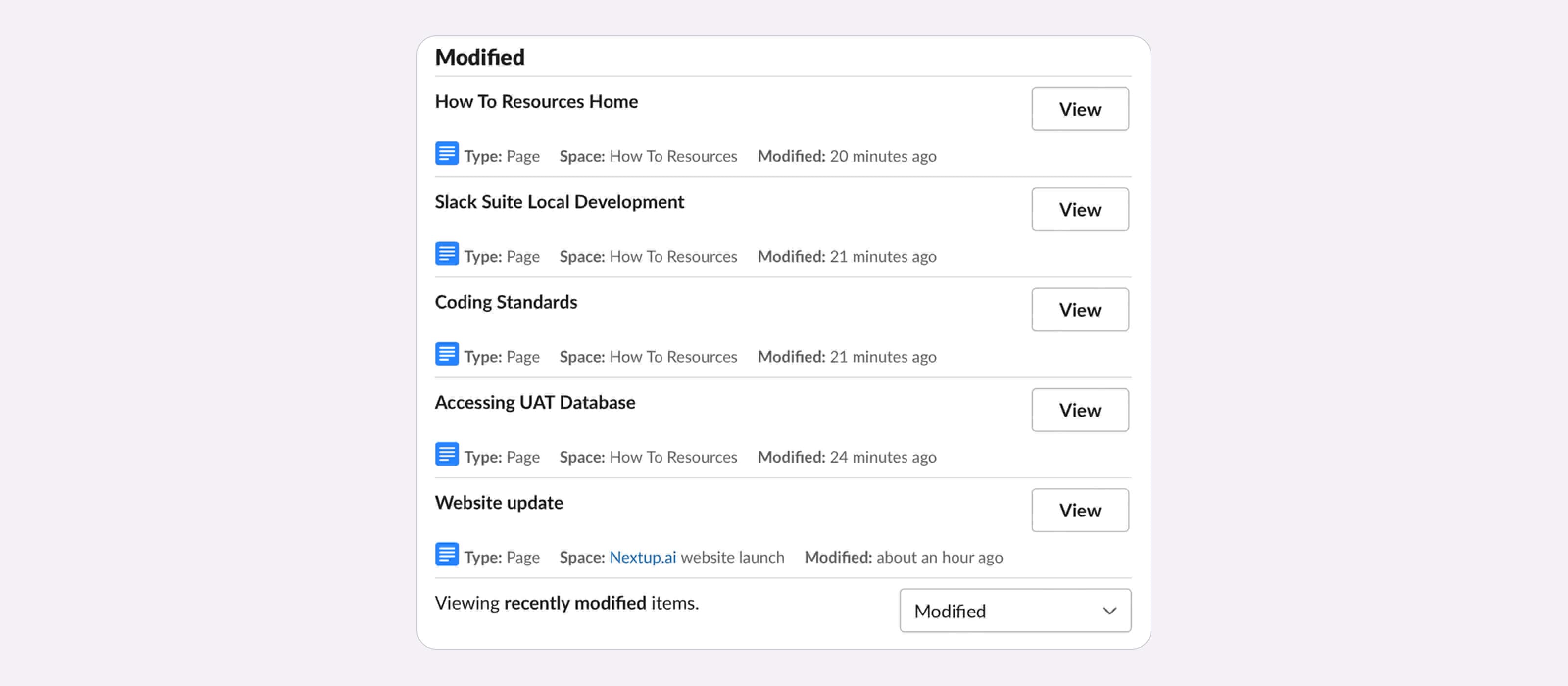
View all recently updated Confluence documents in one place within Slack.
What’s it handy for?
Seeing a list of recently updated pages.
A few uses for this workflow:
- Maintain a list of commonly-visited Confluence content.
- Quickly send recent documents to your team.
To get started:
- Install Docs+ for Slack on your Slack workspace.
- Connect your Confluence instance.
- Filter the Docs+ for Slack Home Tab to show recently updated items.
See it in action:
Recently modified pages are shown in the home tab for each Slack user.
View starred Confluence documents
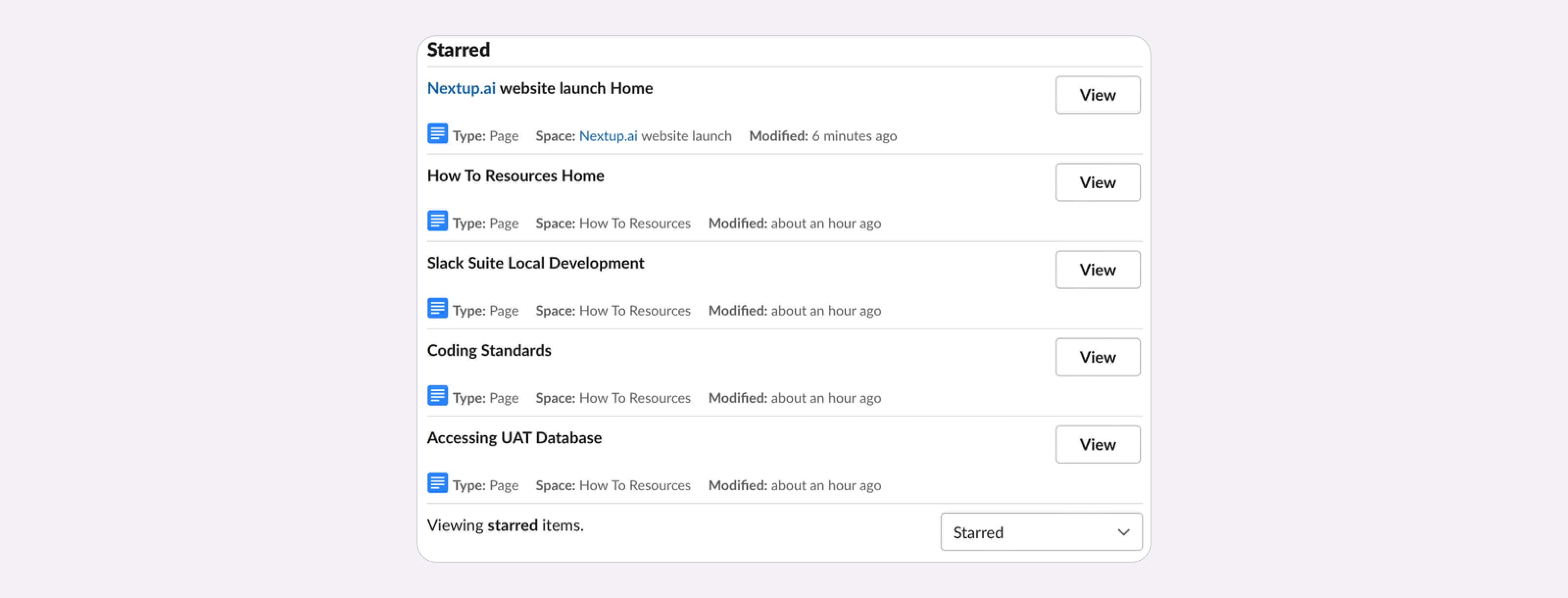
View all starred Confluence documents in one place within Slack.
What’s it handy for?
Curate a list of easily-referenced Confluence pages.
A few uses for this workflow:
- Maintain a list of commonly requested Confluence content.
- Quickly send often-referenced documents to your team.
To get started:
- Install Docs+ for Slack on your Slack workspace.
- Connect your Confluence instance.
- Filter the Docs+ for Slack Home Tab to show starred items.
See it in action:
The Docs+ for Slack Home Tab is filtered to show only starred items.
Now that you’ve seen how using Confluence with Slack through Docs+ for Slack offers a game-changing solution for your team, you’re ready to reclaim lost time, boost productivity, and elevate collaboration to new heights.

