

Managing your purchase orders
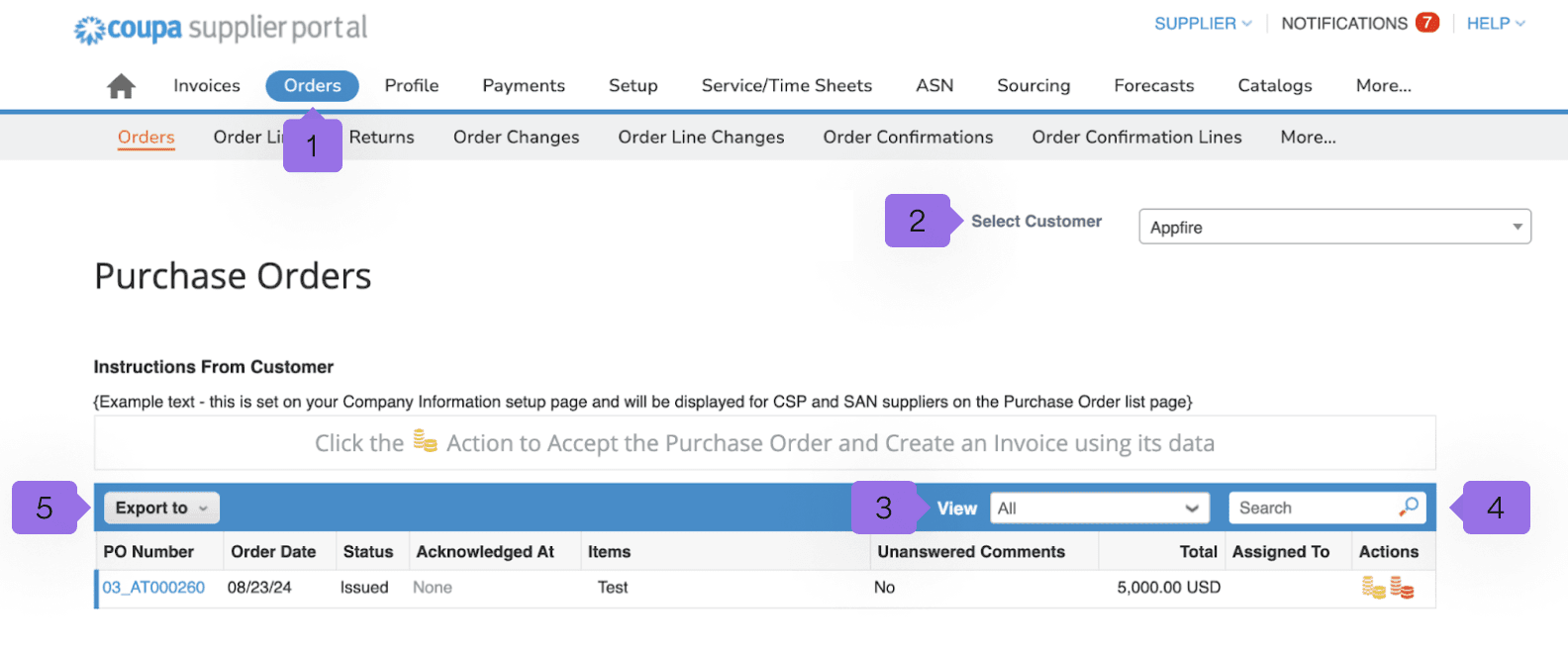
You can manage your purchase orders (POs) from within Coupa by selecting the orders tab (1). From here you will see all your purchase orders listed with their various statuses. You can also use the purchase order number or create your own report view to navigate directly to the purchase order you wish to see.
You can choose between customers or also generate your own view for the orders. Under select customer (2) you change the view to another customer which is using CSP. Under view (3) you can use the selection create view to set up a individually list of orders. The search (4) field can be used to search for any column in the order list, e.g. the PO number. All columns can also be sorted in ascending or descending order via the button export to (5), the displayed list can be saved locally.
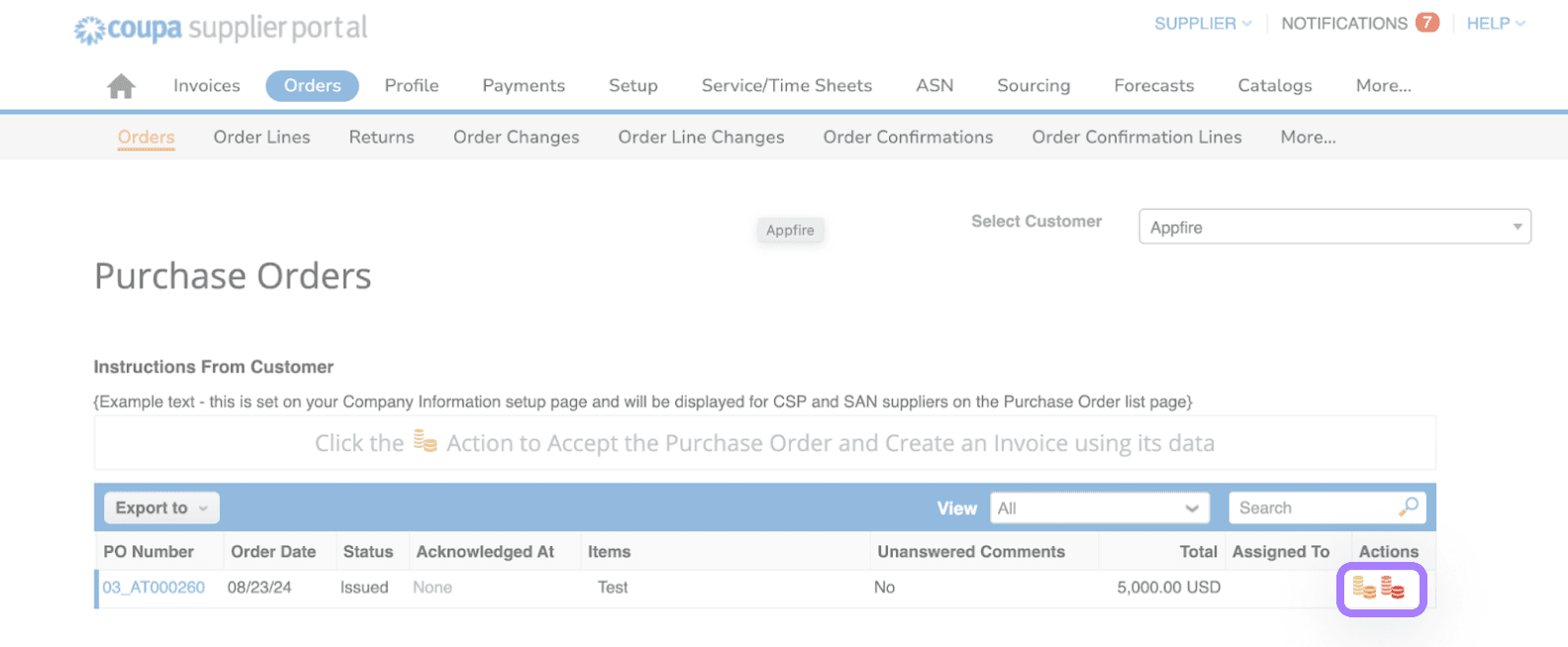
NOTE: From the purchase order page you are able to create an invoice or create a credit note.
Clicking on the gold stack will all you to create an invoice — please see our guide on how to create invoices.
Clicking on the red stack of coins will allow you to create a credit note — please see our guide on how to create credit notes.
Purchase order status definition
Purchase orders will have one of the following statuses.
- Cancelled: The PO is canceled.
- Closed: The issued PO was received, delivery has been fulfilled and invoices have been paid and the PO is then closed.
- Issued: The PO was approved and sent to you.
- Soft Closed: The PO is closed but can be re-opened. You cannot invoice against a soft closed PO. However if you do need to send an invoice, speak to your Appfire contact.
View your Purchase order
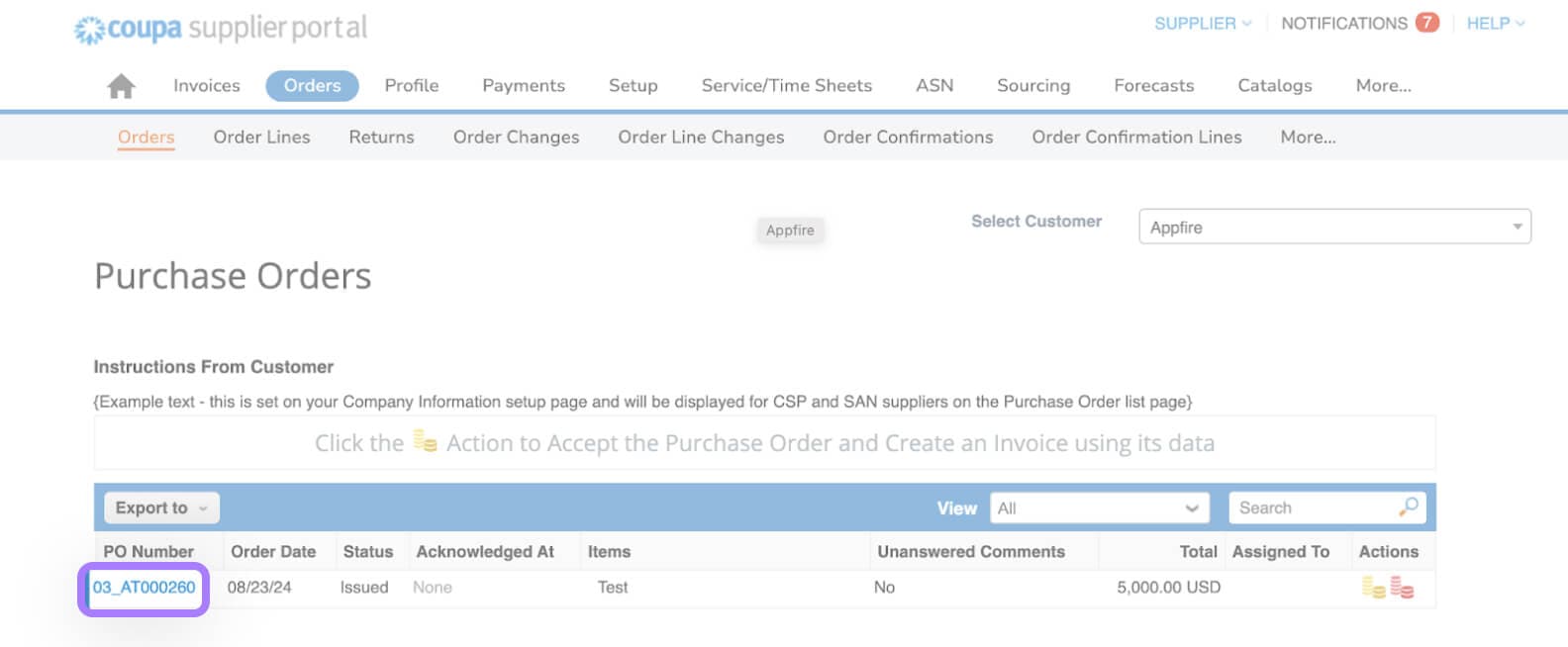
To view the details of your purchase order, select the blue PO Number link to open the PO.
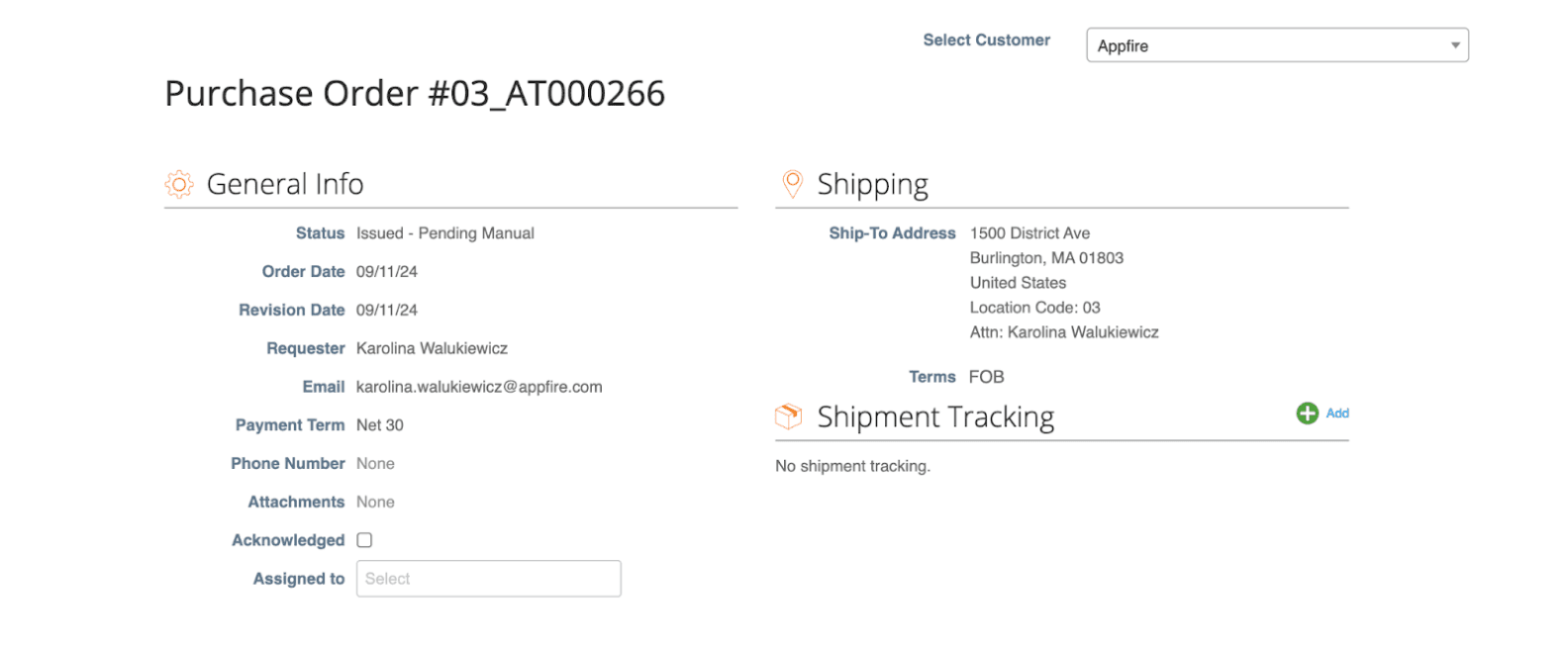
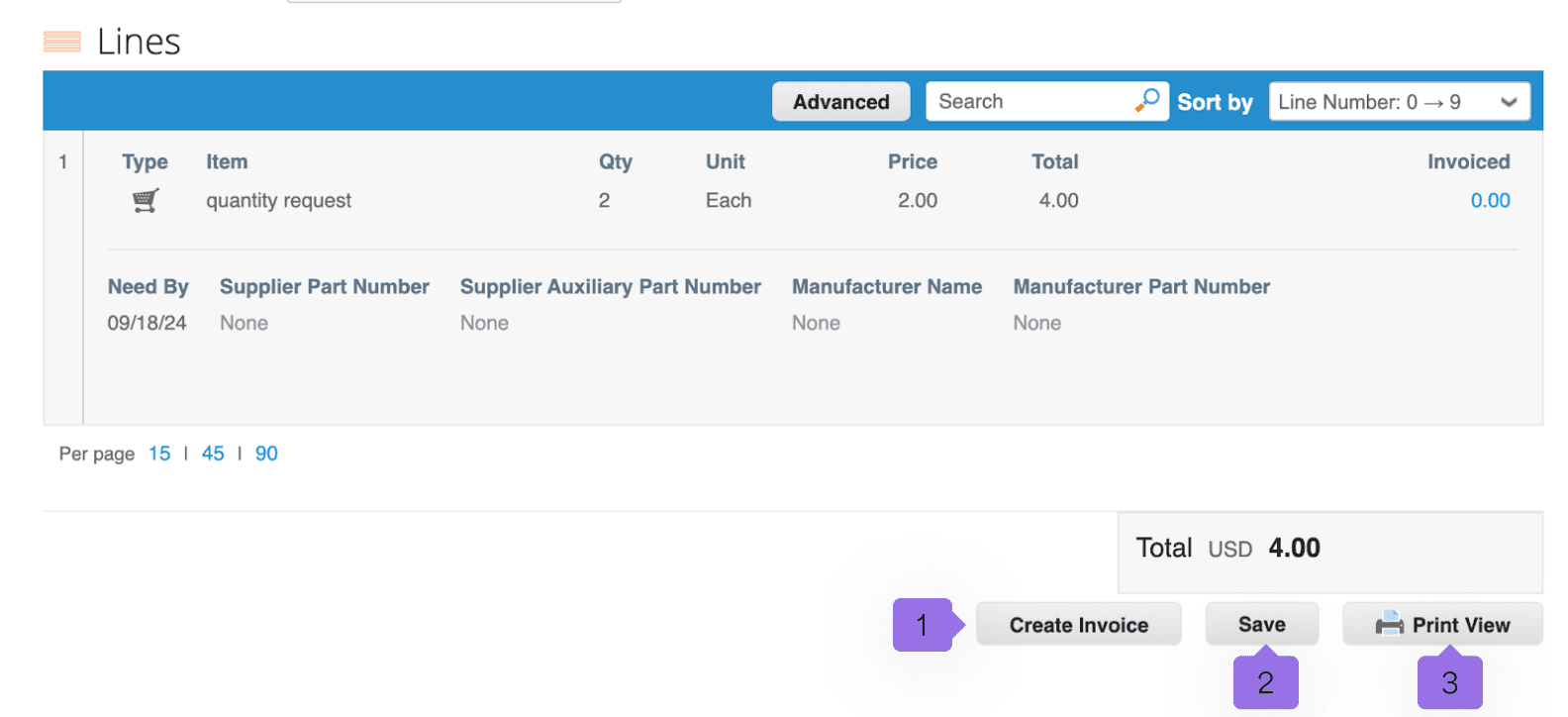
The order is divided into general info, the shipping and the lines.
In addition, under the positions of each order there are the buttons create invoice (1), if it is about a service in the order save (2) and print view (3).
Also there is a field comments which can be freely written. At the bottom of the page, changes or comments to the order can be viewed at any time under history.
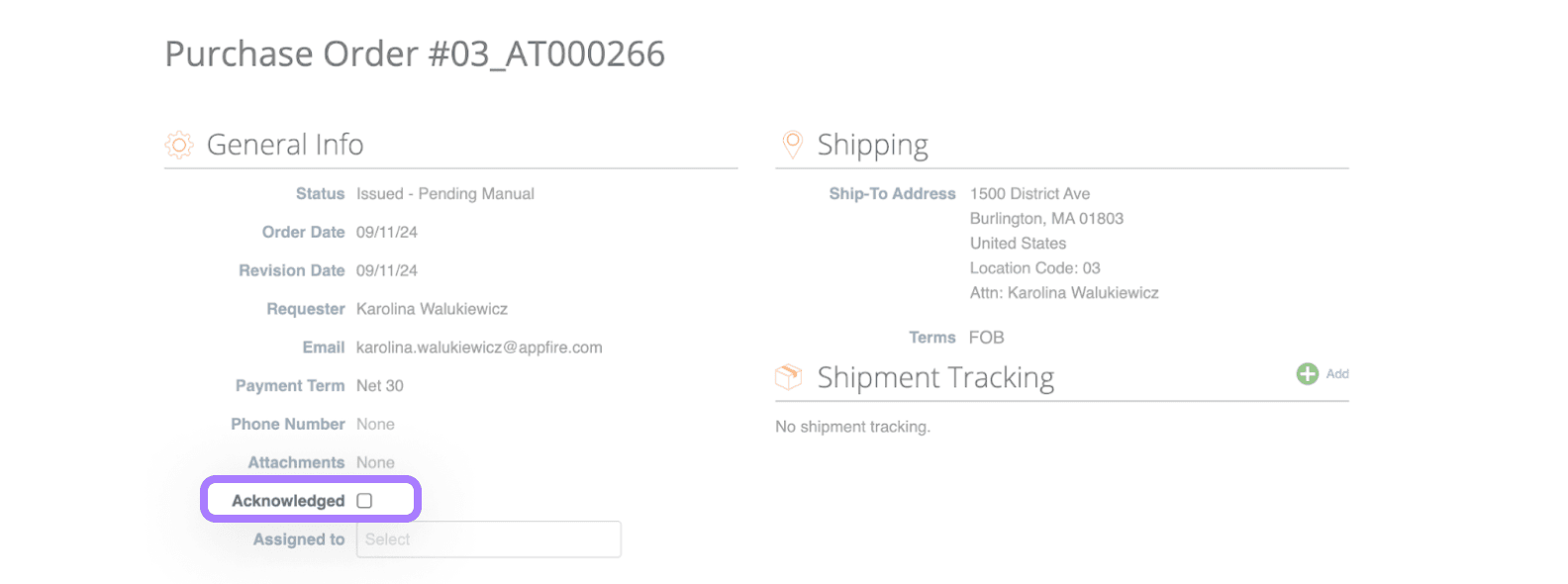
Acknowledged — order confirmation in CSP
In case you can confirm the PO within all details, you can perform your order confirmation in the CSP by ticking the check box ‘acknowledged’.
NOTE: There is no need to send an additional order confirmation via email if you use this functionality.
If you do not agree with the content of the purchase order, you are welcome to use the comment function to submit a change of order or note to Appfire.
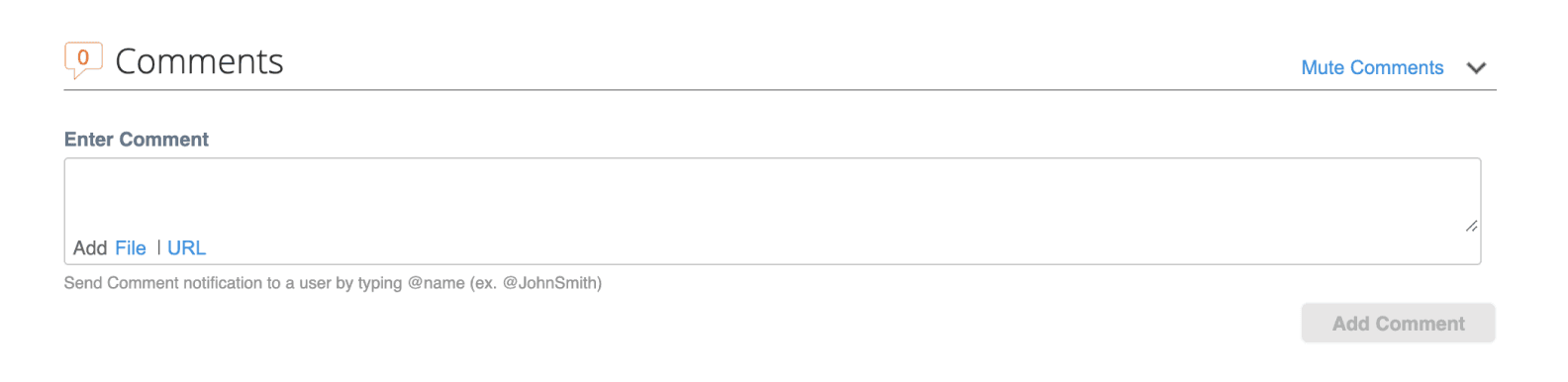
To do so, please always start with the @ sign and search for the respective contact person at Appfire using the first name. Then click on the contact person in the selection list and compose the message.
Click the "add comment" button to send the message to the person, who can then also reply in this comments field.
Print view
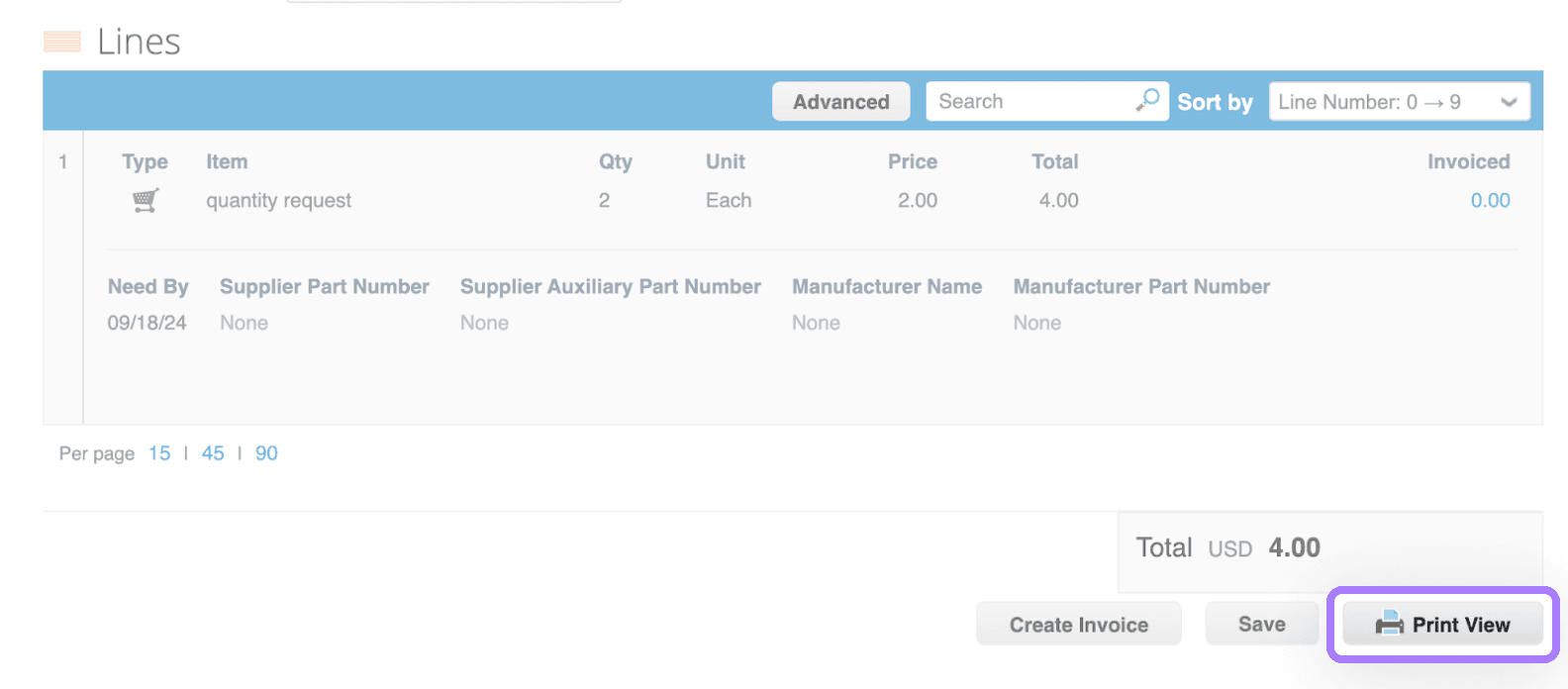
You can also print purchase orders. Select the PO Number link to open the PO and scroll to the bottom of the PO and select the print view button.
In some purchase orders, you may not see a price on the line. This is because the ‘HIDE PRICE’ function was chosen.
This could be the case if a limit order (budget order) was created. This has no influence on the invoice process. You can create your invoices in the CSP as normal with the appropriate costs detailed.