

TL;DR
- Jira stores valuable data, but its native dashboards fall short at scale
- Power BI and Tableau unlock deeper visibility, trend insights, and cross-project analytics
- Manual exports and APIs work, but they’re slow, manual, and hard to maintain
- Appfire’s BI Connector makes it easy to sync Jira data with Power BI and Tableau — no code required
- Use it to build sprint reports, SLA trackers, and leadership-ready dashboards in minutes
From Jira issues to insight
Jira captures the details — every issue, sprint, and backlog. But many teams struggle to transform that raw data into actionable insights.
Native Jira dashboards are helpful for quick, team-level snapshots, but they often fall short when scaling across multiple projects or departments. They’re static, siloed, and lack the flexibility needed for comprehensive analysis.
The business intelligence software market in the U.S. is projected to surpass $151.26 billion by 2034, growing at 13.74% CAGR between 2025 and 2034. This surge indicates that organizations are seeking more dynamic solutions to interpret their data effectively.
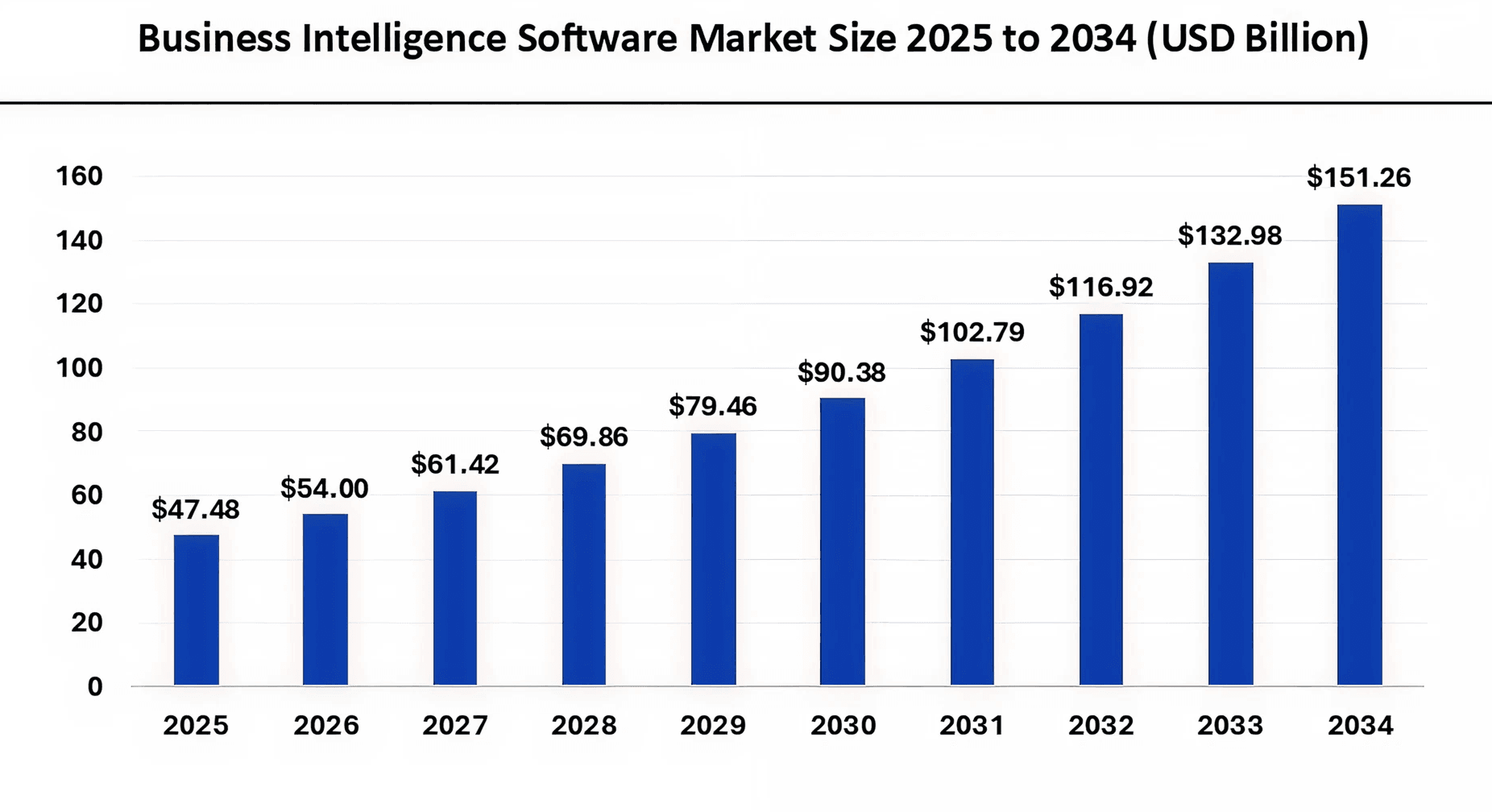
Source: Precedence Research
In this article, we’ll explore how to visualize Jira project data using Power BI and Tableau, why native reports fall short, and how Appfire’s BI Connector makes it easier to turn data into decisions.
Why does native Jira reporting often fall short?
Native Jira reporting serves well for basic, team-level insights, but presents several limitations when scaling across projects or integrating with other tools.
Limited cross-project and cross-organization reporting
Jira’s native dashboards are primarily designed for individual projects, making obtaining a consolidated view across multiple projects or departments challenging. This limitation hampers organizations aiming for comprehensive oversight and strategic planning.
Restricted data modeling and customization
While Jira offers standard reports, customization options are limited. Users often find it challenging to tailor reports to specific needs, such as applying advanced filters or creating complex visualizations. This constraint can impede in-depth analysis and decision-making.
Absence of predictive and trend analysis
Jira’s built-in reports focus on current and historical data but lack predictive analytics capabilities. Agile teams may struggle to anticipate future challenges or opportunities without features like trend forecasting or anomaly detection.
Challenges in integrating external data sources
Integrating Jira with other tools (for example, Git, Salesforce) for reporting purposes is not straightforward. The native reporting system doesn’t easily support data merging from external sources, limiting the ability to analyze comprehensive datasets.
What are the benefits of visualizing Jira data with Power BI or Tableau?
Integrating Jira with business intelligence tools like Power BI and Tableau offers significant advantages over native reporting capabilities.
Advanced dashboards for leadership and tech teams
Power BI and Tableau enable the creation of comprehensive dashboards catering to executive and technical audiences. These dashboards can present key performance indicators (KPIs), project timelines, and issue tracking metrics in an interactive and visually appealing manner, facilitating better understanding and decision-making across the organization.
Merge Jira data with other business platforms
Integrating Jira with other business platforms, such as CRM systems, financial software, and DevOps tools, can help you achieve a unified view of your operations. This holistic approach allows for more accurate analysis of project impacts on various business areas, enhancing strategic planning and resource allocation.
Enable advanced analytics
Advanced Power BI and Tableau analytics capabilities allow agile teams to delve deeper into their data. They can track service level agreement (SLA) compliance, analyze cycle times for process improvements, and identify recurring blockers categorized by type or department. These insights are crucial for continuous improvement initiatives and maintaining high performance standards.
Automate refreshes and reduce manual reporting cycles
Automation features in these BI tools minimize the need for manual data extractions and report generation. Schedule data refreshes to ensure that stakeholders always have access to the most current information, reducing the risk of decisions based on outdated data and freeing up valuable time for analytics and strategic tasks.
In fact, organizations that invest in formal project management practices waste 28 times less money due to improved efficiency and reduced project failures.
How do you connect Jira to Power BI and Tableau?
Assessing your reporting requirements and selecting the appropriate integration method is essential to effectively connecting Jira to Power BI or Tableau.
Understand your data needs
Before integrating, clarify:
- Audience: Are you reporting for executives, product managers, engineers, or support teams?
- Metrics: Determine if you’re tracking velocity, SLAs, bug trends, cycle times, etc.
- Update frequency: Decide how often the data should refresh — real-time, daily, or weekly?
This assessment ensures that the integration aligns with your organization’s objectives and provides relevant insights.
Choose the right connector or method
Several methods exist to integrate Jira with BI tools:
1. Jira REST API: It offers extensive capabilities but requires significant development efforts. It’s suitable for organizations with dedicated development resources.
2. CSV export: This is a straightforward approach but has limitations, such as exporting a maximum of 1,000 issues at a time. It is also manual and may not be ideal for large datasets.
3. Marketplace apps (recommended): Tools like Appfire’s BI Connector provide a seamless integration experience:
- Real-time sync via OData: Ensures that your BI tools have up-to-date information.
- Easy filtering with JQL: Allows for precise data selection using Jira Query Language (JQL).
- Compatibility: Works with both Power BI and Tableau, enabling seamless Tableau-Jira integration across reporting workflows.
- Scalability: Handles multiple Jira instances and large datasets, and supports unlimited Jira data reporting needs.
Step-by-step: Visualizing Jira data in Power BI
Integrating Jira with Power BI using Appfire’s Power BI Connector can allow your teams to create dynamic, real-time dashboards that enhance project visibility and decision-making.
Here’s how you can set it up:
1. Install Appfire’s Power BI Connector: Navigate to the Atlassian Marketplace and install the Power BI Connector for Jira.
2. Build and save JQL filters in Jira: Within Jira, create and save JQL (Jira Query Language) filters to define the specific data sets you want to analyze.
3. Copy the OData URL: Access the Power BI Connector in Jira, go to ‘My Connectors’, and copy the generated OData URL associated with your saved filters.
4. Import into Power BI:
- Open Power BI Desktop
- Select ‘Get Data’ > ‘OData Feed’
- Paste the copied OData URL and connect
- Choose the desired tables and load the data into Power BI
Learn more in our detailed guide.
5. Model and visualize the data:
- Utilize Power BI’s modeling tools to establish relationships between tables.
- Create visualizations such as bar charts, pie charts, and dashboards to represent your Jira data effectively.
6. Automate refresh using the Power BI Service
- Publish your Power BI report to the Power BI Service.
- Set up scheduled refreshes to ensure your data remains up-to-date without manual intervention.
Pro tip: If you’re using custom fields or workflows in Jira, Appfire’s BI Connector abides by the field scopes and project-level configurations, ensuring accurate data representation in your reports.
Step-by-step: Visualizing Jira data in Tableau
To visualize Jira project data in Tableau, follow these steps:
1. Install Appfire’s Tableau Connector Pro for Jira
Install Tableau Connector Pro for Jira from the Atlassian Marketplace. This connector facilitates seamless integration between Jira and Tableau, enabling efficient data visualization.
2. Create an Access Token
Within Jira, navigate to the Tableau Connector Pro app and generate an access token. This token will serve as your authentication credential when connecting Tableau Connector for Jira.
3. Define your data source
Using the Connector, create a new data source by selecting the relevant Jira fields and applying necessary filters, such as JQL queries. This step allows you to tailor the data that will be imported into Tableau.
4. Export Jira to Tableau
After defining your data sources, the Connector provides a data source URL generated specifically for your configuration. In Tableau Desktop, select the web data connector as your connection type, paste the data source URL, and authenticate using your Jira email and the previously generated access token.
5. Build visualizations in Tableau
With your Jira data now accessible in Tableau, you can create calculated fields, apply filters, and design dashboards. This enables you to analyze metrics such as resolution times, development effort versus value, and trends in escalated issues.
6. Combine Jira data with other sources
Tableau allows you to merge Jira data with other datasets, such as HR records or customer satisfaction scores. This holistic approach provides a comprehensive view of your organization’s performance.
7. Schedule data refreshes
Set up scheduled refreshes within Tableau to ensure your dashboards reflect the most current data. This automation keeps your visualization up-to-date without manual intervention.
What are the best use cases for Jira BI dashboards?
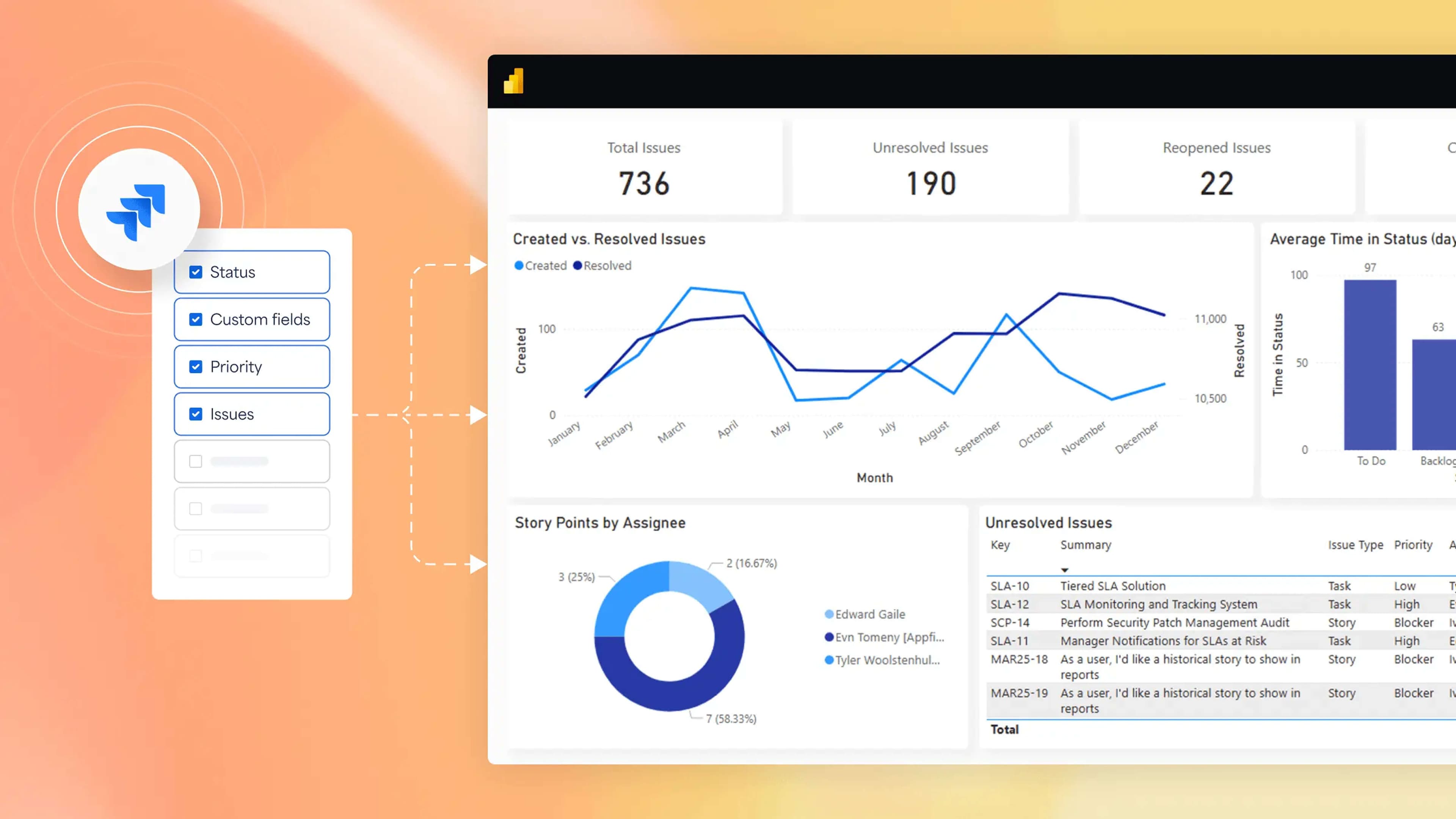
When your teams start to visualize Jira project data using Power BI or Tableau, they can unlock a full range of actionable insights. Here are some impactful use cases and dashboards that can enhance project management and decision-making:
Sprint velocity tracker
Monitor how much work each team completes per sprint to assess project performance and improve resource planning. This helps identify trends and make informed decisions for future sprints.
SLA breach analysis across projects
Analyze the service-level agreement compliance across multiple projects. Visualizing SLA breaches can highlight areas needing attention and improve overall workflow efficiency.
Burndown by issue type or priority
Track the remaining work in a sprint or project, categorized by issue type or priority. This aids in understanding which tasks are lagging and require immediate focus.
Pull request time to merge trends
Assess the average time taken to merge pull requests. This metric is crucial for evaluating development efficiency and identifying bottlenecks in the review process.
Portfolio-level blocker heatmap
Visualize blockers across various projects in a heatmap format. This provides a high-level view of impediments affecting multiple teams, facilitating quicker resolution and better project planning.
How does Appfire’s BI Connector help?
Appfire’s BI Connector transforms how your teams can visualize Jira project data by offering a no-code setup that supports both cloud and on-premise Jira environments. This enterprise-grade app ensures secure, scalable, and seamless integration with Power BI and Tableau, facilitating efficient project management and insightful data visualization.
Key features:
- No-code setup: Simplifies the integration process, eliminating the need for complex coding.
- Cloud and on-premise support: Offers flexibility to connect Jira environments, catering to diverse organizational needs.
- Robust security and scalability: Ensures data integrity and performance, even with large datasets and multiple Jira instances.
- Integration with Appfire tools: Integrating with tools like Tempo Timesheets, Projectrack, and Insight enhances workflow efficiency and resource planning.
By leveraging Appfire’s BI Connector, you can unlock hidden insights within your organization’s raw data, enabling better decision-making and fostering alignment across project teams.
What challenges come with Jira-BI integration?
Integrating Jira with BI tools like Power BI and Tableau offers significant advantages, but it also presents certain challenges. Here’s how you can address some common issues:
Slow refresh or broken links
- Problem: Data refreshes are sluggish or fail, disrupting reporting workflows.
- Solution: Utilize OData refresh scheduling in Power BI. By configuring scheduled refreshes, you can automate data updates and monitor connection health to ensure consistent performance.
Data mismatches or missing fields
- Problem: Reports display inconsistent data or lack essential fields.
- Solution: Ensure that your JQL queries are precise and that custom fields are correctly mapped. Proper field mapping is crucial for accurate data representation in BI tools.
Multiple Jira instances
- Problem: Managing data across several Jira instances complicates reporting and analytics.
- Solution: Leverage BI Connector’s multi-instance capabilities to consolidate data from various Jira instances into a unified view. This approach simplifies cross-instance reporting and ensures comprehensive insights.
Visual data drives better Jira decisions
Native Jira tools work well for sprint planning and individual project tracking, but they often struggle to scale visibility across teams, departments, or entire enterprises. That’s where Power BI and Tableau can help.
These platforms allow your teams to visualize Jira project data in rich, interactive dashboards, unlocking organization-wide insights that can help your teams track KPIs, spot trends, and make data-backed decisions faster.
Appfire’s BI Connector can bridge the gap by offering a no-code, secure, and scalable way to connect Jira to your preferred BI platform. Whether you’re managing one Jira instance or several, it simplifies setup, abides by permissions, and keeps your data source clean and ready for action.
Try our BI Connector for Jira and unlock a wide range of actionable insights, or contact our team of experts to understand what would better suit your needs.
Try Power BI for free