

TL;DR
- Jira holds critical data, but most teams struggle to turn it into useful reporting
- Integrating with Power BI enables real-time dashboards, improved decision-making, and cross-project visibility
- Manual exports and REST APIs are viable, but they aren’t scalable
- Appfire’s BI Connector offers secure, no-code Jira-to-Power BI integration that handles large datasets
- Use it to build sprint dashboards, portfolio rollups, and executive summaries in minutes
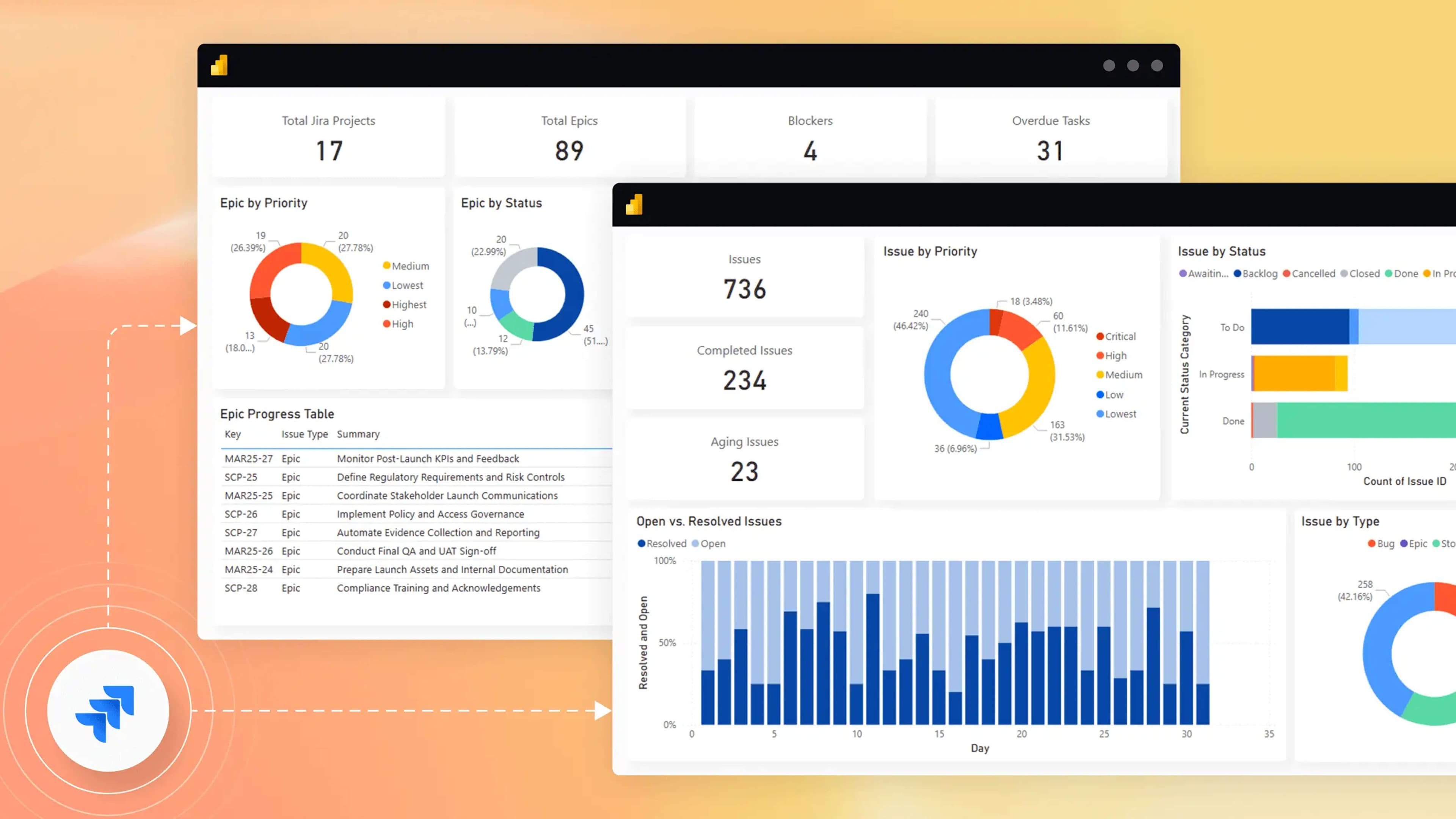
Make your Jira data work for you
Jira holds critical data, but without the right tools, it’s hard to turn it into comprehensive information that can help you make decisions.
Teams seek visibility, yet native Jira reports often fall short, and manual workarounds can become cumbersome.
According to a study by Segate and IDC, 68% of enterprise data remains unused, highlighting the challenge of transforming raw data into actionable insights.
In this article, we’ll review why connecting Jira and Power BI is essential. Whether you’re initiating your first report or aiming to scale insights across multiple projects, we’ll guide you through scalable methods, common pitfalls, and some of the best practices.
Why connect Jira to Power BI?
Integrating Power BI and Jira can allow you to transform raw Jira data into actionable insights, enhancing the decision-making process across various departments.
Key benefits:
- Consolidated project reporting across multiple Jira instances, providing a unified view of organizational progress.
- Advanced filtering and data modeling capabilities, allowing for customized Power BI reports tailored to your specific business needs.
- Enhanced stakeholder dashboards and executive summaries, facilitating clear communication of key performance indicators.
Use case examples:
- Product managers: Monitor team velocity and identify roadmap blockers to ensure timely product deliveries.
- Engineering leads: Visualize issue resolution trends to optimize development workflows.
- Executives: Review portfolio performance across departments to align strategic objectives.
A study by Hakkoda shows that insight-driven companies are seizing $1.8 trillion in revenue from less data-savvy competitors, highlighting just how costly untapped data can be.
By leveraging Power BI dashboard templates, your teams can quickly create visualizations highlighting critical metrics, empower Jira reporting process, and foster data-driven cultures.
What are the best ways to connect Jira with Power BI?
Integrating Jira with Power BI can be achieved through several methods, each with its own advantages and limitations. Let’s explore the three primary approaches:
Manual export via CSV
This method involves exporting Jira data as CSV files and then importing them into Power BI.
- In Jira, navigate to the desired filter from the side menu.
- Use the Export feature to download the data as a CSV file.
- Open Power BI and from the Home tab, click on Get Data > Text/CSV to import the file.
Pros:
- Simple and requires no additional setup.
- No need for coding or technical expertise.
Cons:
- Data is static; updates require manual re-export and import.
- Not scalable for large datasets or frequent reporting needs.
- Prone to errors during manual handling.
When to use:
- Suitable for one-off reports or initial data exploration
- Best for small teams with limited reporting requirements
Using Jira’s REST API
This approach utilizes Jira’s REST API to programmatically fetch data into Power BI, allowing for dynamic and automated data retrieval.
- Generate an API token from your Atlassian account.
- In Power BI, select Get Data > Blank Query.
- Use the following M code in the Advanced Editor.
let
    // Parameters
    Domain = "your-domain.atlassian.net",
    Email = "your-email@example.com",
    Token = "your-api-token",
    Project = "YOUR_PROJECT",

    // API call
    Source = Json.Document(Web.Contents(
        "https://" & Domain & "/rest/api/3/search?jql=project=" & Project & "&maxResults=100",
        [Headers = [
            Authorization = "Basic " & Binary.ToText(Text.ToBinary(Email & ":" & Token), BinaryEncoding.Base64),
            Accept = "application/json"
        ]]
    ))
in
    Source
Pros:
- Flexible and fully customizable JQL queries for data retrieval.
- Adapt the API call to suit reporting requirements.
Cons:
- Requires technical expertise in APIs and Power BI’s Power Query M language.
- Complex setup and maintenance.
- API changes or large datasets may cause errors.
When to use:
- Ideal for teams with internal data engineering support.
- Suitable for complex reporting needs and large datasets.
Using a marketplace app like Appfire’s BI Connector
Appfire’s Power BI Jira Connector offers a streamlined solution to integrate Jira with Power BI, eliminating the need for manual exports or complex API configurations.
Key features:
- Easy setup with a simple, three-step installation process.
- Supports JQL for advanced filtering and querying.
- Handles large datasets efficiently with real-time updates.
- Works seamlessly with multiple Jira instances and Power BI Service.
- Provides a secure and scalable integration solution.
Pros:
- User-friendly interface with no coding requirements.
- Reliable and secure data transfer.
- Reduces setup time and maintenance efforts.
Cons:
- May involve licensing costs.
- Dependency on third-party application support.
When to use:
- Ideal for growing teams that need clean, repeatable reporting flows.
- Suitable for organizations seeking a scalable and secure integration solution.
Deep dive: Using Appfire’s BI Connector
Appfire’s BI Connector for Jira streamlines the integration process with Power BI, enabling your teams to transform raw Jira data into actionable insights.
Step-by-step: Connecting BI Connector to Power BI
1. Install the BI Connector: Begin by installing the Power BI Connector for Jira from the Atlassian Marketplace.

2. Build your JQL query: Utilize JQL statements to filter and select the specific Jira fields you want to analyze. This allows for targeted data export tailored to your reporting needs.
3. Copy the OData URL: Generate a unique connector URL that bridges Jira and Power BI.
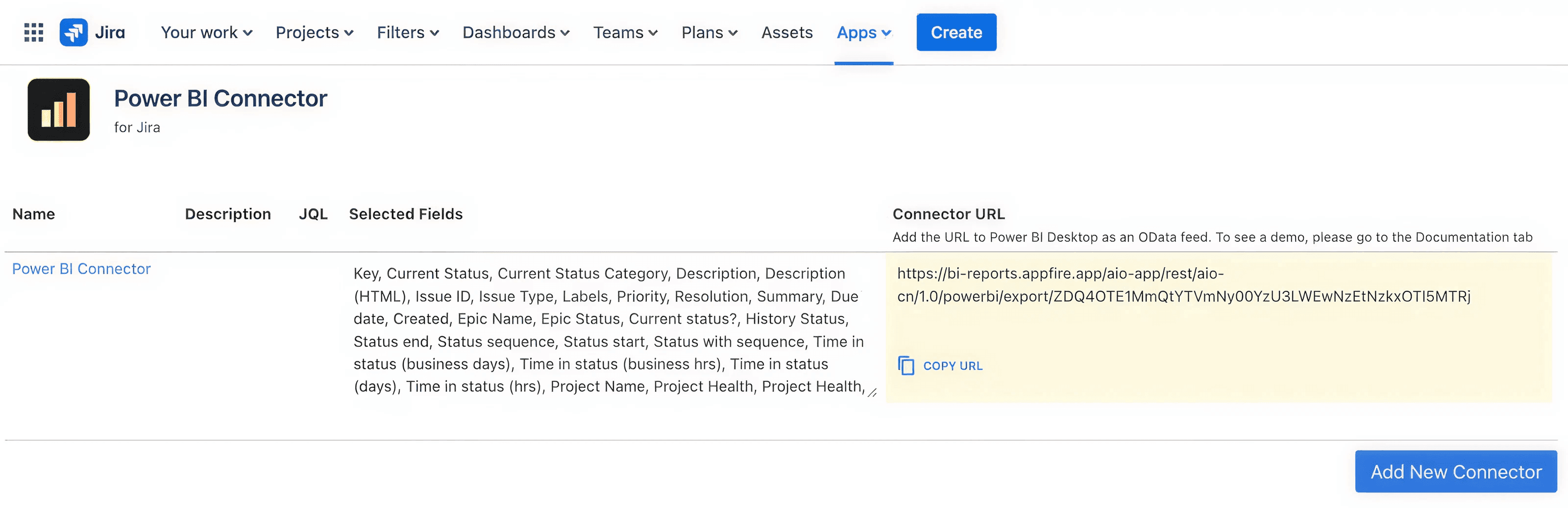
4. Paste into Power BI: In Power BI Desktop, paste the URL using the OData feed option, establishing the connection to your Jira instance.
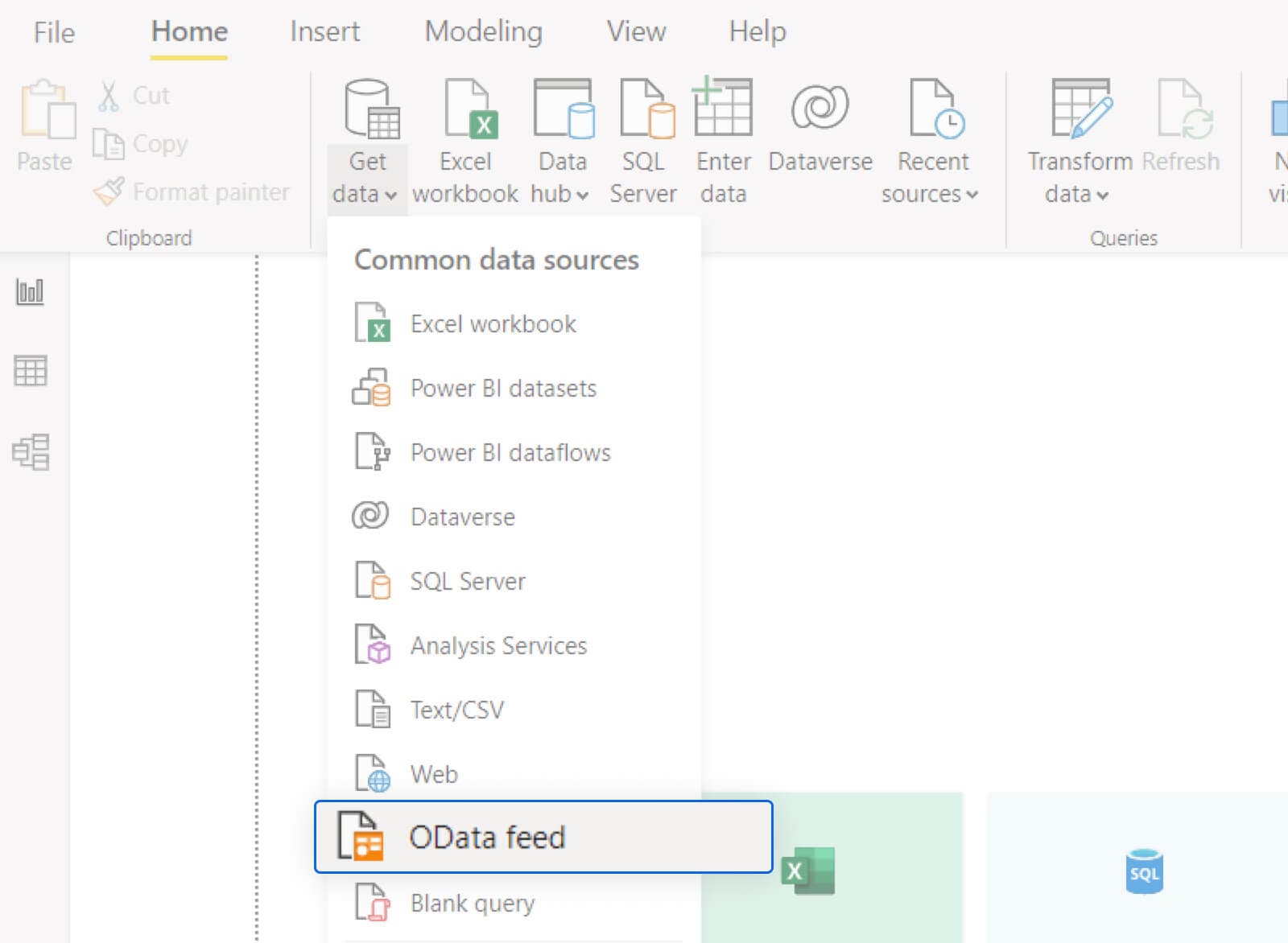
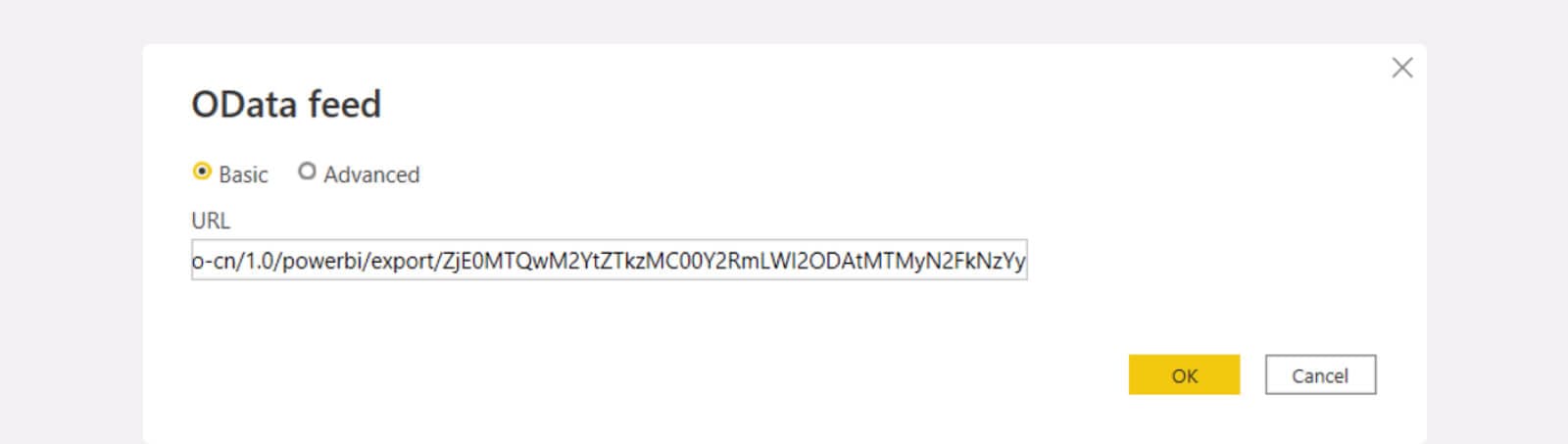
5. Create your visualizations: Leverage Power BI dashboard templates or craft custom visuals to interpret your data sets effectively.
Sample dashboard ideas
- Burnup/Burndown charts: Monitor sprint progress and scope changes over time.
- Cycle time analysis: Evaluate the time taken for issues to move from start to completion.
- Bug trends by priority or severity: Identify patterns in bug occurrences to prioritize them.
- Sprint progress vs. goals: Compare planned objectives against actual outcomes.
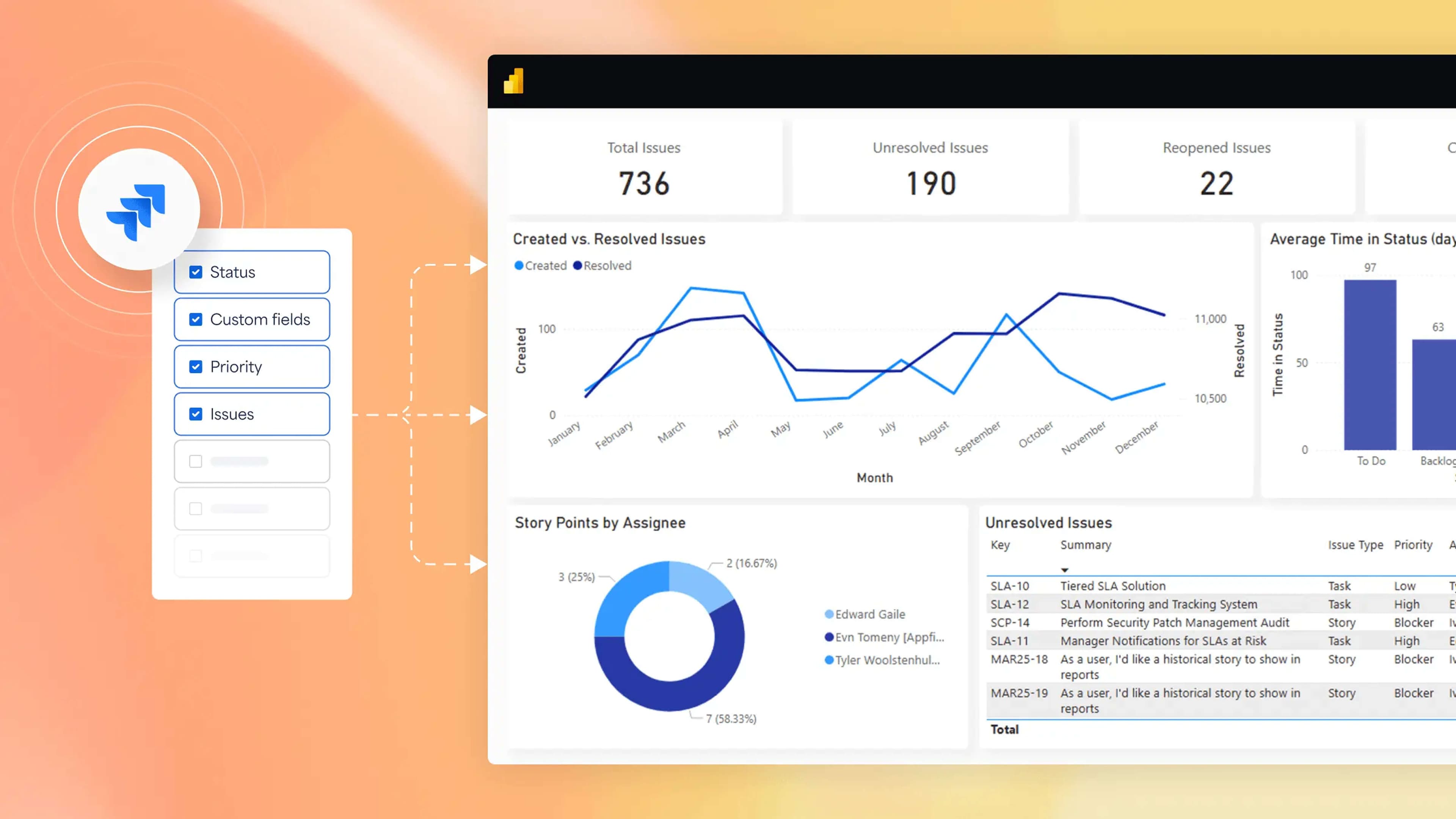
These dashboards empower Jira users to gain insights into sprint metrics and overall project status, enhancing decision-making processes.
Advanced tips
- Dynamic data segmentation with JQL filters: Advanced JQL statements create dynamic segments, allowing for more granular data analysis.
- Automate report refresh in Power BI service: Schedule automatic data refreshes to keep your reports up-to-date.
- Connect multiple Jira projects or instances: Aggregate data from various Jira projects or instances to provide a holistic view across teams.
By implementing these advanced strategies, your teams can enhance their custom Jira reports, ensuring they cater to specific organizational needs and support enterprise-grade analytics.
What issues can happen when connecting Jira to Power BI?
Integrating Power BI and Jira can significantly enhance your team’s data analysis capabilities. However, your team may encounter several common issues during this integration. Let’s look into some typical challenges and suggested solutions:
Slow refresh or large datasets
When dealing with extensive Jira data, refresh operations in Power BI can become sluggish. To mitigate this:
- Optimize data models: Simplify your data models by removing unnecessary columns and tables.
- Use incremental refresh: Implementing incremental refresh can improve performance by only updating changed data.
- Filter data: Apply filters to limit the amount of data being imported.
Authentication failures
Authentication issues often arise due to incorrect credentials or token expirations. To address this:
- Verify credentials: Ensure that the credentials used have the necessary permissions in both Jira and Power BI.
- Update tokens: Regularly update API tokens to prevent expiration-related issues.
- Check authentication methods: Confirm that the authentication method used (e.g., Basic, OAuth) is supported by both platforms.
Misbehaving JQL filters
Issues with JQL filters can lead to incorrect or incomplete data being imported into Power BI. To resolve this:
- Validate JQL queries: Test your JQL queries directly in Jira to ensure they return as expected results.
- Check field mappings: Ensure that the fields used in your JQL queries are correctly mapped and available in Power BI.
Real-time sync limitations
Achieving real-time data synchronization between Jira and Power BI can be challenging. Consider the following:
- Use DirectQuery: Implement DirectQuery in Power BI to enable real-time data access, keeping in mind the performance implications.
- Schedule refreshes: Set up scheduled data refreshes at intervals that balance the need for up-to-date data with system performance.
How is Appfire’s BI Connector built for scale?
Appfire’s BI Connector for Jira is engineered to meet the rigorous demands of enterprise-scale reporting, offering a robust, secure, and flexible solution for organizations aiming to extract maximum value from their Jira data.
Handles large enterprise data loads
The connector is designed to manage substantial volumes of data across multiple Jira instances, ensuring seamless performance even as data complexity and size grow. This capability is crucial for enterprises that require comprehensive analytics without compromising on speed or reliability.
Secure architecture and role-based access
Security is paramount in data handling. Appfire’s connector incorporates a secure architecture complemented by role-based direct access controls, allowing organizations to define precise data access permissions. This ensures that sensitive information is only accessible to authorized personnel, maintaining data integrity and compliance with organizational policies.
No-code interface with dev-friendly extensions
The connector offers a user-friendly, no-code interface, enabling business users to create and manage Power BI reports without extensive technical knowledge.
For more complex requirements, it provides developer-friendly extensions, allowing for advanced customizations and integrations to cater to specific business needs.
Seamless integration with other Appfire tools
Appfire’s BI Connector integrates seamlessly with other tools in the Appfire ecosystem, such as those focused on reporting and compliance. This integration facilitates a unified approach to data management and analysis, enhancing business intelligence strategies' overall efficiency and effectiveness.
Turn Jira data into powerful decisions
While Jira Service Management offers basic reporting, it often falls short when it comes to organizations managing multiple teams, tools, and timelines. It's rigid, difficult to scale, and lacks dynamic visualization capabilities for advanced decision-making.
That’s where Appfire’s Jira Power BI Connector makes an impact. It provides a secure, scalable bridge between Jira data and Microsoft Power BI, enabling teams to build interactive dashboards, automate updates, and surface key metrics that drive real-time insights.
Appfire’s Power BI Connector can help your teams move from unstructured data to high-clarity reporting, without the manual overhead.
Start your free trial