

Migrate Azure DevOps to Jira or vice versa
Many companies use both Jira and Azure DevOps. This means that some people need to log into both systems, copy issues from system to system, and constantly track changes in two “sources of truth.” Instead of updating two systems every time, you can integrate Azure DevOps with Jira and have all the important data synchronized almost immediately.
TFS4JIRA is an Azure DevOps / TFS integration and migration app that connects two powerful solutions and links relevant tasks and projects based on the given context. New issues or work items are instantly updated upon creation.
This app saves you hours of work, whether you work in both systems and require consistent synchronization. Learn more about connecting and synchronizing Azure with Jira in Cloud (the same applies to Jira Server and Data Center).
But what if you need to migrate from one system to another?
TFS4JIRA simplifies the migration process, covering both Azure DevOps to Jira and Jira to Azure DevOps migration directions.
To discover more about the benefits of using TFS4JIRA instead of CSV migration, read this article.
Hierarchy and subtasks synchronization
Imagine you have a structure in a project where more significant issues are divided into smaller ones, and those smaller ones are divided into even smaller ones. Then, you need to migrate to a completely new system and with TFS4JIRA’s hierarchy synchronization, you can migrate that hierarchy. Learn more about it in this video.
What is hierarchy and are the differences between hierarchy in TFS/VSTS and Jira?
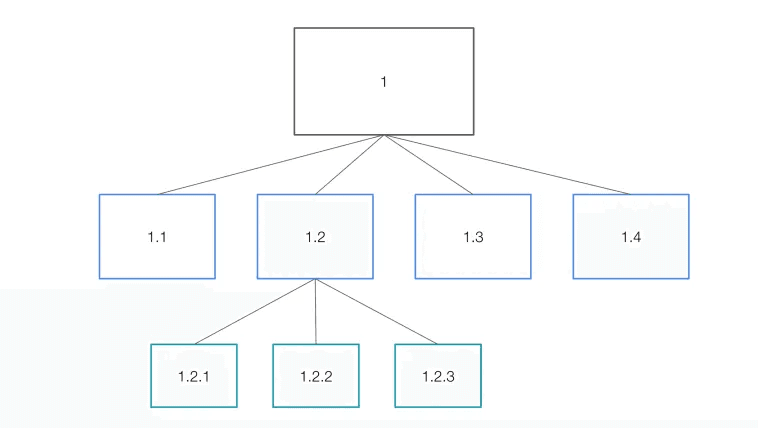
In this case, hierarchy means dependency (tree structure—one issue is split in to smaller ones, those smaller ones can be than split into even smaller, more detailed tasks).
How it is defined in Jira?
According to Jira documentation, Jira Software does not explicitly offer sub-projects, but it is possible to structure project in a way that it represents the hierarchy you need.
Within Jira Software projects, you can add multiple epics, which effectively act as a “sub-project” that can be divided into stories/tasks and sub-tasks.
The default hierarchy contains:
- Epics: Once the higher level priorities are set, you’ll need to break them down into large pieces of work, which consist of multiple stories.
- Stories/Tasks: User stories capture functionality requirements.
- Sub-task: Work components that make up stories. (By default, you can use 3 different levels.)
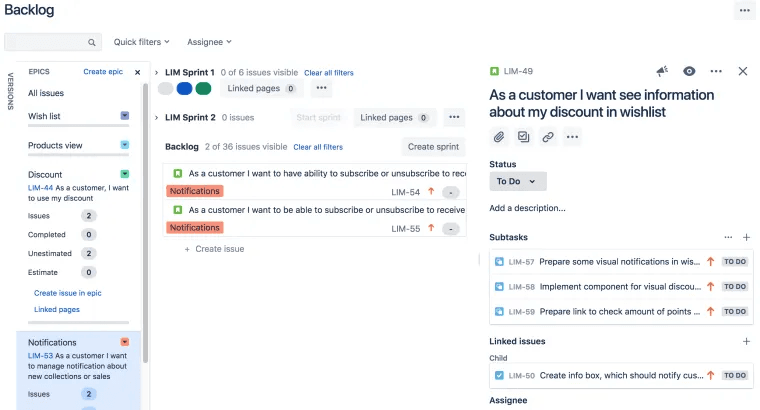
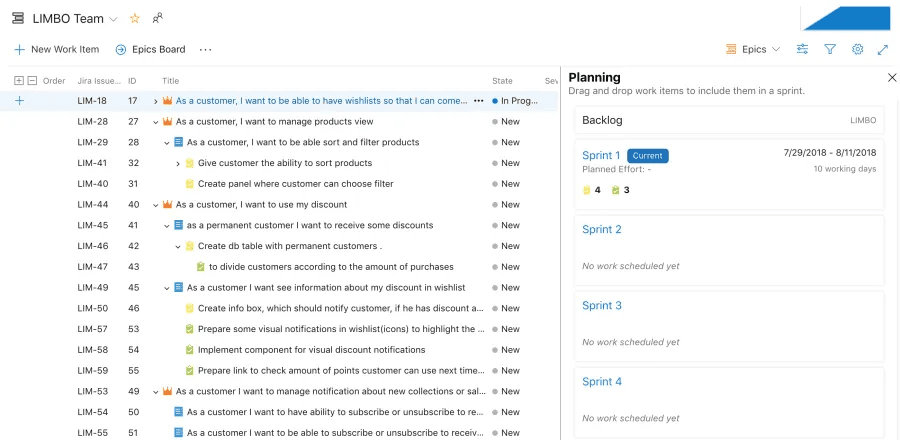
In the following screen, you can see a project that has 4 levels – epic, product backlog item, task and a subtask.
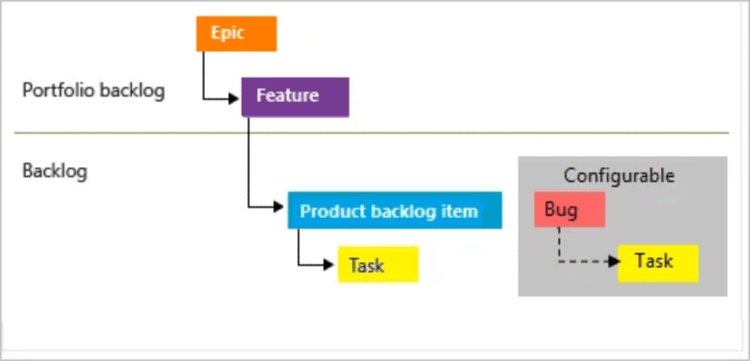
On Microsoft VSTS documentation, you can find an example of even more complicated structure: epic, feature, product backlog item, bug and task.
So you have 5 different levels.
How TFS4JIRA syncs / migrates one structure to the other
Both applications have different hierarchy levels, so how do you migrate a project from TFS to Jira without breaking the current project structure when, by default, Jira has 3 hierarchy levels?
You can either preserve the current TFS project structure (i.e. mirror the structure on both sides), or choose what part of the tree structure you want to synchronize between both applications.
We created the following diagram to illustrate how you can match hierarchy levels between TFS and Jira.
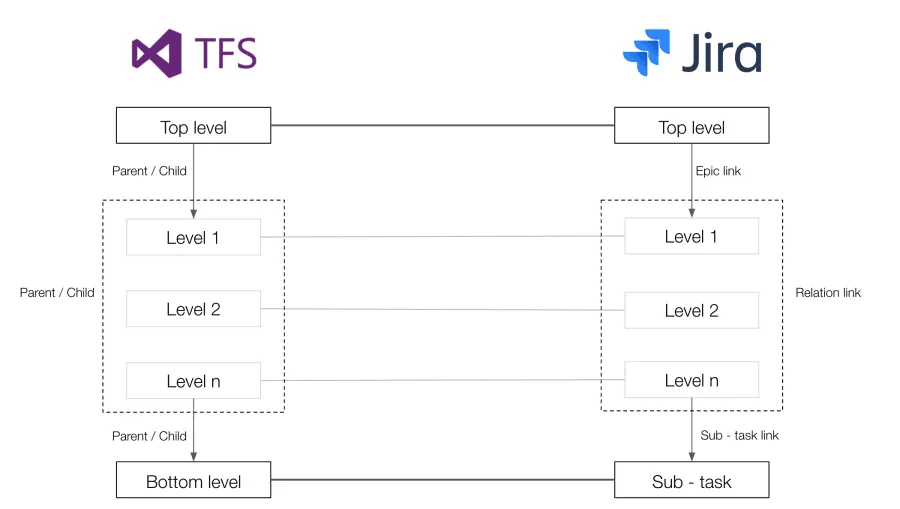
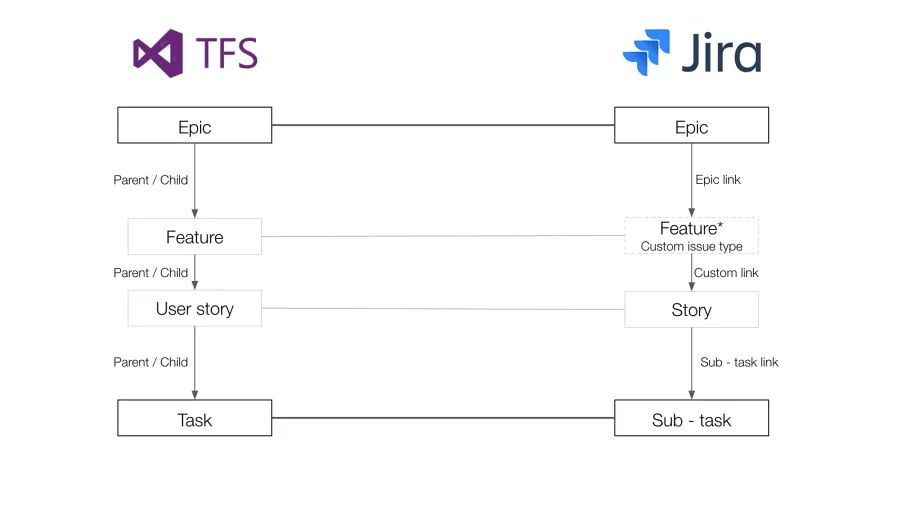
How can you use this in practice? Map the structure as follows:
- Epic with Epic
- Feature in TFS with custom issue type in Jira—call it Feature as well
- User story with Story
- Task with Sub – task
- Create link in Jira between custom issue Feature and Story. This link will be translated to TFS Parent/ Child link during synchronization.
Another way is to choose just 3 levels from TFS that you’d like to preserve (so the lowest or the highest level won’t be synced).
For example:
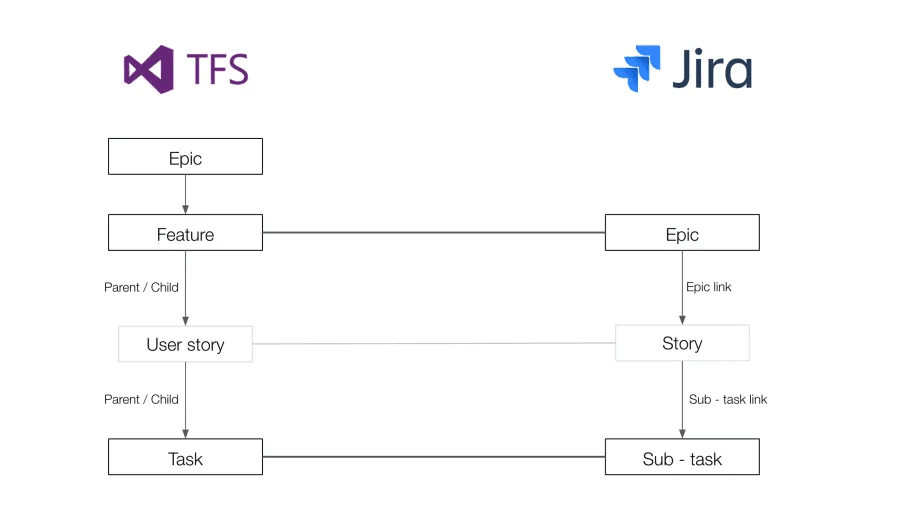
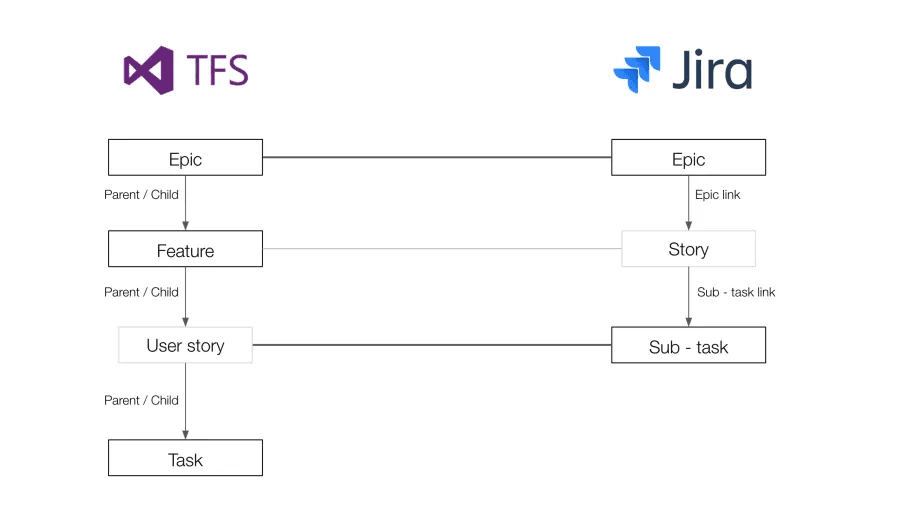
Read the documentation for detailed guide on setting up the TFS4JIRA synchronizer.
Migrating from Azure DevOps to Jira? TFS4JIRA keeps projects and teams connected with reliable, bidirectional syncing — so you can move fast without losing data, context, or velocity.
Try TFS4JIRA free