
TL;DR
- Jira dashboards often show status — but not when work is silently stalled
- Sprint blockers like unassigned tasks, delays, or missing feedback go undetected without the right visibility
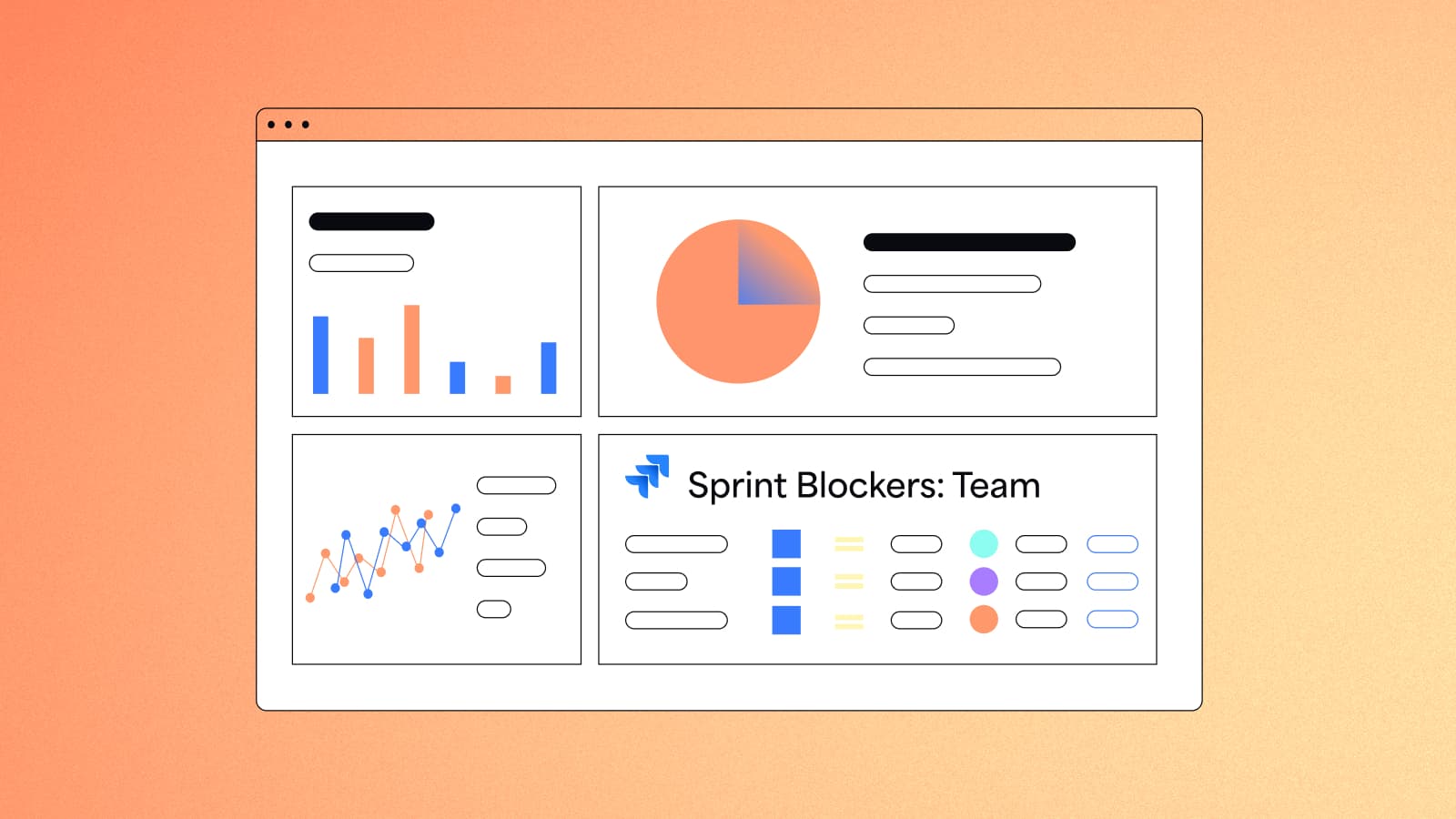
- Dashboard Hub’s Sprint Blockers gadget surfaces stuck work in real time
- Pair it with burndown and time-in-status charts to turn standups into action, not surprises
- Try Dashboard Hub for Jira to make blockers visible — and fixable — before they derail your sprint
The agile visibility gap
The daily standup starts like clockwork. Everyone gives a quick update, a few tasks move forward, and the sprint feels mostly on track. But then someone glances at the board, and there it is. A story that’s been "in progress" for three days. No comments. No movement. No one's mentioned it.
It’s not blocked officially, but clearly, it’s not going anywhere.
Here’s the problem: Most Jira dashboards are great at showing what’s happening. But they’re not built to spotlight what isn’t.
Agile teams don’t just need to know what’s being worked on: They need early signals when work stalls. Because by the time you realize something’s blocked during a retro, it's already slowed down the sprint.
That’s why more teams are shifting from simple status boards to smarter dashboards — ones that surface blockers and stalled issues before they derail delivery.
What are sprint blockers — and why don’t dashboards show them by default?
Blockers in agile aren’t just tickets with the “Blocked” status. They’re the quiet delays that happen when:
- A dependency hasn’t been resolved
- Someone’s waiting on feedback or review
- A task is stuck, but not flagged
The challenge? In Jira, blockers can show up in a few different ways: as a status, a label, a comment, or even just a lack of movement. And unless your team flags them manually or follows strict conventions, they often fly under the radar.
Out of the box, Jira dashboards aren’t designed to reveal these slowdowns.
They track what's open, in progress, or done. But they don’t automatically highlight:
- Tickets that haven’t been updated in several days
- Issues marked with a “blocked” label or custom field
- Stories in progress but with no assignee or recent activity
The good news? These blockers don’t have to stay hidden.
With the right app, you can add a dedicated Sprint Blockers gadget to your dashboard, so stalled work is visible the moment it happens.
How to visualize blockers in your Jira dashboard
There’s no native gadget in Jira for showing blockers, but Dashboard Hub for Jira includes one out of the box. It’s called the Sprint Blockers gadget, and it makes blocker visibility simple.
Here’s how to use it:
1. Add the gadget to your dashboard
Once Dashboard Hub is installed, add the Sprint Blockers gadget like any other widget. You’ll find it in the gadget library, alongside 70+ other dashboard tools.
2. Choose the sprint(s) you want to monitor
Select one or more active sprints. The gadget will automatically detect and display issues marked as blockers.
3. Customize the view
- Manually input sprint goals for visibility (optional)
- Use built-in options to control how blockers appear (layout, columns, labels)
- Combine this gadget with others to show sprint health in one place
4. Place it where your team works
Put the Sprint Blockers gadget near the top of your dashboard, alongside key sprint metrics. That way, blockers become part of the team’s daily check-ins.
With minimal setup, everyone can see what’s slowing work down and take action.
What makes Dashboard Hub the better way to show blockers
Dashboard Hub doesn’t just help you show blockers. It makes the whole reporting experience easier, especially for non-technical teams.
Why agile teams use it:
- Prebuilt Sprint Blockers gadget for instant blocker tracking
- 70+ additional gadgets for velocity, burndown, time in status, and more
- Pre-defined dashboard templates tailored for scrum, kanban, or ITSM workflows
- External sharing and secure links for stakeholders outside Jira
- Works in Jira Cloud, Server, and Data Center
It’s built for visibility without the workaround.
Best practices for showing blockers clearly
Make it its own chart block
Place the blockers gadget prominently on your dashboard. It should be visible at a glance, not buried under sprint stats.
Define “blocked” consistently
Agree on what qualifies as a blocker across teams. Whether you use a label, custom field, or status, consistency makes the data meaningful.
Add filters for clarity
Let users explore blockers by sprint, epic, or team. The more relevant the view, the more likely it gets used.
Pair with time-in-status or burndown gadgets
See not just what’s blocked, but for how long — and how it’s impacting progress.
Use it in standups and retros
Make blocker visibility part of your daily rituals. It helps teams take action early, not just reflect after the fact.
Common mistakes (and how to avoid them)
Assuming “In Progress” means unblocked
Just because a ticket is active doesn’t mean it’s moving. Look for real signals of progress, not just status.
Forgetting to standardize blocker tracking
Align on how blockers are labeled or flagged. If each team does it differently, your gadget won’t capture the full picture.
Hiding the blocker view
If the gadget is buried in a dashboard no one checks, it won’t drive action. Make blockers visible in your team’s default view.
Build dashboards that don’t just report — they reveal
Blockers are inevitable. But being blindsided by them? That’s optional.
Your Jira dashboards shouldn’t just reflect what’s happening — they should spotlight what’s not. When you can clearly see where work is stalling, your team can take action before delays pile up.
Dashboard Hub for Jira makes that visibility possible.
With the Sprint Blockers gadget and 70+ others, it turns reporting into a real-time team clarity tool.
Try Dashboard Hub for Jira and keep your sprints moving
Try Dashboard Hub Pro for free