
Most Jira project leads and admins devote part of their day to something pretty straightforward — duplicating existing Jira issues and making the necessary adjustments.
Here, we review a few basic and advanced cloning options for copying Jira issues.
Cloning a single issue with Jira’s native functionality
When you need to make a simple copy of an existing issue, you can use Jira's out-of-the-box clone feature. It duplicates an issue within the same project, copies over information such as Summary and Description, and enables you to include the following elements during the cloning process:
- Attachments
- Subtasks
- Links
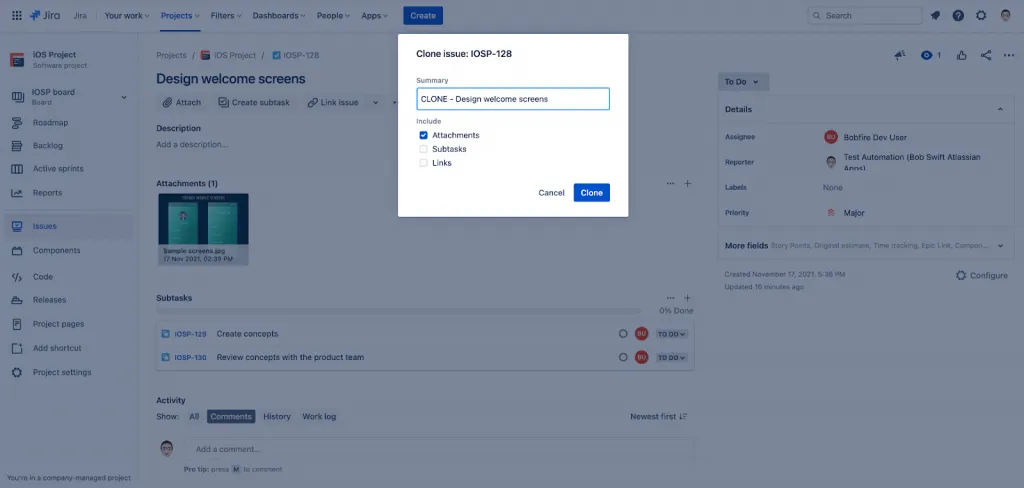
While all this feature does is create a nearly identical copy of an individual issue within the same project, you can manually edit and customize the cloned issue.
Most of the time, you’d want to change the name (the prefix CLONE is automatically added to the Summary of a cloned issue), and unlink it from the original (the two issues will be automatically linked).
Power up your single issue cloning process with Clone Plus for Jira
Clone Plus for Jira, by Appfire, offers a faster, more automated way to customize and clone single issues. The app also allows you to bulk clone issues, and even create templates (more on that below).
First, let’s explore what Clone Plus offers for duplicating a single issue.
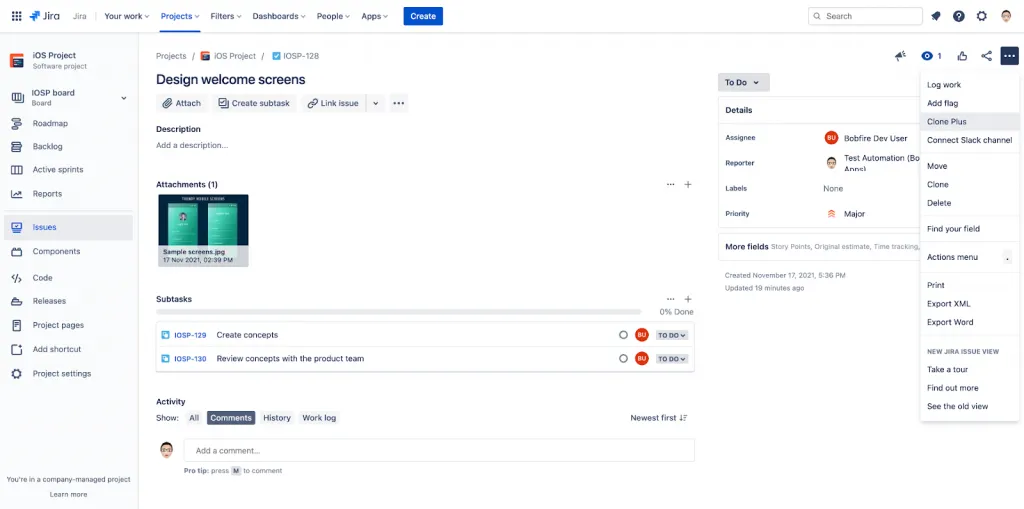
Clone Plus for Jira enables you to efficiently clone issues by providing additional customization options during the cloning process. To clone single issues with Clone Plus for Jira, after the app is installed, just select "Clone Plus" from the "Actions" menu of the original issue.
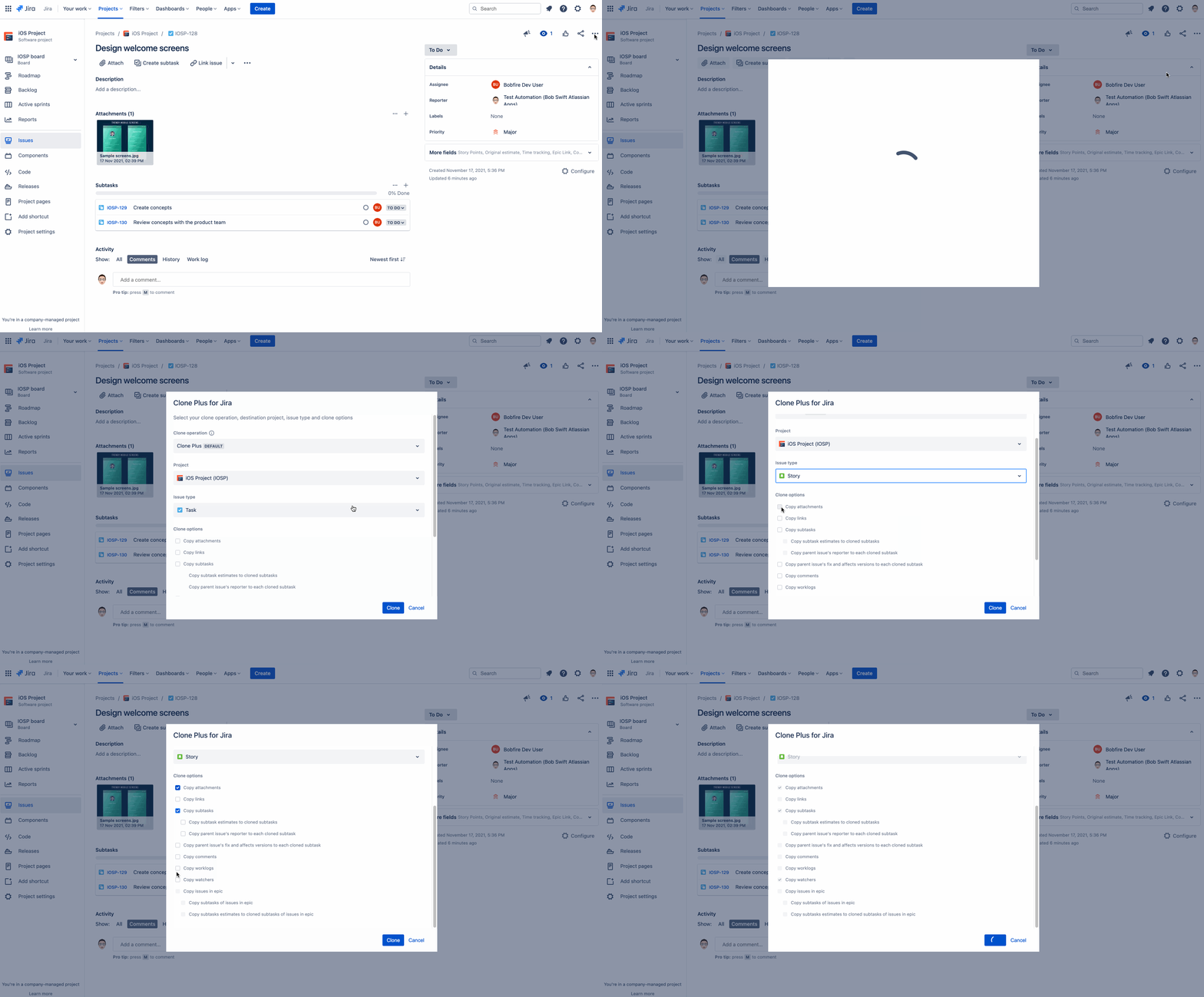
You'll be presented with many options to customize your original issue's clone. You can choose to clone the issue into the same or different project, keep or change issue type, and select from a multitude of clone customization options such as:
- Copy attachments (also available in native Jira)
- Copy links (also available in native Jira)
- Copy subtasks (also available in native Jira) - Copy subtask estimates to cloned subtasks & Copy parent issue's reporter to each cloned subtask
- Copy parent issue's fix and affects versions to each cloned subtask
- Copy comments
- Copy worklogs
- Copy watchers
- Copy issues in epic
- Copy subtasks of issues in epic
- Copy subtasks' estimates to cloned subtasks of issues in epic
Compared to Jira's native cloning functionality, Clone Plus for Jira provides a much more robust and sophisticated single-issue cloning experience.
Bulk clone multiple issues from multiple projects
Jira doesn't offer a native option for cloning multiple issues at once. Jira admins who find themselves in need of such functionality must look outside the box Jira instance. This is where Clone Plus' Bulk Clone feature comes in handy.
Jira admins can use the Bulk Clone feature to copy up to a 1000 issues - from the same or different projects - into a specific project as a particular issue type. Like single-issue cloning, bulk clone users can change fields values and control what is copied over.
Bulk Clone is useful when you’re looking to quickly clone a project, part of a project, or parts of different projects, potentially saving you hours of work.
The Bulk Clone feature is available in Jira Cloud and Jira Data Center versions of the app.
Customer Spotlight
A resourceful admin shared with us how they use Clone Plus’ Bulk Clone feature to make collaboration easier across two mobile teams – iOS and Android.
The iOS team usually leads the way when it comes to the development of a new feature. Once the feature is launched, the Android team gets a head start by bulk cloning the iOS team’s relevant issues into their own project.
Bulk cloning reduces redundancy, increases collaboration, and saves time for their team.
The following provides a quick overview of the team's bulk cloning process.
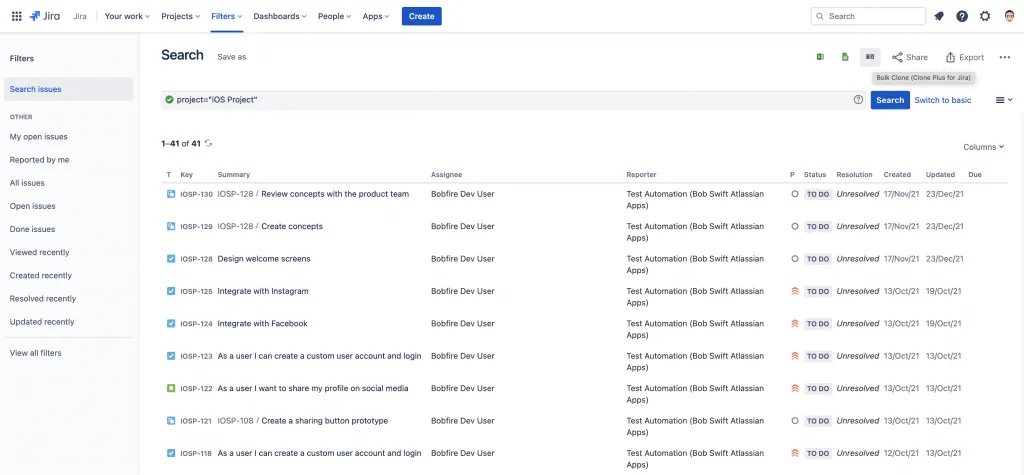
The Android team’s Jira admin begins the bulk issue cloning process by selecting “iOS project” in the Advanced Jira search. They then click on the Bulk Clone icon on the top of the screen to kick off the Bulk Cloning process.
The admin is presented with an intuitive three-step process where they can select the issues they would like to clone, adjust the clone settings, review the request, and lastly clone the issues.

In the above example, only a handful of issues are copied at once using the bulk cloning feature. The more issues you need to clone, the more critical this feature becomes.
It's indispensable when you need to clone and adjust hundreds of issues at once.
In the end, you get fast, accurate, and customized clones of the original issues.
Set up cloning templates to make even faster adjustments
Clone Plus for Jira allows admins to define and save reusable templates known as “Clone Operations” to further streamline and simplify the single and multiple issue cloning process.
Admins can set conditions that determine the availability of a template in any given cloning scenario. For example, the template can only be made available for certain projects, issue types, or for issues in a pre-defined status.
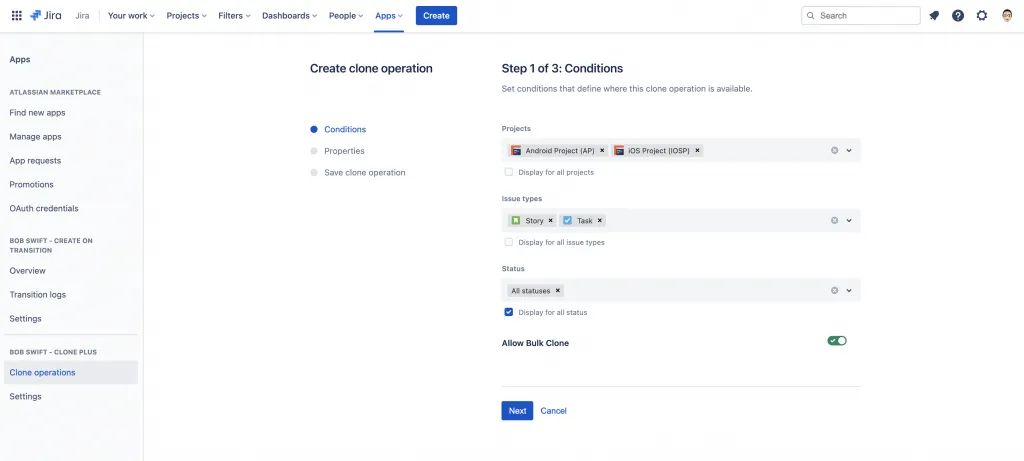
After setting rules for template availability, admins can define the way the template operates by pre-selecting the project where the clone(s) will appear, issue types the clones will be, and the various cloning options the clone will have (such as copied attachments, watchers, etc.)

For example, creating something like a "Clone to Development" template could enable Jira users to quickly clone a reported bug, automatically change the issue type, move it to a development project, update the sub-tasks, add new fields, remove irrelevant fields, and even dynamically modify the issue summary—all with a single click.
Issue Cloning Cheat Sheet
Native Jira functionality vs. Clone Plus for Jira by Appfire
| Cloning features | Native Jira Functionality | Clone Plus |
| Clones an individual issue | Yes | Yes |
| Clones the following | - Attachments - Links - Subtasks - Clone sprint value | - Attachments - Links - Subtasks - subtask estimates to cloned subtasks - parent issue's reporter to each cloned subtask - Parent issue's fix and affects versions to each cloned subtask - Comments - Worklogs - Watchers - Issues in epic - Subtasks of issues in epic - Subtasks' estimates to cloned subtasks of issues in epic |
| Allows to clone in a different project | No | Yes |
| Allows to change issue type during cloning | No | Yes |
| Edit during cloning | No | Yes |
| Clones multiple issues at once | No | Yes (not available on Jira Server) |
| Cloning templates | No | Yes |
| Platform | Cloud Data Center Server | Cloud Data Center Server |
| Price | Free (included with Jira) | Free trial available Free for up to 10 users on Jira Cloud See pricing here |
How to get Clone Plus for Jira
The native Jira cloning functionality might come in handy in a pinch. But Clone Plus for Jira will save everyone a whole lot of time, and it'll keep your Jira issues (and their clones) reliably clean and standardized.
So, if your team is constantly copying the same type of Jira issues over and over again, meticulously updating the fields one by one, take a look at Clone Plus for Jira in the Atlassian Marketplace (a free trial is available).
Marketplace Listing