

In Jira, you can customize your Board cards to help users focus on important details. You can filter according to your preferences, change colors, and display up to three fields. Adding a field you already have available in Jira is not difficult. However, you often want to show information not stored in an issue field, or pull it from a related issue.
For example, you might want to:
- Display data from a parent issue;
- Concatenate data from multiple fields;
- Display who made the last change;
- Show who executed a particular transition and when;
- Calculate how long the issue remained in the status (we show how in the video below).
You can easily do all that and so much more by creating calculated custom fields with Jira Misc Custom Fields (JMCF) and adding them to your Board's card view.
Let's work with this example: in a Kanban Board, let's show how long issues have remained in columns to prevent any of them from lingering beyond the acceptable time frame. To do so, we need to calculate and display the time-in-status for one or more statuses.
The above video shows you how to customize your Jira Boards with "Time in Status" custom field.
Keep in mind some newer features are not covered in the above demo. One of such features includes options that control displaying the breakdown of the time spent in each status and the total time spent on an issue on the issue detail view and issue list view, respectively. Here is how it looks:
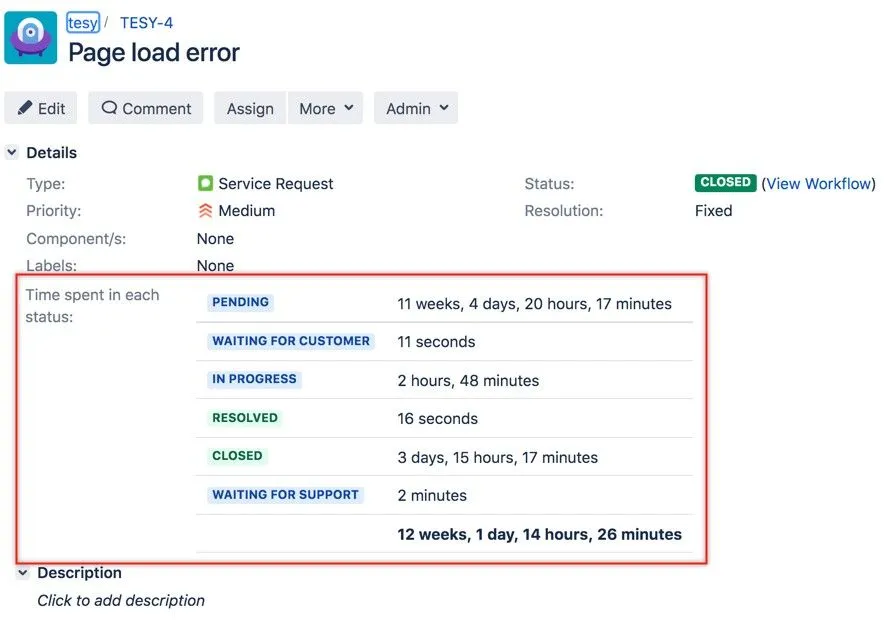
For your convenience, the steps from the above video have been outlined below.
Create a field by navigating to "Custom Fields" > "Add Custom Field". Proceed to the Advanced tab and select "Time in Status Field (JMCF app)".
Next, give the name to the field (and you might also want to provide more details in an optional description field). Then, associate the field to the appropriate screen(s).
While it is not required for Board customization, most likely you'd want your users to see information on issue screens as well.
When done, navigate to the Custom Fields page to configure your newly created "Time in Status" field.
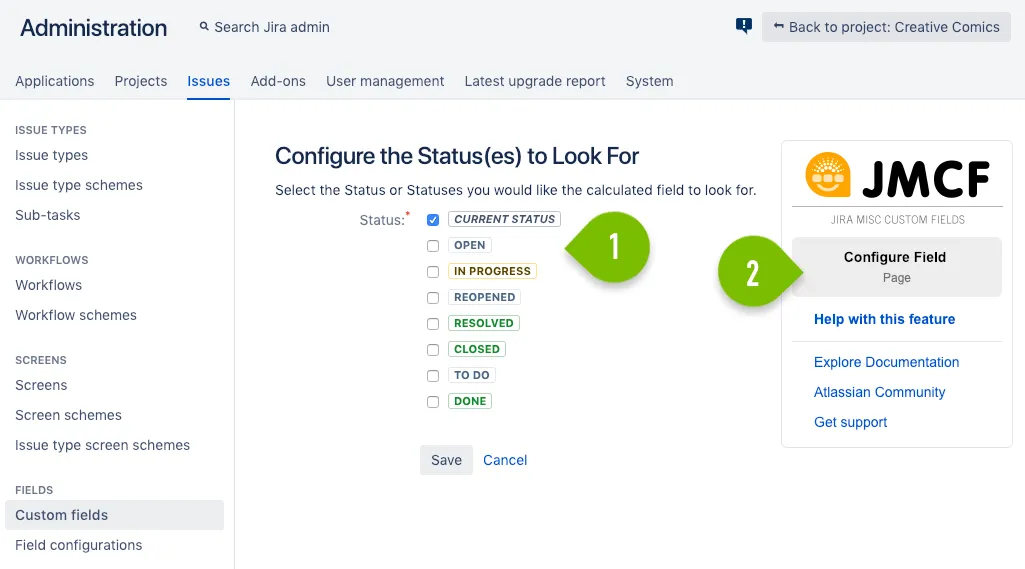
1: There are multiple attributes you can configure in this Time in Status field, but what you must do is to configure statuses. If you select "current status", you'll be able to see the time spent in the status the issue is currently in. You can select as many statuses as you need, but at least one option is required.
2: If at any time you find yourself in need of help, you can find useful links on each JMCF configuration page - either on top or on the right side.
Once the field is configured, you should now perform a re-index to make sure your new field is searchable.
Then, add the field to your Board(s) (up to three fields can be added to each board). The fields can be different for the Backlog and Active sprints - if you are using a Scrum board - which gives you a bit more flexibility.
To add fields to cards, select the appropriate Board, and select "Configure".
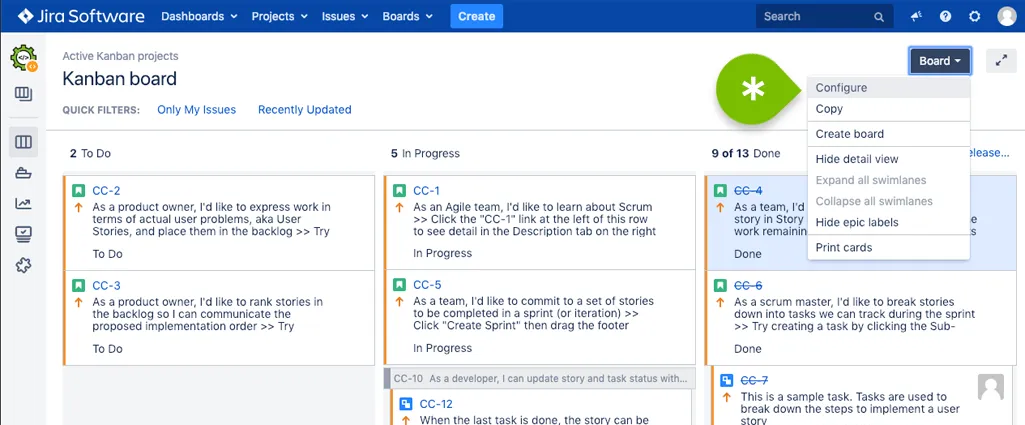
Go to "Card layout" and add your newly created "Time in Status" field. You may choose to also display the Status to make it visually more clear to users.
Now your Board's cards and screens will look something like this:
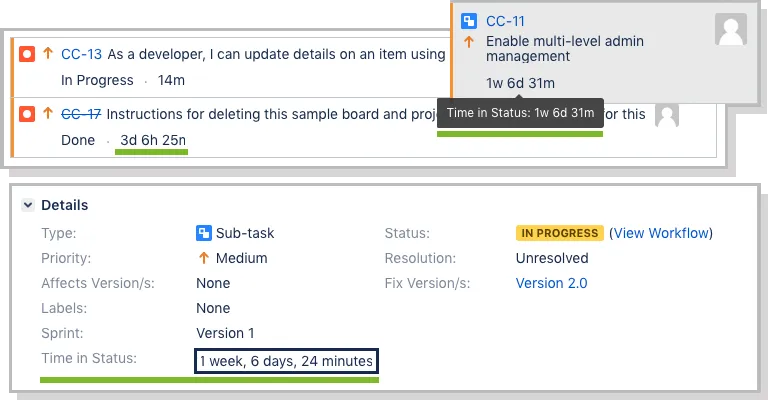
To learn more on how to set up the Time in Status custom field type, visit this documentation page.
Here are some of the fan favorites that can truly help in improving your Boards:
- Display the number of times a particular transition has been executed. For example, if an issue was rejected by QA multiple times, it can be useful to identify problems at a glance.
- Display the sum of the story points for the issue and all its subtasks.
- Display the author and the date of the last comment.
Review this list of use cases for the custom fields provided with JMCF to see what else you can make easily available to your users.
Marketplace listing