

Have you ever wondered, “Are we on track?” during an active sprint? It’s easy to lose sight of progress if you can’t see where a project is heading.
The good news is that a simple chart with just two lines can give you the bird’s-eye view you need to keep everyone aligned.
Here’s what you need to know about epic burndown charts, why they matter, how to read one, and how to build one to guide your Scrum projects.
What is an epic burndown?
An epic is a collection of user stories that work together to achieve a specific goal. A burndown chart is an agile project management tool that shows how much work remains in a project.
An epic burndown report illustrates your team’s progress through an epic, based on the project timeline and estimation. Use a burndown chart to visualize team velocity and predict completion time.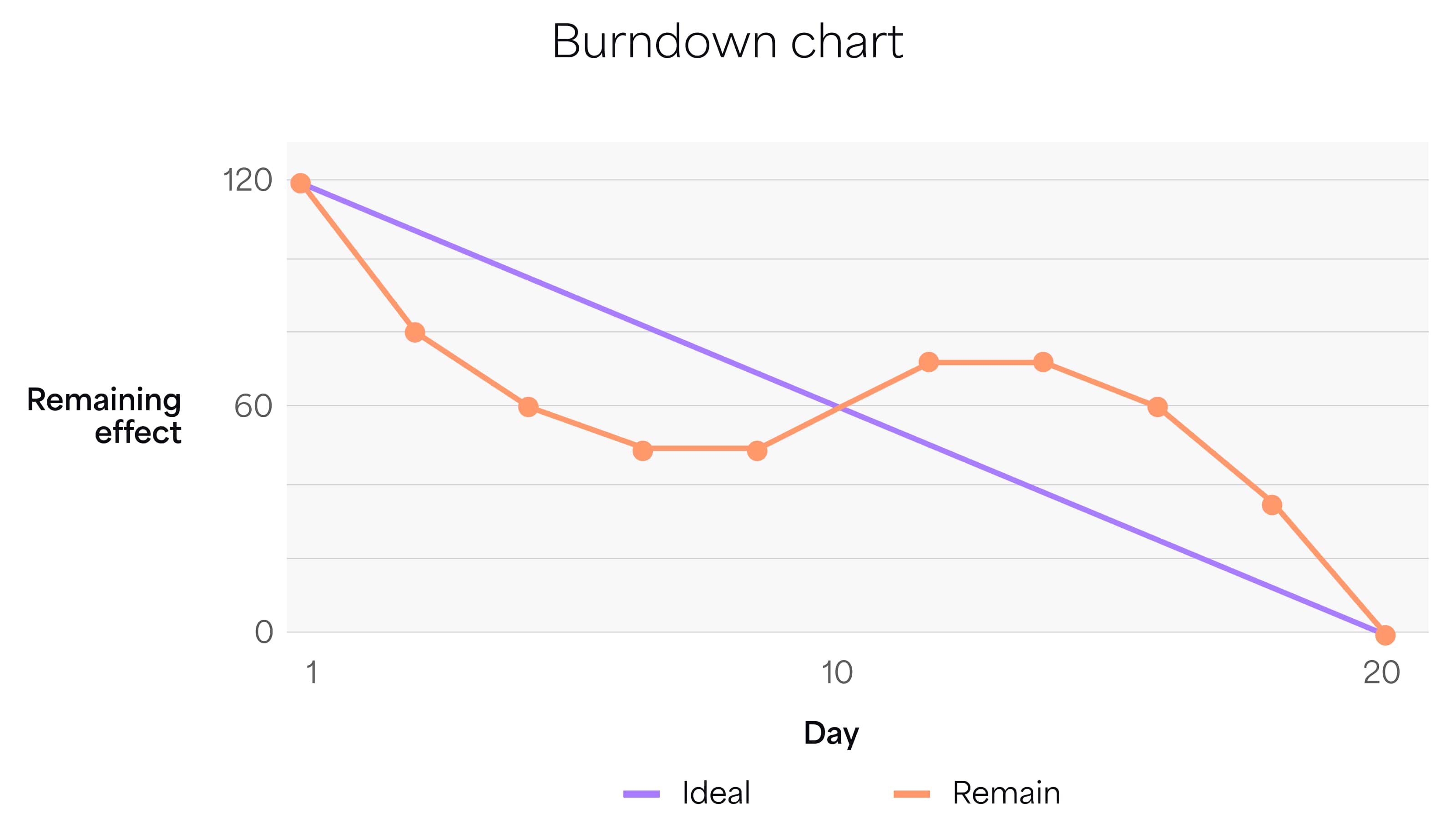
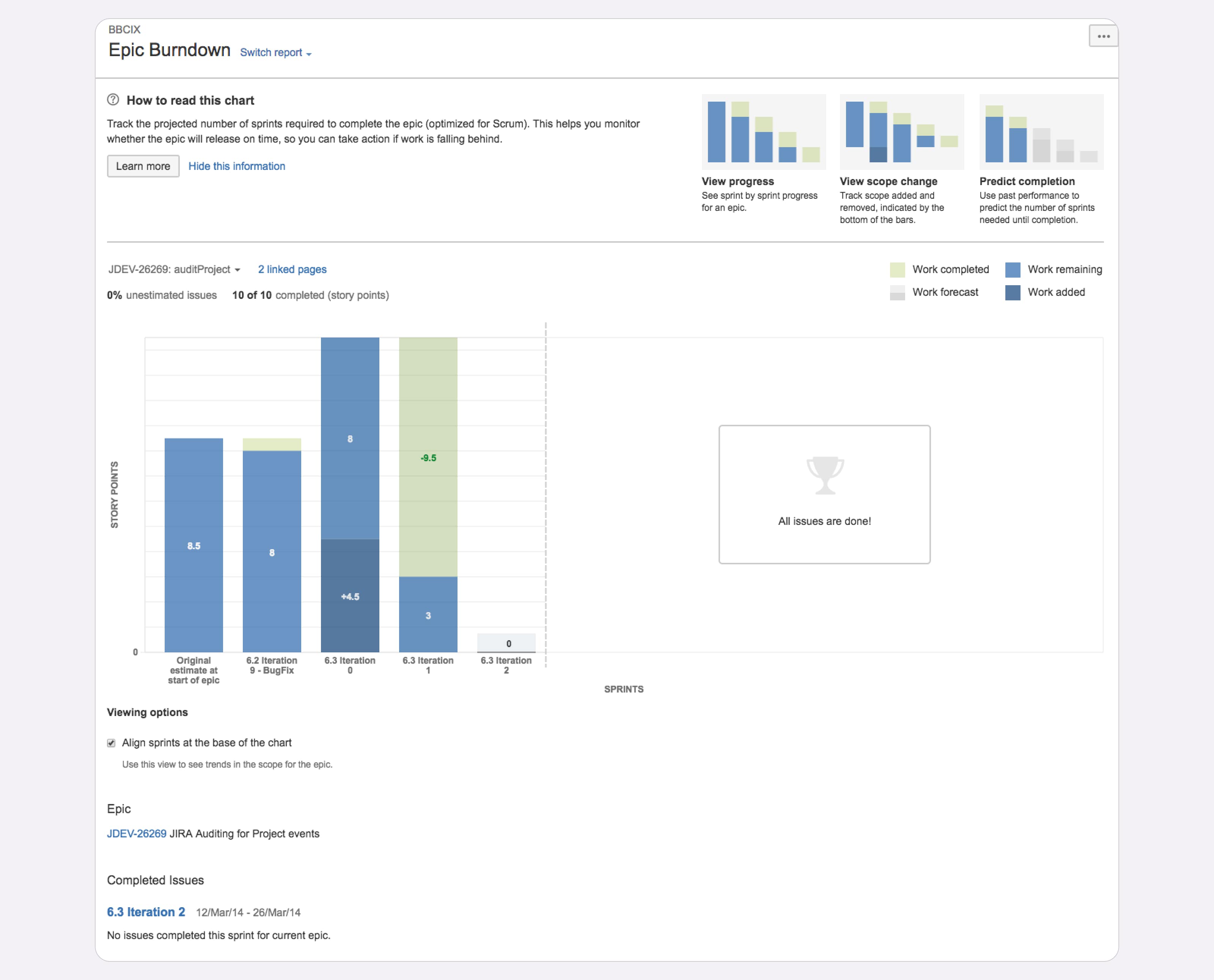
An epic burndown chart helps you see how your team is progressing through an epic and whether changes to work items affect the overall timeline. You can also predict how many more sprints are needed to complete an epic using insights from historical data.
A sprint burndown chart helps stakeholders, including product owners, scrum masters, and team members, monitor daily activities. On the other hand, an epic burndown provides a longer-term view of progress.
For example, if work items aren’t completed in a sprint, you can look at the epic burndown chart to understand the impact on the project timeline and make necessary adjustments.
An epic burndown has two close relatives: the release burndown and the burnup chart.
Burndown chart vs. burnup chart
A release burndown is similar to an epic burndown but focuses on completing the work required for a release. But a burnup chart shows the total scope of a project and how much work has been completed, while a burndown chart tracks remaining tasks as they’re completed.
Why is an epic burndown chart important?
An epic burndown chart is easy to create and offers valuable insights at a glance. It allows you to compare planned vs. actual progress, monitor project velocity, and predict the completion date.
This simple visualization helps keep your team aligned, motivated, and focused on the tasks that matter most. Regularly updating the chart allows you to quickly identify risks and address them before they become larger issues.
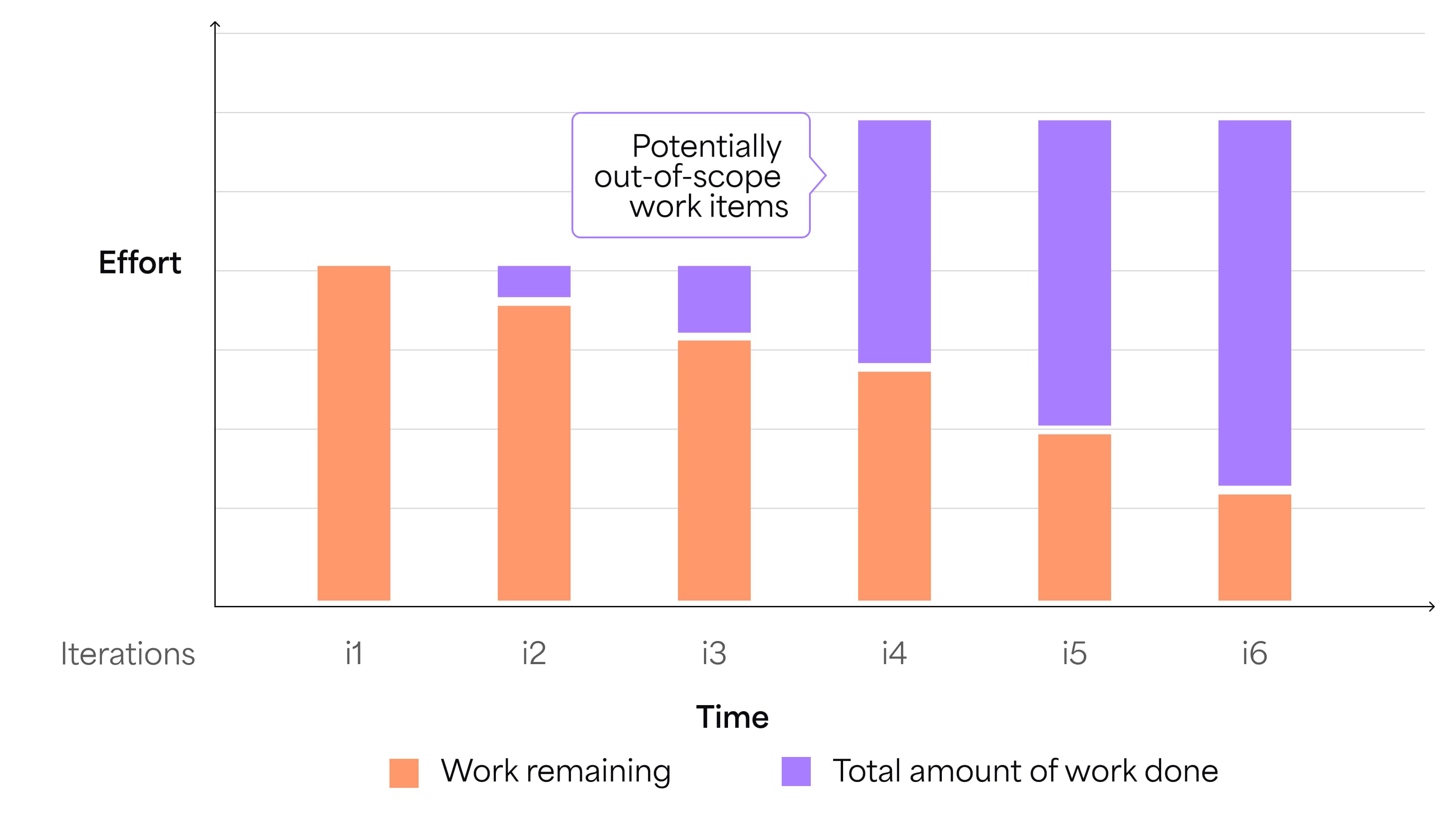
You can also combine data with a burnup chart to spot scope creep and adjust your project plan as needed.
How to read an epic burndown chart
A basic burndown chart provides a snapshot of your team’s progress within an epic. The X-axis represents time or iteration, while the Y-axis shows effort (e.g., story points.) Two lines track the actual remaining work and the ideal remaining work.
If the “actual work remaining” line sits above the “ideal work remaining” line, your team is running behind and may need to adjust estimations.
The limitations of a burndown chart
A burndown chart only tracks the number of planned and completed story points. It doesn’t show the scope of work in the product backlog or the overall backlog size, making it difficult to determine if your team is working on the right tasks.
How to build an epic burndown chart
If you use Jira Software to manage your projects, you’re in luck. Epic burndown chart is one of the app’s built-in report types.
Here’s how to create an epic burndown report in Jira:
- Open the project with the epic you want to track.
- Select “Reports,” then “Epic Burndown.”
- Select the desired epic from the Epic Burndown drop-down menu.
That’s it! Your epic burndown chart is automatically populated with progress data. Here’s an example of an epic burndown chart in Jira:
Need to see the bigger picture? Go beyond burndown charts
While an epic burndown chart is a valuable tool, there are other ways to track your epic’s progress. For instance, if you need a breakdown of each story’s status, a burndown chart won’t show that. But an app like Dashboard Hub Pro will. The Progress Tracker gadget displays the progress of epics, themes, initiatives, or other issue types. For an in-depth breakdown of tasks, use the List view:
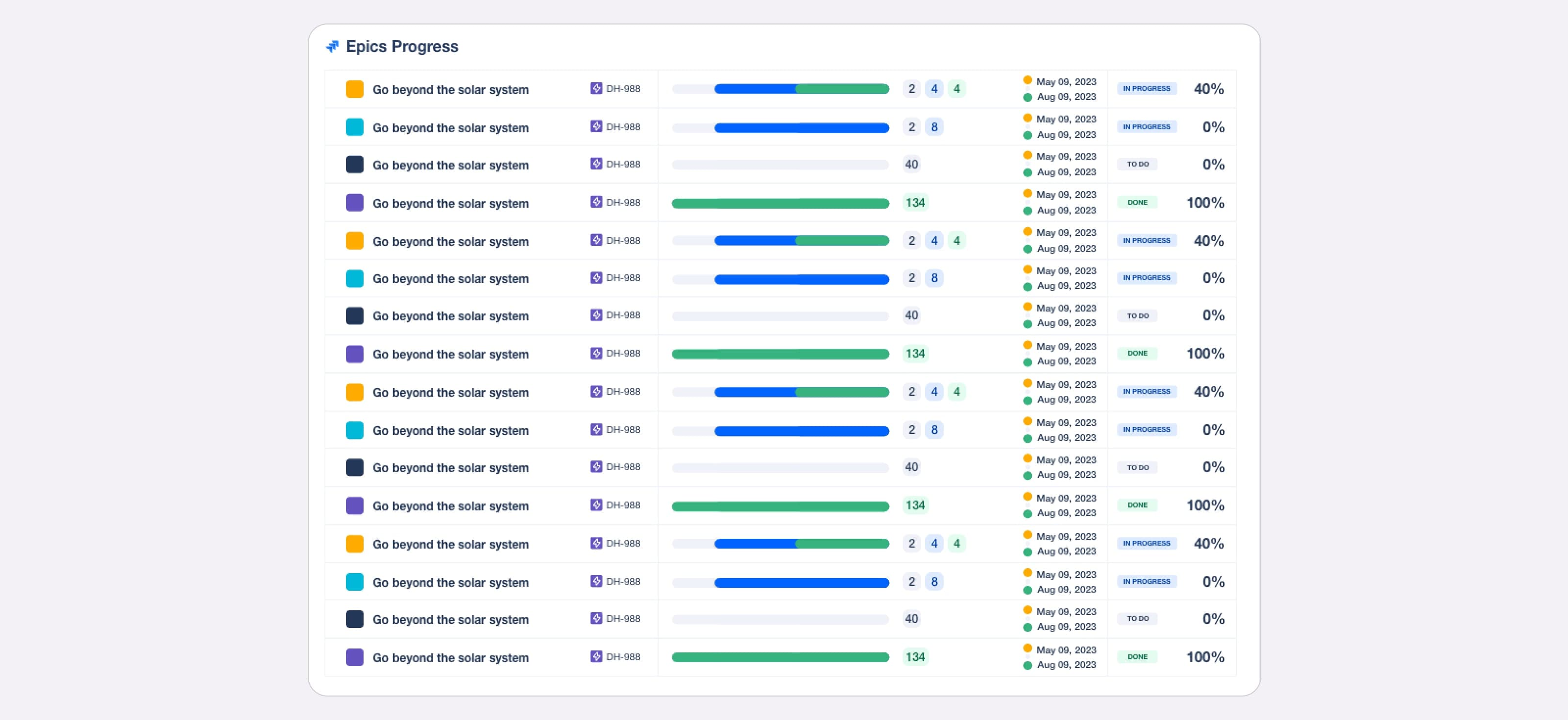
Or you can choose the Extended View to focus on high-level information.
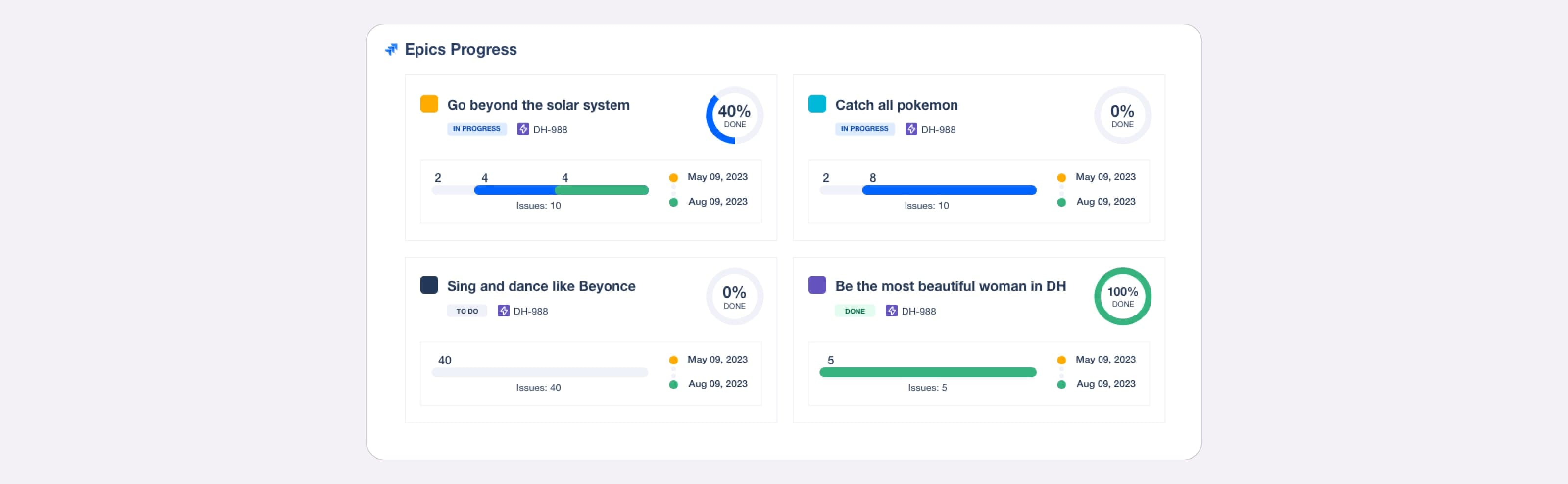
With Dashboard Hub, you can quickly create and share dashboards that track more than 100 metrics, including sprint velocity, cycle time, and lead time. Why limit yourself to a single Jira report when you can create a dashboard with multiple reports in one place?
Level up your reporting in Jira with Dashboard Hub Pro
Dashboard Hub Pro can be your command center for reports. Create custom dashboards, track key metrics, and share relevant data with stakeholders—all in one place.
Speed up dashboard creation with pre-built gadgets and templates, or build a custom dashboard from scratch using Jira custom charts. Share reports with stakeholders securely and ensure your data is always up-to-date with seamless Jira integration.
Start my free trial